To Enter a New Note
From the Notes tab select 'New'.
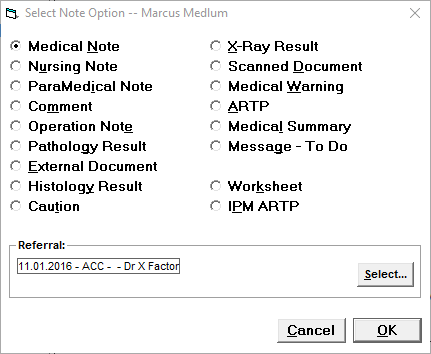
- Select the correct type of Note entry for the data you are entering.
- Ensure the correct Referral is selected.
- Select 'OK'.
- The screen for the Note Type you are entering will display.
- Complete the details as required for that Note Type.
Note Options
Note Type | Usage | See Also |
|---|---|---|
Medical Note | The note entry is intended for patient visits, where is the doctor has seen the patient. | |
Nursing Note | Where the patient has been seen by the nurse, and the nursing notes are to be recorded in the patients file. | |
Paramedical Note | Where the patient has been seen by a technician or similar and the notes are to be recorded in the patients file. | |
Comment | A comment entry is intended when something needs to be recorded onto the patient's file when the doctor has not seen the patient. It may be that a staff member wishes to record that the patient had phoned, or to record incoming mail. | |
Operation Note | This allows you to record your operation details. In the notes, what you type is preceded by the word OPERATION for ease of identification. | |
Pathology Result | This allows you to type in any pathology results if they have not been received electronically. The heading PATHOLOGY will appear on the patient notes screen, easily identifiable from the rest of the patient notes. Pathology report values can be shown in a graph format in Patient > Lab Results | * |
External Document | External documents are those that are sent to you by a method other than the Messaging Carriers (such as Healthlink / Argus etc). For instance, an email might contain an attachments. These can be saved and attached to the patient file as an External Document. Emails and their attachments can also be imported directly from the Message Centre See Also: Linking External Documents from the Message Centre | |
Histology Result | This allows you to type in any histology results if they have not been received electronically. The heading HISTOLOGY will appear on the patient notes screen, easily identifiable from the rest of the patient notes. | * |
Caution | A caution appears every time you select the patient. Cautions can also be set in the Alerts area of Patient > Registration | |
X-Ray Result | This allows you to type in any x-ray results if they have not been received electronically. The heading X-RAY will appear on the patient notes screen, easily identifiable from the rest of the patient notes. | * |
Scanned Document | Scanning is normally done by scanning the document directly to the patient file (see SCAN A DOCUMENT. Where the document has already been scanned and saved outside of the Incisive application, it can then be attached by using this option. | |
Medical Warning | A Medical Warning is similar to a caution except that it is either always displayed or needs to be signed off by the operator every time it appears. For use in a hospital database only. Medical Warnings can also be set in the Alerts area of Patient > Registration | |
ARTP | This is the Incisive 'Assessment Report and Treatment Plan' (as approved by Accident Compensation Corporation). | |
Medical Summary | A Medical Summary can be entered (and added to). The Medical Summary will always appear at the top of the patients notes. Text can be added directly or uploaded while using the TYPE Dictation function in Dictation | |
Nursing Care Plan | A Nursing Care Plan allows text to be entered. The NCP will always appear at the top of the patient's notes; like the Medical Summary. The NCP option will only appear if the Site is set to 'Private Hospital Manager' and the User/Provider is set to 'Is Hospital' in Setup > Provider > Config 1 | |
Message - To Do | This creates an internal (F10) message and is recorded on the patient's notes. This function has been largely superseded by the Task feature in the Message Centre. | |
Worksheet | This is an old style of using custom-designed forms to fill and store standard data collection. It has been superseded by the Field Forms function in Setup > Templates > Forms > Field Forms | |
IPM ARTP | Intervention Pain Management Assessment Report and Treatment Plan. | |
* | Pathology, Histology and X-Ray results are mostly received as secure messages and imported into the database. If they are not received via this method, they will more than likely be scanned, rather than retyped into the patient file. These options are a carry over from the original Incisive application pre scanners and HL7 messaging. In time, these options will be removed, as we believe that they are now obsolete. |