To change details about the Provider
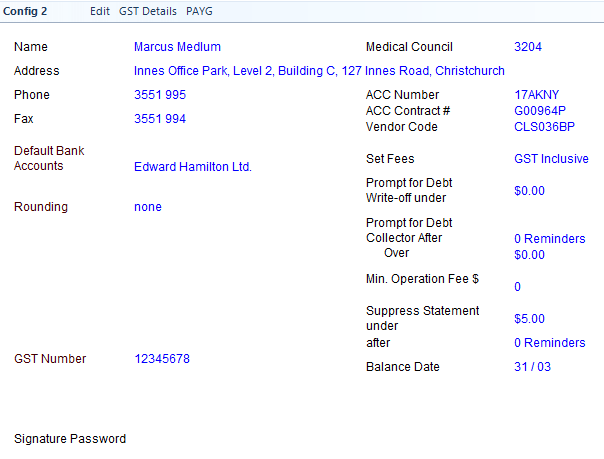
Select Edit
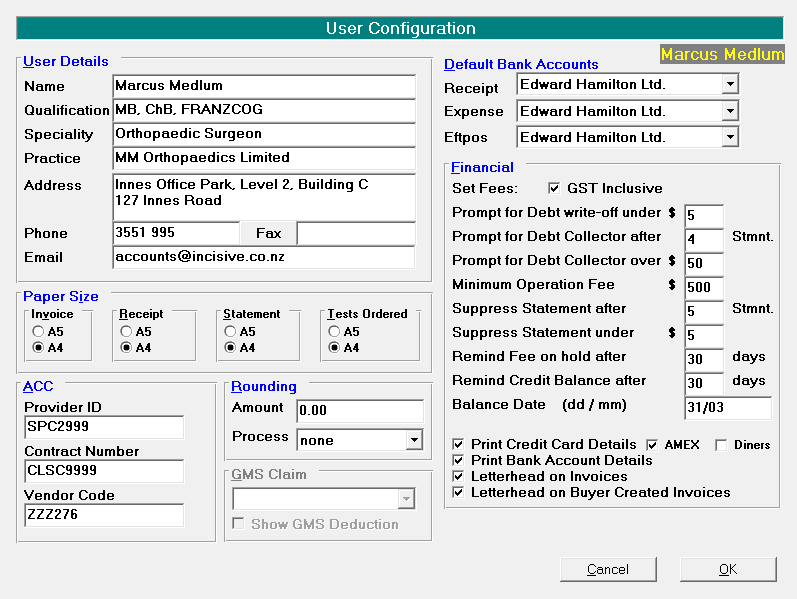
User Details | Merge Code | |
Name | This is a display field only and cannot be changed due to licencing issues. | User Fullname <userfname> |
Qualification | Enter the qualifications for the provider. These will automatically print on prescriptions. A merge code can be inserted in | User Qualifications <userqualifications> |
Specialty | Enter the specialty of the Provider. This will print on the Appointment label. | Not available |
Practice | Name of the business the Provider is practicing as. | |
Address | Enter the address of the Provider. This will print on prescriptions and the ARTP. | User Address (one line) |
Phone | Enter the phone number for the Provider. This will print automatically on prescriptions and the ARTP. | User Phone <user phone> |
Fax | Enter the fax number for the Provider. This will print automatically on prescriptions and the ARTP. | User Fax <user fax> |
Paper Size | ||
Invoice | Set the paper size required for invoices. If you are selecting to print A5 size invoices etc. you will need to ensure that your Invoice Letterhead see LETTERHEADS, is configured to A5 Paper size in the Format (Page Setup). | |
Receipt | Set the paper size for receipts. | |
Statement | Set the paper size required for Statements. | |
Tests Ordered | Set the paper size required for Tests Ordered. | |
ACC | ||
WorkCover NumberProvider ID/HPI Number |
| |
Contractor NumberContract numberVendor code | Enter the Provider's Contractor number Enter the Provider's ACC contract number Enter the Provider's ACC Vendor code | |
Rounding | If you require a rounding process to be applied to invoices, rounding can be applied. | |
Amount | Enter the dollar amount to round to e.g. 0.50 (50 cents) | |
Process | Select the rounding process required. Choose from:
| |
Default Bank Accounts | The list of available bank accounts is filtered to only display bank accounts that are either Practice / Shared or Practice / Individual where the Provider is selected as the User see BANKING | |
Receipt | Select the default bank account for Receipts (cheques, cash and direct credits) from the drop down list. | |
Expense | Select the default bank account for expense entries (including refunds) from the drop down list. | |
EFTPOS | Select the default bank account for EFTPOS receipts from the drop down list. | |
Financial | ||
Set Fees GST Inclusive | Choose whether the values in your invoice codes are GST Inclusive or Exclusive. GST Exclusive is the default. | |
Prompt for Debt write-off under $ | When the Checklist option is performed, in Office > Invoices, a prompt will appear if a patient has a debt balance that is less than the amount specified. | |
Prompt for Debt Collector after | When the Checklist option is performed, in Office > Invoices, a prompt will appear if a patient still has a debt owing after a specified number of statements have already been sent. This field is for future use and is not currently functioning | |
Prompt for Debt Collector over $ | When the Checklist option is performed, in Office > Invoices, a prompt will appear if a patient still has a debt owing after the number of statements specified in the above field have already been sent AND the amount owing is over the amount specified This field is for future use and is not currently functioning | |
Minimum Operation Fee | When the Checklist option is performed, in Office > Invoices, a prompt will appear if there is an Operation Note on a patient's file but there is no invoice value above the amount specified. The amount should be set higher than your fees for consultations so that checking doesn't include them. | |
Suppress Statement after x Statements | Specify the number of statements that would be sent before no further statements are generated. It is expected that once you pass the debt to a debt collector you will no longer be sending statements. This field is for future use and is not currently functioning | |
Suppress Statement under $x | Specify the value of the debt outstanding under which you will not send a statement as a reminder. This field is for future use and is not currently functioning | |
Remind Fee on hold after x days | Specify the number of days that can pass after a Fee was placed On-Hold after which a reminder will appear each time you run the Check-List option in Office > Invoices This field is for future use and is not currently functioning | |
Remind Credit Balance after x days | Specify the number of days that can pass after a Credit was placed on the patient's file after which a reminder will appear each time you run the Check-List option in Office > Invoices This field is for future use and is not currently functioning | |
Balance Date | Specify the date of your end of Financial Year. | |
Print Credit Card Details | If the Provider accepts payment by Credit Cards and you require the Credit Card details to print on Invoices and Statements, check this option and then select the options of Amex or Diners as required. | |
Print Bank Account Details | If you require the bank account details to print on the Remittance advice section of Invoices and Statements, check this option on. The details for the default bank account for receipts will then be included. | |
Letterhead on Invoices | If a (computer generated) letterhead is required on Invoices, check this option on. The letterhead as configured (see LETTERHEADS) will then print. If you use pre-printed stationery for invoices etc. do not check this option on. | |
Letterhead on Buyer Created Invoices | If you produce Buyer Created Invoices for Assistants or Sub-Contractors and require a letter head to be printed on these invoices, check this option on. | |
GST Details
- To enter or amend the GST details for the Provider, select 'GST Details'
- Complete the details as required.
- Select 'OK' to save the changes.
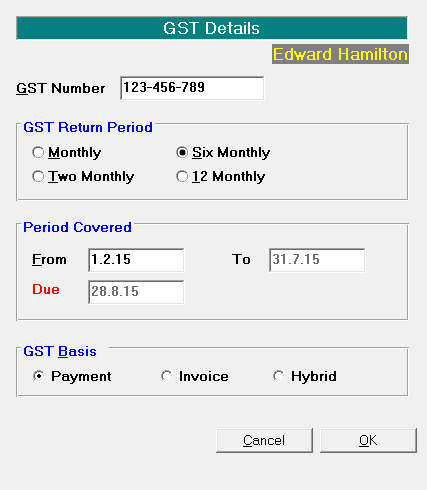
GST Number | Enter the GST Number for the Provider. |
GST Return Period | Select from: Monthly Two Monthly Six Monthly 12 Monthly |
Period Covered | Enter the start date for the GST Return. The To date will then be calculated based on the Return Period selected above. The Due date will also be calculated. |
GST Basis | Select from: Payment Invoice Hybrid This will determine how the GST Return calculates the return. For most Providers the Payments Basis would be selected. |
ABN Details
- To enter or amend the ABN Number for the Provider, select 'ABN Details'
- Complete the details as required.
- Select 'OK' to save the changes.
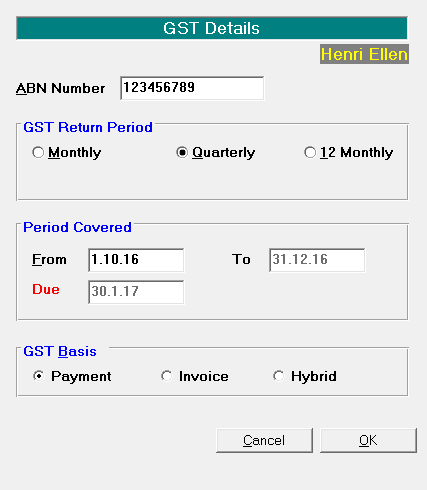
GST Number | Enter the GST Number for the Provider. |
GST Return Period | Select from: Monthly Quarterly 12 Monthly |
Period Covered | Enter the start date for the GST Return. The To date will then be calculated based on the Return Period selected above. The Due date will also be calculated. |
GST Basis | Select from: Payment Invoice Hybrid |
PAYG
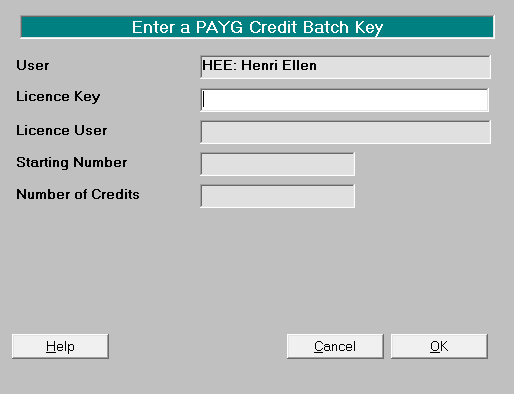
If the Provider has a PAYG (Pay As You Go) licence, this menu option will be enabled.
This is where you enter the PAYG Licence Key as supplied by Incisive Software.
To enter a Licence Key code
- Select 'PAYG' from Setup > Provider > Config 2.
- Enter the code provided in the Licence Key field and press Enter.
- The Licence User field and Starting Number and Number of Credits will populate (based in the Licence Key entered),
- Select 'OK' to save the Batch.
To purchase more credits, send an email to the help desk with PAYG Credits for Provider Name in the subject line.
We will respond with an email similar to the one below:
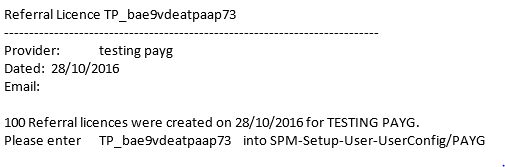
Copy and paste the Licence Key to enter. In the example above TP_bae9vdeatpaap73 is the Licence Key