On This Page: | Related: |
The procedure for creating a new letterhead or editing an existing one, is the same regardless of whether the size is A4, A5, Invoice or Prescription. It uses the same internal wordprocessor that is used for typing Letters and Form Letters.
Setup - Letterheads
To create a new Letterhead or edit an existing one
Select the appropriate letterhead.
Create your letterhead or modify the existing one.
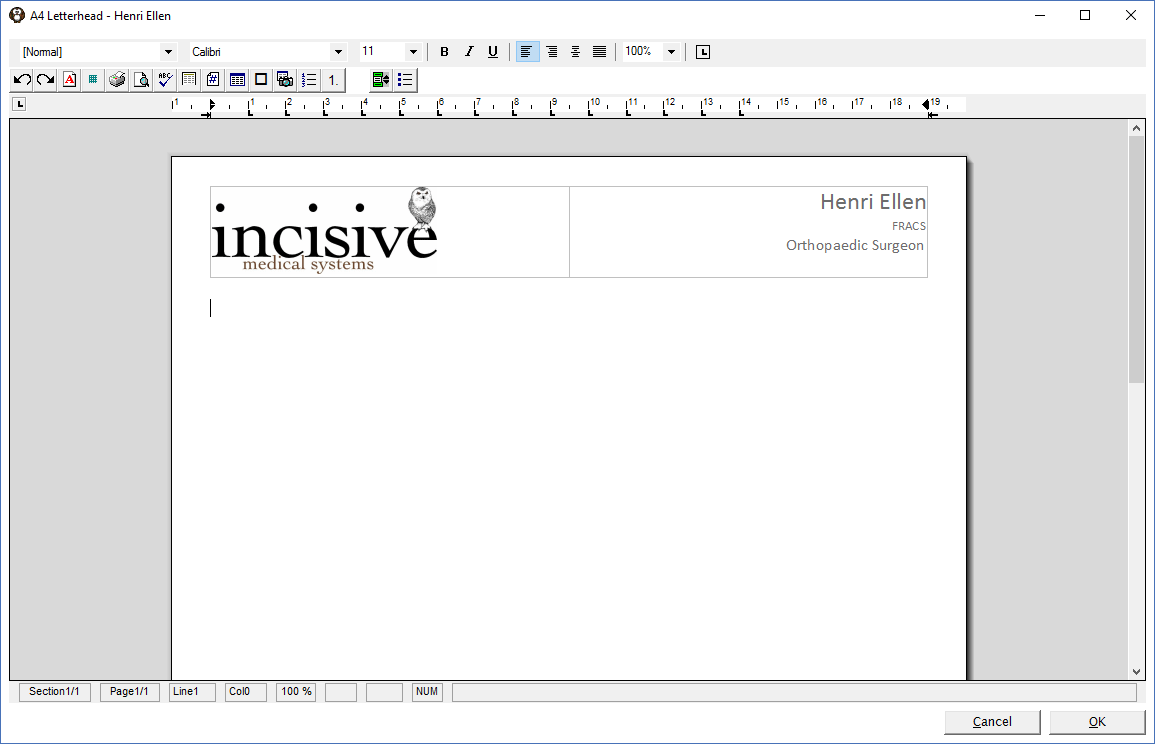
Select 'OK' to save the changes.
The following toolbar icons are useful when laying out a letterhead:
 | Format | Set your margins (Left, Right, Top and Bottom before you start to create your letterhead. If you are creating the A5 / Prescription letterhead, also set the paper size setting to be A5. |
 | Insert Table | To layout your letterhead neatly it is often a good idea to use a table. Depending on the layout, either two or three columns would be used. A single row is normally all that is required. In the example above, two columns have been used, one for the icon and the other for the text for the Providers name. |
 | Insert Image | Allow you to insert an image (logo). Logo's must be saved in one of the following formats:
The image must be cropped to size with no white space around the image. |
 | Toggle | Allows you to toggle between the header and footer. A footer can only be used on the A4 Letterhead as the Invoice has a remittance advice in this space. |