From a list of standard tests, each Provider can select those tests that they order. This will speed up data input.
Setup - Test Orders - Visible Tests
The Visible Tests tab displays those tests that have previous been marked as visibile.
Select Tests
- From the Visible Tests tab select 'Edit'.
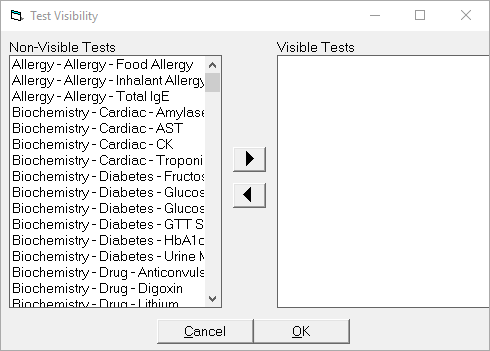
- Highlight each test you require from the column on the left (Non-Visible Tests) and select the right arrow to move the test into the right hand column (Visible Tests).
- Repeat for each test you require.
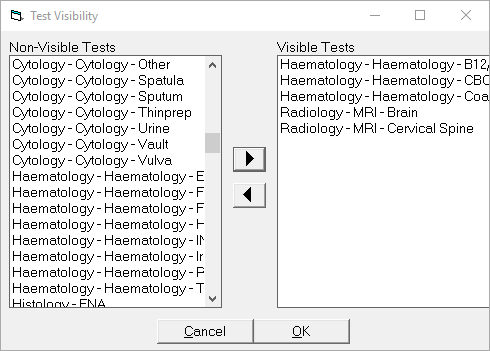
- Select 'OK' to save the Visible Tests.
- These will now display on the Visible Tests tab.
Print a list of Visible Tests
- From the Visible Tests tab select 'Print'.
- The report will be previewed on screen.
- Select to print the report if required.
- Exit out of the report.
On this page: