Test Templates are a group of tests that are routinely requested together (from the same Laboratory).
Rather than having to select multiple tests to order against each patient, the Template can be selected which will then drop in all the tests.
Setup - Test Orders - Test Templates
Add a new Test Template
- From the Test Templates tab select 'New'.
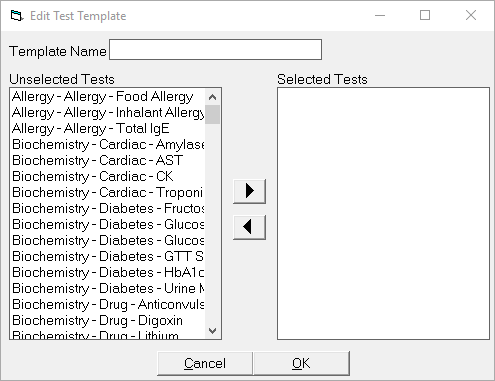
- Enter a Template Name to identy the group of tests being performed, i.e. Pre-op.
- Select each test that that is required by highlighting the test and selecting the Right arrow to move it to the right hand column (Selected Tests).
- Select 'OK' to save the Test Template.
Edit a Test Template
- From the Test Templates tab select 'Edit'.
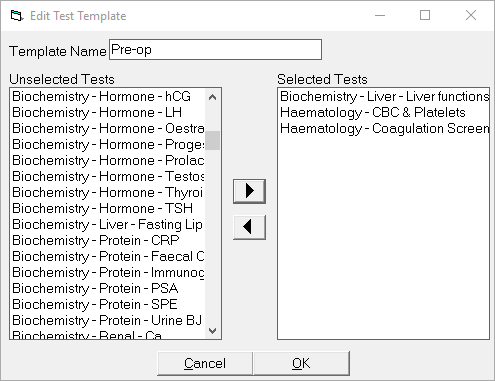
- Select or deselect tests as required by highlighting the test and using either the Left or Right arrows to move the tests from one side to the other.
- Select 'OK' to save the changes.
Delete a Test Template
If the template is no longer required, it can be deleted.
- Highlight the test template to delete.
- Select 'Delete'.
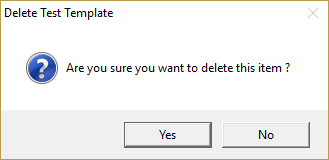
- Select 'Yes' to confirm the test template is to be deleted.