A list of standard tests is provided in the Incisive application.
These are listed on the Test Items and Categories screen.
These are used by all Providers, therefore care should be taken when deleting Categories and Tests.
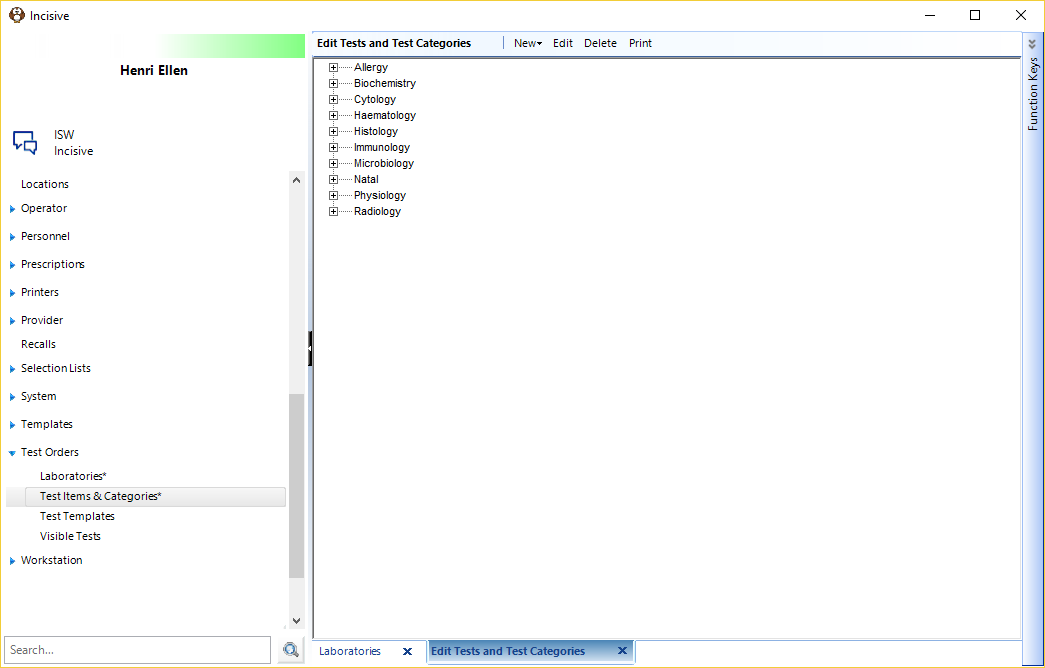
Additional Tests and Categories can be added as required.
Setup - Test Orders - Test Items and Categories
Add a new Test Category
- From Test Items and Categories select 'New'.
- Select 'Category from the menu.
- Enter a name for the Category you are adding.
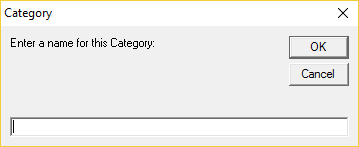
- Select 'OK' to save the new Category.
Add a new Test
- From Test Items and Categories screen, highlight the Category that you are want to add a Test to.
- Select 'New'.
- Select 'Test' from the menu.
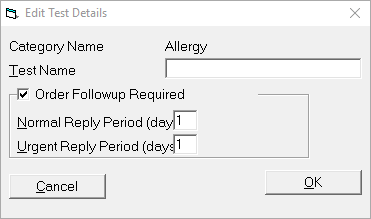
- Enter a Test Name.
- Complete the details for the follow up.
- Select 'OK' to save the test.
Order Followup Required | If a follow up is required for this test, check this option on. |
Normal Reply Period (days) | Enter the number of days for the normal reply period. |
Urgent Reply Period (days) | Enter the number of days for an urgent reply period. |
On this page: