Select Edit
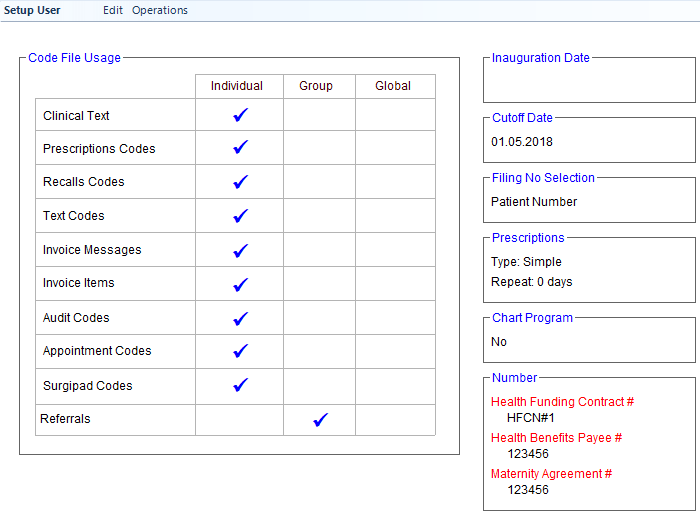
Codes | The options below allow you to select between using codes that are:
Global codes can be used by one or more providers in the database. Group Codes can be (optionally) used by providers in the 'Group'. Individual Codes are only used by the single Provider. Global or Group selections should not be used for 'Invoice Items' as this could be seen to be collusion for price fixing of charges. If Global or Group are selected changes made to the 'Codes' will affect all the other Providers, or other members of the Group - whether intentional or not. Care should be taken regarding the Roles that are given permission to make alterations to the Codes linked to Global or Group selections. | ||||||||||
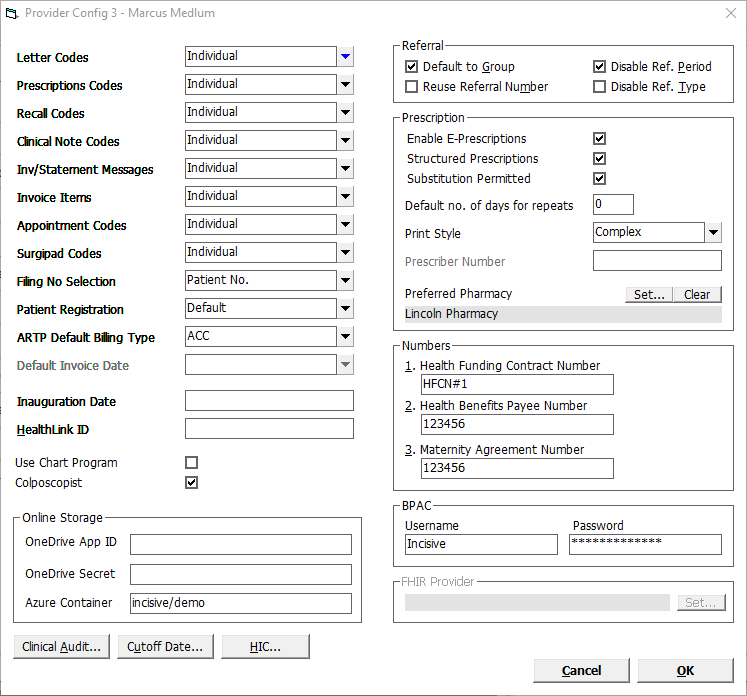
Letter Codes | Quick-Text (F8) words, paragraphs or templates used in Letters | ||||||||||
Prescription Codes | Drug descriptions and dosage used in Prescriptions | ||||||||||
Recall Codes | Text inserted into letters set out as Recall messages | ||||||||||
Clinical Note Codes | Quick-Text (F8) words, paragraphs or templates used in Notes | ||||||||||
Inv/Statement Messages | Messages included on invoices or statements | ||||||||||
Invoice Items | Charges (Items) used for billing | ||||||||||
Appointment Codes | Appointment Type codes used when making appointments | ||||||||||
Surgipad Codes | No longer used | ||||||||||
Filing No Selection | Different filing numbers can be used. This is largely to handle paper based filing systems. Select the one relevant option for the Provider from the drop down list. Select from:
| ||||||||||
Patient Registration | If a Patient Registration form (other than the default one in the program) is required, after first creating (see FORMS) select the Form letter here. | ||||||||||
ARTP Default Billing Type | |||||||||||
Inauguration Date | The inauguration date is used for data conversions. It is the date that the data was converted from another system. The accounts run check list does not then check data prior to this date. | ||||||||||
Use Chart Program | |||||||||||
Colposcopist | If the provider is a Gynaecologist who performs Colposcopies, enable this option. This will allow Colposcopy data to be recorded and reported. The NCSP-R number for the Health Organisation or Health Centre also needs to be added in Setup > System > Colposcopy NCSP-R field (NPSC = National Colposcopy Screening Programme) The Colposcopy data for the patient is entered through Patient > Referral > Edit | ||||||||||
Restrict Access Rights | Obsolete | ||||||||||
Referral | |||||||||||
Disable Referral Period | If a referral period is not required, you can disable the referral period by checking this option. In Australia, as referrals are only valid for 12 months for GP referrals, and 3 months for specialist referrals, this setting should not be disabled. | ||||||||||
Default to Group | In situations, referrals may be to the group. This means that any member of the group (provider) can treat the patient, enter clinical notes (against the provider of the service) and invoice the patient for their services. Otherwise, without a referral specifically to the provider, the entry of clinical notes and financial transactions would not be possible. Practices such as Obstetrics and midwifery would normally enable this option. | ||||||||||
Disable Referral Type | At the time of entering a referral, an optional Referral Type can be entered. This can be used for such purposes as Marketing, i.e. how did you find out about us. Some Management Reports can be run to provide numbers based on Referral Type. If this field is not required, it can be disabled for the Provider so that it does not appear, and therefore is automatically skipped. | ||||||||||
Reuse Referral Number | If a new Referral number is not required to be generated, check this option on. | ||||||||||
Number | |||||||||||
|
| ||||||||||
|
| ||||||||||
|
| ||||||||||
Healthlink ID | You are only required to enter a Healthlink ID (EDI) for the Provider if this is different from the one recorded in Setup (see MESSAGING CARRIERS). It is the recommendation of Incisive Software that a single Healthlink EDI is used for the practice (database). Having separate EDI's for each provider adds a complexity around the sending of outgoing messages. Before you arrange for your own EDI, we strongly recommend that you discuss this with Incisive Software. **ISW This field is only used when there are multiple Healthlink EDI's used, instead of a single practice/hospital account. There are significant issues that you need to be aware of when using multiple EDI's. Incoming messages and their acknowledgements are okay however the same Operator processing and sending messages (letters) for different doctors will cause a problem. It is okay if the Operator only sends messages out for ONE Provider. This field is used in conjunction with the Healthlink path fields in Setup > Workstation > Paths | ||||||||||
Prescription | |||||||||||
Print Style | Select from either:
The Complex print style print has a series of boxes for Pharmacy use only, while the Simple print style prints a letterhead, together with the prescribed drugs. | ||||||||||
Default number of days for repeats | If repeats are routinely required, enter the default number of days here. | ||||||||||
Structured Prescriptions | Structured prescriptions is intended for those Providers that use an electronic edition of MIMS. Check this option on if using MIMS. | ||||||||||
Substitution Permitted | If by default you require the wording 'Substitution permitted on this prescription' check this option on. When entering individual prescriptions you can turn off Substitution if required. | ||||||||||
Enable E- Prescriptions | This allows you enable the ability to email prescriptions direct to pharmacies (exemption for COVID-19). | ||||||||||
Preferred Pharmacy | Add or alter the providers preferred pharmacy. | ||||||||||
|
| ||||||||||
FHIR Provider |
| ||||||||||
BPAC | |||||||||||
Username | Login used to access the Bpac website for the eACC18 form | ||||||||||
| Password relating to the above login | ||||||||||
Online Storage | |||||||||||
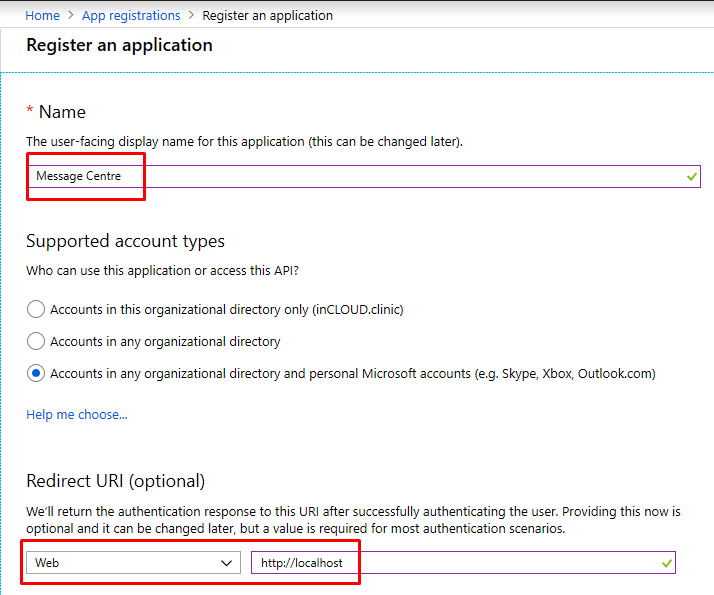
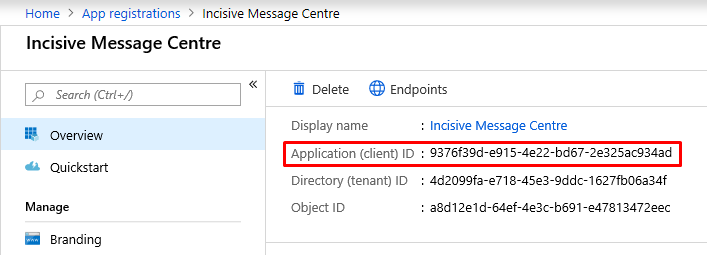
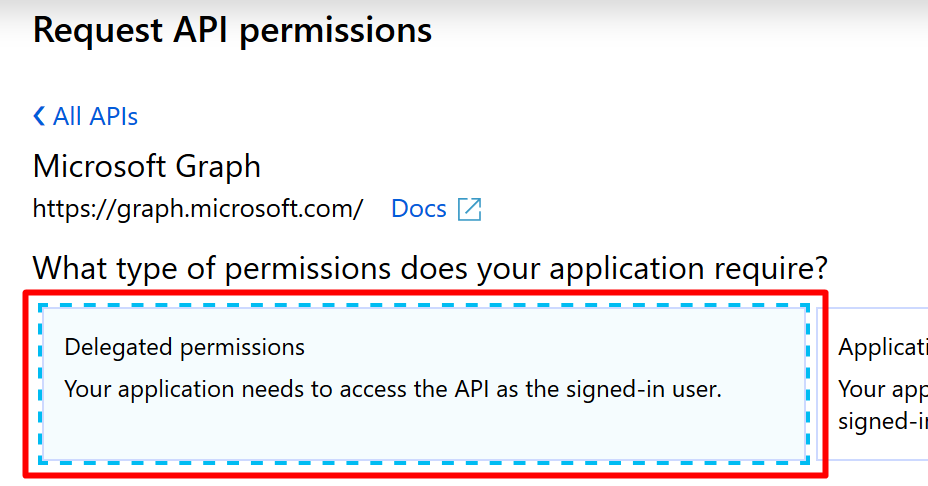
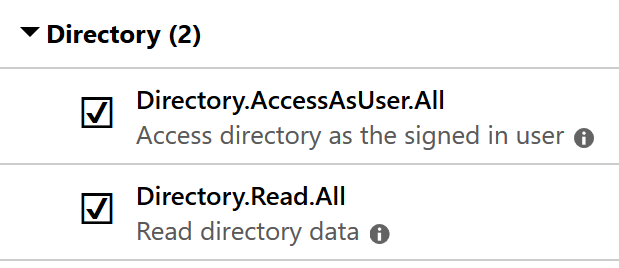
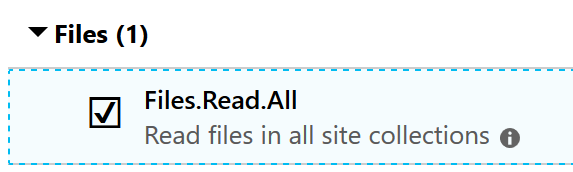
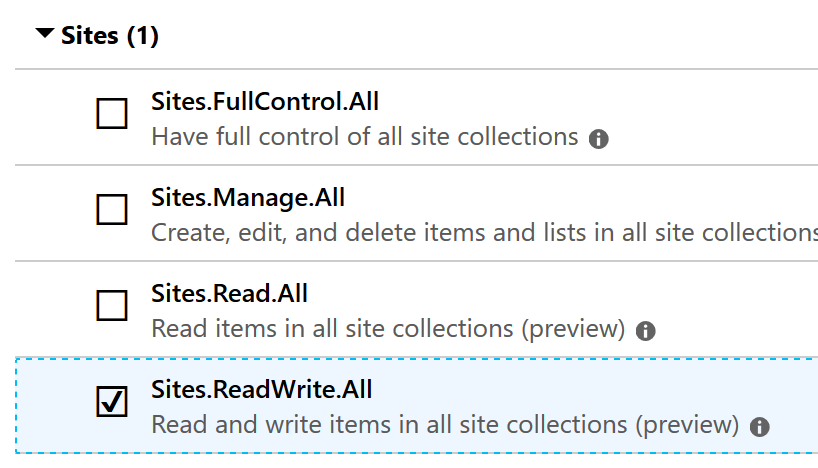
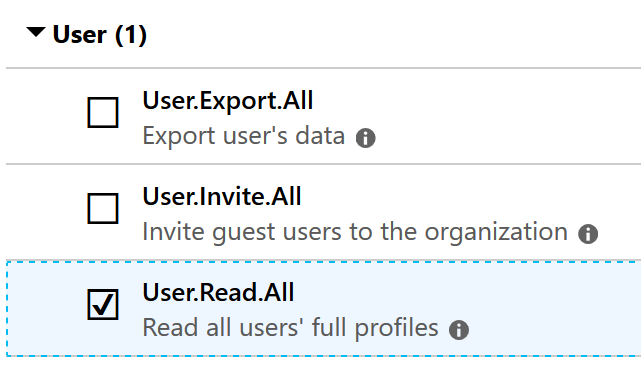
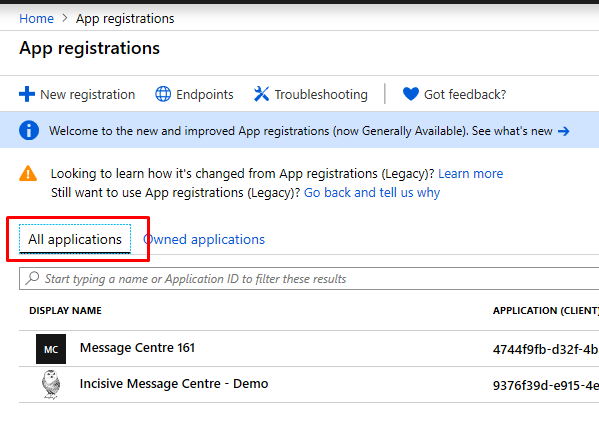
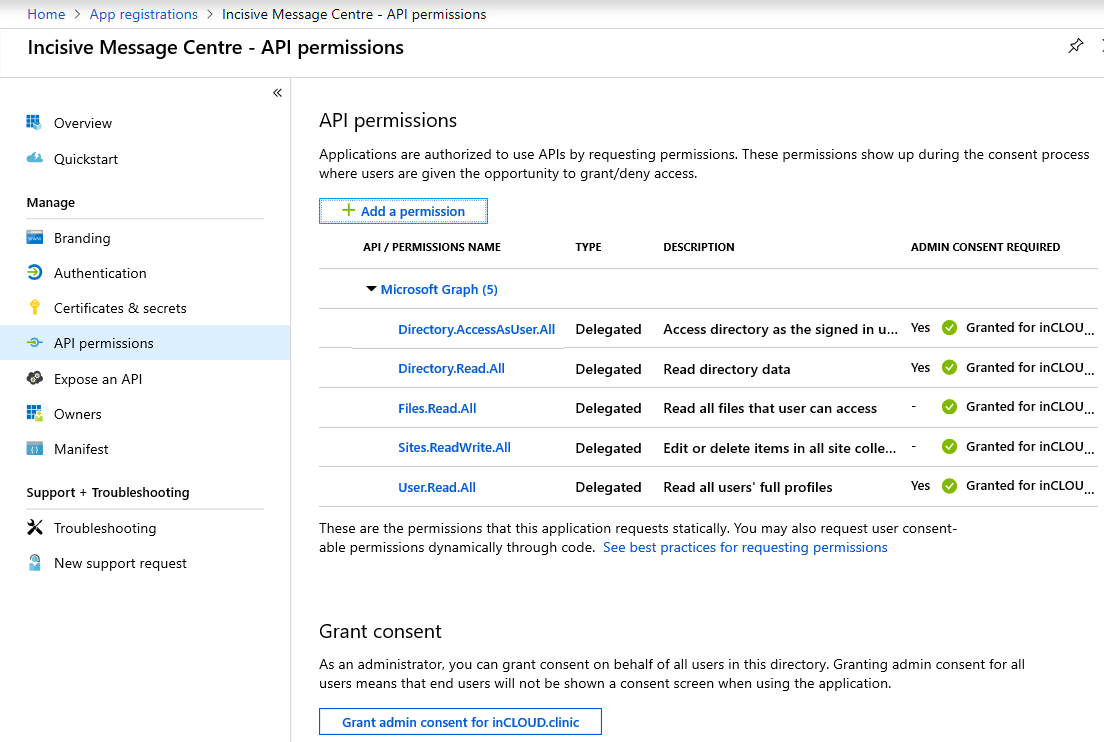
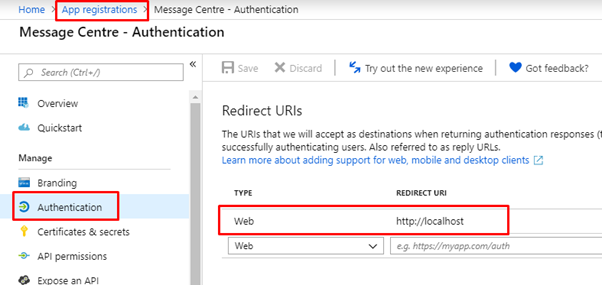
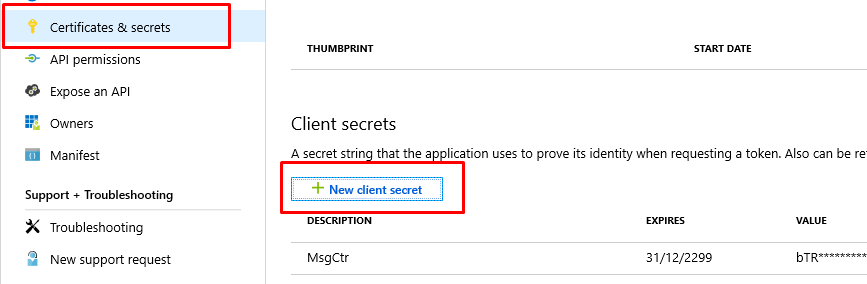
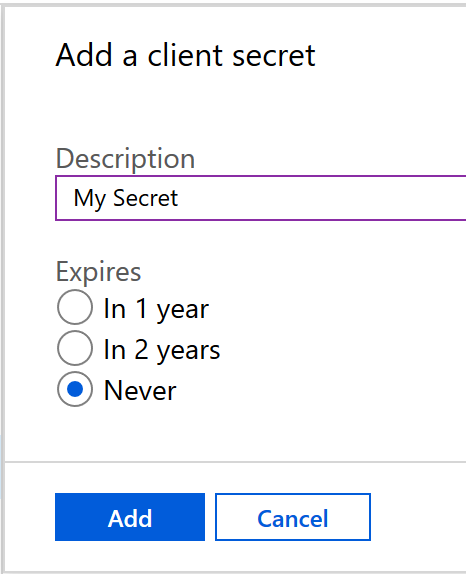
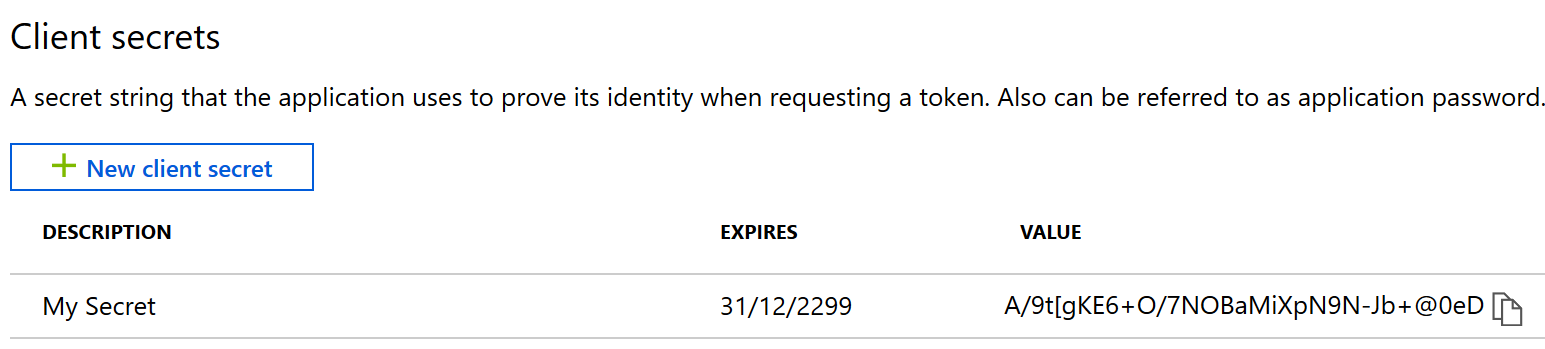
OneDrive App ID | 'Application ID' for the OneDrive virtual drive with the Message Centre. OneDrive accounts must have Admin permissions delegated to them in the Azure portal. For Business OneDrive use the (admin) login that is directly associated with the OneDrive account you are connecting to. e.g. o365admin@incisivelabs.onmicrosoft.com (incloud.clinic domain) If this is a personal OneDrive account then it will be their login you use. For the demo@incloud.clinic OneDrive account use the following ID & Secret: App ID: 9376f39d-e915-4e22-bd67-2e325ac934ad The AppID and Secret are required for SPM/PHM to access the drive.
| ||||||||||
OneDrive Secret | 'Secret' value for the OneDrive virtual drive with the Message Centre | ||||||||||
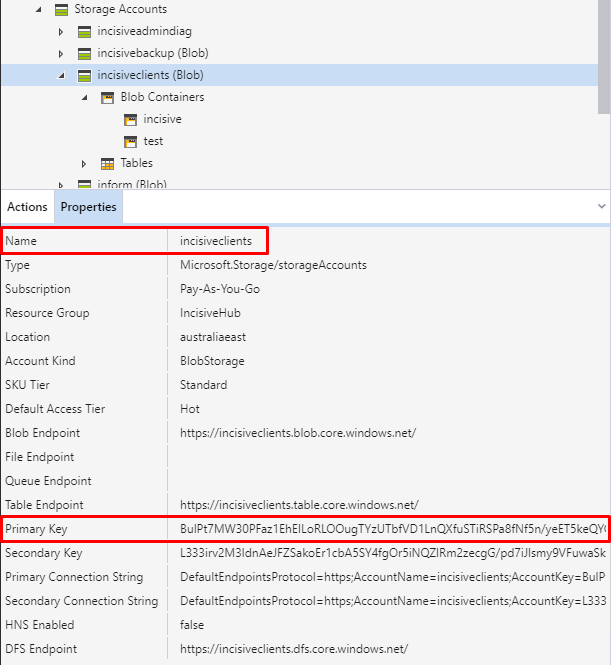
Azure Container | Container name (and Folder) if using Azure Storage as the virtual drive with the Message Centre. If a Folder is included for a specific Provider the format must be containername/foldername The inFORM application and the virtual drive used with the Message Centre can use Azure Storage for the transfer of files between applications or devices. Only One 'Account' and 'AccountKey' need to be used for each database. Within a database each Provider can have their own 'Container' or folder *** Incisive Only *** Client accounts will use the IncisiveClients storage account. Each client will have their own Container. ACCOUNT = incisiveclients The AccountKey is the 'Primary Key' in Azure Storage Explorer.
Specifying the ContainerMessage Centre - Setup > Provider > Config 3 inFORM - pkb:azure blob storage configuration |

Clinical Audit
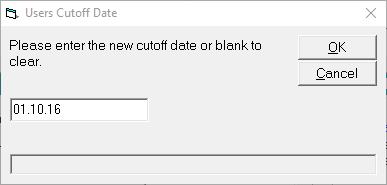
Cut-off Date
It you want to close off financial periods to avoid the backdating of transactions into an incorrect period, the Cut-off Date can prevent this.
Note to close off the period up to the end of September 2016 (i.e. 30/9/2016), enter the Cutoff date as 1.10.2016.
HIC
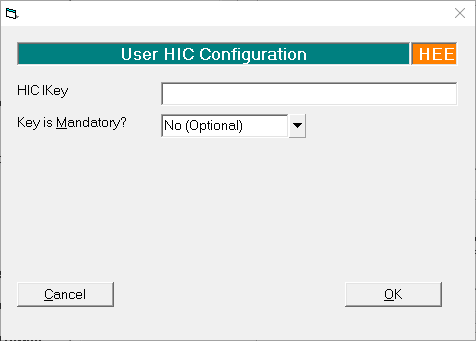
If the Provider has an individual HIC Ikey, enter the key details here.
Select whether the Key is Mandatory or Optional.
Operations
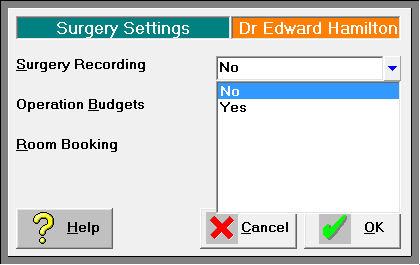
Surgery Settings