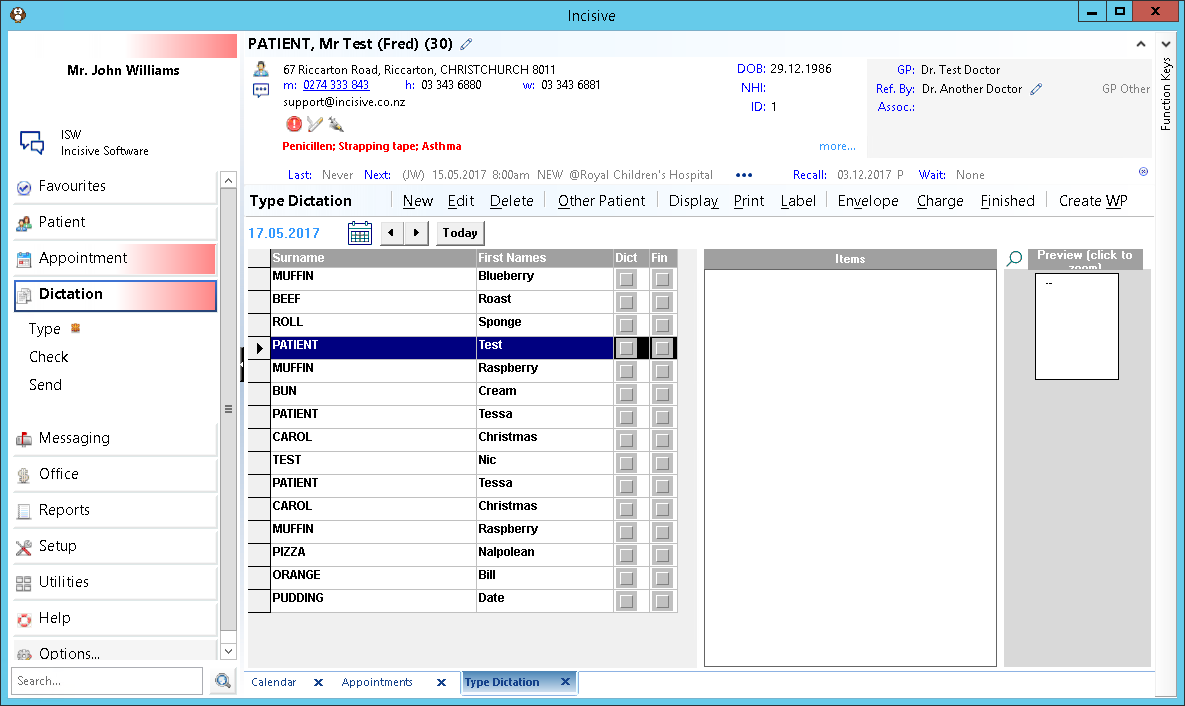
Type dictation is ideally where all dictation is typed by the typist or secretary.
It works from a list of patients who have an appointment or booking (although other patients can be added). It is more efficient than typing directly into the patient file via Patient Mode. Data entered via Dictation Mode may be edited multiple times without changes being tracked.
Once approved (checked) and processed to the patient file, all changes are then tracked. Letters typed will be dated with the date of service (booking) rather than the date typed. This is to ensure that the data is listed in the correct chronological order in the patient file.
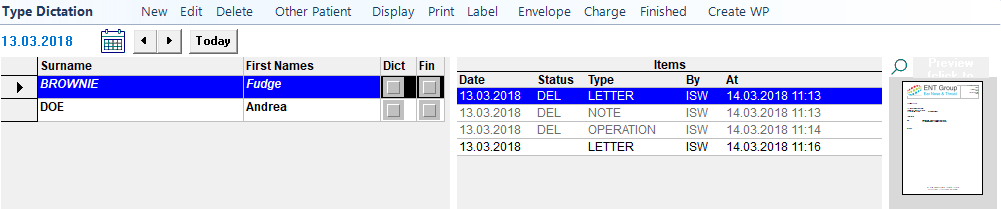
To change the date of the list displayed:
Use either the left and right arrow keys to move backwards and forwards one day at a time.

Use the Calendar to enable selection of a date from the calendar tool.
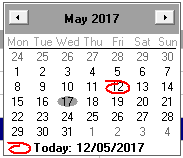
Optionally, select 'Display' to type a date.
Items

Date | Date the document was typed. |
Status | What stage the document is at ie Checked/ Emailed/Processed. |
Type | Type of document ie Letter/note |
By | Initials of operator who typed document |
At | Date and time document was checked/Emailed/Processed. |
Preview

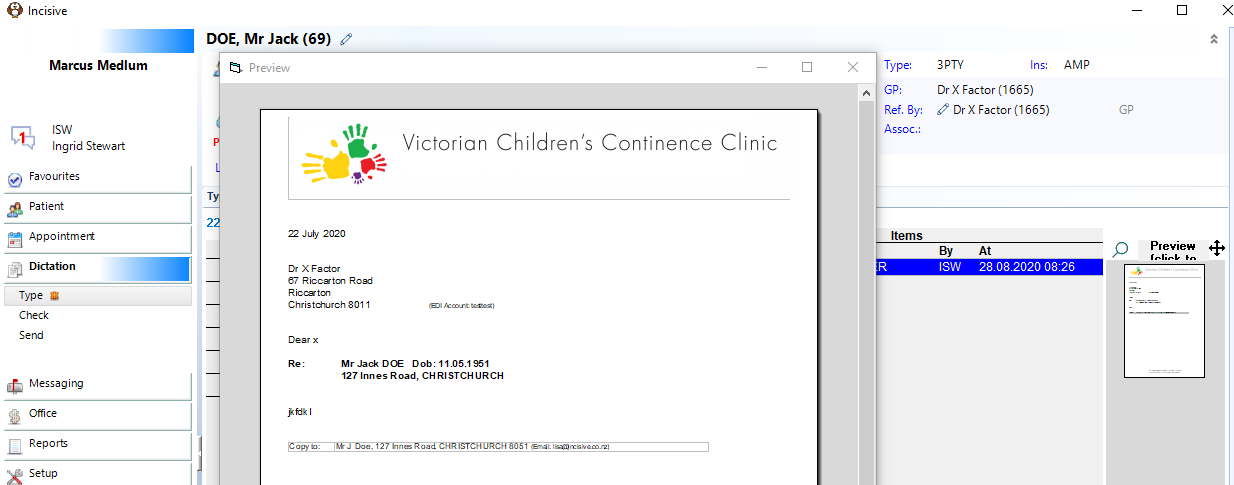
Clicking here will allow the Preview position to be reset. You will be able to change the position of the Preview screen to allow you to view what has been typed.
New
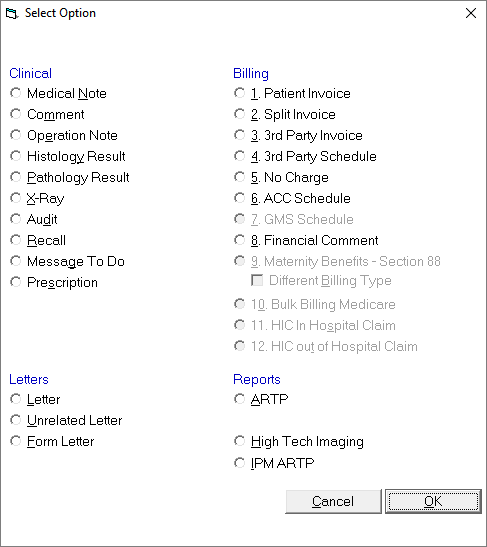
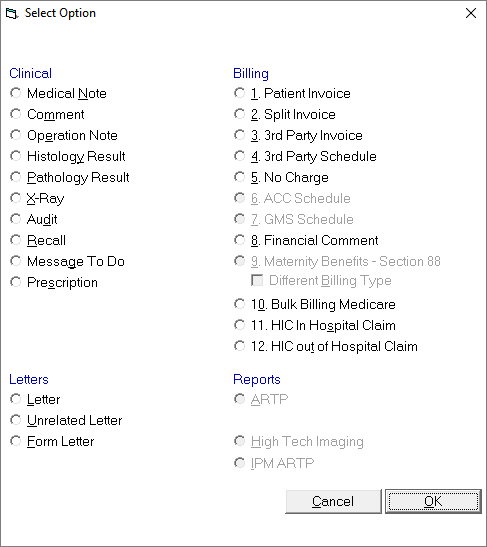
Selection of New brings up a list of options for data entry. In addition to clinical notes and letters being entered via Dictation Mode, financial data can also be recorded from here to save the typist returning to Patient Mode.
Edit
This allows an entry that has been entered (but not processed) to be altered.
Once dictation has been processed to the patients file, it can no longer be edited from Dictation Mode. You must load the patient in Patient Mode and then edit the entry from the relevant tab, i.e. Letters tab for Letters, the Notes tab for Operative Reports, and the Form Letters tab for Form Letters.
Please note, that while the Notes tab may display some of these different types if data, you are unable to edit Letters and Form Letters from this tab.
From the list of items for a patient, highlight the entry to be altered and select 'Edit'.
Delete
This allows an entry that has been entered (but not processed) to be deleted.
From the list of items of a patient, highlight the entry to be deleted and select 'Delete'. If the 'Show Deleted Items' box in Display has been ticked then deleted entries will be shown including the operator who created the item.
Other Patient
If the patient you require is not in the list, i.e. the patient has not had an appointment (perhaps the doctor is dictating on a test result), you can add them by selecting 'Other Patient'. If the dictation relates to a (booked) patient encounter then ensure the correct date is selected rather than using this option.
This will bring up the 'Patient Selection' screen. Select your patient in the usual way.
The patient name will appear in the section 'Patient(s) no on the day-list'.
Once the patient appears on the list, type the dictation in the normal way.
Display
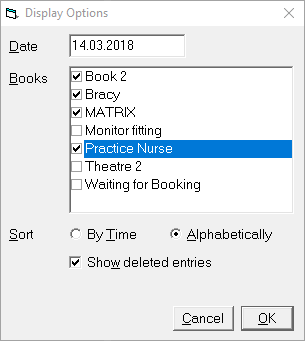
The 'Display Options' in Type Dictation allows you to change the date and optionally include (or exclude) different 'Books', together with an option for the Sort order. It also gives you the option to show any entries that have been deleted.
By default the day list (as entered in Appointment Mode - Appointments) displays in Type Dictation.
Date
To change the date, free-hand the date required and select 'OK'.
The appointments and bookings for the date selected will display on screen, together with any dictation already entered (including checked and processed dictation).
Books
If you use secondary appointment books (other than the Appointment tab), select which books are to display in Type Dictation.
Sort
Select whether you require the list of patient names to display in the order of appointment (By Time) or Alphabetically.
The sort order will probably be dictated by the Providers dictation style, i.e. if they dictate after each patient, 'By Time' would be the logical selection. If the Provider has a more ad hoc approach to dictating, then alphabetically will help you to locate the patient more readily in the list.
The Print option allows you to print a single copy of the highlighted entry, regardless of how many copies should print or the method of sending, i.e. fax, HealthLink, Argus etc.
This is intended as a draft for checking. It does not mark the entry as 'Printed'.
Label
Selecting Label in Type Dictation brings up the standard 'Print Patient Labels' screen the same as can be accessed in Patient Mode etc. The assumption being that you want to print labels for the selected patient.
Envelope
Selecting 'Envelope'; from Type Dictation brings up a screen from which you can select to print envelopes for the currently selected patient, their GP, Referring doctor etc.
Alternatively, you can select to print a batch of envelopes (Current or Last), although normally this would be done after Processing Dictation as it is this funtion that creates the 'batch'.
Charge
The 'Charge' option allows you to quickly bill a patient for services based on the Billing Type in their referral, providing this feature has been activated CHARGES (Billing Types - Default Transaction Type).
Finished
If the flag 'Finished required when Checking Dictation' is enabled, then marking a patients dictation as 'Finished' will allow it to be seen for checking in 'Check Dictation'. This is to ensure that letters etc. that have not been finished by the typist, cannot be inadvertently checked by the doctor.
Create WP
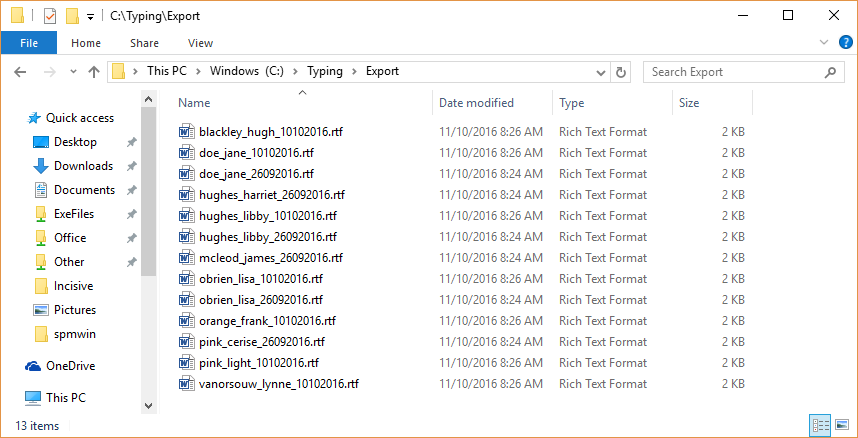
If the Provider has 'External WP' Allow External turned on, selecting 'Create WP' will make a letter template for each patient on the list, based on defaults that have been configured for each Billing type, i.e. recipient, copy to, quick text code.
Once finished, these files will be available in the specified Export folder.
On This Page:
Related:
Training:
- Type dictation as a Secretary
- Type dictation as a Typist
- Process Dictation
- Using the spell-check Dictionary
- Using Autocorrect feature when typing
- Correcting words in Dictionary
- Creating new form letters
- Wordprocesser Toolbar buttons
- Tab stops on the ruler
- Special Characters