Letters can be emailed directly from the Dictation module.
This is not a 'batch' emailing process. It requires individual letters to have been checked (by entry of the Dictation PIN number) and then sent individually. This can either be done from 'Type Dictation' or 'Check Dictation' depending on your work methodology.
Prerequisites
- The Email Indemnity Agreement must be (or has previously been) signed and sent to Incisive Software Limited.
- The Email Settings have been configured (Setup – Provider/User – Email). You many need to do this in consultation with your hardware technician
- There is a PIN number set for the Provider / User.
- One or more recipients has an email address entered, i.e. either the Patient or a recipient from your address book.
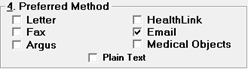
- In the case of a doctor, one of the Preferred Methods must be set to Email.
Type Dictation
If you are the typist / secretary and are authorised to sign-off dictation, you will be able to type the letter and then email letters directly from Type Dictation.
- Type and proof-read the letter. The recipients that have been selected from either the 'Letter to' or 'Copy to' will display on the list of 'Recipients' to the left of the screen.
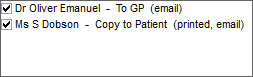
- If one or more of the recipients is to be emailed select Send & OK.

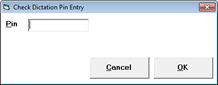
- You will be prompted to enter the Dictation Pin Number. Type this and either select OK or press Enter.
- The recipients who are to receive an emailed copy of the letter are listed.
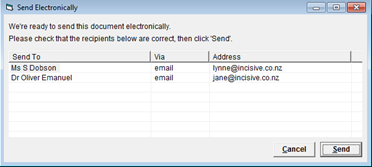
- Check that the list is correct. If it is select 'Send'.
- The letters will be emailed. The saved letters will be marked as checked (C) and emailed (E) in the Type Dictation list.
- If the flag 'Finished required when checking dictation' is turned on, mark the letter as finished.
- Continue to type (and email) other letters as required.
- Process your dictation in the normal way.
NOTE: A letter that has been emailed via Dictation Mode cannot be edited or deleted from Dictation Mode.
If you do not have authority to check dictation, then type your letters in the normal way.
Check Dictation
If you wish to check and send dictation from Check Dictation mode then start the checking process in the normal way.
- Select Check – F11 and enter your Dictation PIN number.
- If a letter is to be emailed, select 'Send & OK' rather than 'Check'.
- Confirm the recipients the letter is to be sent to by selecting 'Send'.
Process Dictation
Regardless of whether you are sending your emails from Type Dictation or Send Dictation, your dictation still needs to be processed in the usual way. This will file the letter(s) in the patient files in Patient Mode and print off or send any letters electronically by other means (i.e. Healthlink, Argus etc.). Processing the checked dictation will not send or resend letters by email.
If you are not sending emails via either Type Dictation or Send Dictation, after processing your dictation you can print off a list of dictation to be emailed (Patients Processed > select Emails Only for the required Date Range. Send the emails from Dictation Mode in the usual manner using F7 to Send.
Patient Letters
You can also email letters directly from the patient's Letters tab by using the 'Send & OK' button.
Mail Out
Once a letter has been emailed an entry will be made in the patient's Mail-Out tab. This entry does not mean that the intended recipient(s) have received the email or even that the email reached your mail server – it just indicates that an email was attempted to be sent from SPM.
Delivery
The letter has the same formatting and layout as if it was printed (including your letterhead) and is sent as a PDF file that is attached to the actual email. 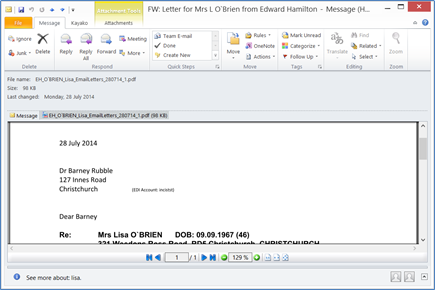
To improve the probability of the intended recipients actually receiving the email and getting past the anti-spam filters, you should inform them that you intend to start sending them letters by email and ask them to add your email address to the Safe Senders list on their mail server.
A log of the emails created by SPM is able to be reported from Utilities > Logs > Email (or Utilities > Email Log)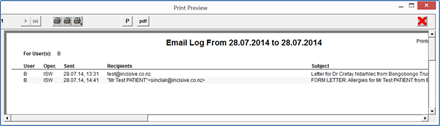
Unlike secure mail systems (eg Healthlink, Medical Objects etc.) there is no ability to check that the intended recipient(s) have received the email to their Inbox. There is, however, an option in Setup > User/Provider > Email to request a 'Delivery Receipt' which can inform you if the email was able to reach their mail server. The Delivery Receipt will be sent to your Reply-To address.