Purpose
To allow dictation to be typed externally from the SPM program. The resulting letters are then merged back and automatically allocated to the respective patients in the SPM database.
Limitations
Once the documents are created, the files are out of Incisive control. Typists should be proficient in their chose word-processor as support for any typing in this area is not covered by Incisive Software. Typists should be aware that a program is going to be importing these documents and certain elements of the file should not be altered eg the patient reference. The files must be saved in .rtf (rich text) format.
Security recommendations
Sending files via unsecure Internet connections are not recommended because of privacy issues. Please discuss the sending of files with Incisive. Your hardware technician may be required to assist you to set up a secure environment to transfer files electronically eg VPN.
Workflow
- Separate documents are automatically created for each patient on the day-list by clicking on the 'Export WP' button on the 'Type Dictation' tab in the Dictation module. These are deposited into a designated 'TypingOut' directory
- The documents are either sent to the typist by secure email or are retrieved via a VPN network connection.
- Typing is completed and documents saved in 'rich-text-format'
- The completed documents are either sent by secure email or delivered via RAS network connection to a nominated directory called 'TypingIn'
- Secretary retrieves them into the 'Check Dictation' tab in the Dictation module by clicking on the 'Import WP' button. The documents are correctly assigned to the patients listed.
- The specialist views and electronically approves the letters in the 'Check Dictation' tab of the Dictation module.
- The 'Process' button is selected by the secretary which prints or sends the letter according to the preference of the recipient.
Setup
- In Setup - Provider - Dictation - select External WP
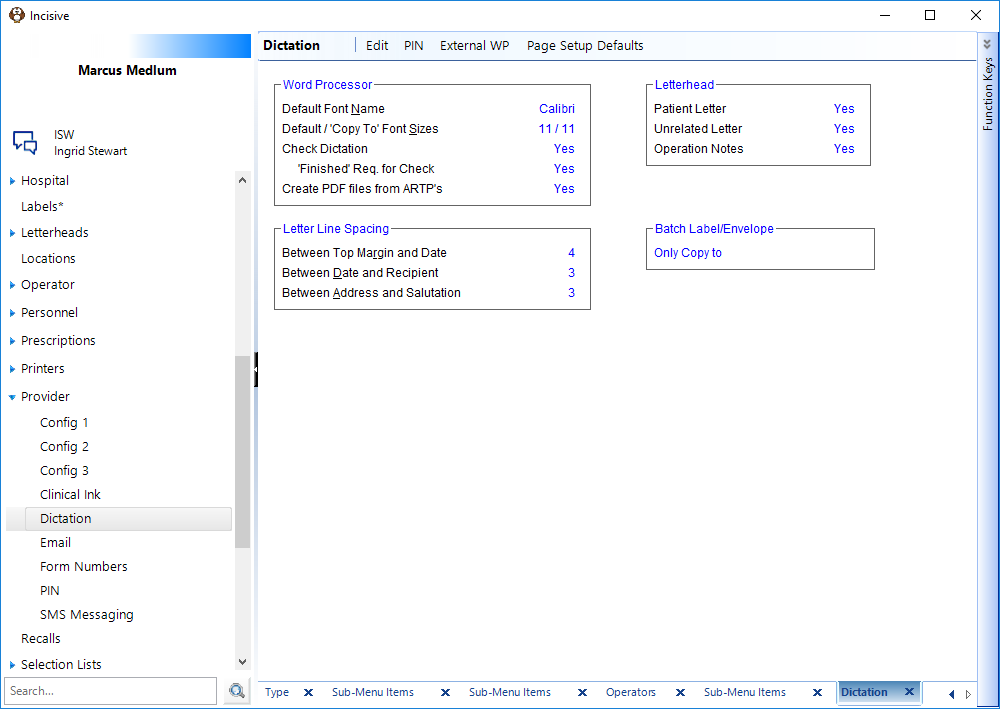
The External Word-processing feature generates a separate word-processing file for each patient based on the options set against on an individual day list. The file is created with a template based on the Billing Type selected in the patient's referral. For each Billing Type you can assign a Quick Text Code. The file that is created can then be transferred by transferring via ftp file transfer or e-mailing encrypted and password protected files.
The word-processing file is automatically created for each patient according to the billing type. - Set up the details against each Billing Type, by pressing Enter or double clicking
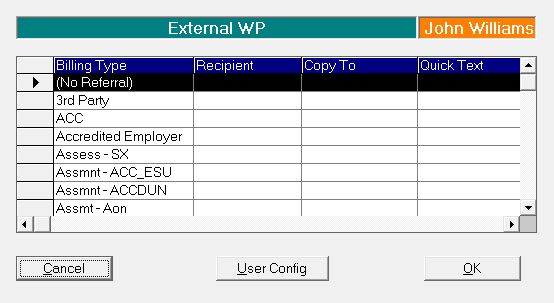
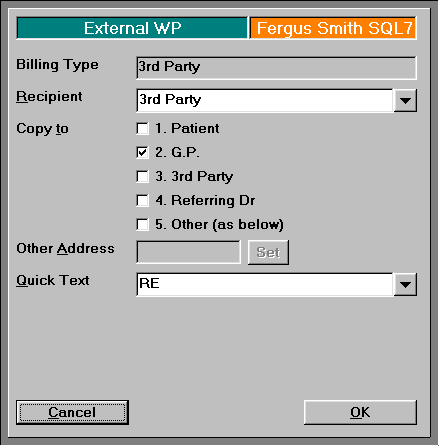
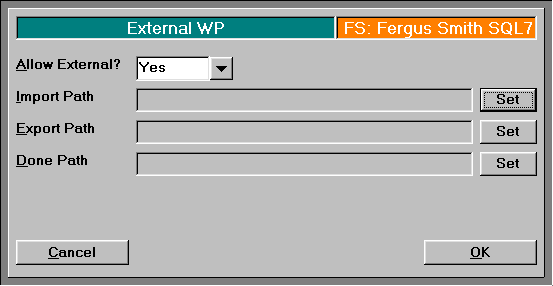
- Set the appropriate paths for the location of your files by selecting the User Config button on the External WP screen after setting up your billing types and quick text codes.
- For the 'Allow External?' field select 'Yes'
- For the Import Path - Select the 'Set' button and select the directory that the typing files will be on when importing back into SPM.
NOTE: The directory must be set up and have a dummy file to be able to select.- eg. c:\typingfilesIn- if using local drive
- For the Export Path - select the 'Set' button and select the directory that the typist will access for the files created with the patient details ready for the letter content to be entered.
- eg. c:\typingfilesOut-if using local drive
- For the Done Path - select the 'Set' button and select the directory that the files will be copied to after being imported into the database. Note this directory may get very large if not managed. Once the letters have been entered into the database and a backup has completed then the files could be deleted.
- eg. c:\typingfilesIn\done
- Click 'OK' when paths have been selected.
Creating the documents
- To create the files for the typist, on the Type Dictation tab in the Dictation module, select the correct list of patients using either the Display button or the forward/back buttons.
- If there is typing for patients not on the list select the 'Other Patients' button and add in the extra patients.
- When list of patients is complete select the Create WP button. The files will be created in the selected directory, the files can now be sent to the typist.
Typing
The files that the typist receive are in Rich Text Format. If the typist opens the file in Word or by double clicking on the file name, enters the context of the letter for the patient, then selects save the file will save as the required .rtf file format.
- DO NOT alter or remove the patient ID text at the top of the document.
- DO make sure the documents are saved in Rich Text Format (.rtf)
If the typist has more than one letter to type for the patient, use the 'Save As' option and change the file name by adding an underscore and a unique number
eg. jones_john_17032004_1.rtf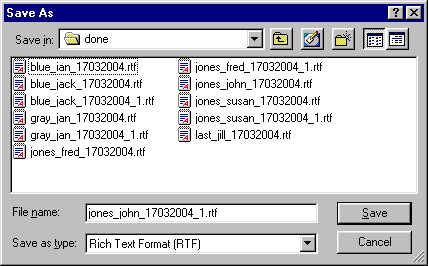
Retrieving the documents
Once the files are returned by the typist;
- To import the files into the appropriate patient details on the Dictation module on the Check Dictation tab select the Import WP button.
On This Page:
Training:
- Type dictation as a Secretary
- Type dictation as a Typist
- Process Dictation
- Using the spell-check Dictionary
- Using Autocorrect feature when typing
- Correcting words in Dictionary
- Creating new form letters
- Wordprocesser Toolbar buttons
- Tab stops on the ruler
- Special Characters