In many instances, the Send Dictation tab may not be used at all if dictation is being checked (Check Dictation) and if the paths for message creation have been correctly configured (and are available at the time of processing checked dictation).
If 'Check Dictation' is not enabled, then dictation can be processed from Check (Dictation) without the need to electronically verify each item.
Letters etc. will be printed and processed to the patient file (Patient Mode), but if a recipient of a letter is set to receive it electronically via one of the secure methods (i.e. Heathlink, Argus etc.), then a copy of the letter will appear in Send (Dictation) for checking. This, theoretically, is a smaller number of letters to be checked on screen and signed off with the PIN number.
A list of patients and items will be listed.
A 'P' beside the item indicates that it has been processed to the patient file.
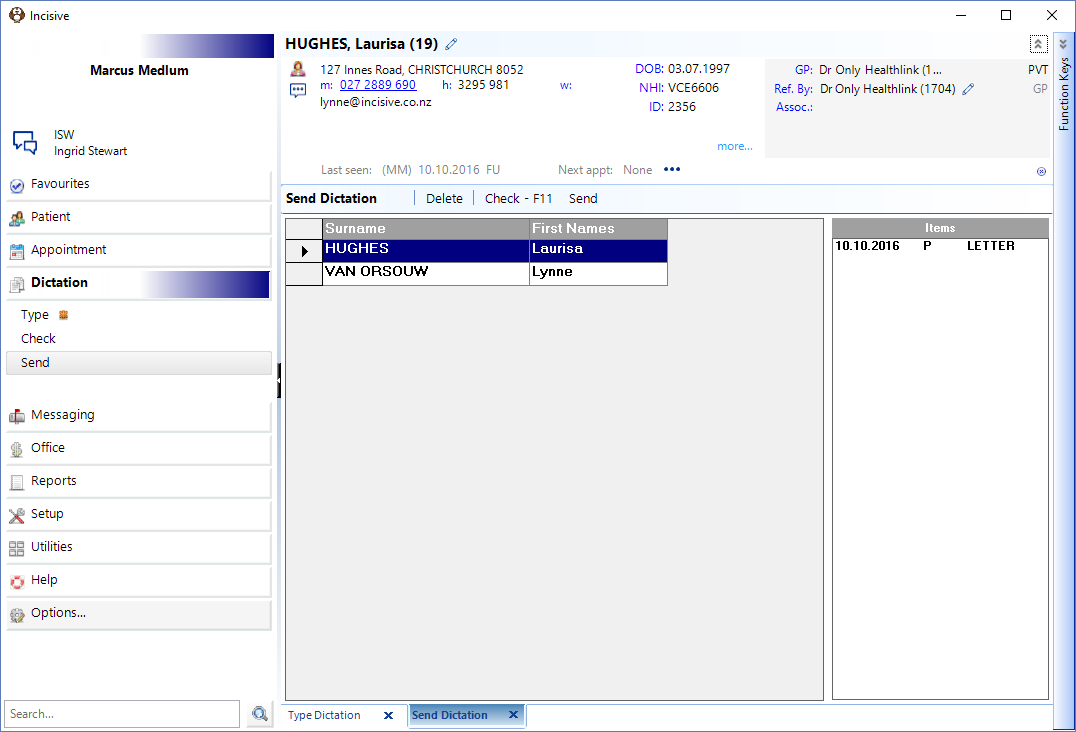
Delete
If you do not want an item to be sent electronically (from Send) it can be deleted.
- Select the item to delete.
- Select 'Delete'.
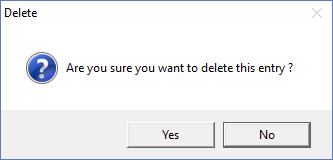
- Confirm the item is to be deleted.
Check - F11
The checking processing in Send (Dictation) works in the same way as for Check (Dictation). Please refer to this section for instruction.
Letters waiting to be checked in Send Dictation should only be checked. The text of the letters must not be altered in any way. If it is altered, the revised text will be transmitted in the message, but the changes will not be reflected in the entry in the patient file. If text needs to be altered, you should:
- Delete the item from Send Dictation.
- Go to the patient file (Patient Mode) and edit the letter concerned.
- Make the required changes and save the letter.
- Use F7 to send the amended letter.
This will result in the message sent and the letter on file having the same contents.
Send
Selecting 'Send' will create a message for all checked dictation. Dictation that has not been checked, will not disappear from the list.
On This Page:
Training:
- Type dictation as a Secretary
- Type dictation as a Typist
- Process Dictation
- Using the spell-check Dictionary
- Using Autocorrect feature when typing
- Correcting words in Dictionary
- Creating new form letters
- Wordprocesser Toolbar buttons
- Tab stops on the ruler
- Special Characters