This section is specifically to setup and test the sending of emails from within the application. Each Provider can use a common email server or their own one.
You may need the assistance of your IT technician to provide you with the correct SMTP email settings to use.
An email server that sends emails is known as a SMTP server.
Each Provider needs to have their own email settings configured.
To enable the non-secure email function an Indemnity Agreement will first need to be signed by the Provider and sent back to Incisive. Incisive will then issue a security code to allow the email settings to be configured.
Recommended for Microsoft 365
Sending emails using Microsoft365 (Office365) - Kayako knowledgebase
Configuring your email settings
- Select 'Edit' from the Email tab.
- Enter the security code provided by Incisive Software and select 'Enter'.
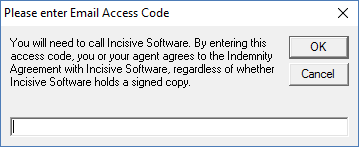
- After entry of the access code, you will be prompted to enter your name.
Type your name and select 'OK'.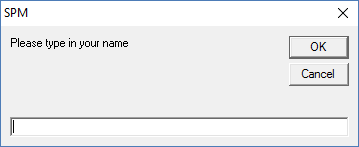
- Configure the settings as required.
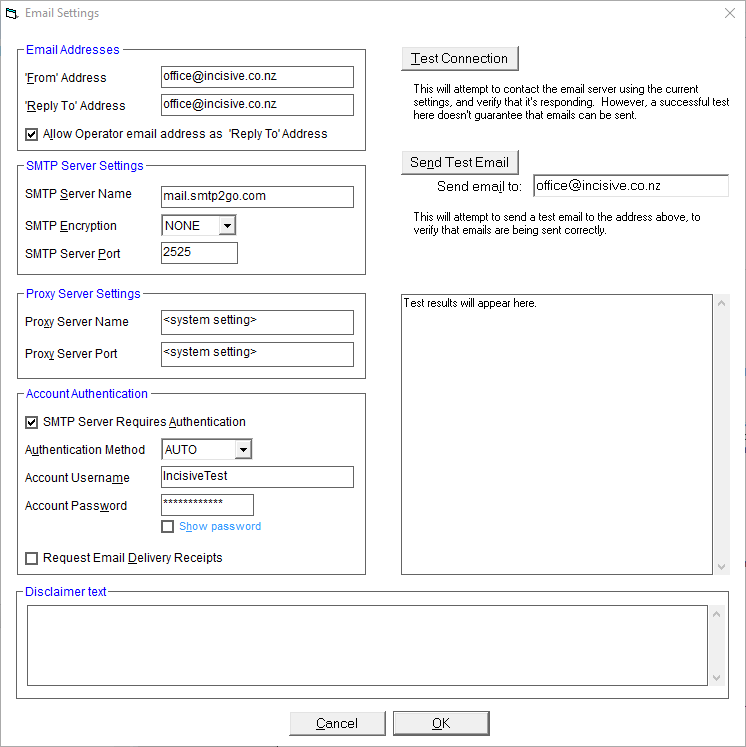
- Test the connection. If this succeeds (Test succeeded) then proceed to the next step. If it fails, then change the settings until the Test Connection is successful.
- Send a Test Email - select 'Send Test Email'. Try this to your own email address, if successful, then send a test email to office@incisive.co.nz. If successful, then continue to the next steo. If not, revise your settings and repeat steps 5 and 6.
- Select 'OK' to save the settings.
Email Address | |||||||||||||
'From' Address | The email address that will identify who sent the email. All emails sent will use this same 'From' address for a Provider even if they are created by different Operators. It may be useful to use a general email address such as 'admin@...com' | ||||||||||||
'Reply to' Address | The email address you want any replies to be sent to. You need to have a separate email client setup to receive emails from the address you have entered. This is also used to receive the 'Delivery Receipts' if the option is selected. All emails sent will use this same 'Reply To' address for a Provider even if they are created by different Operators. | ||||||||||||
Allow Operator email address as 'Reply To' Address | Check this ON if you would prefer to receive email replies to the email address that is entered in Setup > Operator > Settings, rather than to the email address entered into the 'Reply-To' field | ||||||||||||
SMTP Server Settings | |||||||||||||
SMTP Server Name | The name of the SMTP server you use. | ||||||||||||
SMTP Encryption | Chose to encrypt the email and connection details from your server to the ISP. The options are:
*** Incisive Only *** “Question: How do I Choose the TLS version, such as 1.2? Answer: The client does not specifically choose the TLS version. In the TLS handshake (which is what occurs internally in this method), the client tells the server the version of the TLS protocol it wishes to use, which should be the highest version is supports. In this case, (at the time of this writing on 22-June-2017) it is TLS 1.2. The server then chooses the TLS version that will actually be used. In most cases it will be TLS 1.2. The client can then choose to accept or reject the connection based on the TLS version chosen by the server. By default, Chilkat will reject anything lower than SSL 3.0 (i.e. SSL 2.0 or lower is rejected). The SslProtocol property can be set to change what is accepted by Chilkat. For example, it can be set to "TLS 1.0 or higher".” | ||||||||||||
SMTP Server Port | The port number specified by the ISP for the SMTP server. This will depend on the encryption method you are using. The default port will be entered for the encryption method you have chosen. | ||||||||||||
Proxy Server Settings | |||||||||||||
Proxy Server Name | Name of your proxy server (optional) | ||||||||||||
Proxy Server Port | The port your proxy server uses (optional) | ||||||||||||
Account Authentication | |||||||||||||
SMTP Requires Authentication | Check this option if your SMTP Server requires login authentication. | ||||||||||||
Authentication Method | If Authentication is required select from:
| ||||||||||||
Account Username | Your account name to log into the SMTP Server | ||||||||||||
Account Password | Your account password to log into the SMTP Server | ||||||||||||
Show Password | Shows or hides the password you entered. | ||||||||||||
Request Email Delivery Receipts | If this option is chosen a email will be sent back to your nominated 'Reply To' address confirming the success of the email reaching the recipients email server. This does not confirm that the recipient has received nor read the email. | ||||||||||||
Test Connection | This will attempt to contact the email sever using the current settings, and verify that it is responding. However, a successful test here doesn't guarantee that emails can be sent. You should also send a number of test emails (see below). **ISW Use smtp4dev to test send an email without actually sending one to a real smtp server. ISW** | ||||||||||||
Send Test Email | This will attempt to send a test email to the address shown to verify that emails are being sent correctly. It is also advisable to send a test email to an address outside of your domain e.g. ...@gmail.com . | ||||||||||||
Disclaimer Text | Ability to add your own disclaimer at the end of your emails. e.g. “Disclaimer: |
To edit your email settings
From time to time your email settings may change, i.e. if your password changes, you will need to make changes to the configuration in Incisive. Edit the settings and make the changes as required, testing the connection and sending a test email.
How Do I...
- Incoming Mail
- Sending emails
- Incoming Mail in Classic edition
- Test Ordering
- Saving emails to a Patient
- Sending Clinical Notes to ACC