Notes displays all clinical information for the selected patient. This includes Lab results (pathology, histology & X-ray), Medical Consultation Notes, Letters Operation Notes, Comments, Nursing Notes, Prescriptions, Audit Code entries.
The display is split in two. Down the left hand side is a single line for each entry, while the right hand side of the screen displays the full text of the entry highlighted on the left.
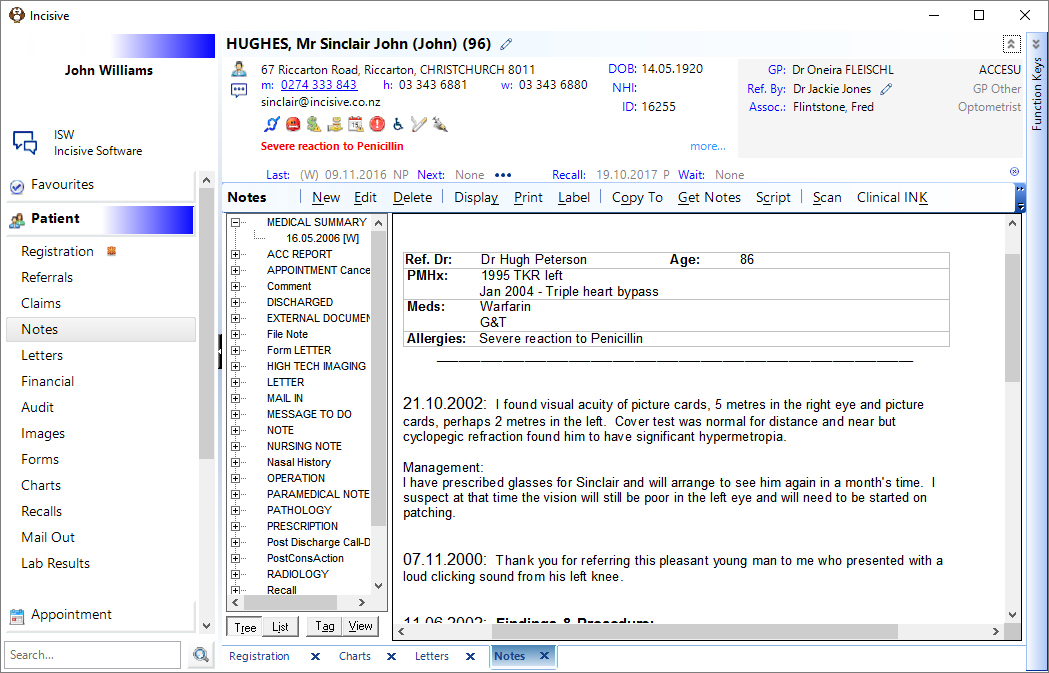
- Use the Up and Down Arrows to move up and through the entries to change the display on the right hand side of the screen.
- If the highlighted entry is large and will not fit in the display, press the Right Arrow key to move the focus from the left hand column to the right. A solid black line borders the display to indicate where the focus is. You can now move through the selected entry with the Up and Down Arrows, PageUp, Page Down or the end (Ctrl End) or the top (Ctrl Home).
- To return to the left hand display press the Left Arrow or Click on the left hand side of the screen with the mouse.
Toolbar buttons | Description |
|---|---|
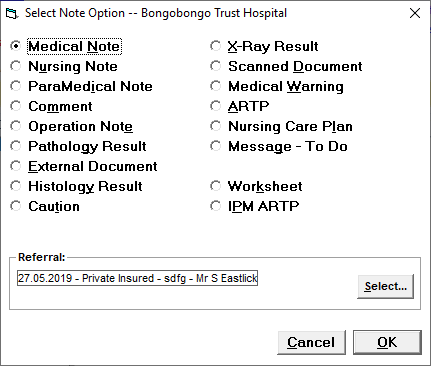
Create new records that will be displayed in the Notes
| |
Allows you to make changes to existing notes. | |
Delete notes that are incorrect or no longer required. You will be asked to confirm you wish to proceed with this. | |
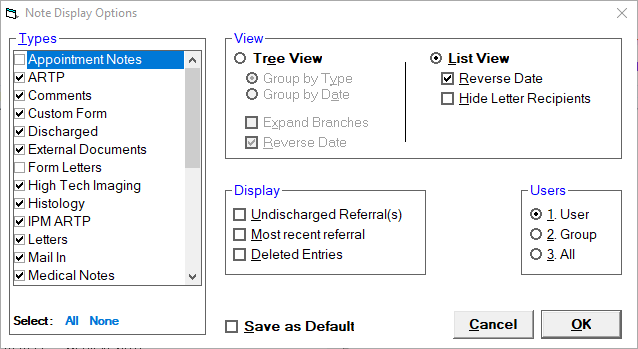
This allows you to choose which note types you wish to have displayed.
To change the notes you wish have displayed once completed you need to tick 'Save as Default' and then OK. | |
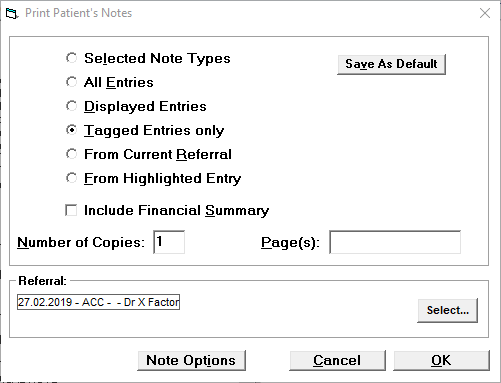
Print patient notes.
| |
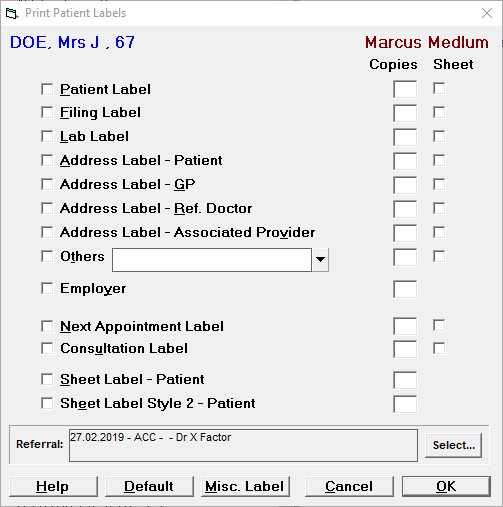
Print a Label.
| |
This is for use in ARTP's only. You can create a copy of an existing ARTP so changes can be made. | |
Get Notes | Allows notes to be copied from one user to another. Permissions are required. |
Create new Prescription. | |
Scan documents to patient notes. A scanner must be installed for this to be available. | |
Requisition for tests which can then be tracked. TEST ORDERS | |
Ability to draw freehand on tablet. Additional setup is required. |
Training:
- View patient Notes from multiple doctors