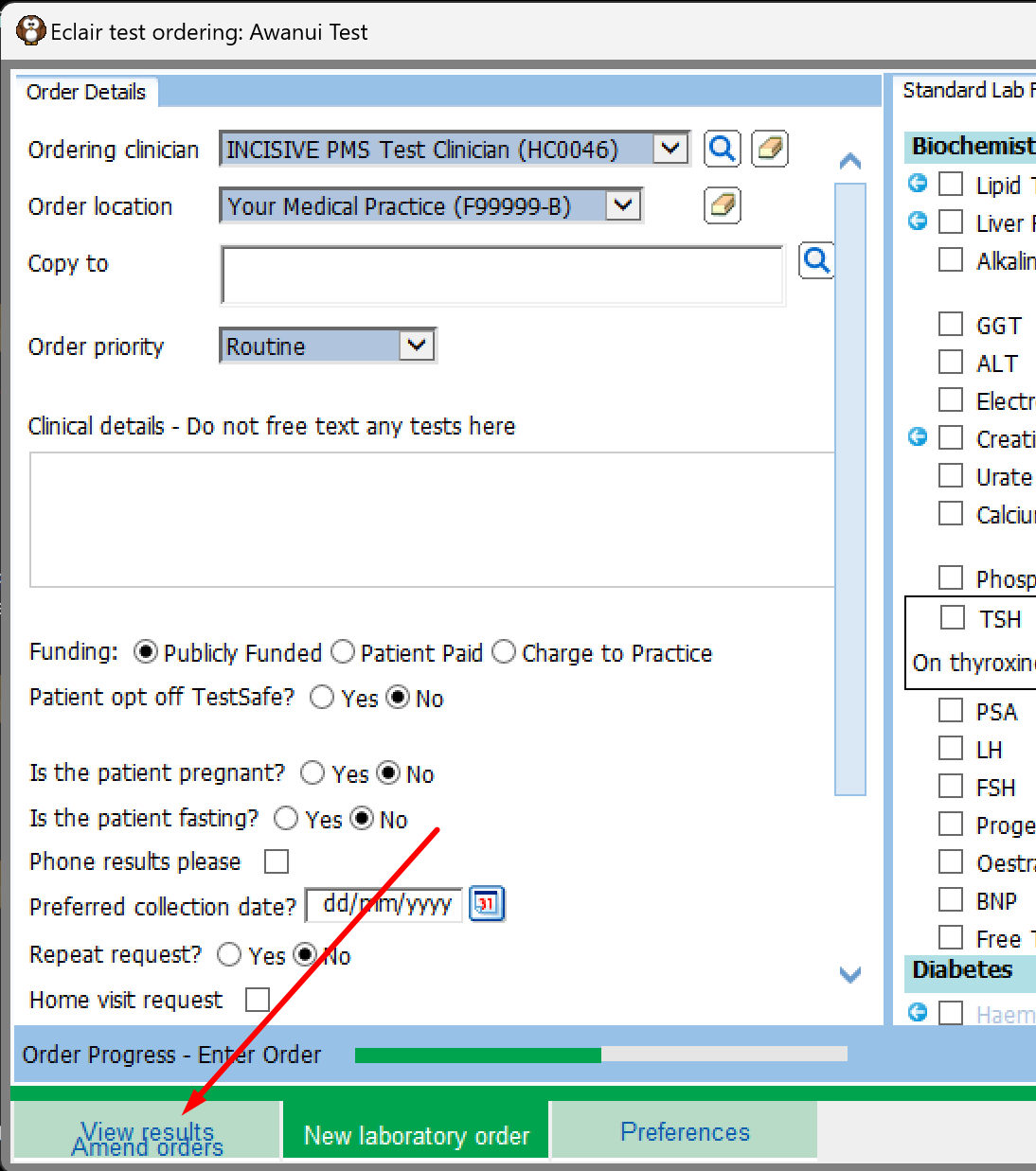
Viewing and Ordering of diagnostic tests for a patient, is possible with the following laboratories:
Awanui (Southern Community Laboratories
Pathlab
Medlab Central
These laboratories all use the Sysmex Eclair system for their test order management. The Incisive application passes patient and provider information to the Eclair portal and loads the Eclair ordering screen, into which you add content to complete and submit the order.
The Eclair ordering system does not provide any information to the Incisive application regarding the placement of the order, therefore there will not be a record of the order automatically created in the patient’s notes.
The only way of making a record is to save a copy of the order as a PDF into a folder, then import it as an External Document from the Message Centre.
Requirements:
Internet connection
Provider account with the laboratories
NHI number for the patient in Patient > Registration
HPI-CPN number for the Provider in Setup > Provider > Config 1
HPI Facility ID for the practice in Setup > System > HPI Facility Code
Creating the Test order
Select the patient and go to their Notes
Choose ‘Lab eOrder’ from the toolbar menu
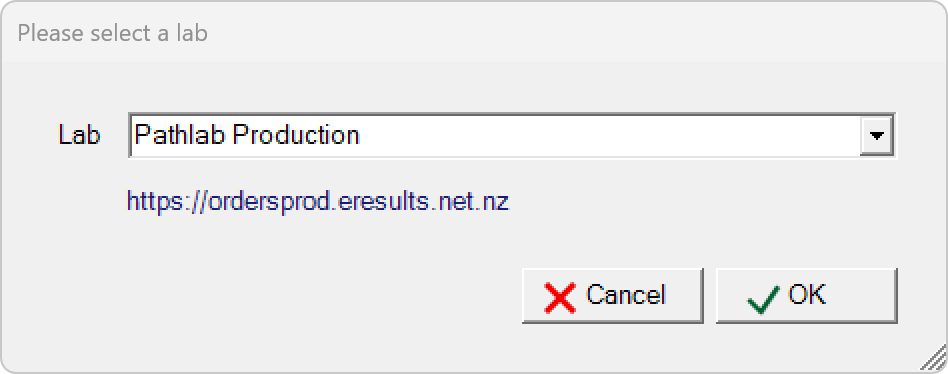
Choose the lab you want to send the order to
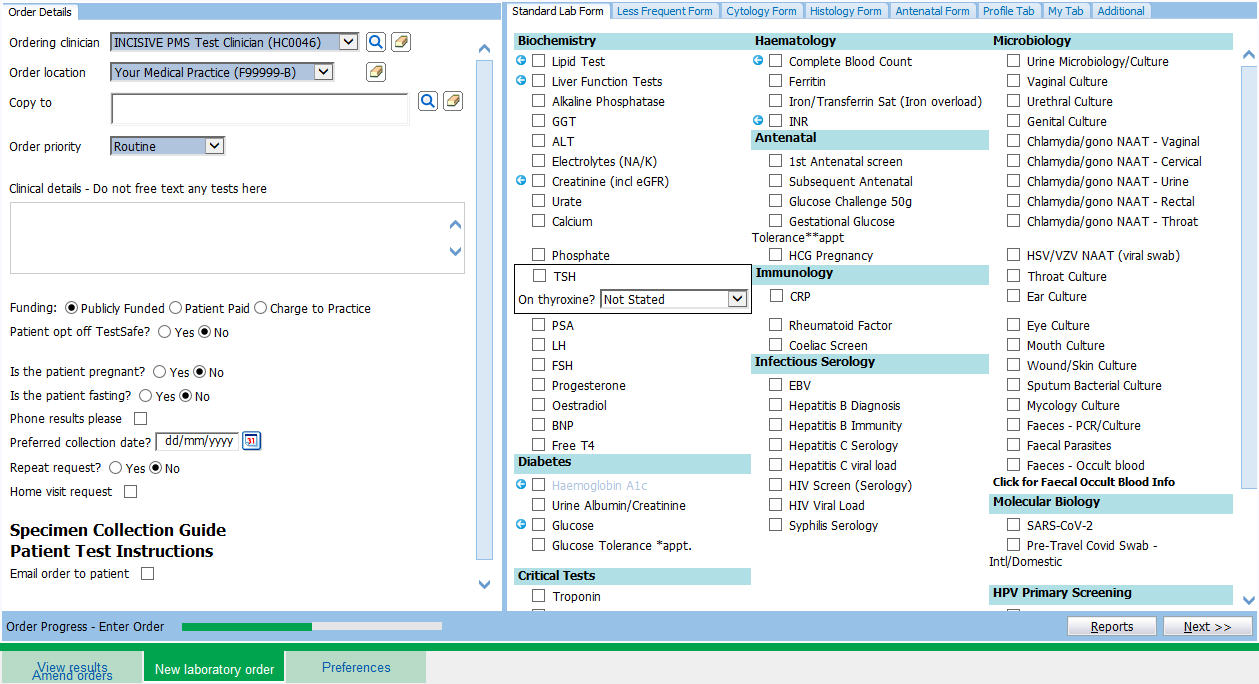
Select the tests to order and complete the mandatory requirements.
Preview the Order then click on the ‘Place Order’ button
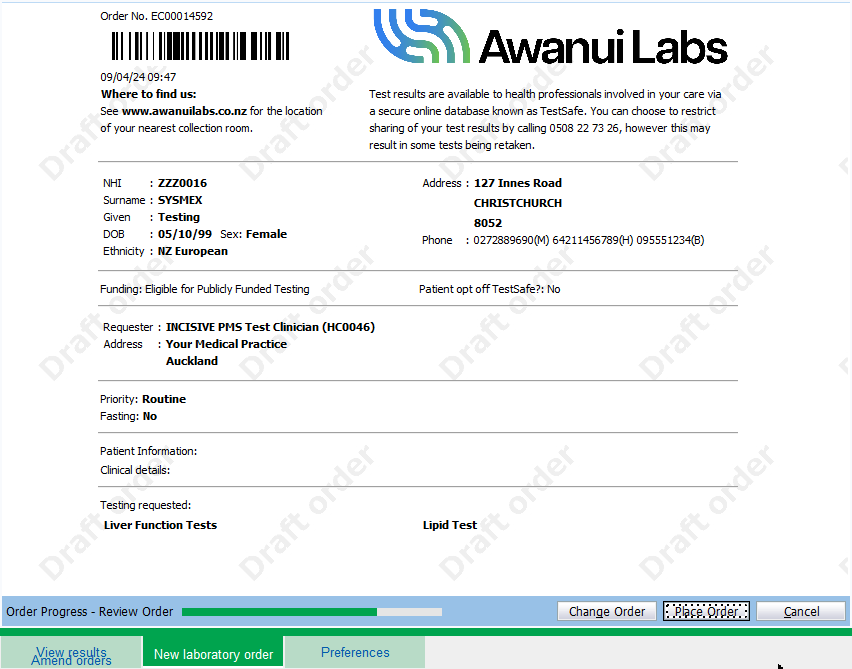
Choose to either print the order or Save as a PDF
To save as a PDF, choose a PDF printer such as TSPrintPDF or Microsoft Print to PDF
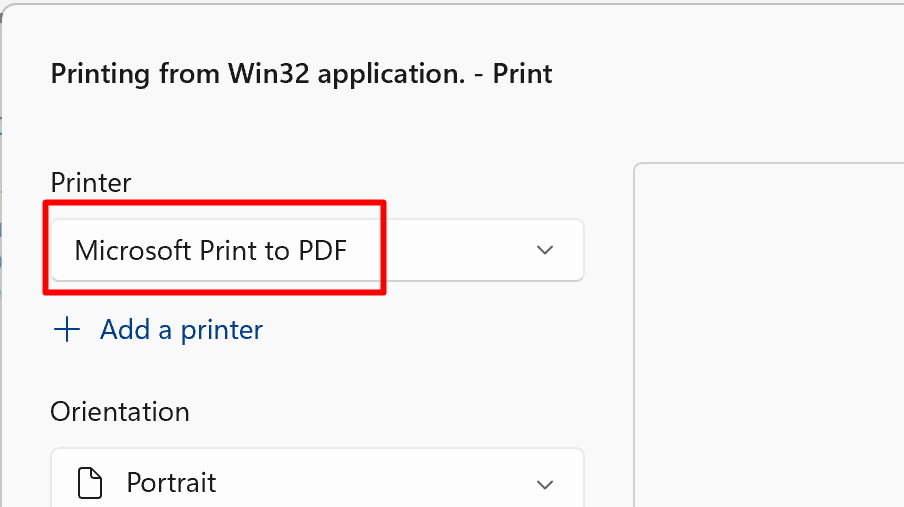
Complete the ‘printing’
Choose the folder that you save documents to for importing by the Message Centre.
Add the patient’s name or NHI number as the FileName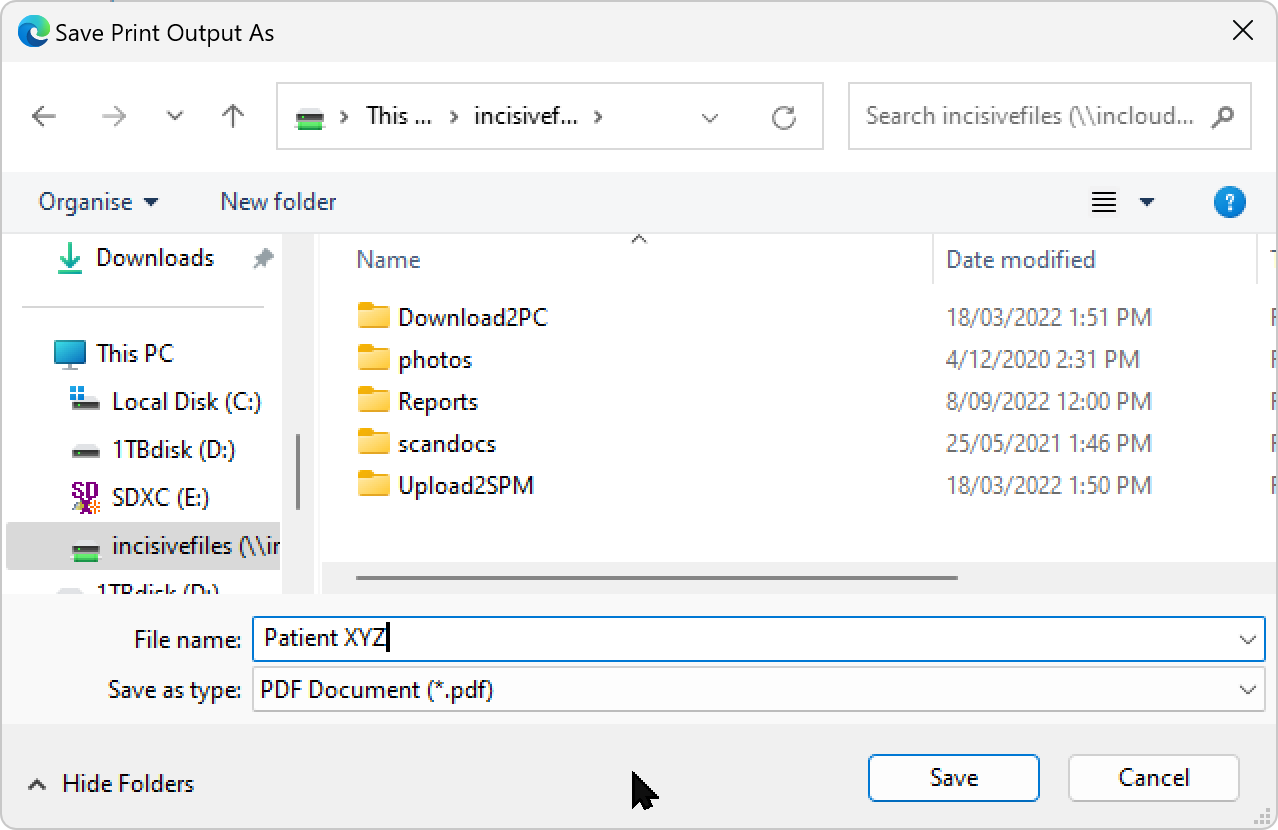
In the Message Centre, select the pdf and Save it to the patient’s record
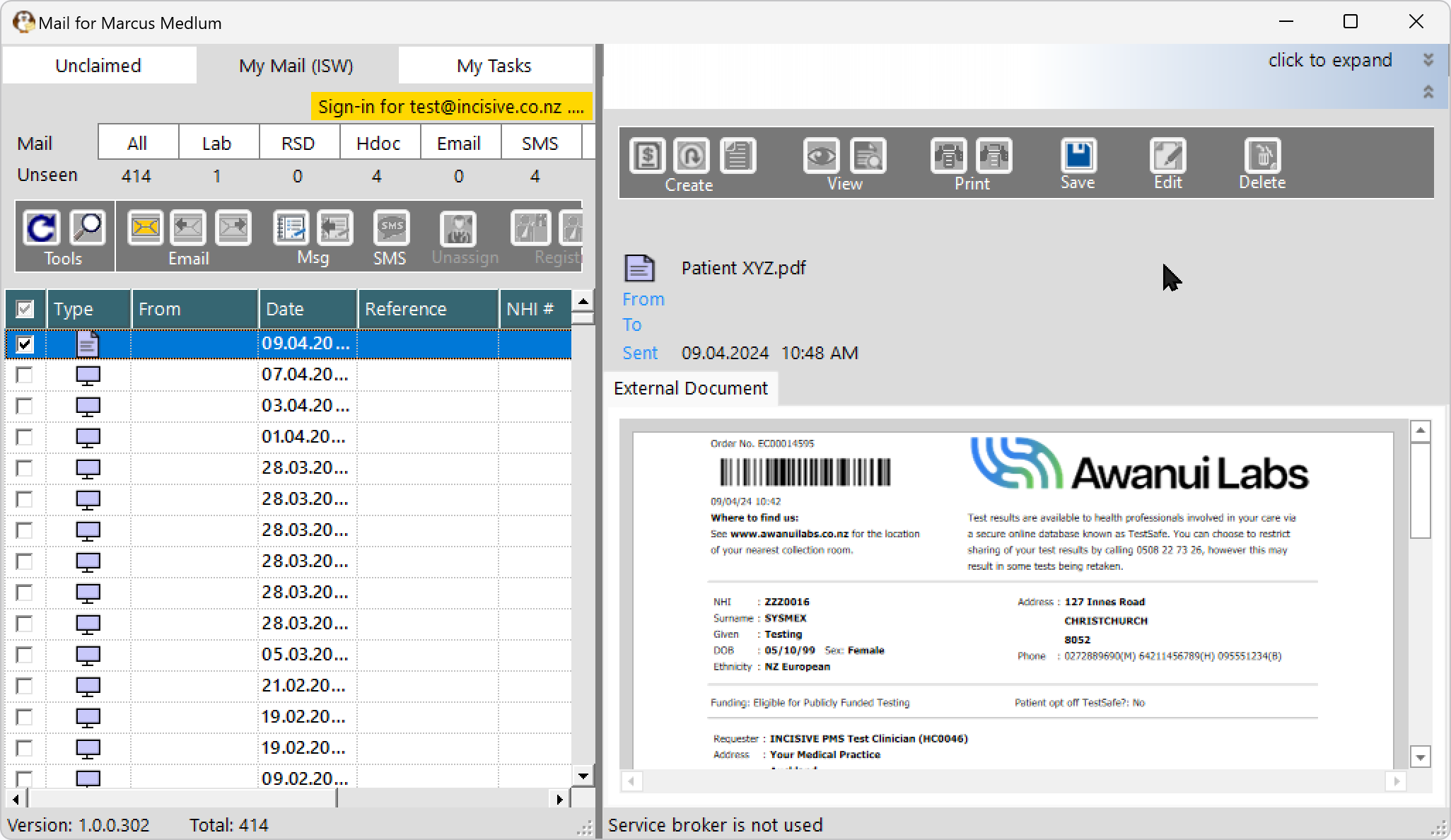
View the order in Patient > Notes
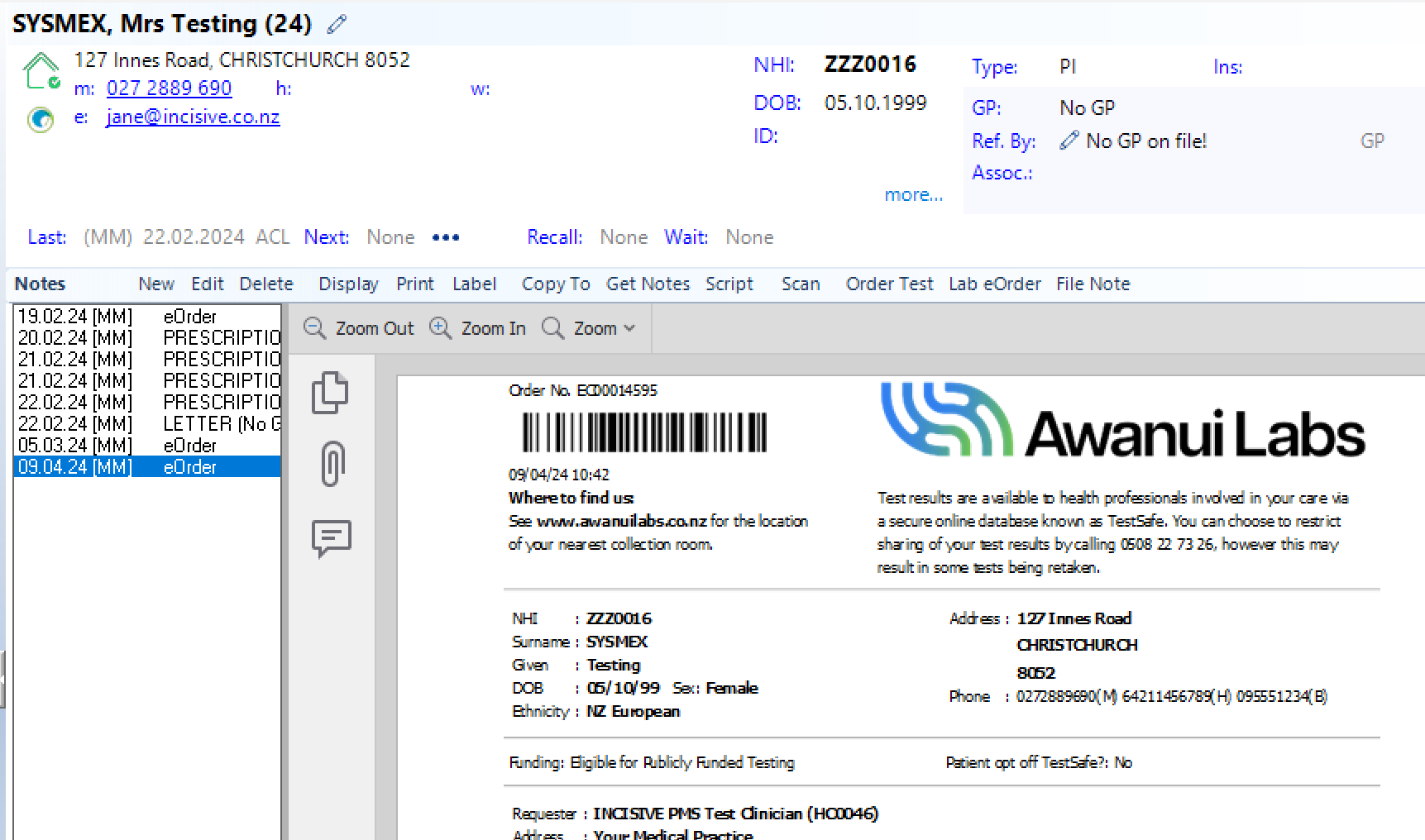
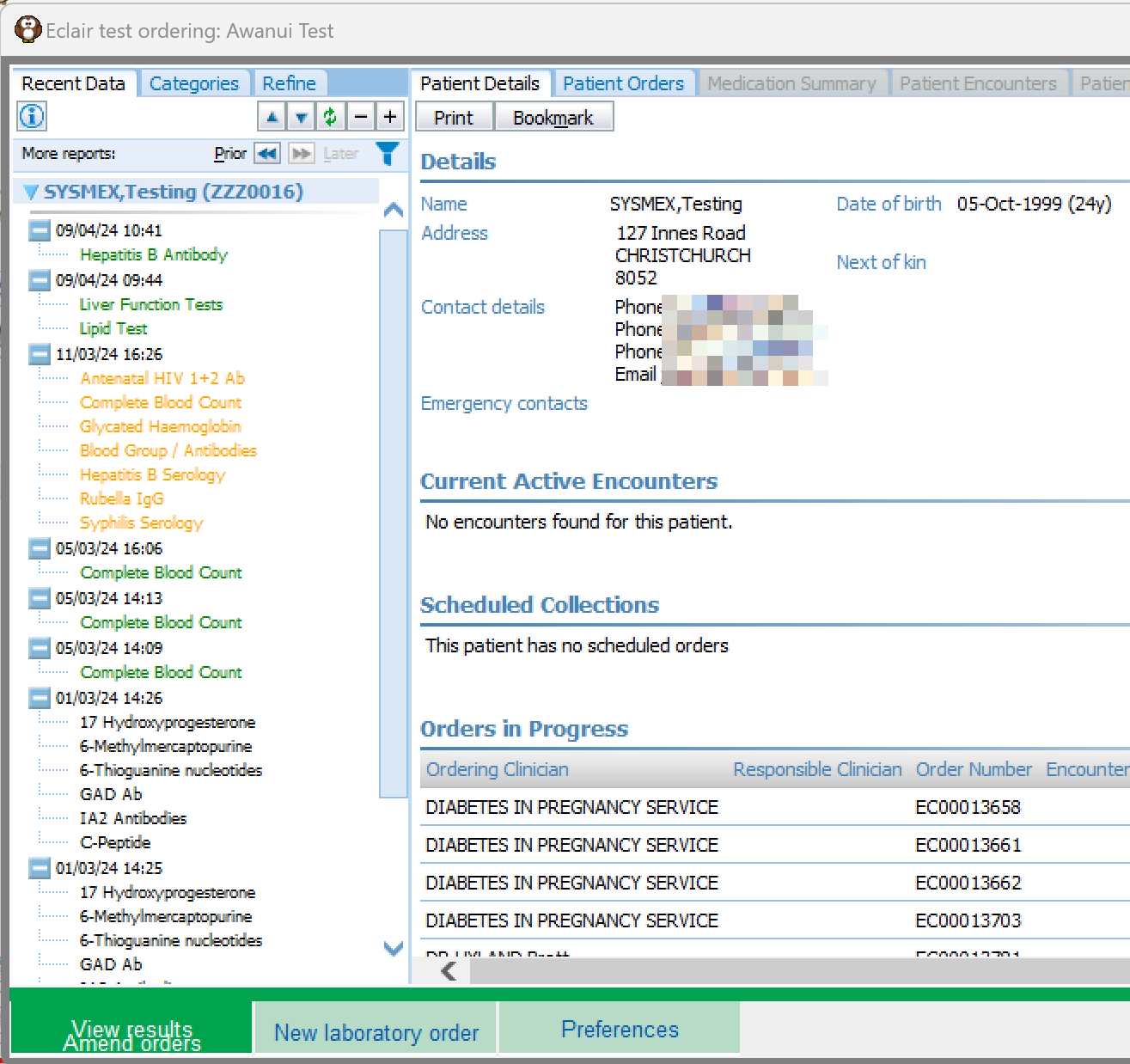
Viewing the orders and results for the patient
Follow steps 1-4 of the Create Order
When the Eclair order screen appears, click on the ‘View results/Amend Orders’ button