This allows you to determine which documents you wish to display and is done on a per Operator basis.
Select Display and box like below with display.
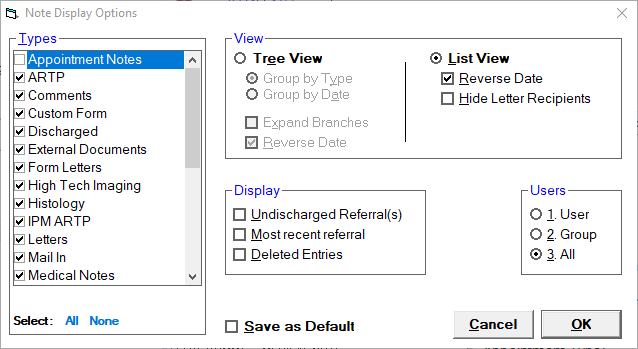
VIEW
Tree View
Group by Type | Show the notes grouped together by type, in alphabetical order, then sorted by date. |
Group by Date | Show the notes grouped together by date, then sorted alphabetically by notes Type. |
Expand Branches | Expand all the note types to display all the individual notes when the Notes tab is accessed. |
Reverse Date | Show the individual notes with the newest at the top of the group. |
List View
Reverse Date | Show the notes with the newest at the top of the list. |
DISPLAY
Undischarged Referral(s) | The end referral option in the referral screen. |
Most Recent Referral | The last referral entered. |
Deleted Entries | Show all notes including deleted entries. |
USERS
User | Show only the notes entered for the current User. |
Group | Show the notes for this patient that have been entered by the other Users who belong to the same Group as the current User. eg. show notes entered by the other Orthopaedic surgeons but not the Obstetrician/Gynaecologists. |
All | Show the notes for this patient that have been entered by all the Users. |
Permission should be obtained from the other Users before accessing their notes on the patient. The Users to whom the notes belong will be shown beside the note type in the left window.
TYPES
Select the note Types that you would like displayed. Generally, the non clinical staff will have all notes displayed whereas the specialists, nurses or other medical providers may want to only see the clinically related notes.
SAVE AS DEFAULT
Save the settings you have selected.
On this page: