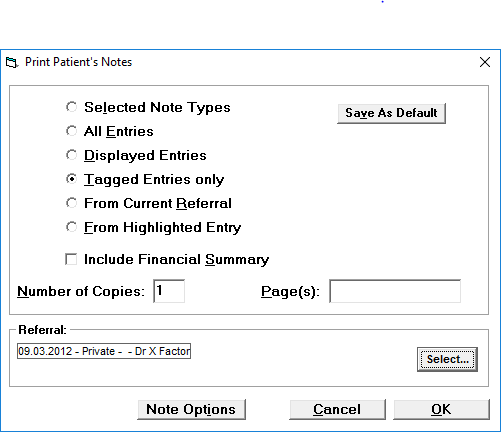
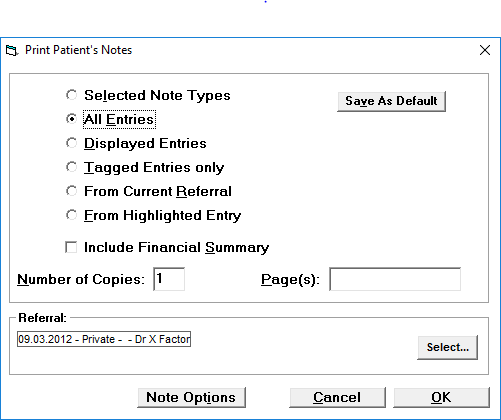
Select Note Types
If you want to select the different kinds of notes you wish to print then selected the Selected Note Types option and then press the Note Options button.
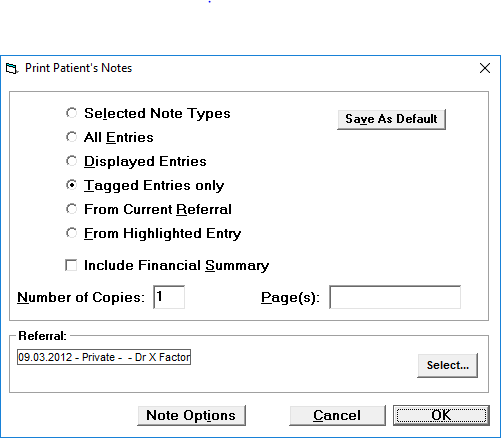
The following Select Note Types screen will appear and you need to tick all the options that you wish to be printed out, press OK. Make sure that the Selected Note Types option is still selected and then press Ok again on the Print Patient's Notes screen. This will only print out the items you ticked.
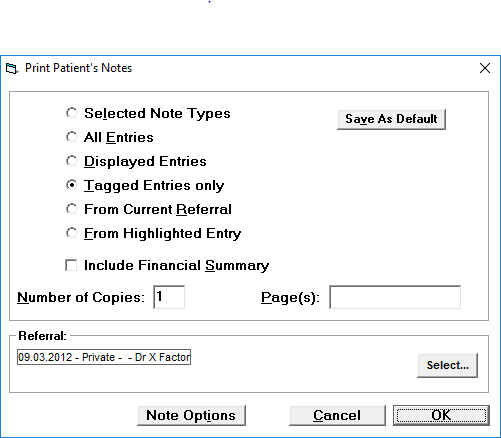
All Entries
If you wish to print out all the Notes for the Patient, this will include notes that are not displayed in the Notes tab as well, then just select the All Entries option and press OK.
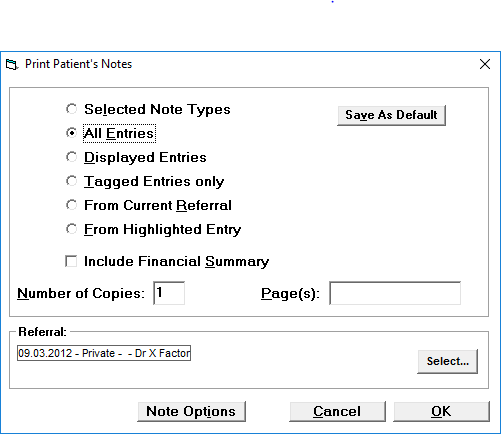
Displayed Entries
To print out all the Notes that are displayed down the left hand side of the screen for the Patient then select the Displayed Entries and print OK.
Tagged Entries Only
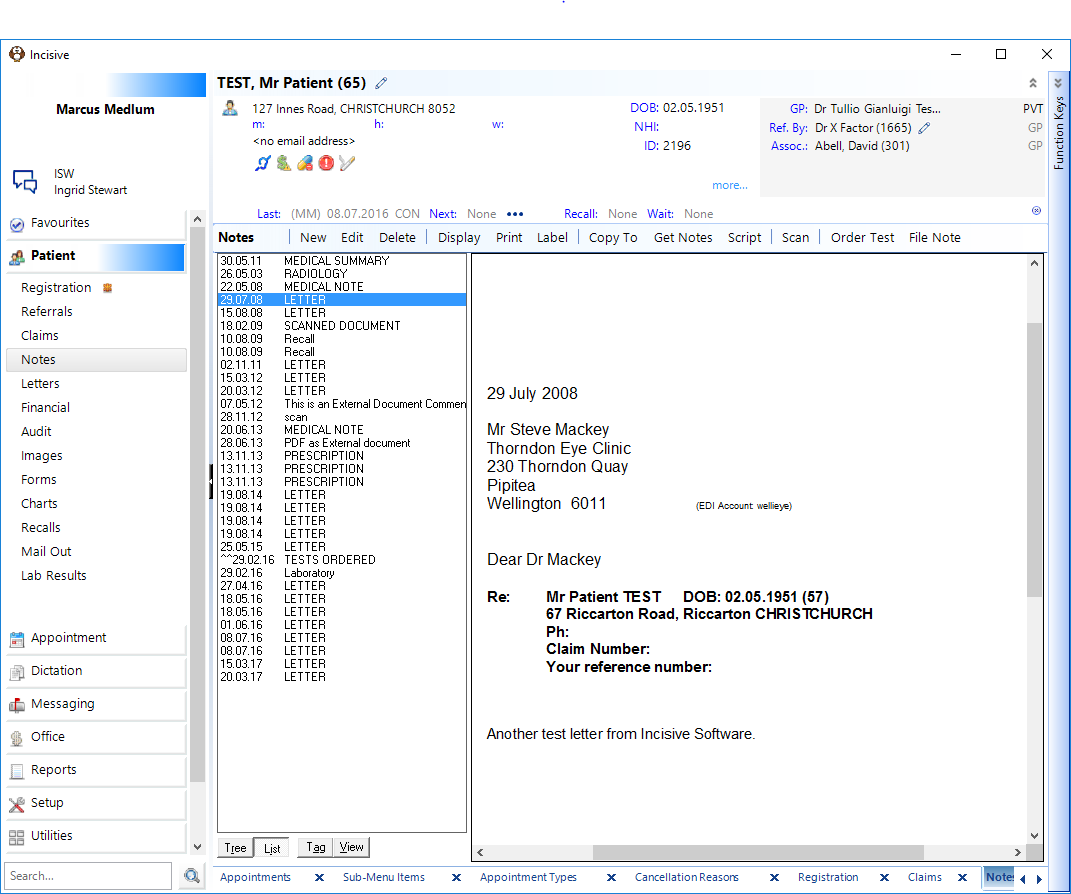
To Tag and a Note, click on the Note on the left hand side of the screen and then press F6. You can take as many entries as you like at one time.
In the List Option for Display it will have ** before the entry that has been Tagged.
In the Tree Option for Display it will have √ before the entry that has been Tagged.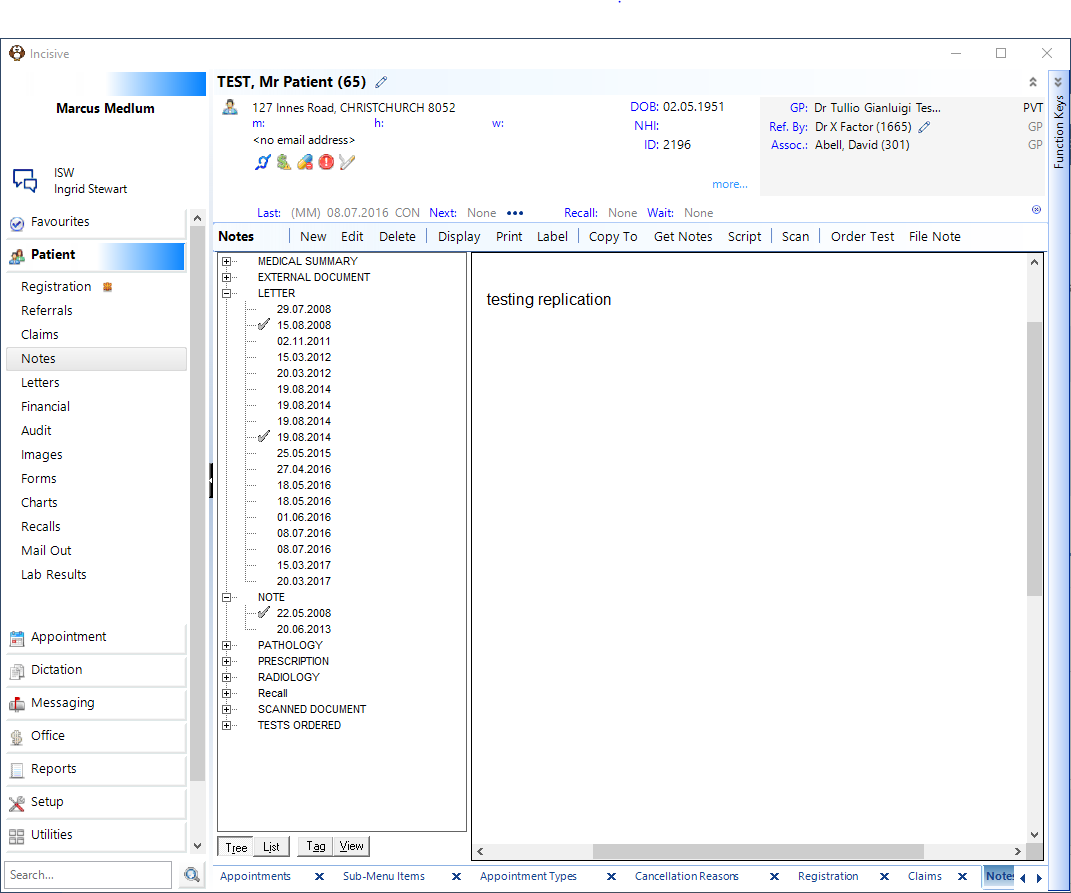
Then click on the Print button and select Tagged Entries only and press OK.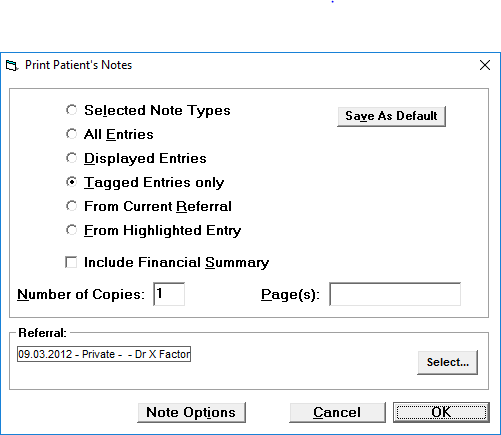
From Current Referral
With this option it will print out all the notes that have been added to the Patient since the date of the most Current Referral.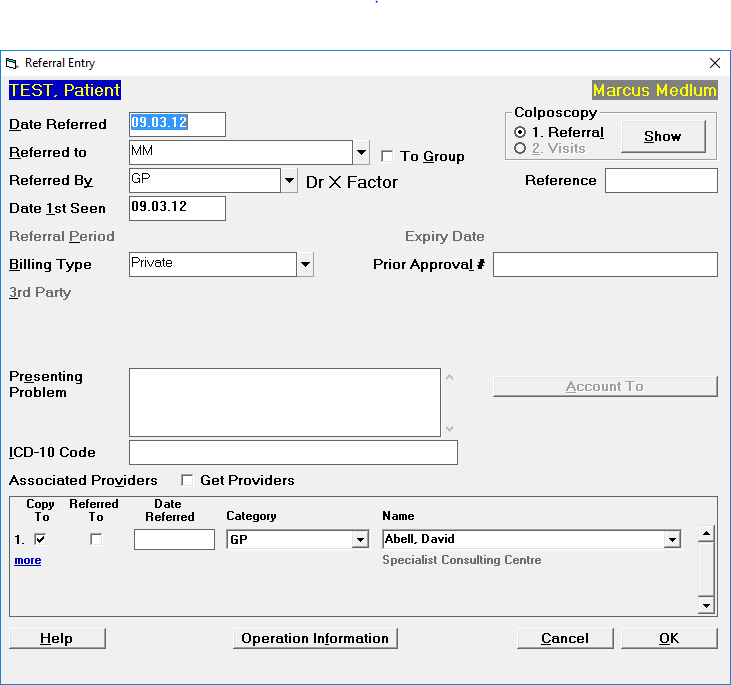
Press the Print button and select From Current Referral and press OK.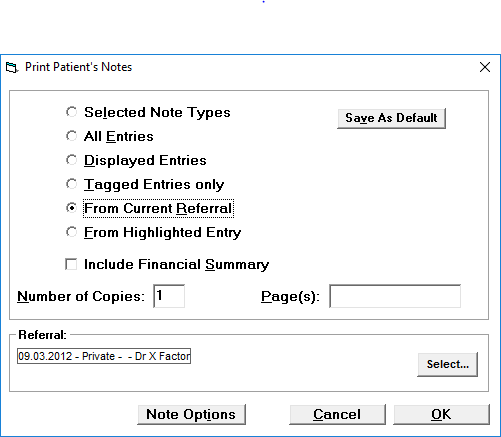
From Highlighted Entry
With this option you click on the entry you want the printing to commence from.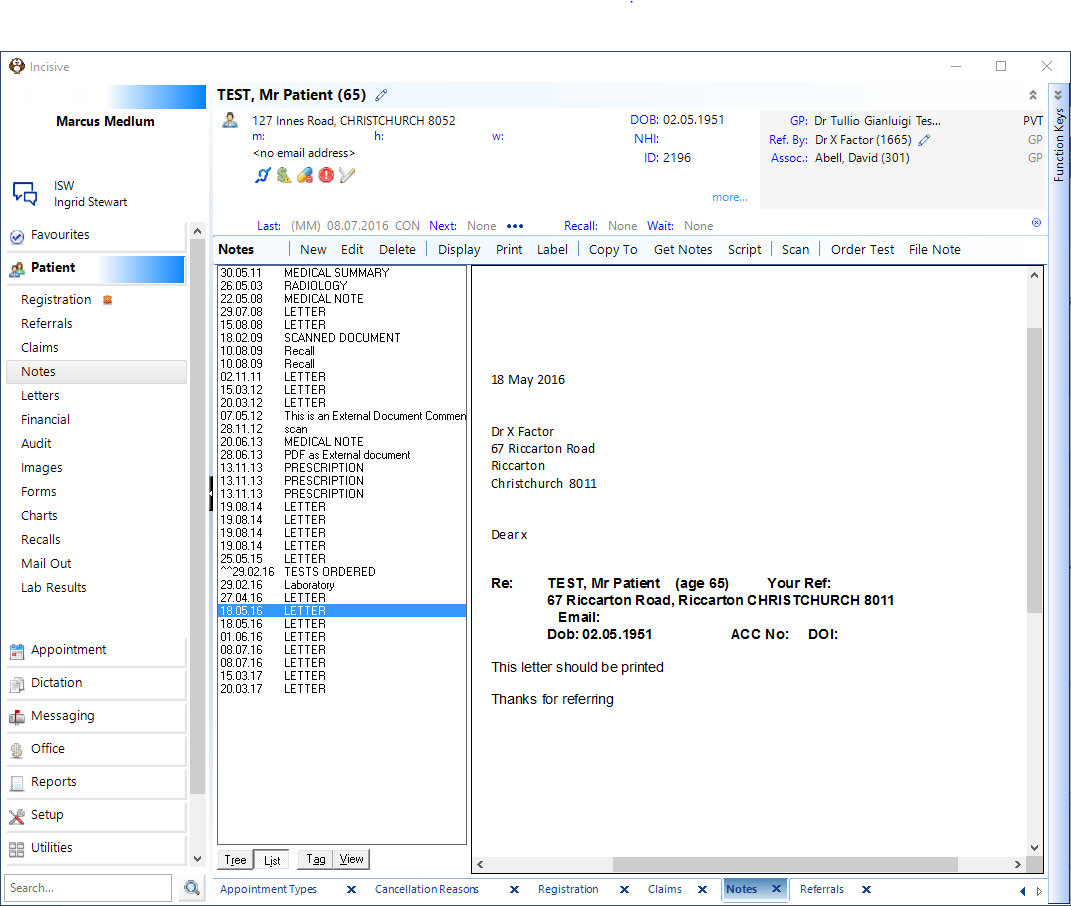
Press the Print button and select From Highlighted Entry and press OK.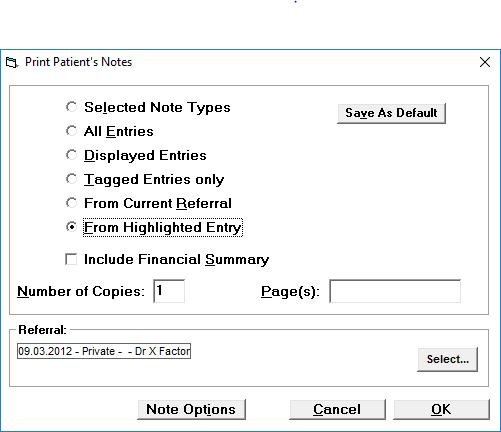
Save As Default
If you wish to keep a certain setting as your default setting them press the Save As Default button and every time you go to print it will show these options.
Include Financial Summary
If you tick the Include Financial Summary option, then it will include information in the following format at the end of the printing of all the Notes.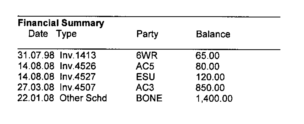
Number of Copies
If you wish to print out more than one copy of each Notes, then set this to the amount you want printed.
Select Different Referral
If you want to print out the Notes with different Referral Details at the top, then Press 'Select'.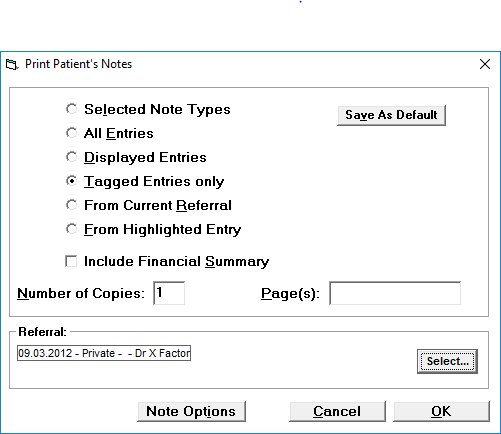
From the list of all the Referrals, select the appropriate number for your other Referral and press OK.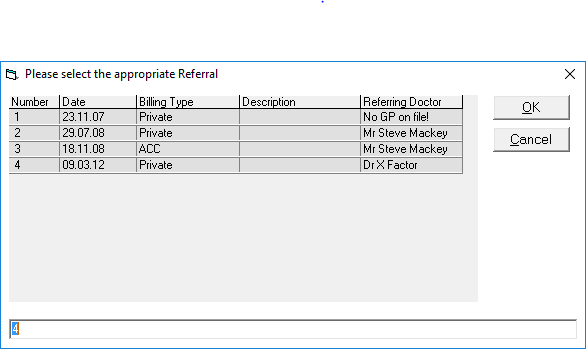
This will then show the new Referral Details on the Print Patient's Notes screen.