Prescriptions can be printed and recorded on a patient's file.
Prescriptions can be issued from PHM using the name and NZMC number for the last referrer for the patient.
The SIMPLE format must be used. (Setup > Provider > Config 3 > Print Style)
To print a new prescription
- Select 'Script'.
- If any previous prescriptions have been prescribed then these will display. Select 'New'.
The Prescription screen will display, with any allergies listed. You can also add additional allergies at the time of creating the prescription.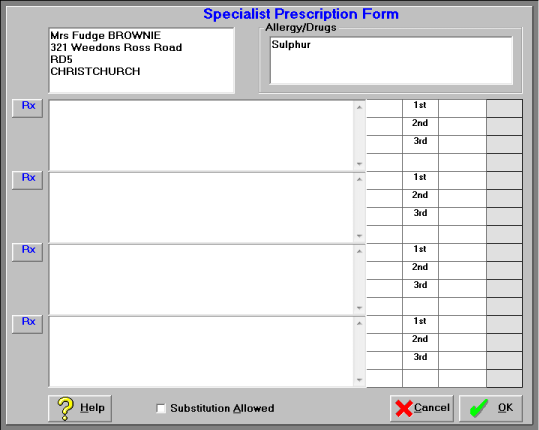
- A prescription can be typed in or select one from your Quick Codes (F8).
- Up to four items can be prescribed on any single prescription. Repeat step 3 to record all items required.
- Select 'OK'.
The prescription will print ready for signature and will appear in the patient's notes with the heading PRESCRIPTION.
If the User has set a 'Default Number of Days for Repeats' greater than zero (see Setup – Provider – User Config) then the following message will appear: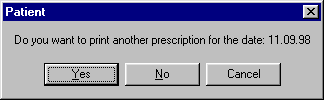
- Select 'Yes' to have another Prescription print the default number of days ahead.
The Prescription will print and the message will appear again, with the date advanced by the default number of days. - When you have the required number of Repeat Prescriptions printed select "No'.
To print a repeat prescription
- Select 'Script'.
A list of previous prescriptions will display. - Select the prescription you wish to repeat.
- Select 'OK'.
The prescription screen will display with the items filled out. - Select 'OK'.
The prescription will print.
To Edit a Note
Highlight the note to edit, press the Edit button and the note will display. Make the necessary changes and press Okay.
To Delete A Note
Highlight the note to delete, press the Delete button you will be asked if you wish to proceed with the deletion if "Yes" the note will be deleted from the patient file.