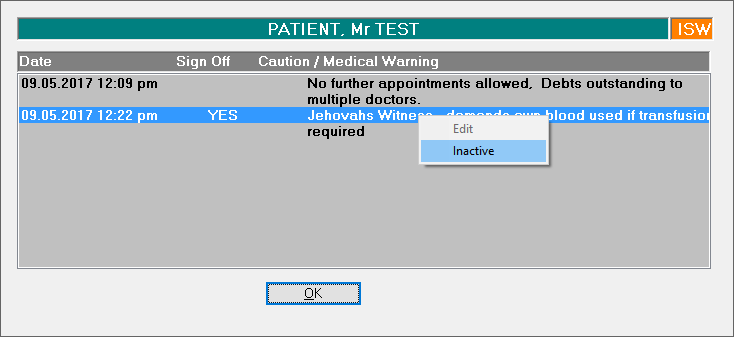
You can set up Alerts, Cautions and Medical Warnings to advise the Operators of any problems, allergies etc that they should know about the patients.
Alerts

Alerts are icons that appear in various parts of the application and symbolise certain types of awareness relating to the patient. There is no information stored in the patient's Notes that relate to your choice of Alerts.
The Alerts will appear for all Providers so caution should be used when adding or removing them from the patient.
Selecting Alerts
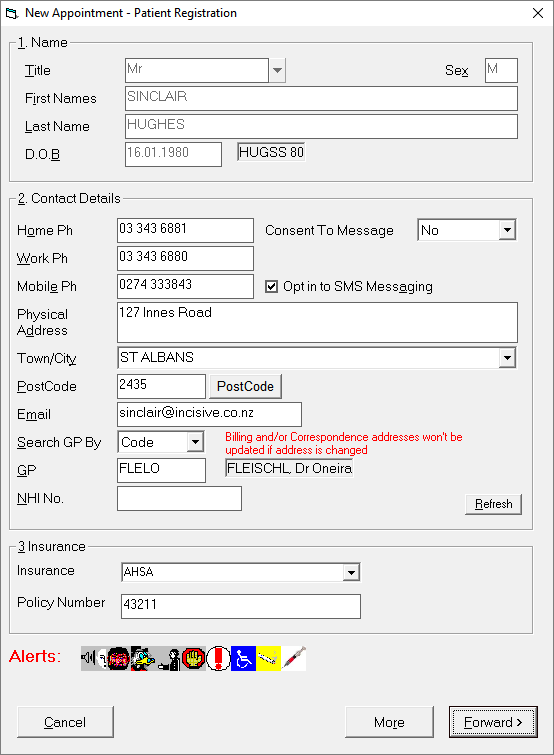
You can set up Alerts so that they appear in the Patient Header, and also when you make an appointment.
Select the Edit button on the Toolbar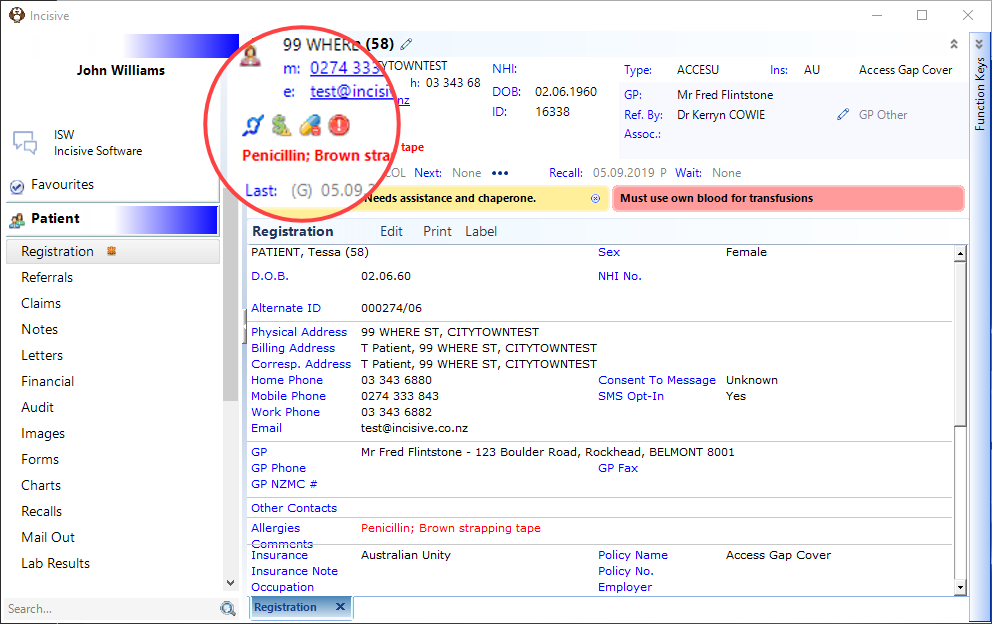
This will open up the Patient Registration window below, go to the Alerts Section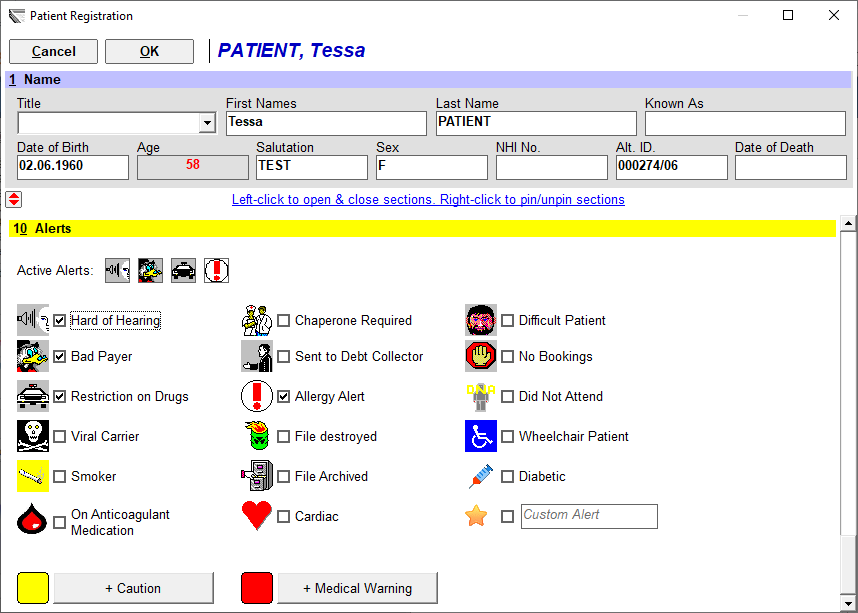
Select the Alerts that you want to display. These will now appear in the Patient Header.
Custom Alert

If you require an alert for the patient that is not already available you can use the Custom Alert option. Enter in the text that you want to appear beside the Custom Alert icon.
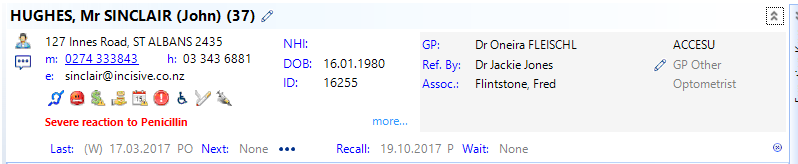
Display of Alerts
Patient and Dictation
Cautions & Medical Warnings
Cautions and Medical Warnings can be established for a patient and will appear each time the patient's record is accessed.
Cautions & Alerts can be displayed for all Providers or selected Providers that also have a referral for the patient.
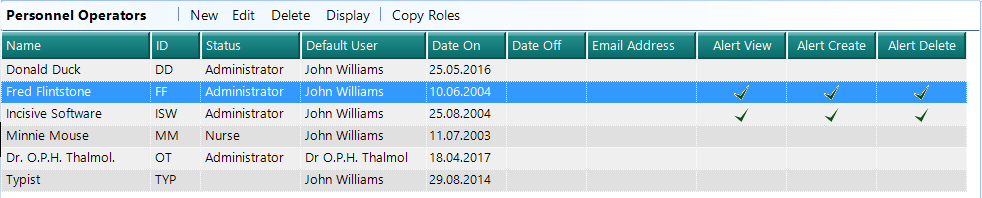
Setting up Operator to be able to create Warnings and Cautions
- Go to Setup > Personnel > Operators.
- Highlight the Operator and press Edit.
You will need to decide which operator should be able to View, Create and/or Delete the Medical Alerts and tick the appropriate boxes, then press OK.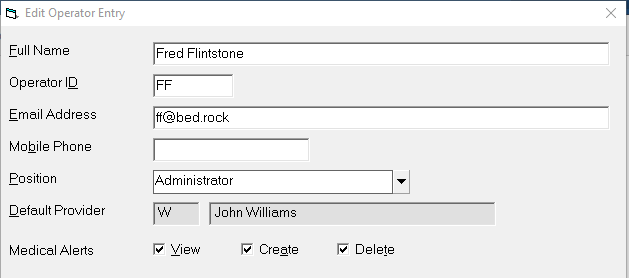
Creating a Caution for a Patient
- Select the Patient and go to the Registration tab and press Edit.
- Scroll down to the Alerts section
- Select either the Caution or the Medical Warnings button
- Then type in your message and choose who is allowed to see it - Current Provider only, Group or All Providers
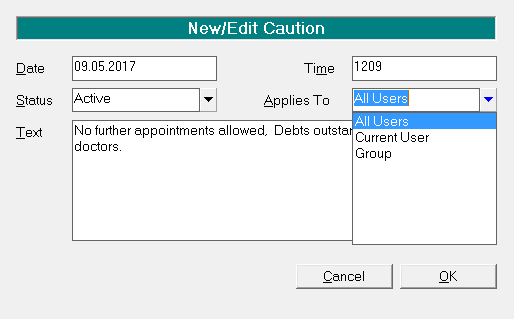
The next time you go into the Patient or Dictation module the Caution or Medical Warning will appear as a banner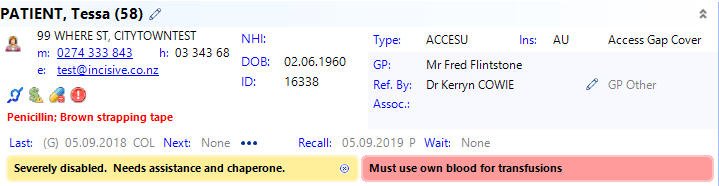
In the Appointment Book it will appear as a pop-up window.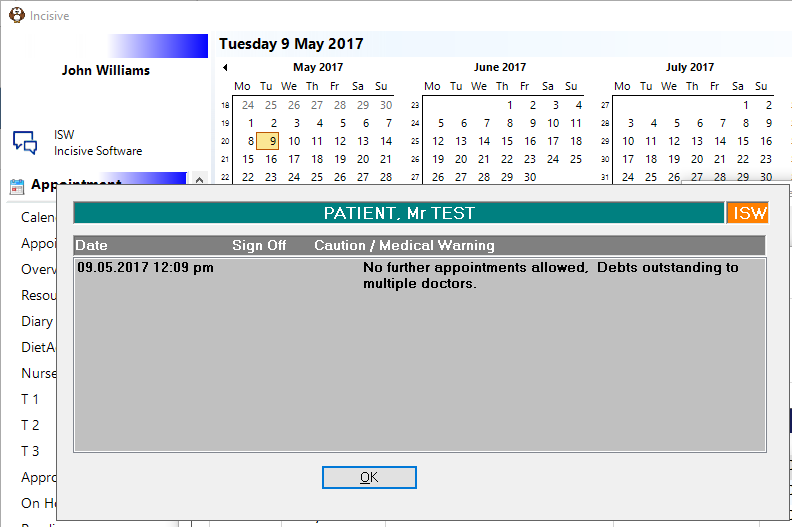
Creating a Medical Warning for a Patient
Cautions & Medical Warnings can be displayed for all Providers or selected Providers that also have a referral for the patient.
- Select the Patient and go to the Registration tab and press Edit.
- Scroll down to the Alerts section
- Select either the Medical Warnings button
- Then type in your message and choose who is allowed to see it - Current Provider only, Group or All Providers
The next time you go into the Patient or Dictation module the Caution or Medical Warning will appear as a banner
In the Appointment Book it will appear as a pop-up window.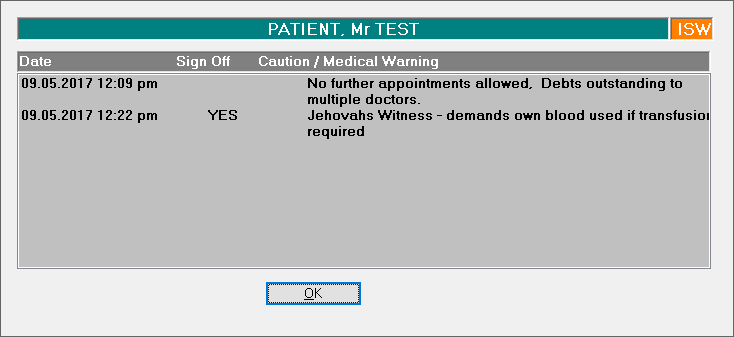
and you will be required to enter your login and password. You cannot proceed otherwise.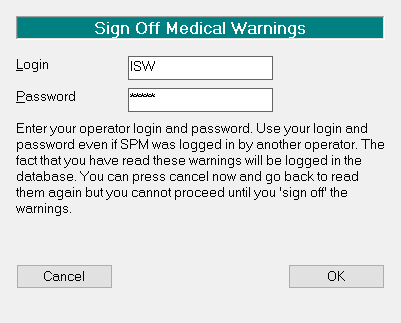
Removing Cautions and Medical Warnings
This option is only available if the Operator has the permission to 'Delete' a Caution/Medical Warning.
Right-mouse-click and choose 'Inactive' on either:
- The banner display, or

- the pop-up window