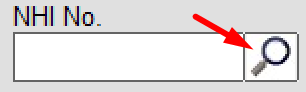
The Search function in the NHI field of Patient > Registration, allows you to access the Health NZ data and either:
use your patient details to search for their NHI number; or,
use their NHI number to retrieve Health NZ patient details and update your records.
Requirements:
Incisive SPM or PHM v416.2 or newer
Provider has a HPI Organisation ID, applies to Health NZ for access to the data and is issued a ClientID
Client ID & ClientSecret values for the Provider are added to Setup > Provider > HNZ NHI FHIR
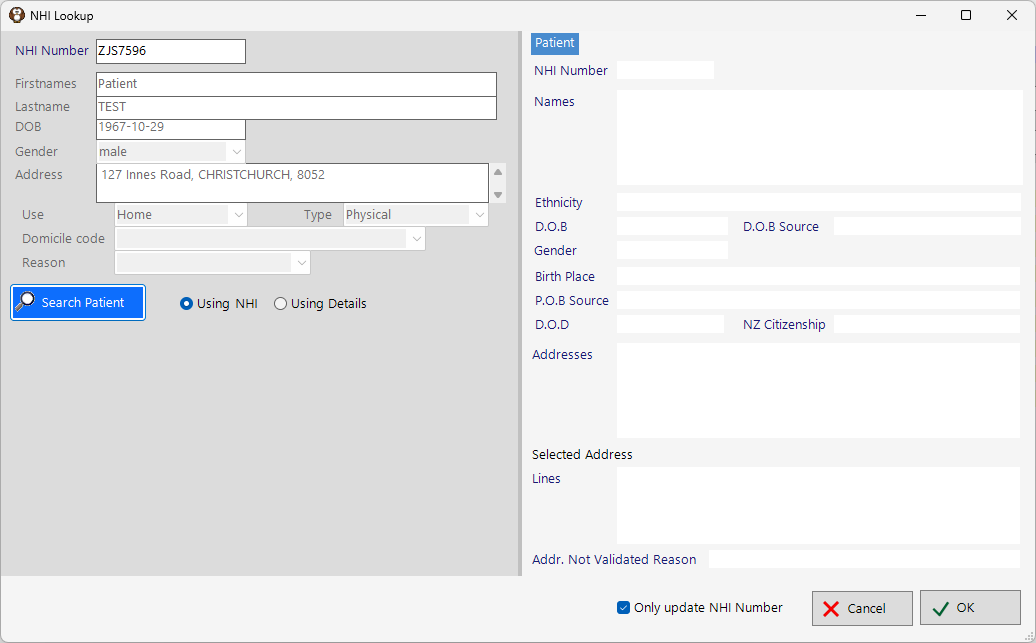
Using NHI
Use this option to search for patient details, that are held in the Health NZ database.
Enter the NHI number in the NHI field in Patient > Registration.
Choose the Edit button in the toolbar then click on the Search icon in the NHI field
Choose the ‘Using NHI’ radio button and click on the ‘Search Patient’ button.
It is possible that there may be several different names and addresses linked to this NHI. You can select which name and which address you want to retrieve.
Using Patient details
Use this option to use the information you have recorded about this patient and submit it as criteria to search the Health NZ database and find their NHI number
Choose the Edit button in the toolbar then click on the Search icon in the NHI field
Choose the ‘Using Patient Details’ button and click on the ‘Search Patient’ button
It is likely that you will be provided with a list of possible matches to patient records in the Health NZ database.
A ‘score’ will be associated with each result. The higher the score the more likely the match is correct. The highest score is 140.
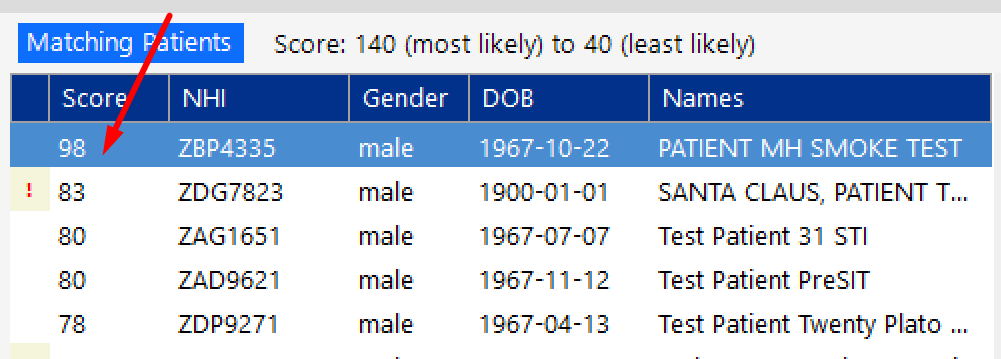
The right-hand window will display the Health NZ details linked to the selected search result.
You can choose to update just the NHI number for the patient, or replace your patient details with the information Health NZ have.
To just update the NHI number, check on the ‘Only update NHI number’ checkbox at the bottom on the right-hand window 