The Check List icon activates a search through the database looking for patients who require some attention with regard to their financial transactions (or lack of them). It then provides a list of these patients for you to work your way through.
NOTE: This function searches the whole database and may take some time.
From the Check List you can only 'Flag' unsent fees. To do anything further, you should use the Accounts Run Check List Function Key - Shift F5 . However, this requires that you have run the Check List first.
- Select Check List.
If you have previously run the Check List the following message appears.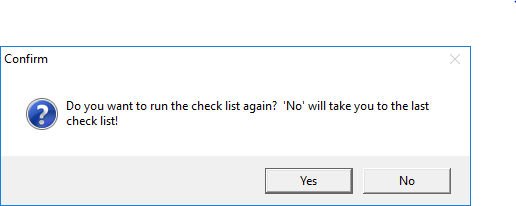
- Select 'Yes' to create a new Check List (or 'No' if you have recently created the Check List).
The following message will appear: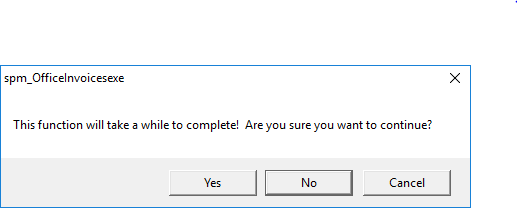
- Select 'Yes' to confirm that you want to continue.
The hourglass displays to show that it is working. Once the search through the database is complete a list of patients appears with the appropriate message(s) beside each patient.
To print the Check List
- Select 'Print'.
Flag
From this screen you can Flag as ready for invoice, patients that have a fee set.
- Highlight the patient.
- Select 'Flag'.
Remember you can use Function Key F3 here to view the highlighted patients notes and financial transactions to decide whether or not to 'Flag' the fee.Once patients who have previously had fees set have been flagged, you should then do another Accounts Run of Invoices.
The following patients will be picked up in the Check List.
The following values are configured in Set-up > Provider > User Config.
- Patients who owe less than $x - Prompt for Debt write-off under $x.
- Patients who may need to be sent to the Debt Collector - Prompt for Debt Collector after z Statements and who owe more than $x.
- Patients who have had a fee set (but not flagged or held until a certain date) - Remind Fee on hold after y days.
- Patients who have had an operation (as indicated by the presence of an Operation Note on their clinical records) but who have not had an invoice exceeding a given value - Minimum Operation Fee $x.
- Patients who have had more that a given number of statements and for whom you may wish to suppress further statements - Suppress Statement after z statements.
- Patients who have had a credit balance for more than a given number of days - Remind Credit balance after y days.
- Patients who have had a note entered since they were last billed.