An 'External Document' is any file that needs to be attached to a patient's record such as ECG reports, referral letters, sound files etc.
Save an External Document to a patient
- In 'My Mail' select the file in the left-hand panel, to be saved.
- In the right-hand panel click on the Save
 button
 - Select the patient.
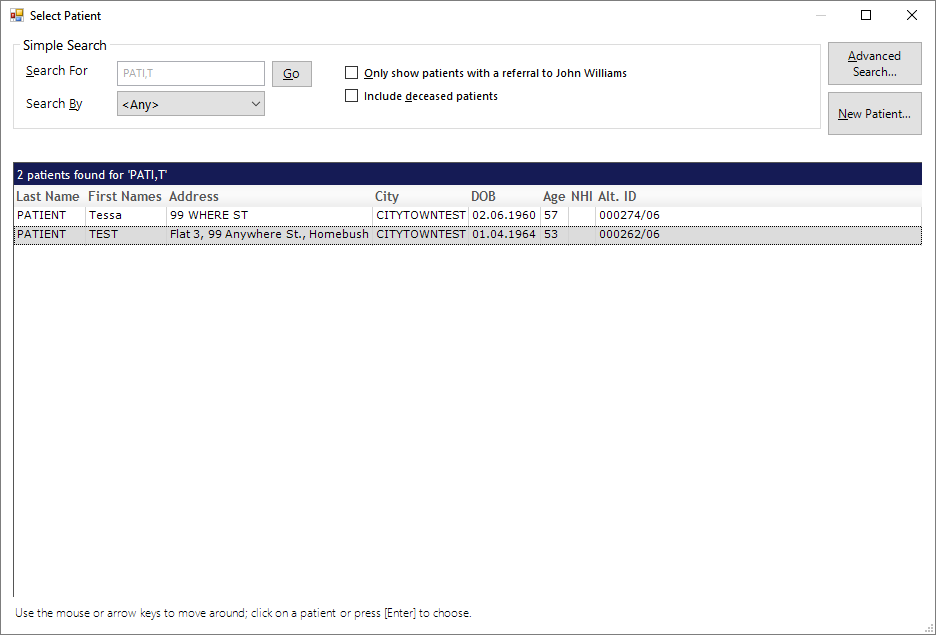
- Enter information relating how you want it saved to the patient's Notes and also if you want to send a message about it to another Operator.
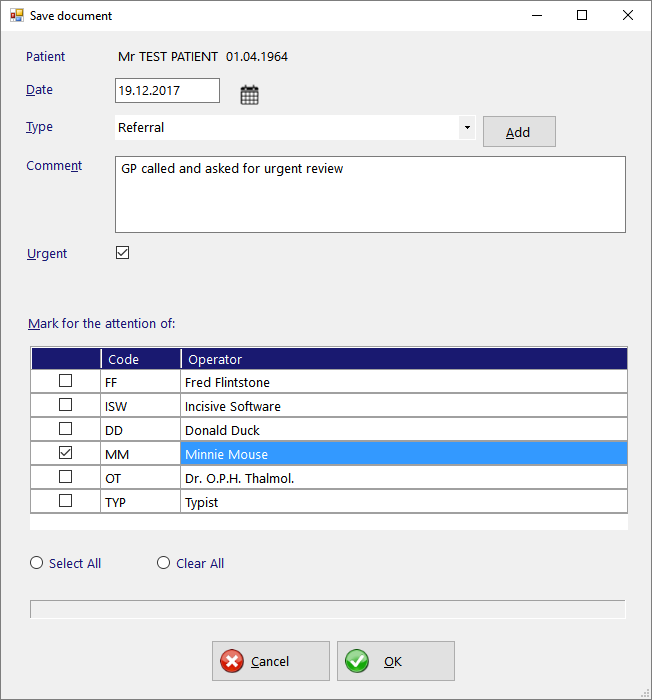
- Enter the date you want the document to be listed in the patient's Notes
Select or Add the 'Type' you want the file to appear as in the Notes
If you are notifying someone of the existence of the document you can send them an Internal Message (F10). Add some text in the Comment box and select who the recipients are.
The items in the 'Type' list can also be edited from Setup > Selection Lists > Scanned Documents. If you do not have permission to use this menu option you also will not have use of the 'Add' button.
Your 'Favourite' Operators will be pre-selected. You can change your selection in My Settings
The file will now appear with a 'Saved' icon, the patient's Name and also the Type of note.
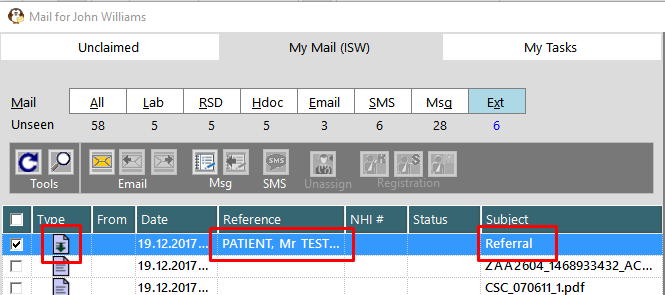
The file has already been moved and this entry in the list of files will disappear as soon as the list is refreshed.
If you have more work to do with this file you are best to send the message to yourself then go to the Msg tab and do the additional actions from there.
The document also now appears in the patient's Notes listed under the 'Type' selected and if an internal message was sent there will also be a 'Message To Do' entry.
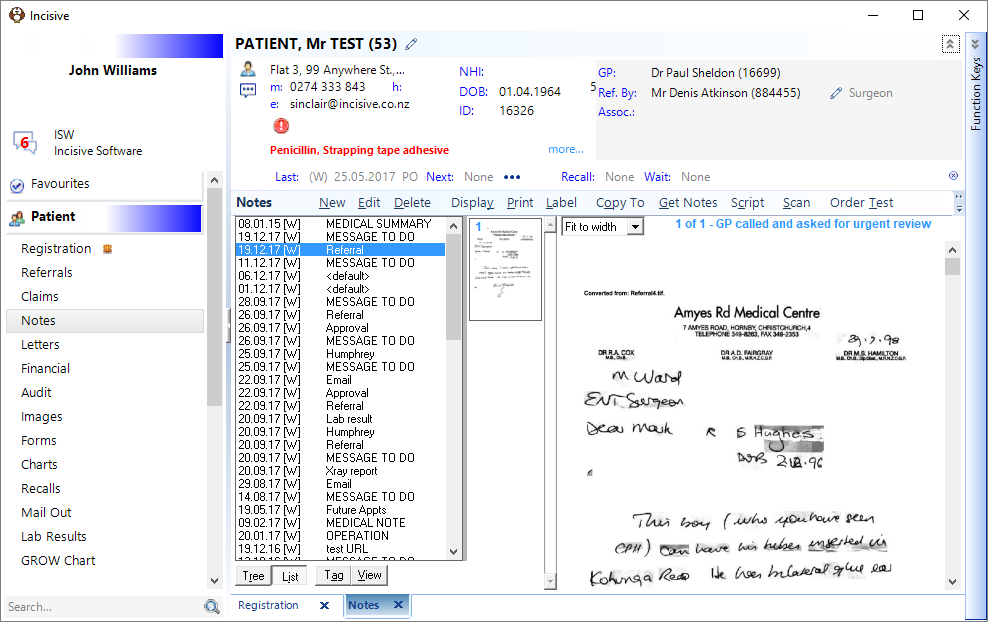
When viewing the Message in the Message Centre, both the Comment and the Linked Document are able to be viewed.
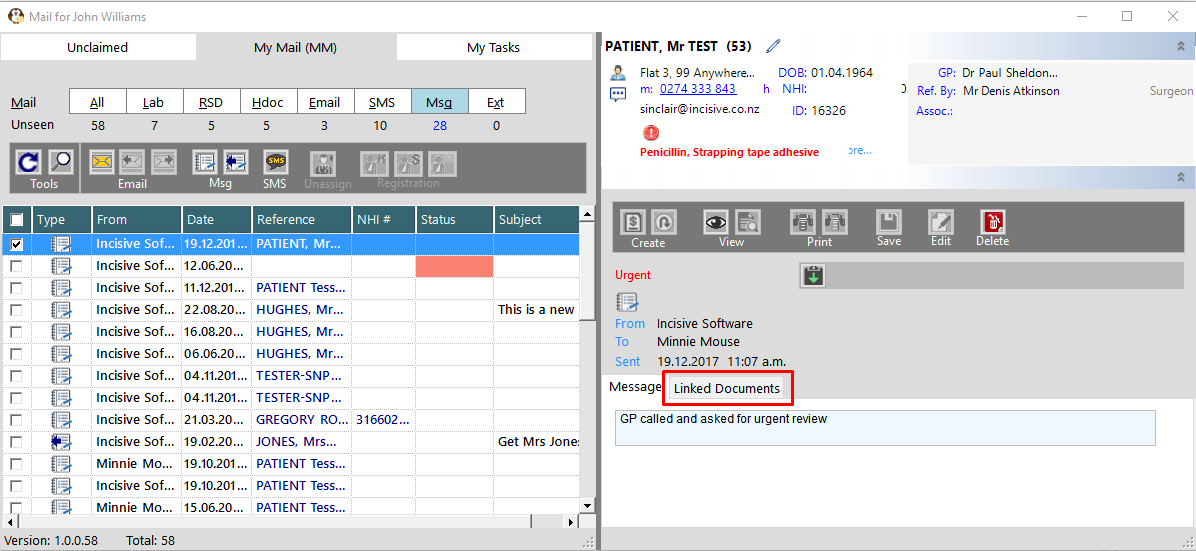
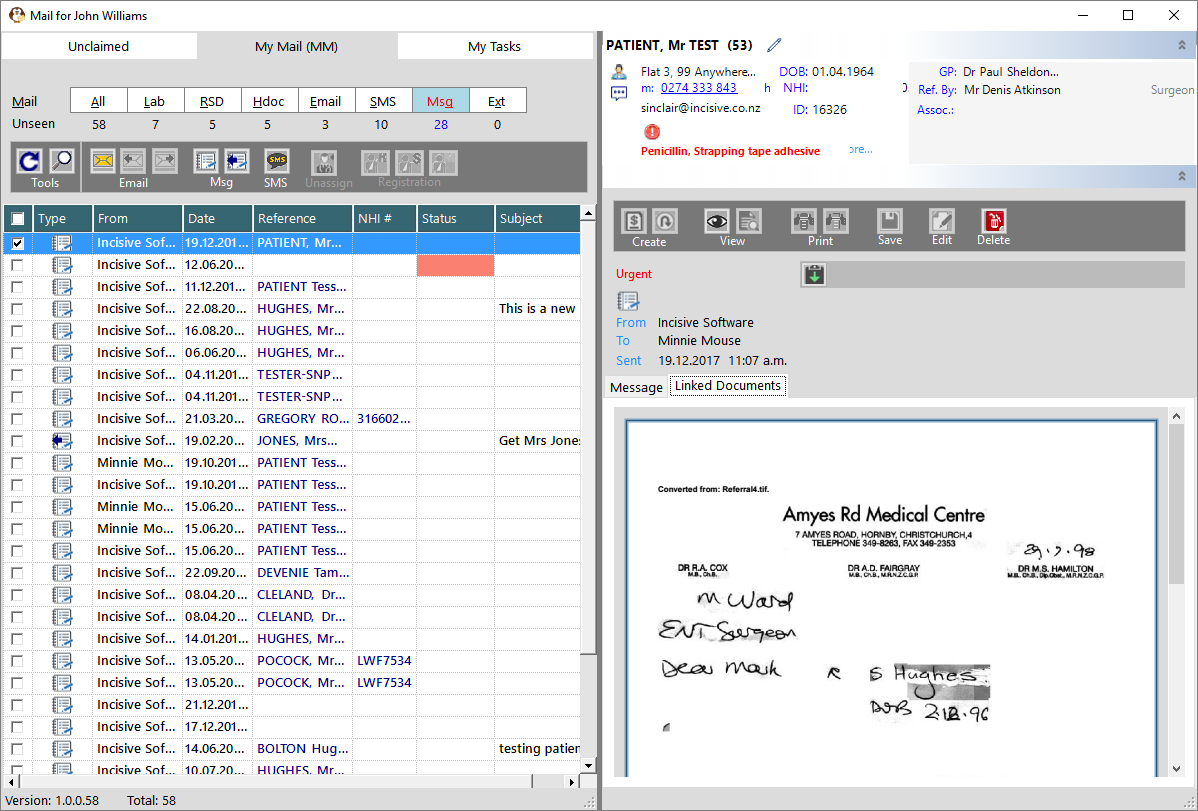
Click on the document to collapse the Patient and Action panels to allow more of the document to be viewed. Click on the document again to make the Patient and Action panels visible again.
Use the other message functions (SMS, email) or create a Task
- Mark the message as Seen (right-mouse-click or space-bar) to hide the message when you have finished (this will only hide the document from YOUR view and will not affect the view for any other message recipients)