You can quickly get to these settings by clicking on your login ID and name in the left-hand menu

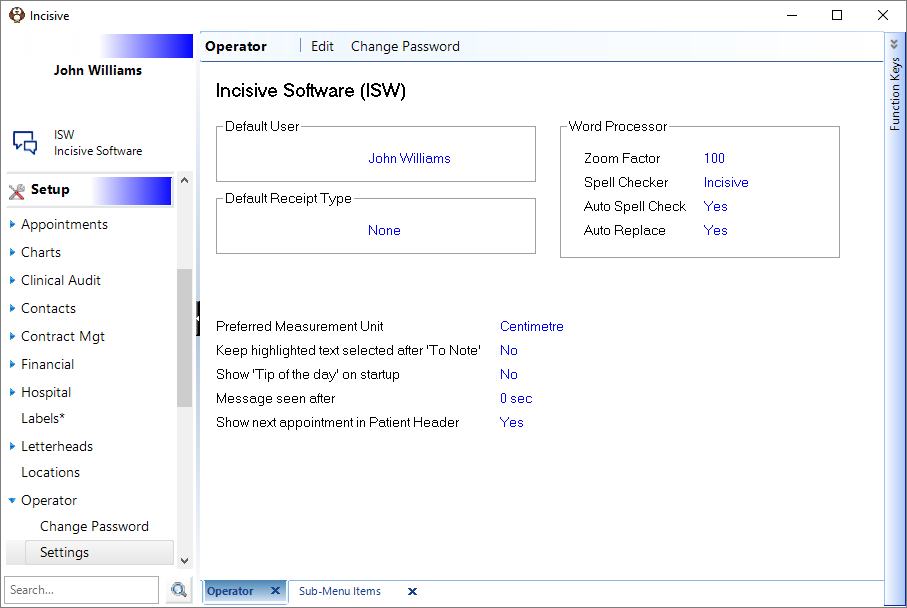
After a new Operator has been added, there are a number of settings that they should test.
Have the new Operator log in (they will be required to set their password the first time that they log in).
It is important that this password is only known to the Operator. Under no circumstances should they divulge this password as the actions of the Operator is logged in many parts of the program.
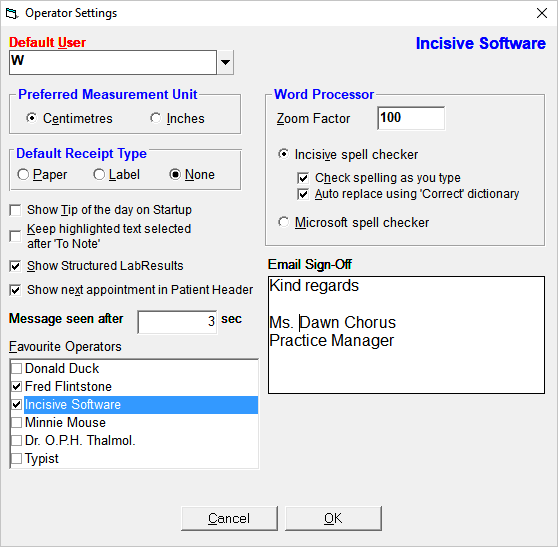
Default User | A default User/Provider needs to be selected. The Operator should select the Provider that they will be performing the most work for. The Operator will be able to change between providers by using the function key 'F2'. |
Preferred Measurement Unit | The default unit of measurement is set to centimeters. Change if required. |
Default Receipt Type | If the Operator will be issuing receipts, select the default receipt type that is most applicable. Choose from Paper, Label or None. |
Show Tip of Day | No longer applicable |
Keep highlighted text selected after 'To Note' | If the Operator will be typing letters and notes and copies text from the letter to the note, to keep the text highlighted after copying, select this option. Note, that with text highlighted, pressing any key will delete the highlighted text. |
Show Structured Lab Results | Lab results can be displayed in either a simple format or a structured format. Select this option if you wish to display the text in a structured format. |
Show next appointment in Patient Header | The Operator is able to see the patient's appointment, recall and waiting-list details in the header section of the Patient & Dictation modules. This option is sometimes mistakenly turned off by clicking on the x button on the right-hand side |
Word processor Zoom Factor | To have the word-processing font display larger (or smaller) alter the zoom factor. The default is 100. |
Incisive spell checker | Options are available to check spelling as you type (red underline) and Auto Replace. Activate these options as required. |
Microsoft spell checker | If you have Microsoft Word installed you can choose to use this dictionary instead of the one provided with the application. |
Message seen after x seconds | Enter the number of seconds, after which a message will be automatically marked as Seen in the Message Centre |
Favourite Operators | When sending internal messages, Operators can be selected and marked as a Favourite Operators and will then appear automatically selected as a Recipient for any messages sent by the Operator. |
Email sign-off | Add the text that will be inserted when the Insert Sign-Off option is chosen in the Message Centre You can Paste signature files or other sign-off images using Ctrl+V. |
