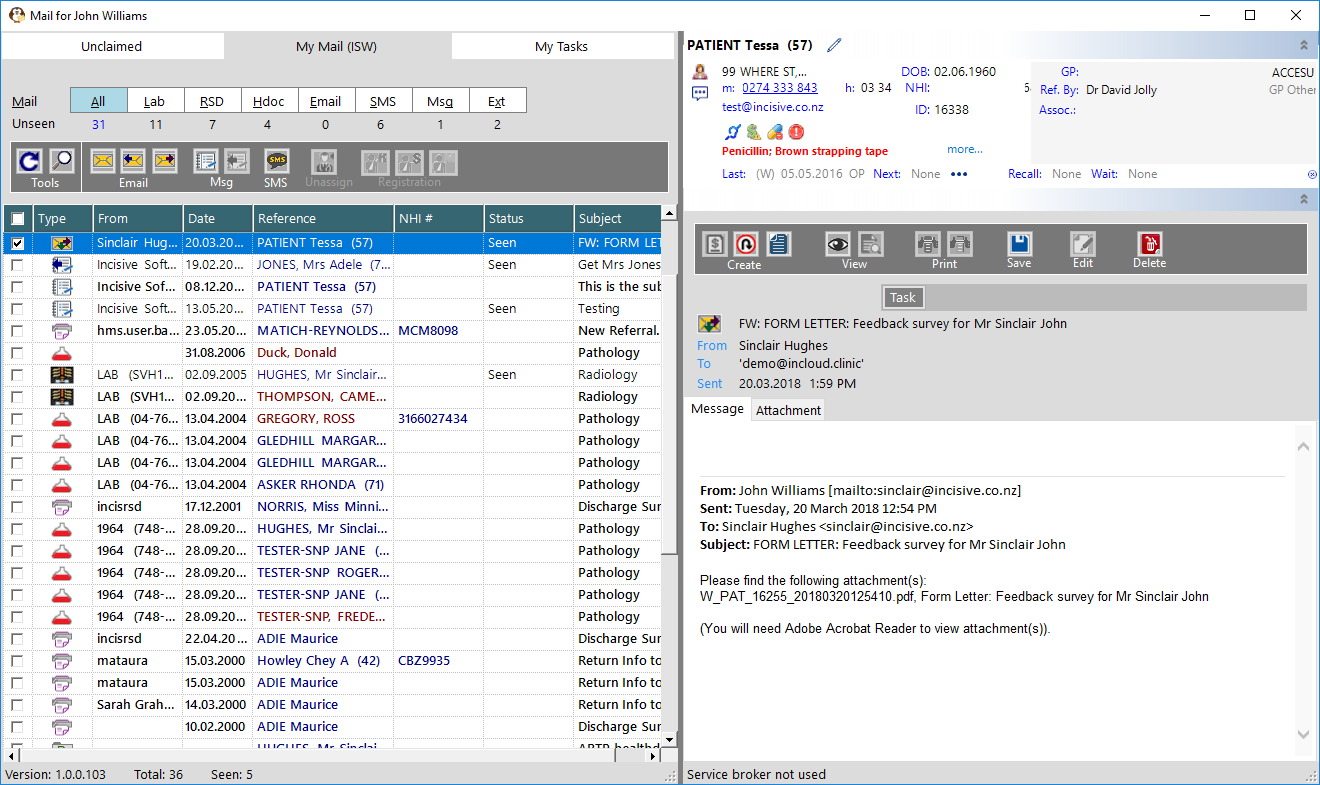
When opening the Message Centre, the Provider that is selected in SPM/PHM will be automatically selected and all Message Types will be configured using the settings relevant to their practice. The Provider's name will appear in the top Title Bar.

Message List


Mail types


Displays the number of messages that are Unseen by the Operator

No mail items will appear if your Role does not have Permissions to view them.

All

Accumulates all the incoming message types into one view.

First sort is Urgency, second sort is Message Type, then Date

You are not able to use the 'Select All' option.

Lab

Displays all the incoming messages that are in the HL7 format and have a type of Pathology, Histology or Radiology.

If the message size is large it may instead display in the Hdocs section.

Lab messages need to be marked as Accepted before they can be processed onto the patient's file. Use the Spacebar or put a tick in the check-box to mark as Accepted.

To accept all Lab messages use the Select All check-box in the grid header then mark them as Accepted

RSD

Displays all the incoming messages that are in the HL7 format and have a type of Referral, Status or Discharge (RSD).

If the message size is large it may instead display in the Hdocs section.

RSD messages need to be marked as Accepted before they can be processed onto the patient's file.Use the Spacebar or put a tick in the check-box to mark as Accepted.

To accept all RSD messages use the Select All check-box in the grid header then mark them as Accepted

Hdoc

Displays all the messages that are in the HL7 format and have been received as a Patientdoc or a Maildoc (known as Healthdocs). This also includes ARTP reports.

Generally, these are larger messages or have attached files.

Hdoc messages need to be marked as Accepted before they can be processed onto the patient's file.Use the Spacebar or put a tick in the check-box to mark as Accepted.

To accept all Hdoc messages use the Select All check-box in the grid header then mark them as Accepted

Email

Incoming emails to the account you have specified in the Settings function.

Emails and the attachments can be saved to the patient's Notes and linked to Tasks.

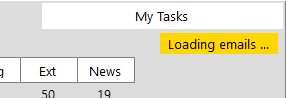
Emails will load in the background so that it doesn't inhibit you displaying other messages or use functions as they are loading.  While they are loading a banner will appear in the top right.

SMS

SMS message replies that are received using the Provider's SMS account.

SMS replies are retrieved using the SMSsender.exe application which should be set up to run as a Scheduled Task, or can be run manually.

SMS messages Sent from the Message Centre and also any Replies will appear in the patient's Mail-Out tab

Msg

Internal F10 messages that have been sent to you or that you have replied to.

These are the same messages that are visible using the F10 function key or selecting the message icon in your My Settings area of the menu.

The messages are also visible in and can be sent from the inTOUCH application.

Messages can be replied to and the related messages will be displayed in a 'conversation' style so that you can more easily understand the context of the message.

Ext

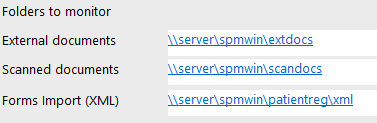
External Document or Scanned documents that you want to attach to a patient's record.

This is the same function that is available in Patient > Notes > New > External Document, which allows you to link a file to a patient's record and also send an internal message (F10) to an Operator informing them of the existence of the document.

A separate directory is available to allow photocopier/scanners to create images of documents without being driven from the Incisive application. This means one staff member can just create the scanned images at the photocopier and a different one can then view them and attach them to the patient's record using the appropriate Type and Sub-Type headings e.g. Referral - Knee L)

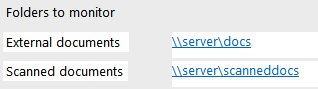
In the Settings area you can enter the path to the location where the files will be found.

When the files are saved to a patient they are MOVED from the above directories to the Provider's allocated scanned docs directory (Setup > System > File Locations)

News

A RSS feed from the News and Knowledgebase articles on the incisivesupport.com website are displayed.


Importance

High Importance emails, Urgent messages or Abnormal results will always show at the top of the list and the Status cell will be Red

Settings

  • Show mail for a patient -
    • each test result Individually, or;
    • test results for a patient shown Consolidated

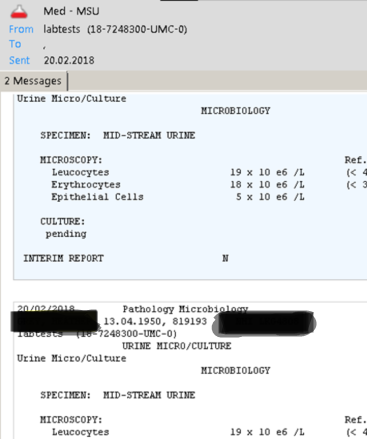
      If there are multiple results for a patient and the results have the same reference ID, the patient will be listed once in the Message List panel and all the related results will be listed in the Message Contents panel.

      Click here to view Consolidated messages...

  • Hide messages if:
    • Seen; or,
    • Completed

      A message is marked as Seen if you press the Spacebar or right-mouse-click and select Seen.

      A message is regarded as Completed if ALL the Tasks that have been created for this message have been marked as Complete.


  • Display emails received in the last: Day, Week, Month or Year

    The shorter the date range the faster the messages will load.
    If you choose a longer period use the 'Hide if: Seen' option to keep the list small.

  • Incoming email server settings (IMAP)

  • Monitor Folders for files that can be attached to a patient's record and send a message to other Operators about the document
    Configure in Setup > Personnel > Operator

    These settings are for an individual Operator and need to be manually added.

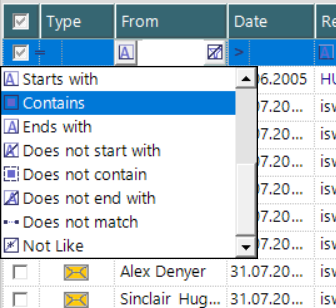
Select any column to search the contents

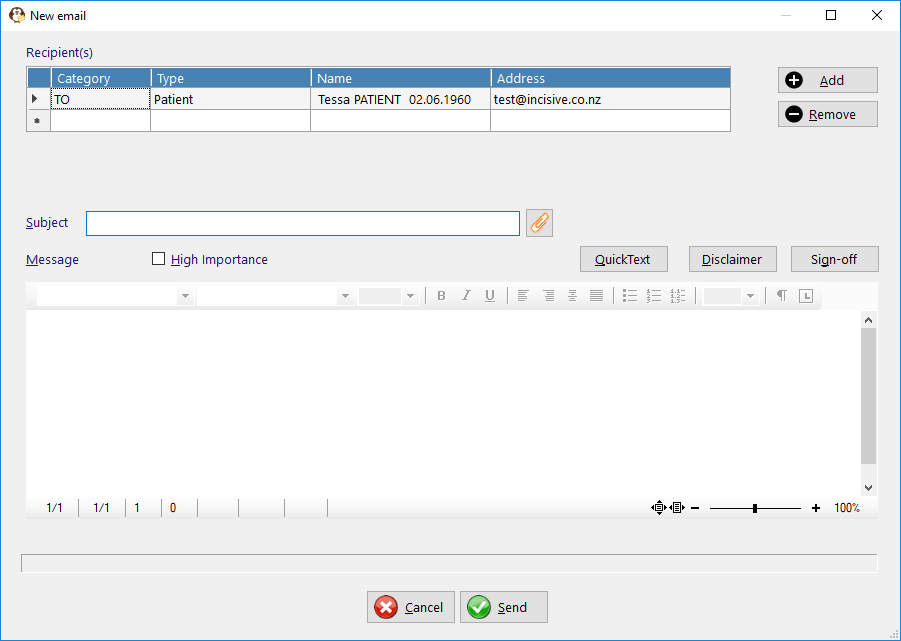
New email

Create and send an email

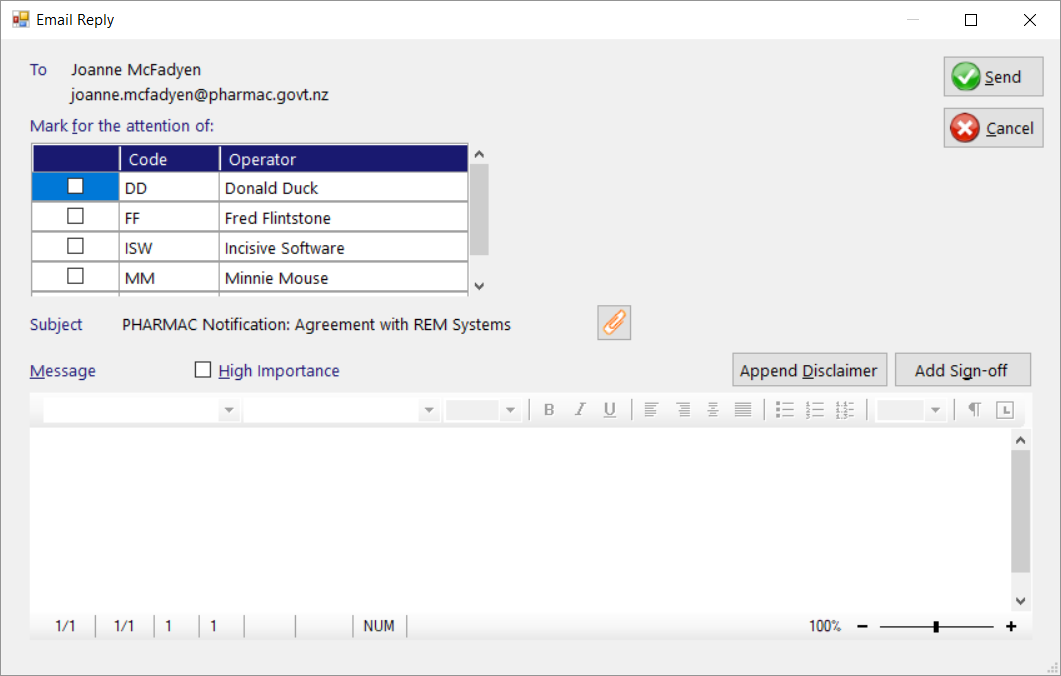
Reply email

Reply to an incoming email

If the email has been saved to a patient's record and you then send a reply to the email, the reply will NOT be saved to the patient's record.

Forward email

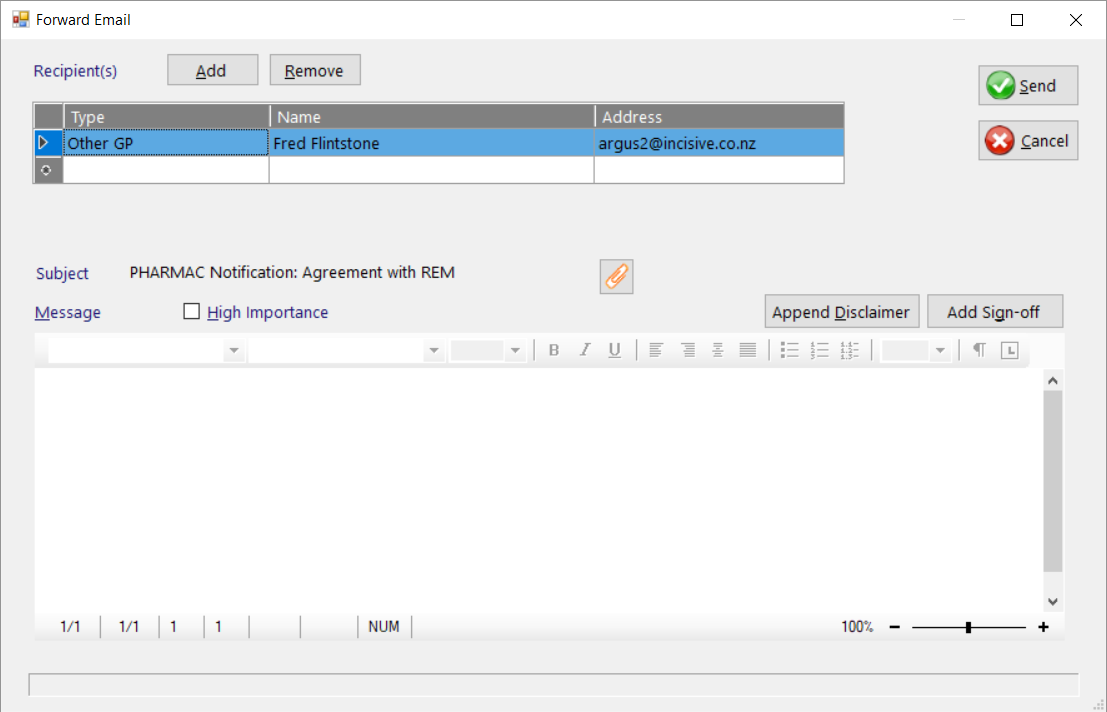
Forward an email to another party


New message


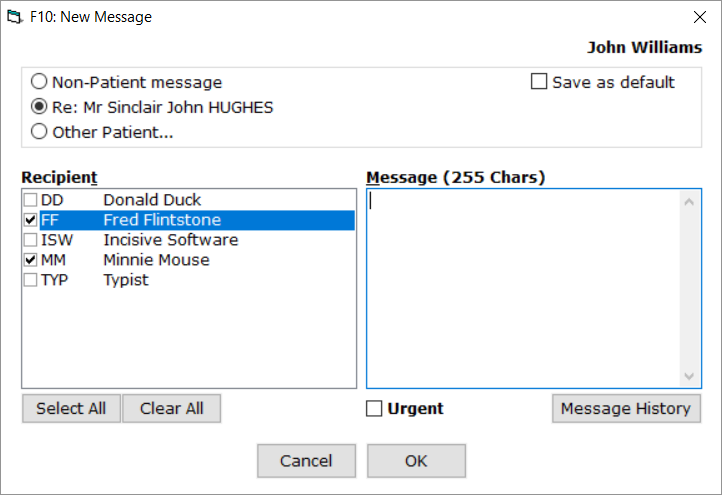
Create a new internal (F10) message to other Operator(s)

Reply to message

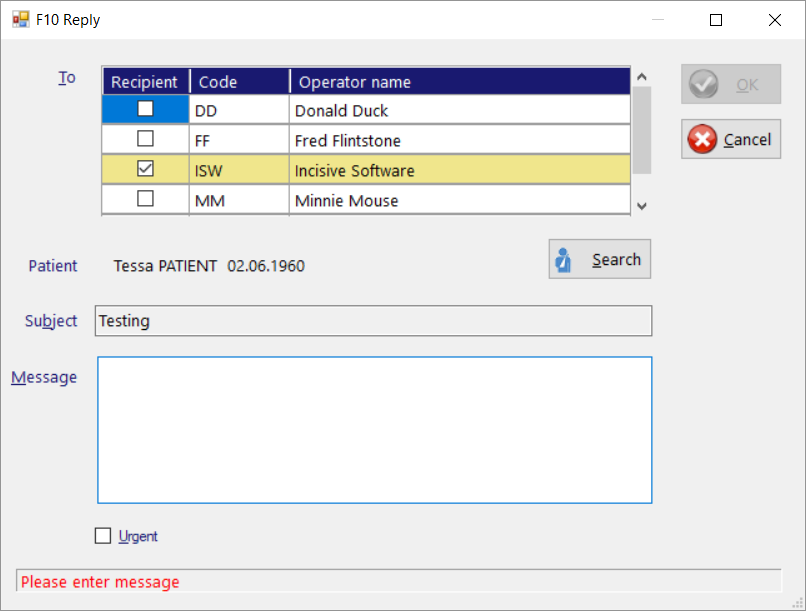
Reply to an internal (F10) message

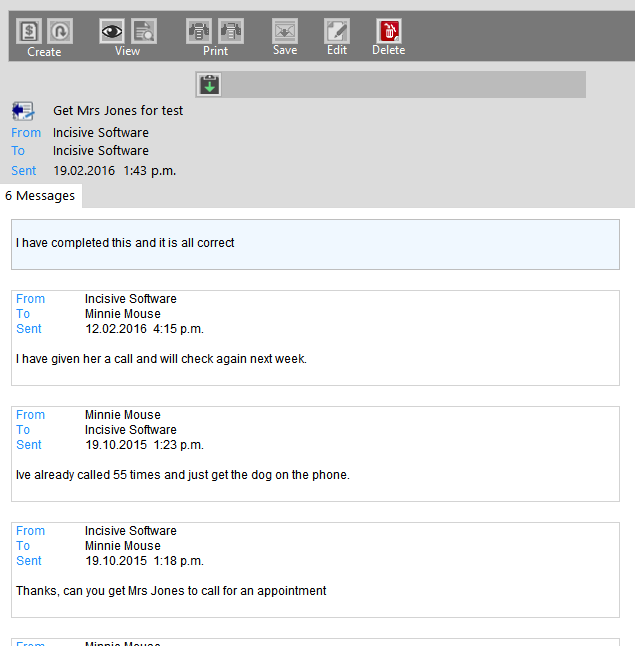
The replies to a message will be displayed in 'Conversation' style.

Example of message replies shown as a conversation

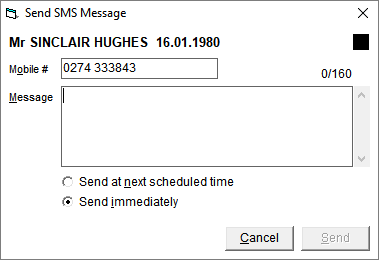
New SMS

Unassign

If a Lab report, RSD document or Healthdoc message was assigned to the incorrect Provider you can Unassign the message and move it back into the Unclaimed section, from where you can Assign it to the correct Provider. Pressing the F2 key also Unassigns the message.

Register the patient

Use the information provided in the HL7 file to create a new patient in the database.
Only available for HL7 messages

Search for a patient

Use the Search Patient function to find an existing patient in the database to match to the incoming report
Only available for HL7 messages

Match a patient

Provides a list of possible existing patients that might match the patient named in the report
Only available for HL7 messages

Accept report

Mark the report as Accepted which will allow it to be processed onto the patient's file
Pressing the Spacebar or right-mouse-click and choose Accept from the menu also marks the report or referral as Accepted.

Reports, Referrals and Healthdocs cannot be processed to the patient's file unless they are marked as Accepted.

Process reports

Move all 'Accepted' Lab reports and RSD or Healthdoc documents onto the patient's file. The number of messages that are marked as 'Accepted' is displayed on the Status Bar at the bottom of the screen.

If a report has been Accepted AND there is a Task associated with it, once the Task is marked as Completed it will be automatically processed to the patient's Notes.


Message Content

Collapse the panels using the chevron symbols to provide more display space.


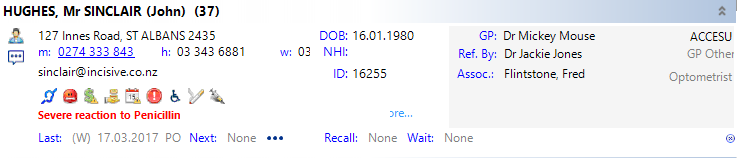
Patient Header


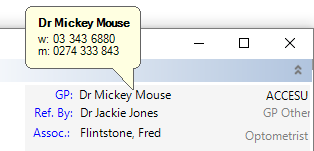
Place the mouse over the name of the GP, Referring Dr. or Associated Providers to display their phone numbers.

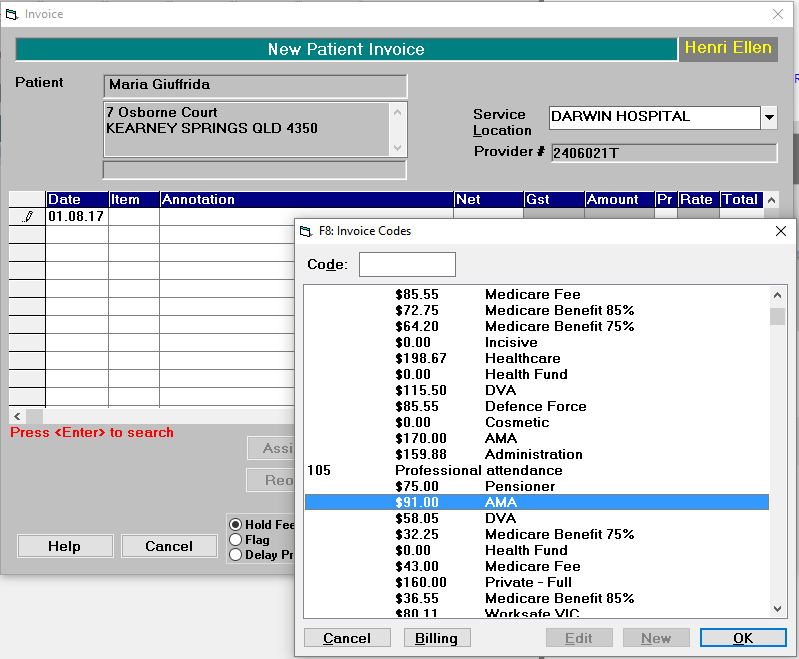
Invoice

Create an invoice fee for a service provided to the patient. (Australia only)

Ideal when the fees charged are based on the lesion size.

Display the Invoicing options

Recall

Enter a Recall for a patient

Note

Enter a Medical Note, Nursing Note, Para-medical Note or a Comment for the patient.

Patient Details (F3)

Pop-up the F3 Patient Details window

View File

View the original report source file.
Only active for HL7 based messages.

Print

Print this result

Print All

Print All results for this patient

Save to Patient

Save the email to a patient's file and create an internal notification to alert the Provider.

Display the Notification options

If a XML file from an online form is saved it will start the PatientImport application to allow you to import the form data to the patient's file.

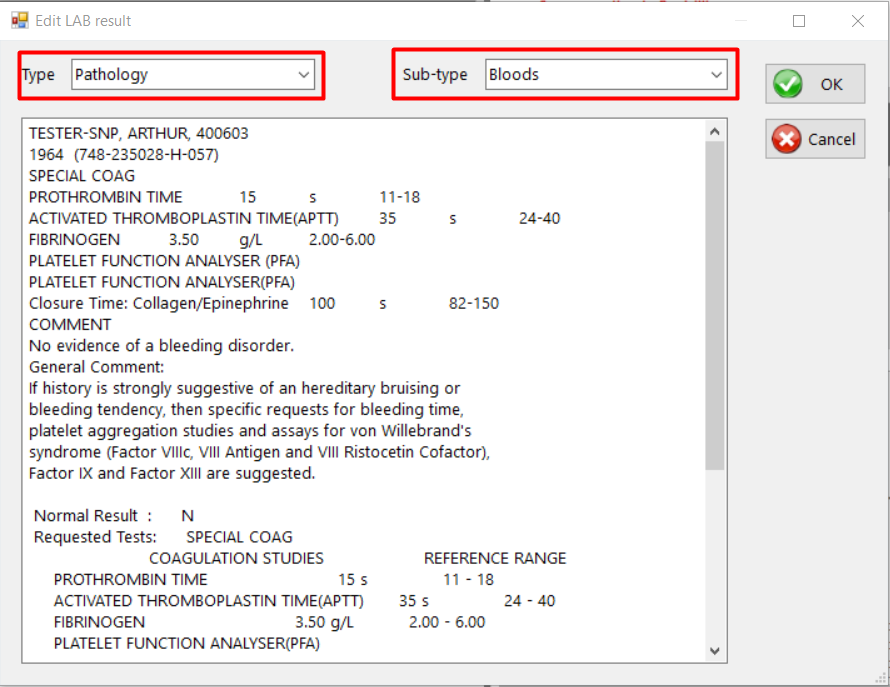
Edit Type & Sub-type

Change the Note Type & Sub-type.
The name of the selected Sub-type is what it will appear as in the patient's Notes.

Display the Edit options

You are able to make adjustments to the text that is displayed in the patient's file however we strongly discourage this as the original result is also stored.

Delete

Delete the message

SR Referrals

Acknowledge, Decline or send a Message to the Referrer.
Acknowledge just informs the referrer that you have viewed the referral.  It does not infer Acceptance.

Assign Claim

Assign or register Claim details
Only active for Healthdos (e.g. ARTP) received and the XML attachment is highlighted.

Change attachment Sub-type

Change the Sub-type linked to the attachment.
Only active for Healthdocs received

Task

Create a new Task or mark it as Complete.

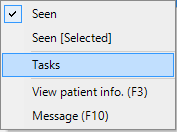
You can also right-mouse-click on the patient in the Message List panel and select the Task option

If a Test report has been marked as Accepted, when you complete all the related Tasks it will be automatically processed to the patient's Notes.


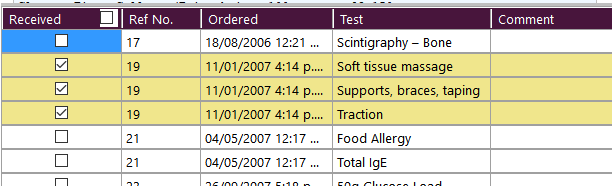
Tests Ordered

List of tests ordered for the patient which are required to checked-off against the results received.

Related Content:

Training:

  • Incoming Mail
    • Assign UNCLAIMED Mail
    • Accept LAB Results
    • View RSD Documents
    • Save EMAIL and Attachments
    • Save a Fax to the Patient
  • Sending emails
    • Sending emails from Message Centre
  • Incoming Mail in Classic edition
    • View Lab Results
    • Reconciling Test Results with Test Orders
    • Unclaimed Lab Results
    • View RSD Mail
    • Advanced
  • Test Ordering
  • Saving emails to a Patient
  • Sending Clinical Notes to ACC