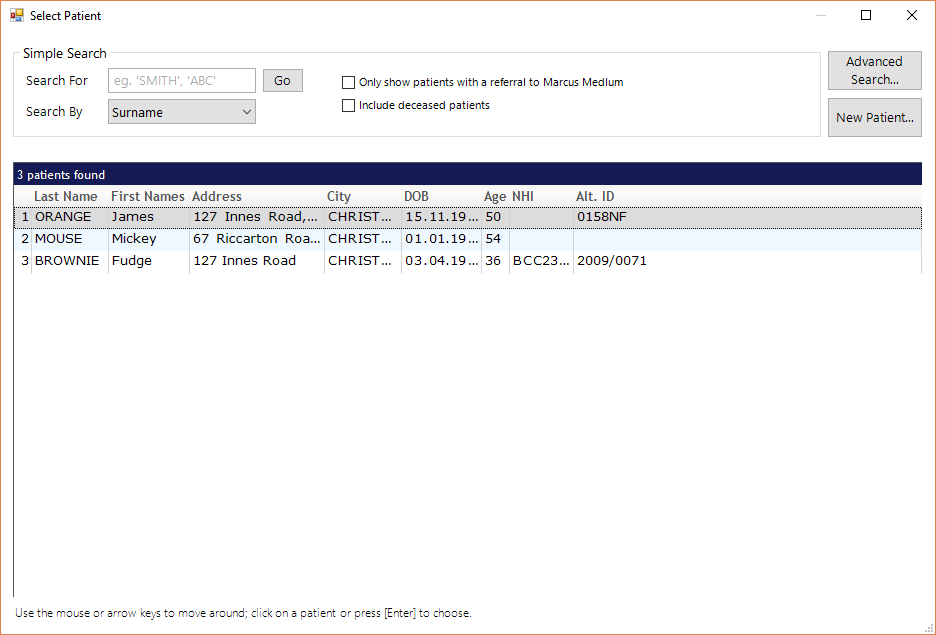
To select (any) patient from the database

Mouse

At the top of the screen in the Patient Header, click where it says Click here.

Once a patient has been loaded, click anywhere in the area of the patient name.

Keyboard

Press F4.

The Select Patient screen will display.

This contains a list of the most recently accessed patients.

Use Shift+F4 to search and list only the patients that have been referred to the Provider.

To select a patient from the list of recently accessed patients:

Mouse

Click on the patient you require.

Keyboard

Either:

  • Type the number displayed alongside the patient's name
  • Use the arrow keys to up or down arrow followed by Enter.
  • Double click on the patient's name


The most common search selection is using the 'Surname' option.

Search by:

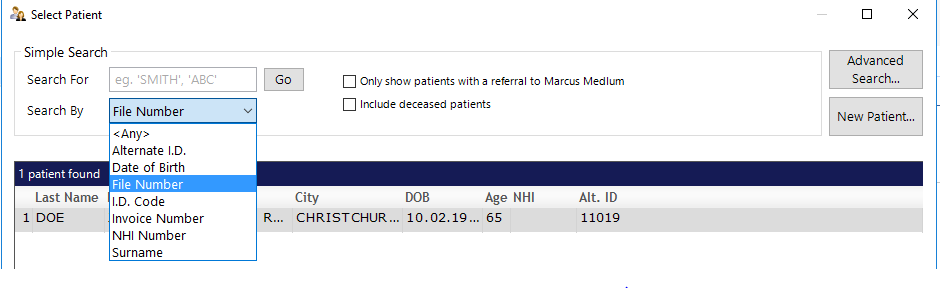
When searching for a patient, there are a number of Search options that can be used.  A list of these appears in the drop down list.
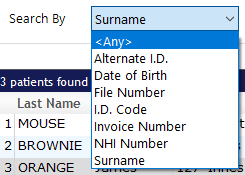

Any

Any of the search options. The search may be slower in very large databases

Alternate I.D.

The patient's Alternate ID (see ALTERNATE PATIENT ID).

Date of Birth

The patient's date of birth.

File Number

The Patient's Filing Number.

Filing Number Configuration

ID Code

The ID Code is made up using the patient's:

  • first 3 letters of their surname
  • last letter of their surname
  • first 2 initials
  • last 2 digits of their year of birth
  • (optionally) next sequential number if ID already exists

    e.g. PATTA60
    for PATIENT, Trevor Alan, born 1960

    More about the ID Code

    The I.D. Code is a carry over from the DOS days where there was a limitation of 8 characters that could be stored.  It was also the only way to select a patient.  While things have progressed and their are now more options available, it is still a fast and effective way to filter a large list of patient names.

    The I.D. Code is normally six characters and two numbers, based on the patients last name, initials and year of birth. In the following example we will see how it is assembled for John A Smith born 1947:

    • The first three letters of the last name (SMI)
    • The last letter of the last name (H)
    • The first initial and second initial (JA)
    • The year of birth (47)

    Thus the ID Code for JA Smith : SMIHJA47

    • If the patient has no second initial, the sixth character in the code becomes a space.
    • If the year of birth is a single digit, then the seventh character is a zero (07 not 7).
    • If the year of birth was 2000, then the seventh and eighth digits are both zero (i.e. 00).

    Three letter lastnames 
    The rule is no different for a three-letter lastname:

    • J.A. Lee becomes LEEEJA

    Two letter lastnames
    The occasional two-letter lastname is less obvious:

    • A.B. Ha becomes HA AAB.

    The "3rd" letter of the surname is a space; the last letter is "A".
    Apostrophes and Spaces
    If an apostrophe or a space is one of the first three characters of a lastname, it must be in the code. For example:

    • J.R. Le Cren becomes LE NJR
    • B.W. O'Neill becomes O'NLBW

Invoice Number

Type in an invoice number

NHI NumberMedicare Number

The patient's NHI number. The patient's Medicare number

Surname

There are several formats that can be used:

  • Lastname, Firstname
  • Firstname Lastname

    The comma is important. You can use partial names.

Include Deceased Patients

If this option is selected, patients who have been marked as deceased will be included in the patient search.

Deceased patients are displayed in bold, together with the date of death (if entered) and their age when they died.

If a date of death was entered as 'Unknown' then Date Unknown is in the Deceased column and Deceased will appear in the Age column.
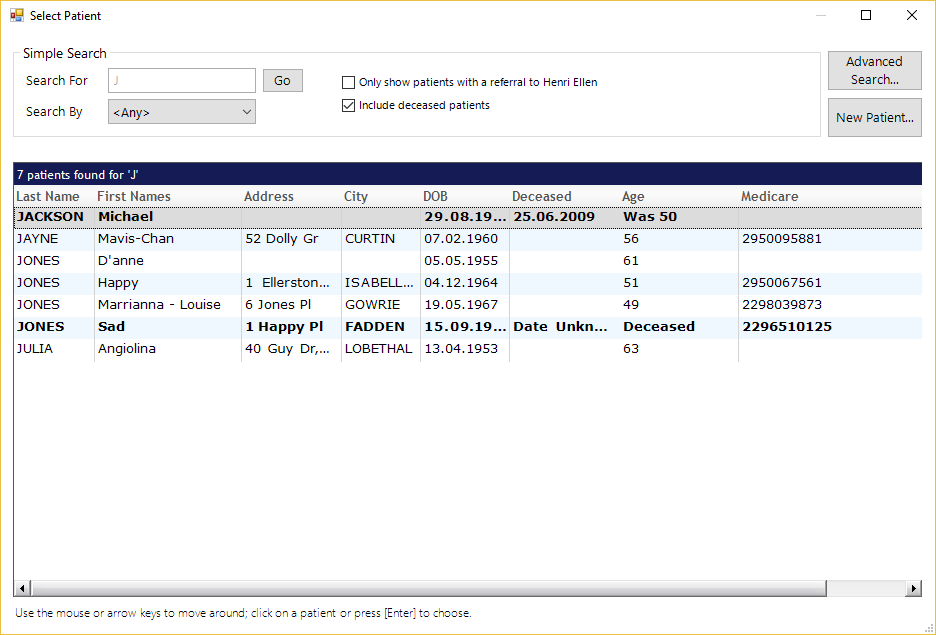
Sample of Select Patient screen showing deceased patients