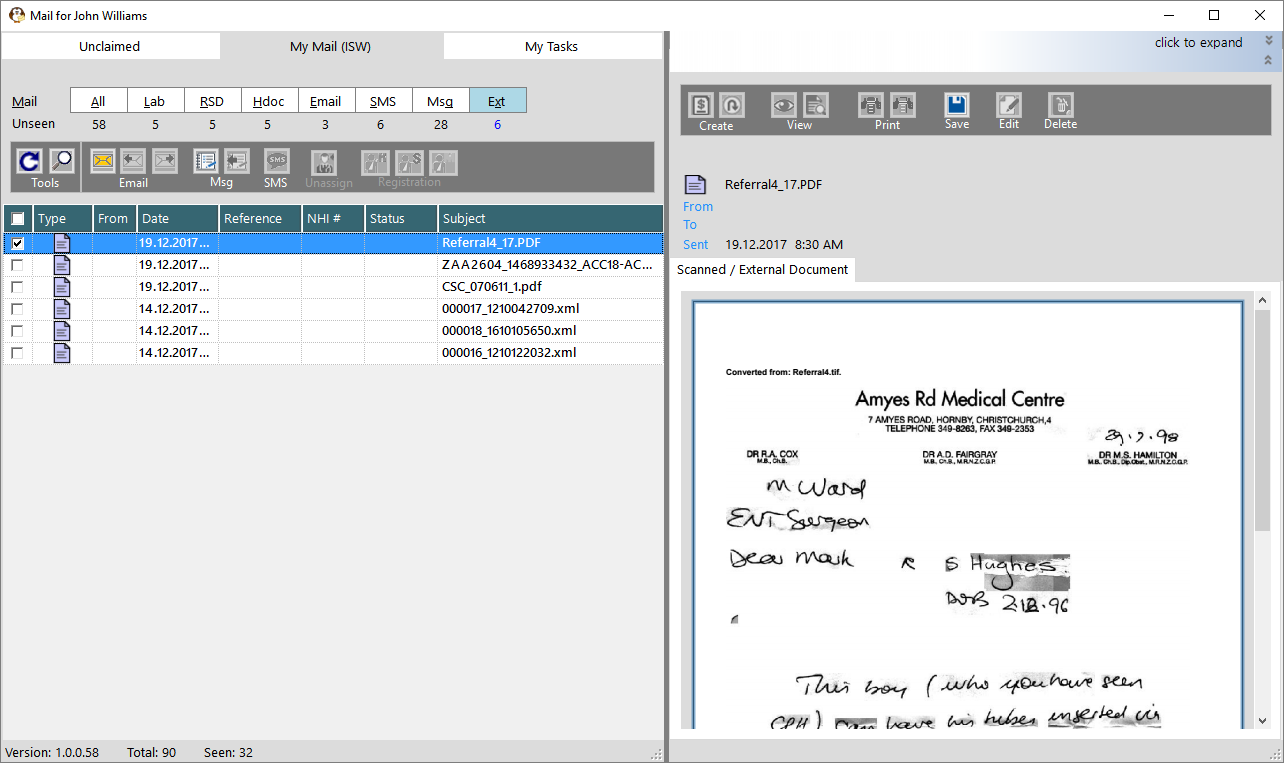
The main functions of this feature is to allow you to:
- Easily save external documents and reports (e.g. referral letters, radiology reports & ECG results) to a patient's record.
- Use a photocopier to bulk-scan documents then attach them to the patient.
- Import patient-supplied registration, feedback and post-op infection/pain surveys
- Allocate images & videos to a patient
The 'Ext' button will list the files that are in the folders specified in the Settings function which you save to a patient's record and send an internal message (F10) to one or more Operators informing them of the document.
When the Operators view the message the linked document is also able to be viewed without going to the patient's Notes.

The functions available from this option are the same (but better) options than in Patient > Notes > New > External Documents, Patient > Notes > Scan and also Patient > Images > Source
Allowed file types
Only files with specific extensions are allowed to be saved. All others will be not be displayed on the list.
The file extensions allowed are:
.ani, .bmp, .cal, .dicom, .fax, .gif, .img, .jbg, .jpe, .jpeg, .jpg, .mac, .pbm, .pcd, .pcx, .pct, .pgm, .png, .ppm, .psd, .ras, .svg, .tga, .tiff, .wmf, .txt, .rtf, .doc, .docx, .pdf, .xml, .xsl, .xls, .xlsx, .html, .htm, .avi, .mpg, .mpeg, .mp4, .mp3, .wmv, .mov
Configure the folder locations
You can specify the location of the folder for all the types of external documents using Setup > Personnel > Operators > Messaging Options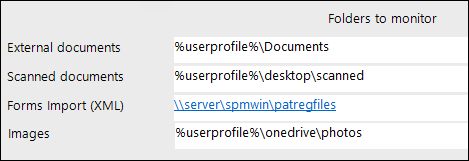
Importing from Virtual Drives
Importing images from Azure Storage, OneDrive or Dropbox may require a few more steps to establish the connection to the drive.
Azure Storage
This is easy as the configuration will be completed for you by Incisive staff. No additional login or authentication is required to view the images.
Each Provider can have their own secure, private folder to import images and files from.
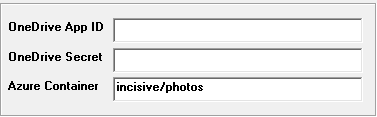
- In SPM/PHM select the Provider using F2
- Go to Setup > Provider > Config 3 and use the Edit button on the toolbar.
- Enter the Container name and folder (if required)
Drop box
If the Dropbox option is checked ON in Setup > Personnel > Operators > Messaging Options, when the Message Centre starts up you will need to log into Dropbox and the connection needs to be authenticated by the Message Centre app.
You must complete the login process within 3 minutes of the virtual drive login becoming available, otherwise the connection to the virtual drive will be abandoned.
You can attempt to reconnect again by closing the browser then clicking on the 'My Mail' tab in the Message Centre. This will activate another login attempt.
If unsuccessful the following may appear
Connections to Dropbox are not allowed for applications hosted in the incisive.inCLOUD.clinic environment.
Configuration to import from Dropbox
OneDrive
OneDrive Business edition is recommended however the OneDrive Personal edition can be used.
OneDrive does initially take longer to configure than Dropbox and also Microsoft requires you to refresh the connection every 60 minutes, however it is a very secure.
If the OneDrive option is checked ON in Setup > Personnel > Operators > Messaging Options, when the Message Centre starts up you will need to log into OneDrive account and the connection needs to be authenticated by the Message Centre app.
You must complete the login process within 3 minutes of the virtual drive login becoming available, otherwise the connection to the virtual drive will be abandoned.
You can attempt to reconnect again by closing the browser then clicking on the 'My Mail' tab in the Message Centre. This will activate another login attempt.
If unsuccessful the following may appear...
Configuration for the PROVIDER to use their own OneDrive
Configuration to UPLOAD files to OneDrive
Configuration for the OPERATOR to import from OneDrive to the Message Centre