You can send (and receive) messages to (from) other Operators within your Incisive database.
These messages are only seen when the operator is logged in to the Incisive application.
There are a number of ways to generate a message:
Area |
|
|---|---|
F10 | Function key F10 |
| Message Icon, followed by the selection of 'New' from the Read Messages screen. |
Notes | Selection of New - Message to Do from the Notes tab in Patient Mode |

To send a message
- Press F10.
The New Message screen will display.
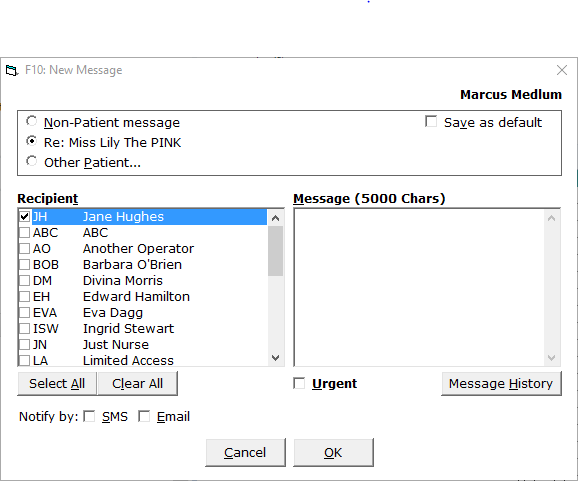
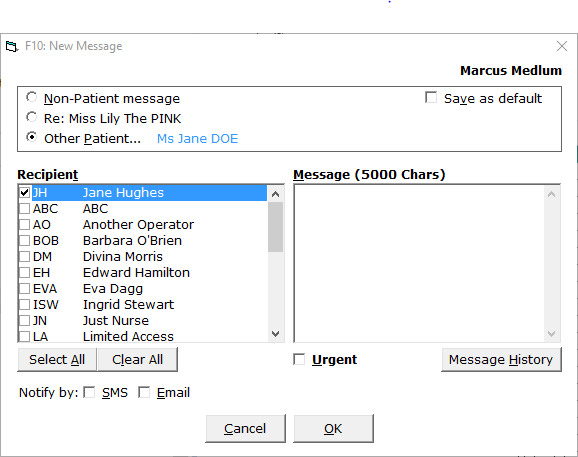
If you have a patient selected in Patient Mode, the default is that the message is about this patient. If the message is not about the currently selected patient, either select Non-Patient message or Other Patient.
The Provider the message will be recorded against is displayed to the left of the screen. If the message is not to be recorded against this Provider, cancel out and change Provider before continuing.Select the Recipients the message is intended for.
- Type your message,
- Select 'OK' to send the message.
- Optionally you can Notify by text or email. Simply tick the required box before selecting 'OK'.
Non-Patient message | If you want to send a message to another operator that is not about a patient, select this option. | ||||
Re: current patient name | If the message is about the patient name that appears on the New Message screen, select this option. If you have selected New from the Read Messages screen, Re: Patient is the one that was highlighted on the previous screen and not necessarily the patient currently selected in Patient Mode. | ||||
Other Patient | Select this option to select a patient other than the one currently selected.
| ||||
Save as default | To save the selection of Recipients and message type (Non-Patient, Re, Other Patient), check this option on. | ||||
Recipients | Select one or more recipients from the list. Use the hot key 't' to get the focus in the list, and then type the first character of the Operators code to quickly jump down the list. You can then use the up and down arrows. Once the correct operator is highlighted, press the space bar to select. | ||||
Select All | Selects All Recipients to receive the message. | ||||
Clear All | Clears the current selection of Recipients. | ||||
Message | Type the message to go the the selected recipients. | ||||
Urgent | Messages marked as 'Urgent' display in the list of messages (Read Messages screen) with a red flag in the status column to alert the recipient to the message.{anc | ||||
Message History
| The Message History provides a list of messages sent by the operator currently logged in to the Incisive application.
Select a message to view. Te text of the message will display. |