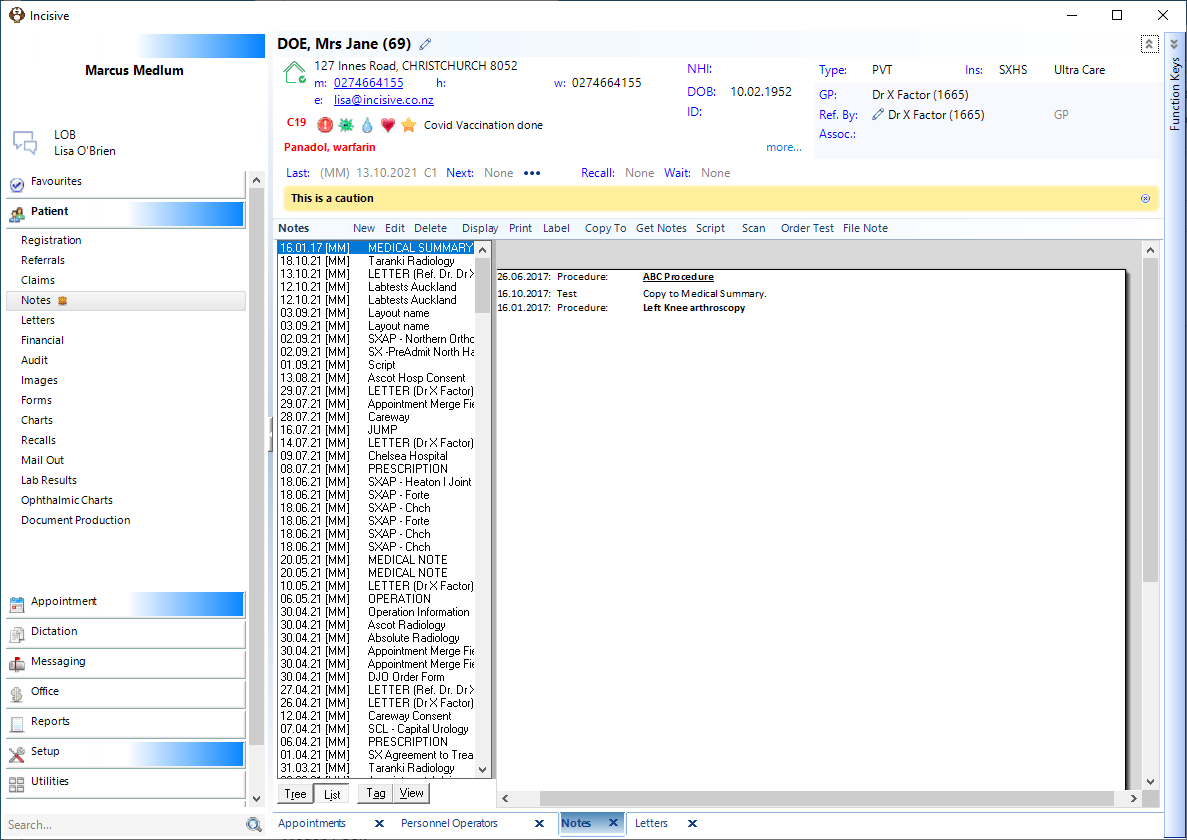
Registration Fields
Name | |||||||||||||||||||||||||||||||||||||||||||||
Title | The most common titles are available for selection from the drop down box. Alternatively, leave the field blank. | ||||||||||||||||||||||||||||||||||||||||||||
First Names | Enter the patient's first name, together with any second name (or subsequent names) that they may have. This will help to identify them, should there be two patients with the same name. Up to 30 characters may be entered. | ||||||||||||||||||||||||||||||||||||||||||||
Last Name | This is the family name or surname. Up to 20 characters may be typed. | ||||||||||||||||||||||||||||||||||||||||||||
Known As | This field can be used to hold the patient's usual or preferred name if it differs from the first name. For example a patient may wish to be called Bill instead of William or Rose instead of Rosemary. Up to 20 characters may be typed. | ||||||||||||||||||||||||||||||||||||||||||||
Date of Birth | Enter the date of birth numerically i.e. dd/mm/yyyy or dd.mm.yyyy. Leading zero's are not required. If the date of birth is in the current century only the year needs to be entered e.g. for a patient born on the 5th May 2010, this could be entered as 5.5.10 rather than 05.05.2010. You can use periods, slashes or spaces as delineators between the date components e.g. 5.5.2010 or 5/5/2010 or 5 5 2010 | ||||||||||||||||||||||||||||||||||||||||||||
Age | This is calculated from the date of birth. It is a display field only. If the patient is under 5 years of age the age is displayed in years and months. For patients over 5 years of age, only the number of years is displayed. | ||||||||||||||||||||||||||||||||||||||||||||
Salutation | This field is used to address the patient or care giver in letters and forms. It may differ from the 'known as' field, e.g. a patient may be known as Bill, but you may still prefer to refer to him as Mr Smith in written correspondence. If the patient is a child, you may decide to enter the parent's name here, then all correspondence to the patient will have the salutation to the parent (you should also record the parent's name and address in the postal field). For a patient over the age of 60, the salutation will automatically be filled in as Title Last name, for patients under 60, and where there is data in the 'known as' field, this will default to the 'known as' name. If the 'known as' field is empty, it will default to the first name. Up to 50 characters may be entered. | ||||||||||||||||||||||||||||||||||||||||||||
Sex | When the patient's title is entered, the sex can usually be determined automatically. For non-gender specific titles (e.g. Dr) or no title, you will need to specify the patient's sex (M for male, F for female). You will not be able to progress past this point until this field is filled in. Only one character may be entered. | ||||||||||||||||||||||||||||||||||||||||||||
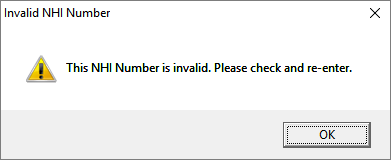
| Enter the patients NHI number. The NHI number must be a valid number and it must be unique. Invalid NHI Number A 'check sum' routine checks the validity of the data entered. If the combination of letters (3) and numbers (4) is not valid, then the following message will display. Check the data entered, and correct. Please note that this is not checking that the NHI number entered is the correct one for the patient as there is no NHI lookup capability. Duplicate NHI Number If the NHI number you are trying to enter has already been used for another 'patient' then the following message will display: 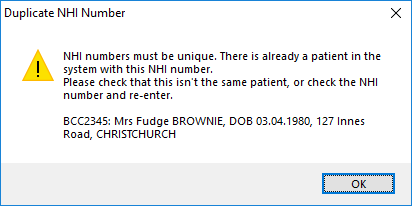 Check that the patient is not already registered in the database by searching ('Select Patient') for the patient using this NHI number. | ||||||||||||||||||||||||||||||||||||||||||||
NHI Search | Search the Health NZ data to either retrieve a patient's NHI number or retrieve patient details that are linked to an NHI The NHI Search is also available when making an appointment. Each Provider needs to apply to Health NZ to be authorised to access the NHI portal and search the data. Application for Health NZ on-boarding | ||||||||||||||||||||||||||||||||||||||||||||
Medicare No. | This is a display field only. The Medicare Card Details are entered below in section 7, Card Numbers. | ||||||||||||||||||||||||||||||||||||||||||||
Alt ID | An alternate ID can be used for filing purposes where either the patient counter, or referral number will not suit. This is generally used to accommodate filing numbers where data has been converted from other PMS systems and where there are still physical files in use. For more information on how to configure the Alternate ID see here | ||||||||||||||||||||||||||||||||||||||||||||
Date of Death | Enter the actual date of death if it is known. If the date is not known enter 'unknown'. The patient will be marked as deceased. If the patient has any upcoming appointments or recalls you will be alerted to this at the time of entering the date of death prompting you to make the appropriate changes. 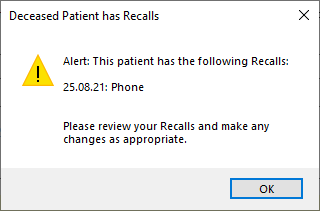 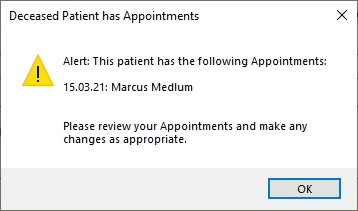 | ||||||||||||||||||||||||||||||||||||||||||||
Contact Details | |||||||||||||||||||||||||||||||||||||||||||||
Home Phone | Record the area code if necessary. Up to 20 characters (including spaces and parentheses if used) may be entered. Text can also be added, e.g. (mum). Remember to use spaces or dashes to break the numbers up. Seven or more solid numbers can be very difficult to read on the screen, on labels or the patient's notes. | ||||||||||||||||||||||||||||||||||||||||||||
Consent to leave message | This indicates whether or not a patient has given consent for voice messages to be left on their home telephone. Select from: Unknown (the default), No or Yes. It is a requirement in Australia for a patient to have to consent to a message being left on a home landline. | ||||||||||||||||||||||||||||||||||||||||||||
Work Phone | The same applies as for the home phone number. Record extension numbers if necessary. Up to 20 characters (including spaces and parentheses if used) may be entered. | ||||||||||||||||||||||||||||||||||||||||||||
Mobile Phone | Record the mobile number for the patient in this field. Spaces etc. can be included. | ||||||||||||||||||||||||||||||||||||||||||||
Opt in to SMS Messaging | If anyone in your practice (database) sends SMS Messages from the Incisive application, you should ask the patient whether they consent to receive an SMS message. If they agree, and they have a mobile number, ensure this field is ticked. Otherwise you will not be able to send them a text message. | ||||||||||||||||||||||||||||||||||||||||||||
Physical Address | This should be the patient's residential street address. | ||||||||||||||||||||||||||||||||||||||||||||
Town/City | Record the town/city separately from the rest of the address field. A combo box makes for quicker data entry. Up to 50 characters may be entered. New Town or City names can be entered from here or from Setup > Selection Lists > Town/City. Restrictions can be imposed that will disallow you to add new Towns/Cities | ||||||||||||||||||||||||||||||||||||||||||||
|
| ||||||||||||||||||||||||||||||||||||||||||||
|
Selecting find will bring up the 'Lookup Postcode' screen populated with data entered in the Town/City field. Select the correct entry. This will then populate the Post Code field and the State. | ||||||||||||||||||||||||||||||||||||||||||||
|
| ||||||||||||||||||||||||||||||||||||||||||||
|
| ||||||||||||||||||||||||||||||||||||||||||||
Automatically update billing details: | Turned on by default. If the tick is removed from this option, you can manually alter the two fields listed below for Billing. Please note, that if you then update the physical address or the patients name, this information will not update. | ||||||||||||||||||||||||||||||||||||||||||||
Billing - Post To | The name the invoice (patient) is to be address to. By default this will be the Title, Initials and Last Name of the patient. Where an invoice or claim is to be sent to a party such as ACC, Medicare, DVA, Veteran Affairs etc., do not enter the information in this field. It should only be used to address an invoice to a parent or guardian, and not an external third party. | ||||||||||||||||||||||||||||||||||||||||||||
Billing Address | This is the address that you want all patient correspondence and patient accounts to be sent to by default. The program will calculate the details for the postal address from the patient's name and address. You can override what has been calculated. The cursor jumps from the Town/City field to the Next of Kin field, as in most instances the calculated postal address will be correct. If you type something in the postal address field, then at a later stage alter the information used to calculate the default information, you will be prompted with the following message "Do you want to update the postal address? Yes No". Select the appropriate response. | ||||||||||||||||||||||||||||||||||||||||||||
Automatically update correspondence details: | Turned on by default. If the tick is removed from this option, you can manually alter the two fields listed below for correspondence. Please note, that if you then update the physical address or the patients name, this information will not update. | ||||||||||||||||||||||||||||||||||||||||||||
Correspondence - Post To | The name the correspondence is to be address to. By default this will be the Title, Initials and Last Name of the patient. | ||||||||||||||||||||||||||||||||||||||||||||
Correspondence Address | This is the address that you want all patient correspondence to be sent to by default. The program will calculate the details for the physical address from the patient's name and address. You can override what has been populated in this field by rem If you type something in the postal address field, then at a later stage alter the information used to calculate the default information, you will be prompted with the following message "Do you want to update the postal address? Yes No". Select the appropriate response. | ||||||||||||||||||||||||||||||||||||||||||||
Other Contacts | |||||||||||||||||||||||||||||||||||||||||||||
Priority | Choose a priority between 1 - 9 for the order in which you are to contact them. | ||||||||||||||||||||||||||||||||||||||||||||
Name | Name of contact, there is no limit on how much text is entered here. | ||||||||||||||||||||||||||||||||||||||||||||
Address | Address of contact person. | ||||||||||||||||||||||||||||||||||||||||||||
Phone | Telephone number/s of contact person. | ||||||||||||||||||||||||||||||||||||||||||||
Relationship | Relationship to patient - use drop down list. | ||||||||||||||||||||||||||||||||||||||||||||
Notify? | Use this to record whether or not a patient wishes the person to be contacted. | ||||||||||||||||||||||||||||||||||||||||||||
Support Person | Designated support person. You can only have one support person nominated. This information appears in Admissions > Today's List and also in Reports > Hospital > Ward > Occupancy with Support Person and Reports > Hospital > AdmissionsDiscahrges > Expected Admissions. | ||||||||||||||||||||||||||||||||||||||||||||
Family Doctor and Pharmacy | |||||||||||||||||||||||||||||||||||||||||||||
Family Doctor | This field is used to record the family doctor (or GP). While this may also be the referring doctor if the two are the same, it should not be used to record the referring doctor if the two are different. Unlike many GP based EMR's or PMS's, the Incisive application records the referring doctor against the referral entry. Depending on whether the Search By field is set to Surname or Code, enter all or part of the text and press Enter to start the search. It is often better to type less and get a list to select from, than type something and If the text you have entered is insufficient to uniquely identify the doctor, you will be presented with a list of doctors (Category GP). Select the doctor from the list by highlighting them and pressing Enter. The information about the GP will populate the other fields in this area of the screen. These are display fields only indicated by a grey background. New GP's can be added from this option or from Setup > Contacts > Correspondence The GP can be removed by clearing the Search field and pressing enter. A prompt will appear asking if you want to remove the existing entry. | ||||||||||||||||||||||||||||||||||||||||||||
Search By: | Options include Surname or Code. | ||||||||||||||||||||||||||||||||||||||||||||
Preferred Pharmacy | The field Is used to search for and select the patient's preferred pharmacy so that when you are creating a prescription it can be emailed or sent directly to the chosen pharmacy. New pharmacies can be manually added from Setup > Contacts > Pharmacies or you can use the online National Health Directory service provided by Healthpoint, to lookup the pharmacy and add it to the patient's record and also to Contacts > Pharmacies. Pharmacies can be removed by clearing the Search field and pressing enter. A prompt will appear asking if you want to remove the existing entry. | ||||||||||||||||||||||||||||||||||||||||||||
Status | |||||||||||||||||||||||||||||||||||||||||||||
Marital Status | In this field, you must choose an item from the list, or leave the field blank. You cannot add to this list. | ||||||||||||||||||||||||||||||||||||||||||||
Occupation | As with Ethnicity, you must select an item from the list. If the item is not in the list you can choose to add it to the list. Occupation details can be very useful for Research and Audit purposes. Up to 20 characters may be entered. New Occupation types can be entered from here or Setup > Selection Lists > Occupations. | ||||||||||||||||||||||||||||||||||||||||||||
Religion | |||||||||||||||||||||||||||||||||||||||||||||
Ethnicity (1) Ethnicity (2) Ethnicity (3) | Select from the list of Ethnicity Codes. NZ: These are as defined by the Ministry of Health. Up to three different ethnicity's can be recorded for each patient. New Ethnicity types can be entered from Setup > Selection Lists > Ethnicity. | ||||||||||||||||||||||||||||||||||||||||||||
Health status | Select a health status from the list.
The PHA symbol or the related colour will display in the same locations as the C19 symbol & colour occurred. | ||||||||||||||||||||||||||||||||||||||||||||
Resident | This field is ticked automatically. If the patient is not a Citizen or Permanent Resident, untick this field.  If Resident, a Green house symbol will appear in the patient header; if not, a Red house symbol will appear. | ||||||||||||||||||||||||||||||||||||||||||||
Insurance | |||||||||||||||||||||||||||||||||||||||||||||
Patient Insurance | Select the Patient Insurer or Health Fund from the drop down list. If the Health Fund is not present it will need to be added in Setup > Contacts > Health Fund | ||||||||||||||||||||||||||||||||||||||||||||
Policy Name | Select the Policy Name (if applicable) from the drop down list. | ||||||||||||||||||||||||||||||||||||||||||||
| Record the insurance policy number if required. | ||||||||||||||||||||||||||||||||||||||||||||
UPI | This stands for Unique Patient Identifier. AUS: the last number is usually the UPI. This is required for transmitting ECLIPSE claims electronically. | ||||||||||||||||||||||||||||||||||||||||||||
First Name As Recorded (optional) | If the patient's first name on their Health Fund membership card is different from the first name that you have recorded you need to enter it in here. This field does not need to be completed if the name you have recorded above is the same as on the card. | ||||||||||||||||||||||||||||||||||||||||||||
2nd Init | As above, only put the patient's second initial in this field if it is different on the card | ||||||||||||||||||||||||||||||||||||||||||||
Last Name As Recorded (optional) | As above, only put the patient's last name in this field if the last name on the card is different from the one you have recorded. | ||||||||||||||||||||||||||||||||||||||||||||
Employer Insurance | |||||||||||||||||||||||||||||||||||||||||||||
Insurance Note | |||||||||||||||||||||||||||||||||||||||||||||
Card Numbers | |||||||||||||||||||||||||||||||||||||||||||||
| |||||||||||||||||||||||||||||||||||||||||||||
Allergies & Adverse Reactions | |||||||||||||||||||||||||||||||||||||||||||||
Record any allergies or adverse reactions here. The format might be: Peanuts: Anaphylaxis These details are displayed in:
| |||||||||||||||||||||||||||||||||||||||||||||
Comments | |||||||||||||||||||||||||||||||||||||||||||||
Record any comments here. This field is not intended for details regarding the medical condition, but rather a social comment, for instance; the patient is the wife/husband or partner of a colleague etc. | |||||||||||||||||||||||||||||||||||||||||||||
Alerts | |||||||||||||||||||||||||||||||||||||||||||||
The alerts use icons to indicate there is a matter with this patient that need to be bought to your attention. The type of alerts are fixed except for one that you can add your own custom description. Alerts appear in the Patient Header and also when you are making an appointment or booking. | |||||||||||||||||||||||||||||||||||||||||||||
Saving your Preferred layout
You can configure the Registration screen so that the sections that you don't have to repeatedly open the sections that you are always using. The setting can either be temporary or the default so that the preset option is always the same when you go into the Registration screen.
The options you have are:
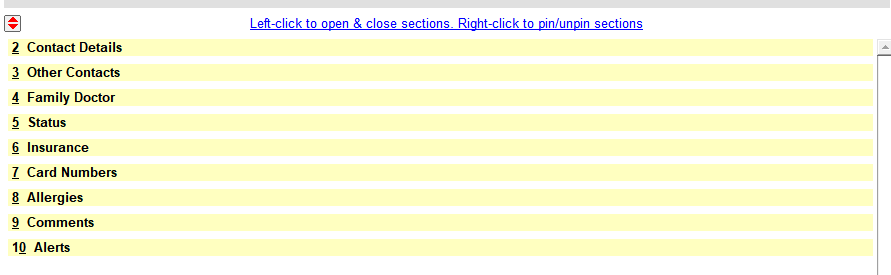
Fully collapsed
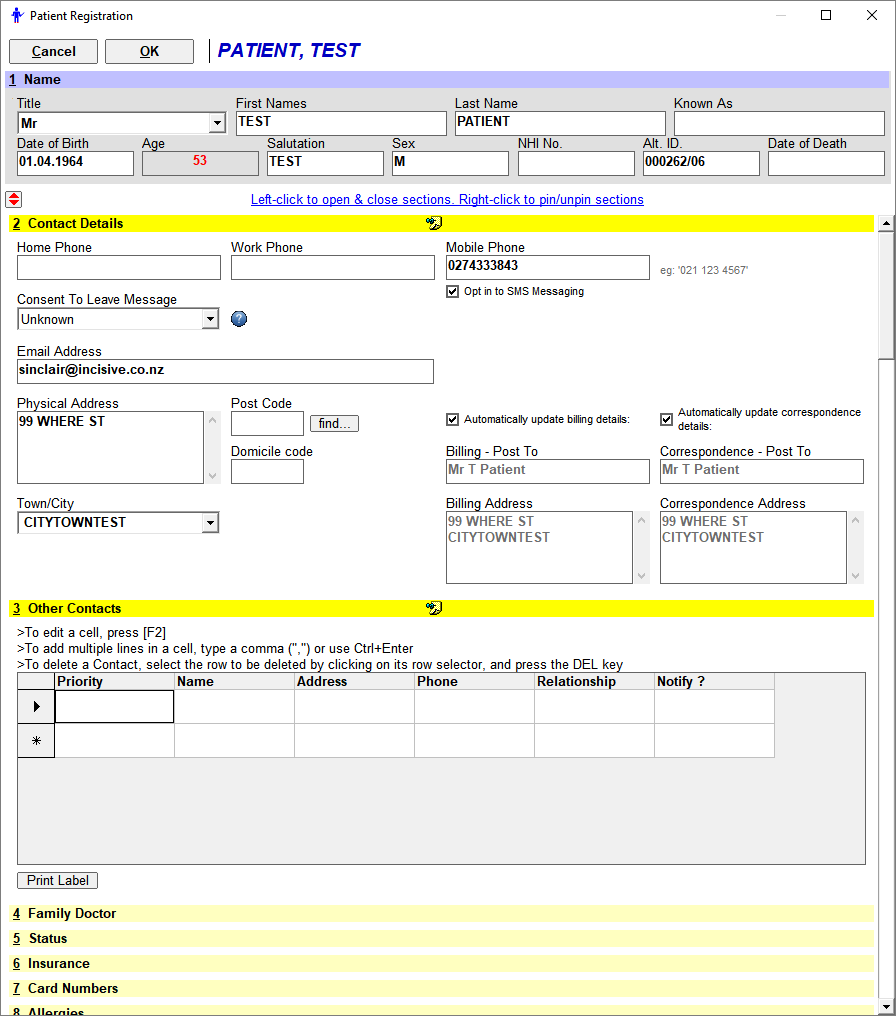
Section(s) temporarily pinned open
If you right-mouse-click on a section header it will place a 'pin' in the header and the section will remain open, even if you open other sections, while you are in the patient's Registration screen. When you exit it will lose the 'pin' settings and revert to the previous settings.

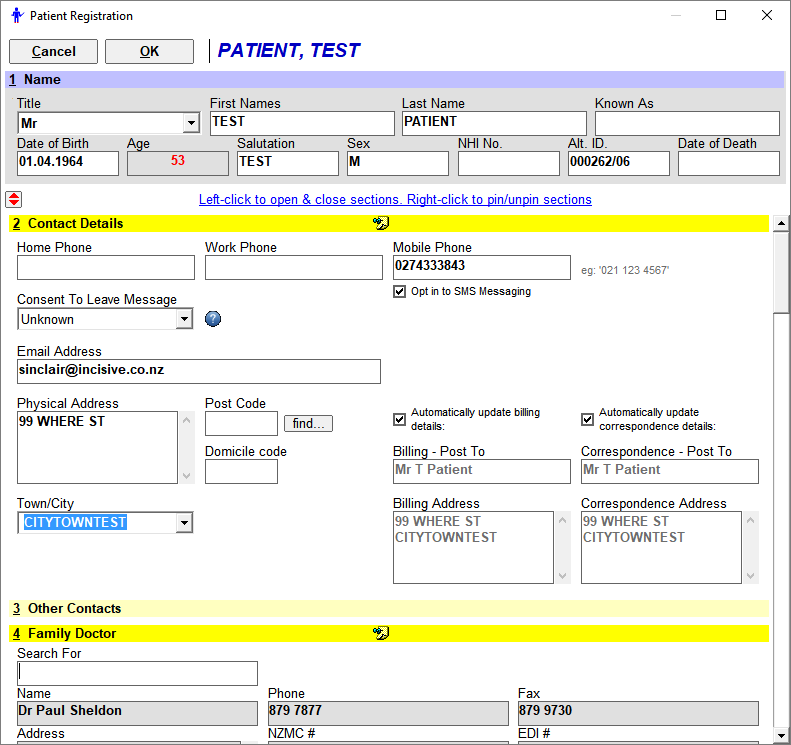
Selected sections always open by default.
It is common for the Contact Details and Family Doctor sections to always be open and then open or close other sections as they are required.
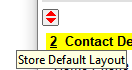
Right-mouse-click on the sections you want to always to be open then left-mouse-click on the Save button which is just above the '@. Contact Details' label
By default all the sections are collapsed.
Patient File Number
Each patient is given a unique File Number. The numbering of this is sequential (regardless of User), ie as a new patient is added, they get the next number. Each referral is also given a number, this is also sequential, but on a user basis (see Details of Referral page).