A Health Fund is effectively the same type of entry as a Third Party that is used for Invoicing/Reports, but is filtered out to a separate list.
When a new Health Fund is added the 'Policy Name' option needs to be selected to create a link to the relevant policy schedule that is included in the electronic 'Rates' file.
Health Funds are added and maintained via Setup > Contacts > Health Funds.
Get the current list of Health Funds from this site
http://privatehealth.gov.au/dynamic/insurer
Health Fund details
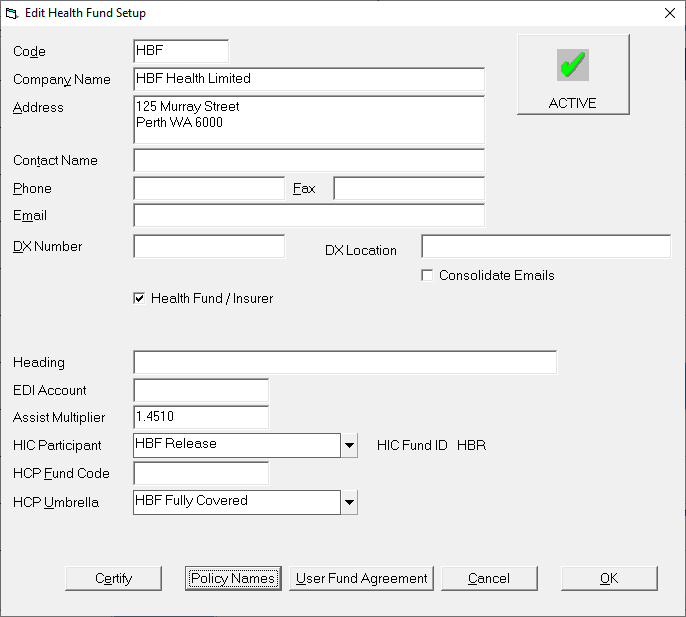
Code | User assigned code, up to six characters. This will display in the Transactions screen etc. when invoicing the fund. |
Company Name | Enter the name in full. |
Address | Type the full postal address where correspondence or invoices are to be sent. |
Contact Name | Record a Contact Name if required. |
Phone | Record a Phone number if required. |
Fax | Record a Fax number if required. |
Record an email address if required. | |
DX Number | Record a DX if required. |
Consolidate Emails | Not applicable. |
Health Fund / Insurer | This is selected by default when added via the Health Fund tab. If selected then the entry will be available for selection in the Health Fund selection in Patient Registration. |
Heading | Not applicable for the setup of a Health Fund. |
EDI Account | Not applicable for the setup of a Health Fund. |
Assist Multiplier | If the Health Fund has a multiplier for the calculation of Assistants fees for item number 51303, then enter the multiplier here. These are published by the fund and may change when the funds adjust their schedule of fees annually. |
HIC Participant | If the fund is Eclipse enabled, select the relevant entry from the drop down list. |
HIC Fund ID | This is a display field only and is populated based on the HIC Participant selected above. Ensure that this code (also referred to as the Eclipse Code), is correct. |
HCP Fund Code | Hospital Casemix Protocol (HCP) - for Hospitals only. |
HCP Umbrella | For Hospitals only. |
Certify
Not applicable for the setup of a Health Fund and not active on this screen.
Policy Names
This allows the Health Fund to link with one of the Gap Cover Schedules.
It is important that each Health Fund has at least one Policy set up, even if this is a generic policy. The GapCover settings are configured against the policy.
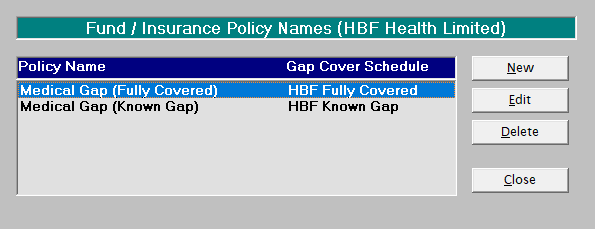
No Gap example | Known Gap example |
|
|
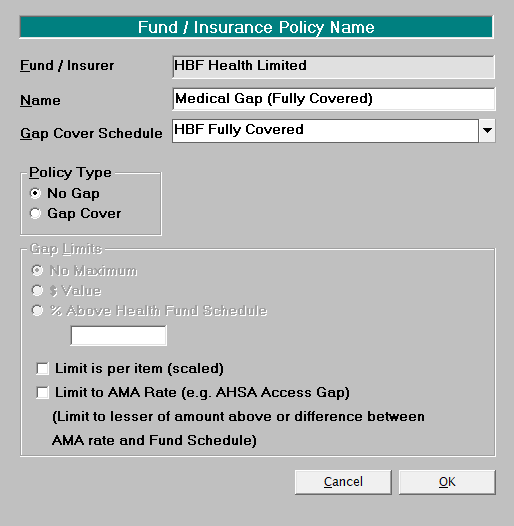
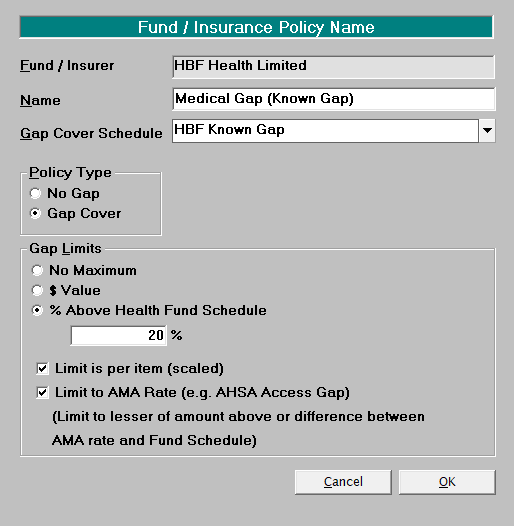
Fund / Insurer | This is the name of the Health Fund entered on the first screen. |
Name | Give the policy / Gap Cover arrangement a name, even a generic one, i.e. Access Gap Cover (for an AHSA participant). |
Gap Cover Schedule | Select the Gap Cover Schedule from the drop down list. |
Policy Type | Select from either No Gap or Gap Cover. |
Gap Limits | The sections below are where the Known Gap information is configured. It is not active if No Gap is selected. |
No Maximum | If there is no limit as to how much over and above the GapCover schedule you can charge as the Known Gap then select this No Maximum. |
$ Value | If the fund has a Known Gap scheme and publishes an amount select this option. |
% Above Health Fund Schedule | Enter the percentage if applicable. |
$ | Enter the value for the fund if applicable: |
Limit is per item (scaled) | If the Known Gap amount is per item scaled, select this option. This applies to most funds that participate in AHSA Access Gap Cover. |
Limit to AMA Rate (e.g. AHSA Access Gap) | Select this option if the Known Gap is limited to the lesser of the amount entered above or the difference between the AMA rate and the Fund Schedule. |
User Fund Agreement
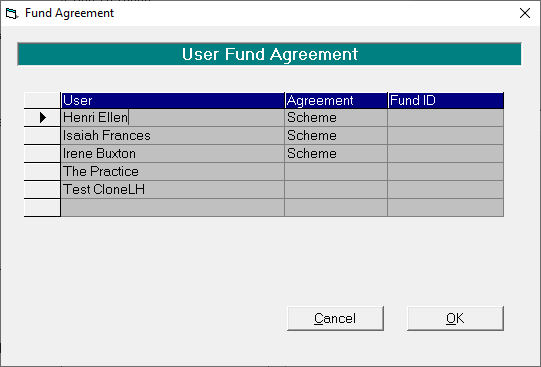
The default option in 'None'.
You can only 'Opt In' or 'Opt Out' if either Agreement or Scheme is selected.
Fund ID
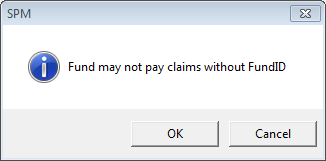
If the Provider does have an Agreement with the fund or is registered to use the funds Medical Gap Scheme then the fund may provide an Agreement number. If so, enter it here. Without a Fund ID being entered you will receive this message.
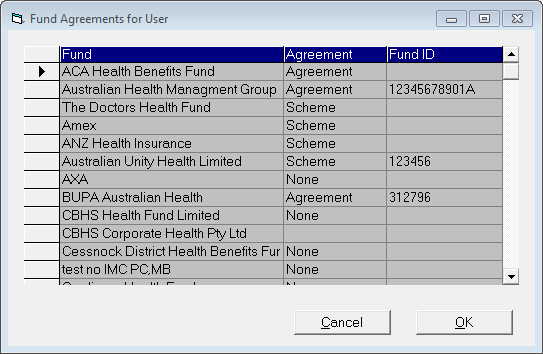
If you wish to turn on the Agreement or Scheme option for a number of funds, this can be done via Setup – Provider – Health Funds – Edit.
Patient Registration
In the Health Fund / Insurance section of the Patient Registration screen select the fund and policy from the drop down list. The Health Fund will only be available for selection provided the 'Health Fund / Insurer' field has been selected in the setup for the address for the third party.
On this page:
Related:
- Financial > Charges > Health Fund Schedules (System)
- Import > Health Fund Rates
How Do I...
- ACC invoicing
- ACC Online portal configuration
- Submitting invoices & schedules to ACC portal
- Resending invoices not delivered to ACC
- ACC Non-Core Invoicing
- Delete ACC Invoice after claim has been uploaded
- Add a New Transaction Au
- Add a New Transaction NZ
- Quick Invoicing
- Invoicing the Patient
- Invoice to 3rd Party
- Invoice a Solicitor
- Change Referral for an Invoice
- Make invoice codes from Medicare
- Adding Assistants or Alternate Providers
- Print Balance for Invoice
- Billing Types
- Advanced Invoicing Options
- Hospital Invoicing Au
- Hospital Invoicing NZ
- Tutorial - Invoicing
- GST Rounding adjustment
- Adding a new Health Fund
- Changing Health Fund policies