The structure of this file is different from the correspondence section. Less information is required and it is intended to be for a Company addresses, rather than addresses of individuals. Anyone to whom you send a third party bill (the various ACC branches, Solicitors, Social Welfare etc) should be entered onto this Tab. Only parties entered on this Tab will show up for selection when you print a third party account.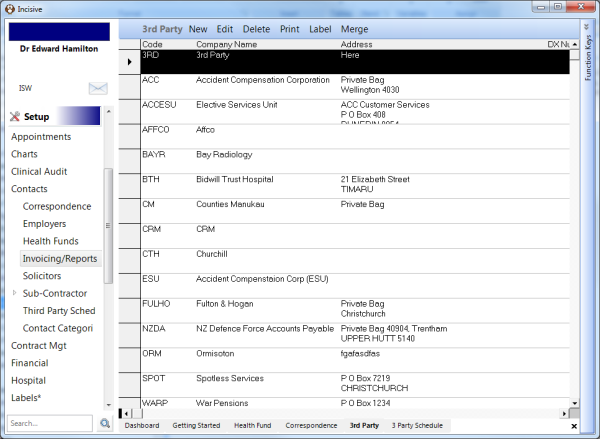
Button | Function |
|---|---|
New | Create a new entity that you are going to invoice or send reports to on a regular basis. |
Edit | Modify the information for this party. |
Delete | Remove the party from the list. It doesn't actually delete the record as it will still be used for historical reporting. |
| |
Label | Print an address label for the selected party. |
Merge | Merge two parties together. Select the one you want to Keep then select the one you want to Delete. |
Search | Search the Code, Name and Description fields with the text you want to find. |
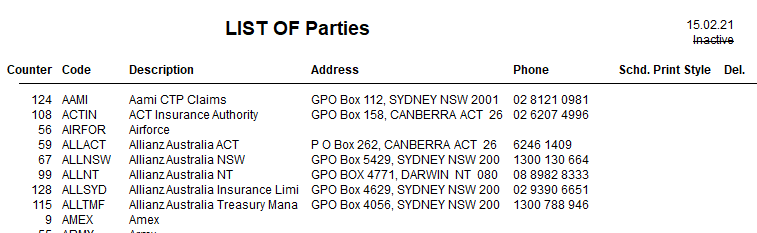
Add a New Third Party Address
- Select New.
A screen as below will display.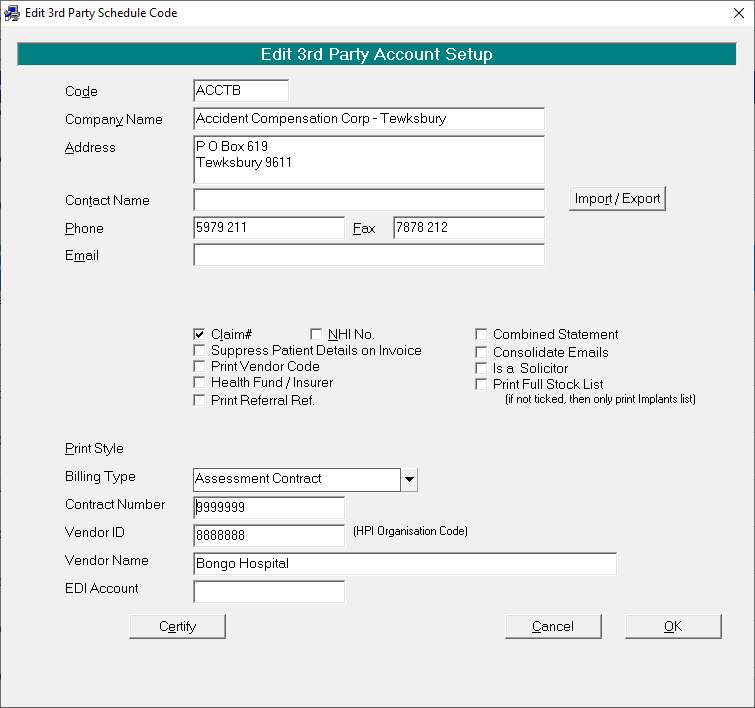
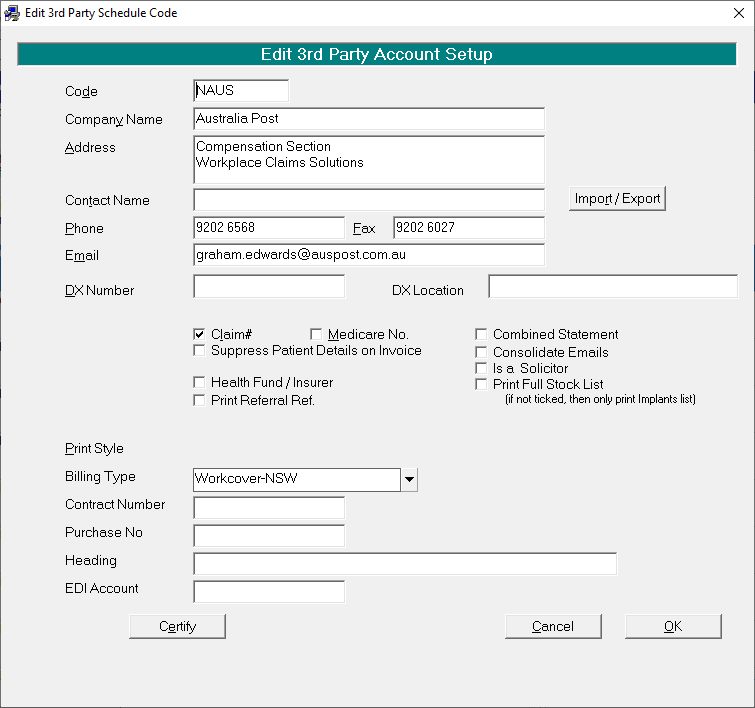
- Type the code for the third party. You may type up to six characters.
- Type the Company Name
- Type the full postal address where correspondence is to be sent
- Record a Contact Name, Phone and Fax numbers if required.
- Check the ACC Number box if this is required on the Invoice
- Check the NHI Number box if you wish to have the patient's NHI number displayed automatically on correspondence.
- If the party being entered requires "Combined Statements", tick the box.
- If you are using the Inventory System, and the party being entered requires a full stock list, then tick the box, otherwise only the Implant list will print.
- Select 'OK'.
Import/Export path
The export path for ACC invoices is set from Setup > System > File Locations > ACC eForm Location. This is saved to System > ssy_AccXmlPath
Note that the export path for 3rd Party Schedules is stored as a Key in the Config table
Import/Export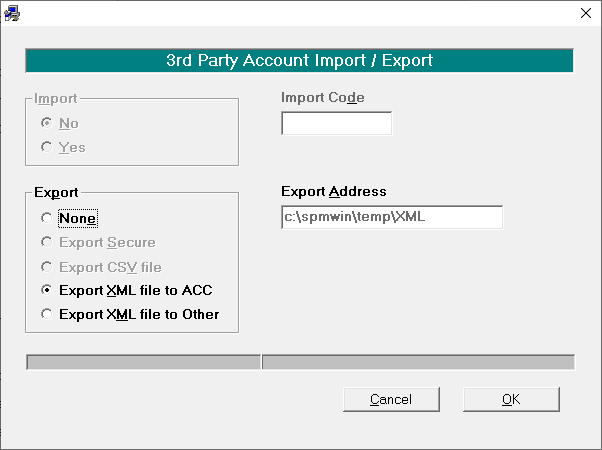
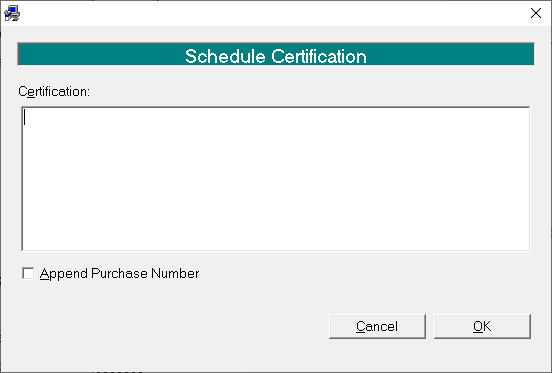
Certify