Batch Invoices are bulk billing schedules such as Medicare and DVA. It may also include schedules for other organisations that prefer a single report of claims to be submitted for payment rather than receiving an individual invoice for each patient.
Setup - Contacts - Batch Invoices
Add a new Batch Invoice party
- Select 'New'.
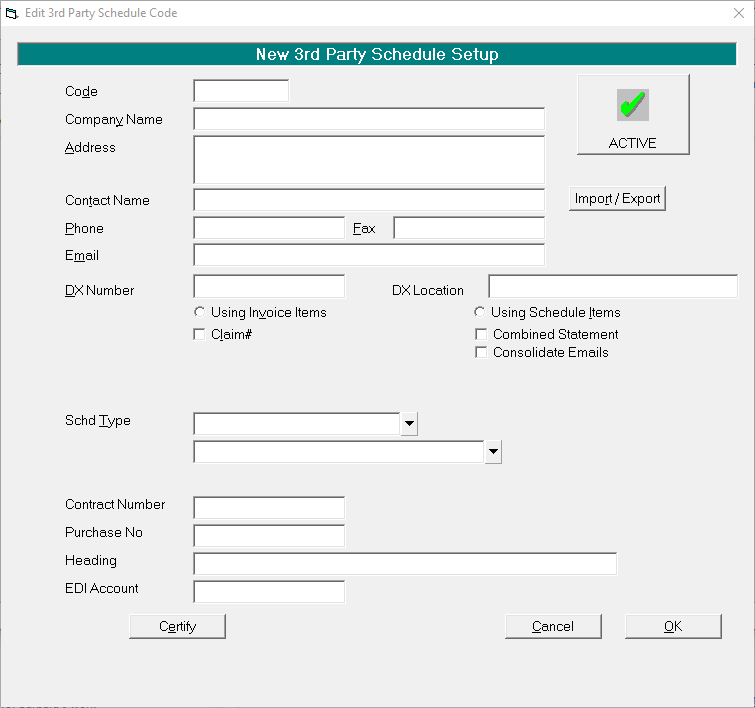
- Complete the details as required.
- Select 'OK' to save the new batch invoice entry.
Code | Enter a code to identify the organisation, i.e. DVA, BBM etc. |
Company Name | Enter the name of the company or organisation to bulk bill. Primarily this is intended to print on the bulk bill schedule or invoice. |
Address | Enter a postal address if required. |
Contact Name | Enter a Contact Name if you have an individual that you deal with at this organisation, otherwise leave this field blank. |
Phone | Enter a Contact Phone number, if required. |
Fax | Enter a Contact Fax number, if required. |
| |
DX Number | Enter a DX number if you use this method of mail delivery and the recipient has a DX address. |
DX Location | Enter the DX Location if you use this method of mail delivery and the recipient has a DX address. |
Using Invoice Items | This would normally be set to use invoice items for Australia. |
Using Schedule Items | Not applicable. |
Claim # | If the party you are bulk billing pertains to accident related claims and a Claim number is mandatory on schedule, check this option on. |
Combined Statement | Not applicable for bulk invoicing. |
Consolidate Emails | Not applicable. |
Schedule Type | Select from: Bulk Billing Medicare DVA N/A |
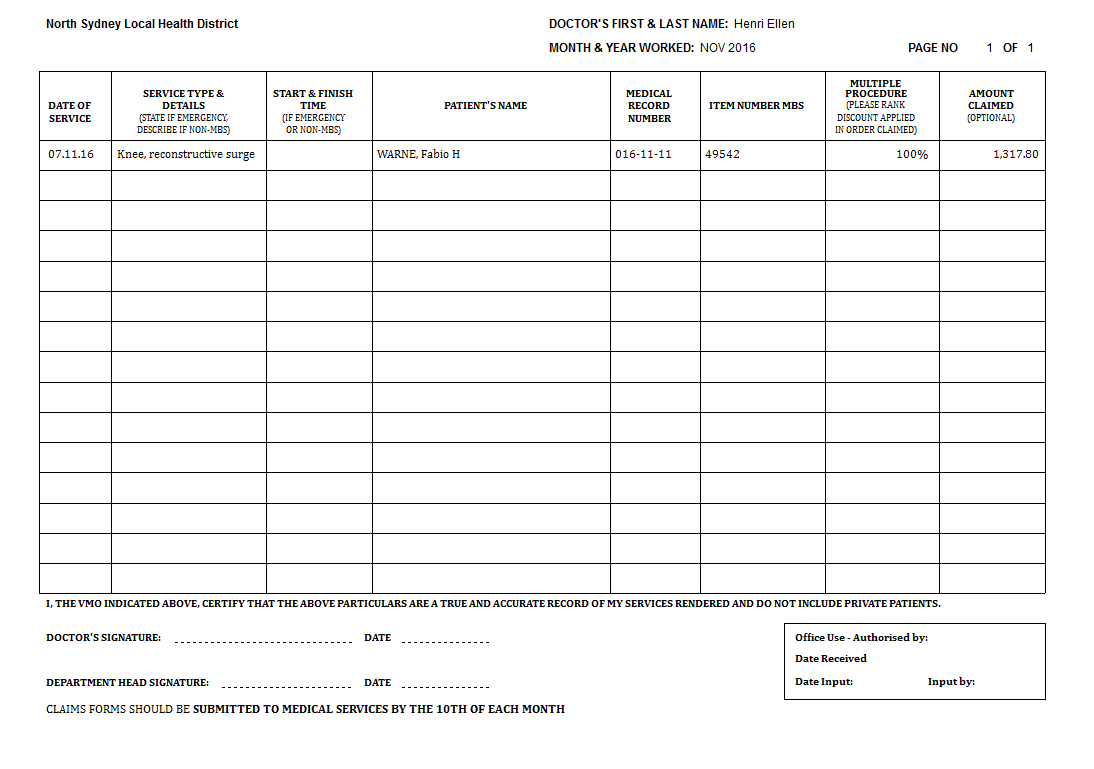
| Optionally, select the schedule Print Style you require. There are many preset formats, however if none of these is applicable, please contact Incisive Software, ideally with a mock up of your requirements. Sample of the VMO Print Style:
|
Contract Number | If a Contract Number is stipulated for the organisation enter it here. |
Purchase Number | If a Purchase Number is stipulated for the organisation enter it here. |
Heading |
|
EDI Account | Not applicable. |
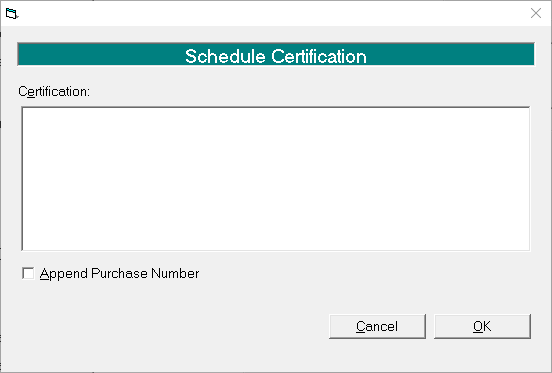
Certify | Some organisations require a Certification to be printed and signed on the Bulk Invoice / Schedule. If so, select this option and complete the Certification as stipulated by the organisation concerned. |
Active |
|
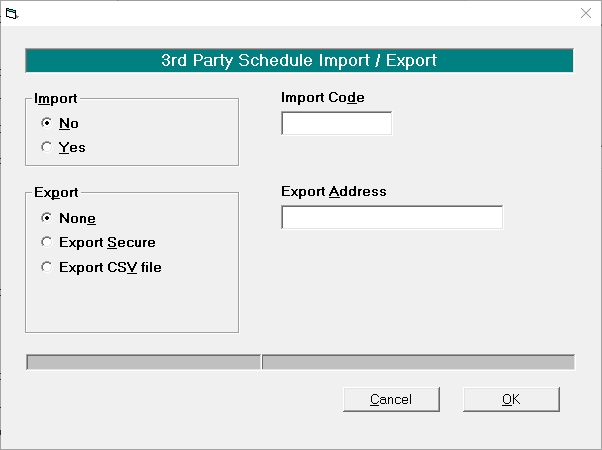
Import / Export | Some Bulk Invoices / 3rd Party Schedules can be either imported or exported. Please consult with Incisive to see whether this option is permissible and to set up,
|
|
|
On this page: