Correspondence is used for all addresses for GP's, referring doctors, or anyone you may wish to correspond with other than those parties that you need to invoice or claim against.
The Correspondence Contacts are also accessible from F7.
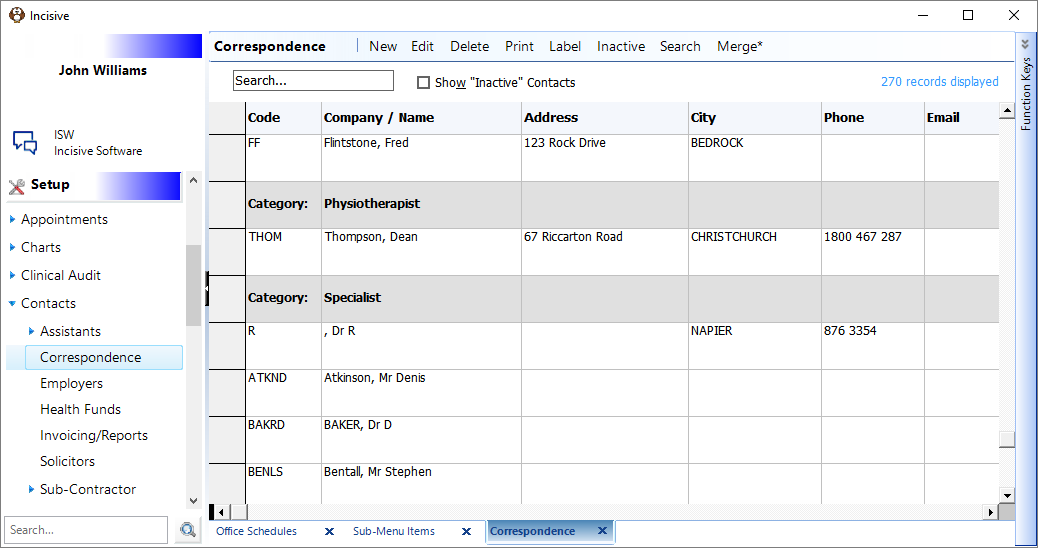
Add a New Correspondence Contact
- Select 'New'.
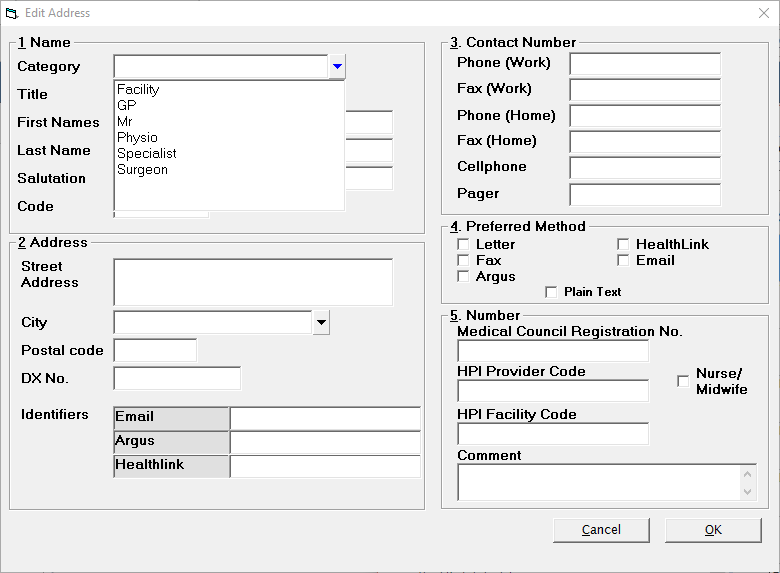
- Complete the details as applicable.
- Select 'OK' to save the new Contact.
Name | Merge Code Available | |
Category | Enter a category for this address. You can set up as many categories as you like, however an address entry can only belong to one category. Each category is a subset of the total correspondence file. Suggestions for setting up categories are:
| |
Title | Enter the Title (e.g. Dr, Mr, Mrs etc), First Names and Surname of the person you wish to send correspondence to. This information will be printed as the first line on any address. | Individually, No but the following merge codes use data from the Title, First Names and Lastname fields for addressing correspondence etc. <gp> |
First Names | Enter the first name or initials that you want to appear on labels and letters. | see above |
Last Name | Enter the last name. If the Contact is for a Medical Centre as opposed to a doctor, enter the practice name in this field. | see above |
Salutation | Enter the salutation. This will be used as the greeting printed after "Dear" in correspondence. Do not include 'Dear' in this field. It will automatically be added when entering a letter. | Yes <GPSalutation> <RefDrSalutation> |
Code (Mandatory) | The code will automatically be created based on the data entered in the Last Name (4 characters) and First Names fields (1 character). If the code has already been used, a number will automatically be added as the sixth character. | |
Address | Yes, the codes below use data from both the street and city fields | |
Street | Enter the Medical Centre Name on the first line of the address (unless this has already been entered as the Last Name. Enter the (mailing) address information. The street and city are required for printing on mailing addresses, but the DX No, Hlink ID and Email address are optional fields. | <GpAddOneLine> |
City | Select from the drop down list, or add as required. | |
Postal Code | Type in the postal code (if known). Alternatively look up the post code by leaving this field blank and pressing 'Enter'. | Yes <gp postcode> |
DX Number | The Document Exchange number is not used very often these days, although some laboratories offer a pick up and drop off service to other medical practices. If you use this service, enter the relevant DX number for the doctor / medical practice. | |
Identifiers | Identifiers are used when correspondence is to be sent electronically. | <gp email> |
Enter the Email address for the Contact in this field if you are emailing directly out of the Incisive application and are not sending a message by one of the other secure methods. | ||
Argus | If the Contact uses Argus for messaging, enter the identifier in this field. | |
Healthlink | If the Contact uses Healthlink for messaging, enter their EDI in this field. | <gpEDI> |
Medical Objects | If the Contact uses Medical Objects for messaging, enter the identifier in this field. | |
Contact Numbers | Enter any contact numbers that you require. Remember, these entries will more than likely become your primary source of reference. The phone number will display when viewing a patient details if
| <gp phone> |
Preferred Method | Selection of at least one preferred Method is mandatory. | |
Letter | Checking this option on will produce a paper copy of a letter to this recipient (or copy to this recipient), when selected. This option can be selected in conjunction with an electronic method, i.e. Healthlink, if the recipient still prefers to receive a paper copy of correspondence. | |
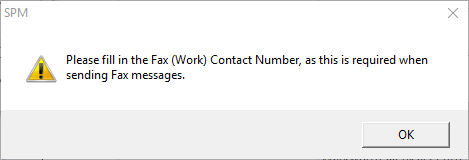
Fax | If you are faxing out of the Incisive application, and the recipient prefers to be sent a fax, enter check this option on. If this option, you are required to enter a Fax in the Contact Number / Fax (work) field. The following message will display if you try to save the Contact without entering the number.
You can still enter a fax number but not set the preferred method to fax, if you just want to record the fax number, but use another method as the preferred method. | |
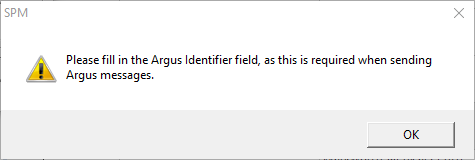
Argus | If the Contact uses Argus as their secure electronic messaging system, check this option on. Ensure the Argus Email address is entered as the Argus Identifier. If you fail to enter the Argus Identifier, the following message will display.
| |
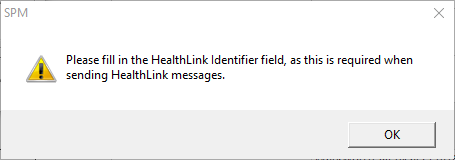
Healthlink | If the Contact uses Healthlink as their secure electronic messaging system, check this option on. Ensure the EDI is entered as the Healthlink Identifier. If you fail to enter the Healthlink Identifier, the following message will display.
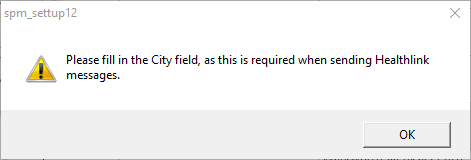
You are required to enter data in the Town / City field as it is mandatory to populate the HL7 with this information.
| |
If the providers email out of the Incisive application, and if email is the preferred method for the contact, check this option on. This should only be used if an alternative secure messaging system is not available for the contact. | ||
Plain Text | Where the HL7 message is to be sent as a plain text message (and not a PDF embedded in the message) check this option on. This setting will be dependent on whether the receivers PMS system can or cannot handle a PDF embedded message. If in doubt, check this option on. Not all systems PMS systems can | |
Registration Number | Record the Medical Council Registration number if you are using Healthlink for this correspondent as may Patient Management Systems use this field as the method to match up the doctor at the receiving end. | Yes |
ACC Provider Number | This field is intended to be used by providers that hold contracts will ACC for Clinical Services and Elective Services and submit claims and invoices to ACC on behalf of other providers. | |
Nurse / Midwife | Tick the Nurse/Midwife field if applicable (for claiming purposes). | |
Comment | Record any comment in this field that may be relevant (i.e. partners name). |
Print the Address List
- Select 'Print'.
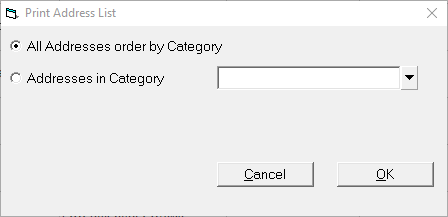
- Select whether you require all addresses to print or alternatively select an individual category.
If Addresses in Category is selected, select the Category from the list. - Select 'OK'.
- The list will preview on the screen.
- Print as required, then exit.
Print an Address Label or Labels
- Select 'Label'.
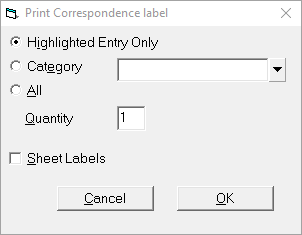
- Select to print either a label for the Highlighted Entry only, a Category or All.
- Select the Quantity you require (the default is 1).
- Optionally select Sheet Labels.
- Select 'OK' to start the printing.
If you select to either print a Category or All, ensure that you have plenty of labels loaded in your label printer before you start. If the labels run out, replace the roll ensuring you do not turn the printer off.
Please note that if you select Sheet Labels it will print a full sheet of labels for each entry rather than multiple address entries on the sheet, i.e. one doctor per sheet.
Inactive
If a Correspondence Address File entry is no longer in use, i.e. the GP has retired, you can mark the entry as 'Inactive'. Any patients that have an 'Inactive' doctor has either their GP or Family Doctor, or Referring Doctor will display the doctors name, with the word (INACTIVE) beside it.
The entry will not show in the list of doctors when selecting a GP or Referring Doctor.
- Highlight the entry to be marked as 'Inactive'.
- Select 'Inactive'.
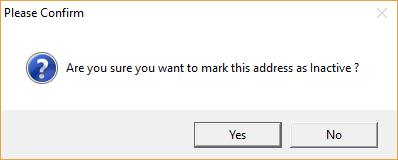
- Select 'Yes'.
The entry will display as 'Inactive' .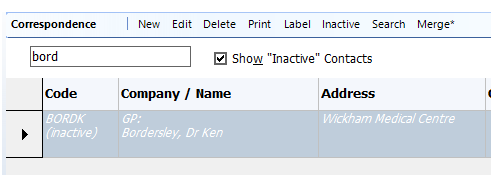
Reactivate
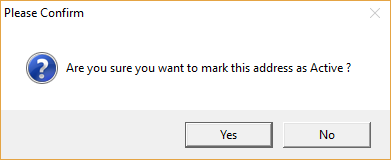
An address file entry can be 'Reactivated' if it has previously been marked as 'Inactive'. Follow the steps above, selecting 'Yes' to confirm the entry is now to be active.
Search (Address Code)
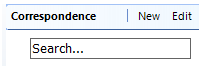
There are two options when searching for an address entry, either the Search field or the menu option to 'Search'.
By typing something in the Search field, the entries that display on screen will be filtered.
- Select 'Search' from the menu.
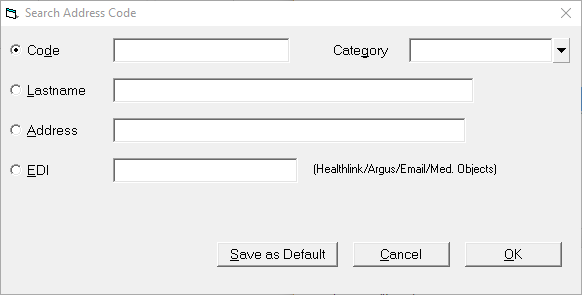
- Select which method you want to search by and optionally filter based on a Category by selecting one from the drop down list and enter the required text.
- Select 'OK' to start the search.
- The resulting Contacts will display on screen.
Search Address Code
Code | If you know the code, you are searching for, select this option and enter the details here. Alternatively type the first part of the code, i.e. the first three or four characters. |
Lastname | If searching by Last name is preferable, enter the details here. |
Address | To search for an address, enter it here. |
EDI | To find all Contacts that below to a single EDI, enter it here. This can be useful if the EDI has changed, or is no longer in use and the details need to be changed. |
Category | If you want to confine your search to a single Category, select if from the list. Otherwise, by default, all Categories will be searched. |
Save as Default | If either Code or Lastname is selected, Save as Default is activated. You can then choose which one of these search methods is to be your default. |