Selection of Patient Invoice from the 'Select Financial Option(s)' screen will display the 'New Invoice' to Patient screen.
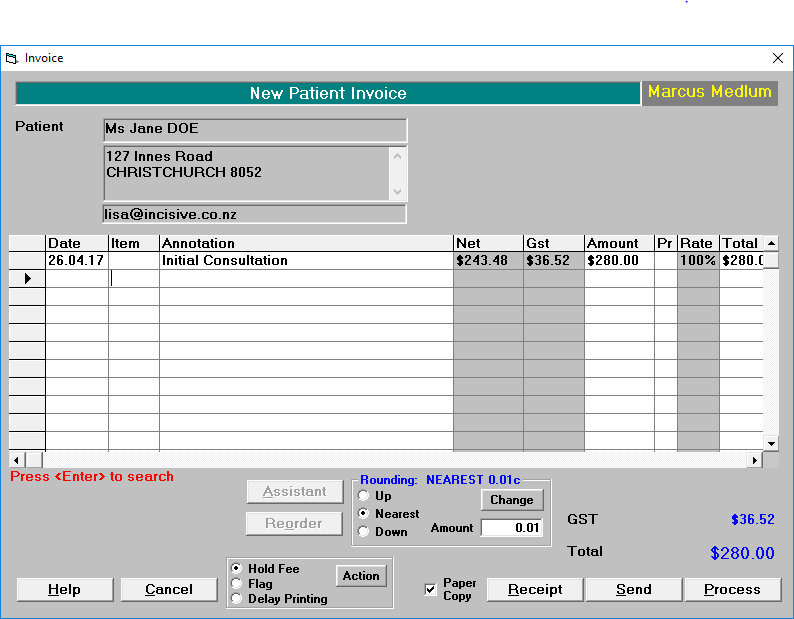
It is strongly recommended to enter or select the invoice Items from the code list (Quick-Codes) using the F8 key as this will provide greater reporting analysis.
- Type the date of service, or press Enter for today's date.
- Type the annotation for the Invoice and press Enter or use Quick Codes accessed by pressing F8 (see Set-up – Financial - Charges – Invoice Items).
- Type the amount for the invoice item. If using Quick Codes the annotation and the amount will appear on the screen automatically.
- Continue adding Invoice Items as required.
The total for the Invoice is displayed just above the icons. A figure for GST may also be included here, depending on whether the User is configured to have fees set exclusive or inclusive of GST. If fees are set inclusive of GST, then a separate amount for GST will not display. - When you have finished adding items to the Invoice select one of the following options:
Hold
This option places the fee on-hold so that it can be added to, or printed at a later date.
This is to record a service provided but you don't want to invoice the patient yet. Frequently used for Obstetric patients.
Flag
From this screen you can Flag as ready for invoice, patients that have a fee set but it is on Hold.
- Highlight the patient.
- Select Flag.
Remember you can use Function Key F3 here to view the highlighted patients notes and financial transactions to decide whether or not to 'Flag' the fee.Once patients who have previously had fees set have been flagged, you should then do another Accounts Run of Invoices.
Delay printing
This option delays the printing of the invoice until a given date is reached, where upon a Statement-Run (Office > Invoices) of new Invoices will print it.
Receipt
This option allows you to issue a combined invoice and receipt if the patient pays as s/he leaves. The receipt will be printed on the bottom of the Invoice. For details on receipting see page.
Send
This option allows you to email the invoice directly to the patient. A prompt will come up asking if you wish to email the invoice.
Process
This option allows you to process the invoice.

If you remove the Tick from the 'Paper Copy' option box this will process the invoice without printing a paper copy. If you leave the tick in a paper copy will print.
On this page:
Related:
Training:
- ACC invoicing
- Add a New Transaction Au
- Add a New Transaction NZ
- Quick Invoicing
- Invoicing the Patient
- Invoice to 3rd Party
- Invoice a Solicitor
- Change Referral for an Invoice
- Make invoice codes from Medicare
- Adding Assistants or Alternate Providers
- Print Balance for Invoice
- Billing Types
- Advanced Invoicing Options
- Hospital Invoicing Au
- Hospital Invoicing NZ
- Tutorial - Invoicing
- GST Rounding adjustment
- Multiple Patients - Group Receipts
- Dishonoured payments
- ACC Payment Advice import
- ACC Payment reversals
- Receipting Payments from Debt Collectors