A Split Invoice allows you to invoice both the patient and a third party, entering the details only once. The total for each item on the invoice is then split between the third party, with the balance automatically allocated to the patient. You can also allocate individual items within the invoice either all to the patient or all to the 3rd party.
Selection of ' Split Invoice' displays the 'Split Invoice' screen.
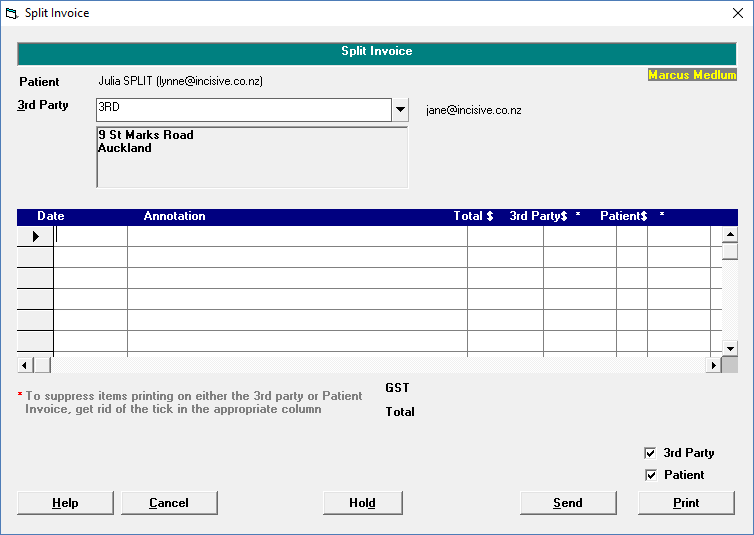
- Select the 3rd Party to bill from the list. If the Referral Billing Type in the Details of Referral was set to ACC or 3rd Party and a 3rd Party was selected, then the cursor will highlight the appropriate 3rd Party. The 3rd Party address will display on the right.
- Type the date of treatment, or press Enter for today's date.
- Type the annotation for the Invoice or use Quick Codes accessed by pressing F8 (see Set-up – Financial - Charges – Invoice Items).
- Allocate an amount in either the 3rd Party column or the Patient column and press Enter. The balance will then automatically be allocated to the other party.
- Continue adding Invoice Items as required.
- If some items on the invoice are to be invoiced only to the patient, leave the 3rd Party column blank, the Total Amount will appear in the Patient column with a tick in the * column. No tick will be in the 3rd Party * column as it is assumed that you do not need to show the 3rd Party what is only being billed to the patient. This means that item will only show on the patient invoice.
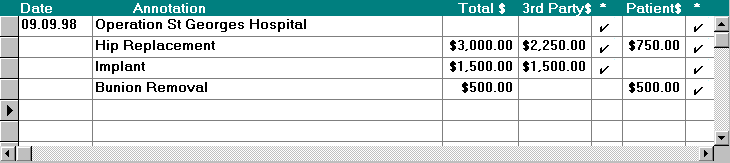
- If some items on the invoice are to be invoiced only to the patient, leave the 3rd Party column blank, the Total Amount will appear in the Patient column with a tick in the * column. No tick will be in the 3rd Party * column as it is assumed that you do not need to show the 3rd Party what is only being billed to the patient. This means that item will only show on the patient invoice.
- To invoice the 3rd Party for the full amount of one of the invoice items (eg a Prosthesis), type the total amount in the 3rd Party column. The default is to show this on the patient invoice as well, as it is assumed that you will want to show the patient what items are being invoiced to the 3rd party.
- The total for both the 3rd Party and Patient Invoices is displayed. A figure for GST may also be included here, depending on whether the User is configured to have fees set exclusive or inclusive of GST. If fees are set inclusive of GST, then a separate amount for GST will not display.
6. When you have finished adding items to the Invoice, Select either 'Send' or 'Print'.
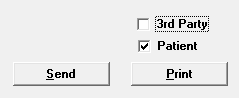
To suppress either the printing or sending of the invoice to either party, remove the tick from the respective box for 3rd Party or Patient.
Training:
- ACC invoicing
- Add a New Transaction Au
- Add a New Transaction NZ
- Quick Invoicing
- Invoicing the Patient
- Invoice to 3rd Party
- Invoice a Solicitor
- Change Referral for an Invoice
- Make invoice codes from Medicare
- Adding Assistants or Alternate Providers
- Print Balance for Invoice
- Billing Types
- Advanced Invoicing Options
- Hospital Invoicing Au
- Hospital Invoicing NZ
- Tutorial - Invoicing
- GST Rounding adjustment
- Multiple Patients - Group Receipts
- Dishonoured payments
- ACC Payment Advice import
- ACC Payment reversals
- Receipting Payments from Debt Collectors