From here you are able to send ad-hoc SMS messages to either an individual patient or all patients in the session.
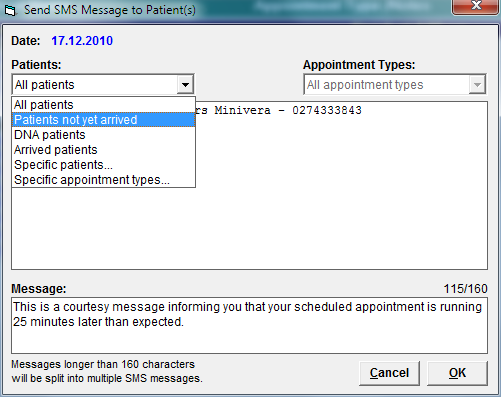
- All Patients in the list
- Patients not yet marked as Arrived
- Patients that are marked as Did Not Attend (DNA)
- Patients that have Arrived
- Specific patients... (choose them fro the list)
- Patients in the session that have specific Type of appointments
Only the patients that have both a mobile phone number and choose to Opt-In will be displayed on the list.
Individual patient
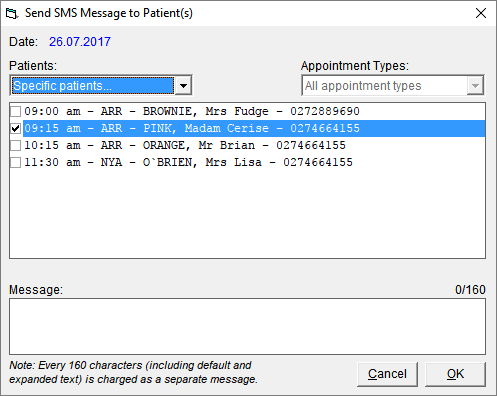
- Choose 'Specific patients' from the Patient drop-down list
- Highlight the patient
- Select SMS from the Toolbar
- Enter the text of the message that you want to send or press F8 to select from the SMS Quick-codes
Patients in the Session
- In the Appointment book click on the session header
- Select SMS from the Toolbar
- Select the patient(s) you want to send an SMS message to
Enter the text of the message that you want to send or press F8 to select from the SMS Quick-codes.
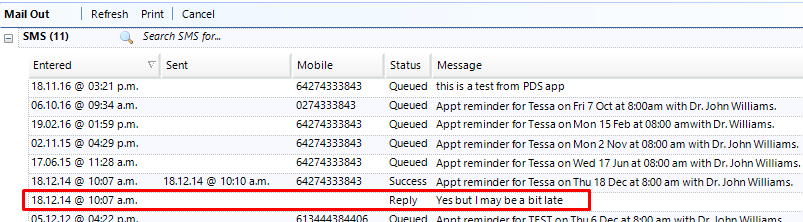
SMS messages queued, sent and any replies will appear in the patient's Mail Out tab.
Message
You can set up some templates (Quick-codes) that can be used as a 'message' when sending ad-hoc SMS messages from the Appointment Book.
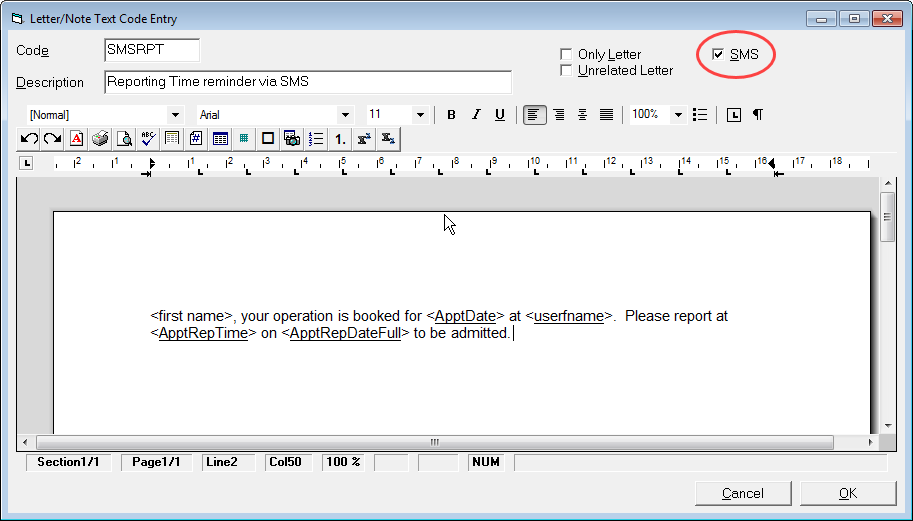
You create Template text as usual in Setup > Templates > Letters and make sure the SMS option is checked on.
Some examples of the text you can use are:
Reporting Time
<first name>, your operation is booked for <ApptDate> at <userfname>. Please report at <ApptRepTime> on <ApptRepDateFull> to be admitted.
Changed Reporting time
<first name>, the reporting time for your operation on <ApptDate> at <userfname> has changed to <ApptRepTime> on <ApptRepDateFull>. Please contact us if you are unable to make this new time.
Fasting From time
<first name>, this is a reminder that you are required to fast from <ApptFast> for your operation on <ApptDate> at <userfname>