On this page: | Related: |
Templates that are entered here can be used in Letters, Notes and Operation Notes. They are not confined to just letters.
The Letters tab lists the existing templates.
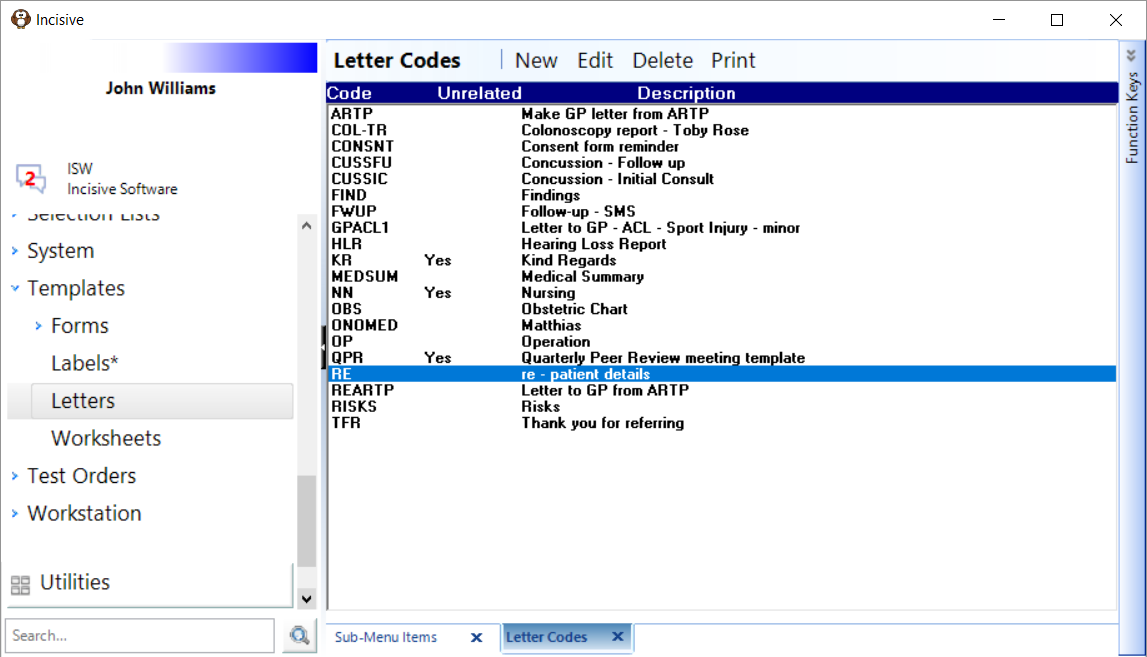
The QuickCode called RE will automatically insert patient details into a letter.
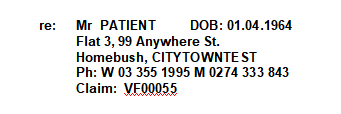
You can design the RE code to include any information that is available as an F9 Merge Code
re: | <fullname4> DOB: <dob> |
<address(1-2)> | |
<address(3-5)> | |
Ph: <pat_phone_nos> PhW: <workphone> PhM: <MobPhone> | |
Claim: <claim no.> |
translates to:
Set up a New template
From the Letters tab, select 'New'.
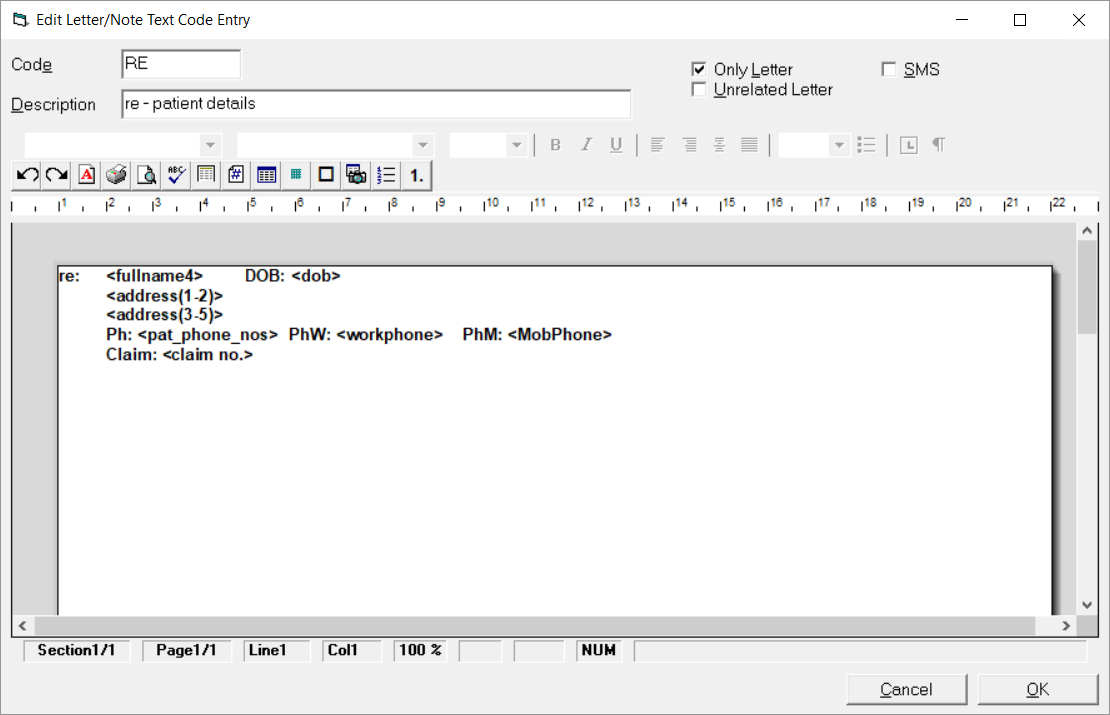
Complete the details as required.
In the word-processing section, use a mix of text, F9 MERGE CODES, Pick Lists, Prompts and Jump Points (see TEMPLATES) to efficiently create your template.
Try to use the same font type and size that is entered as the Default for the Provider
Select 'OK' to save the template.
Code | Give your template a code. This should be something that is easy to remember and identifies the template. Start similar templates with the same characters, i.e. operation templates might all start with 'OP' and then the letters after this will help to identify the procedure, i.e. OPTHR might be Operation - Total Hip Replacement. |
Description | Enter a description to identify the template. This is seen when selecting the template if the full code is not entered. |
Only Letter | If the template is only to be used in letters, such as sign-offs etc. check this option on. |
Unrelated Letter | If the template is non clinical / patient related and is required when typing an Unrelated Letter, check this option on. This may be for letter sign-offs etc. You can check both this option and the one above on together. |
SMS | If the template is to be used when sending an SMS message, check this option on. Text entered here should be brief. SMS messages are charged in blocks of 160 characters. These are text messages so some abbreviations are acceptable to keep the message as short as possible. Obviously you cannot shorten up the merge codes! |
Avoid using scanned signatures and images etc. in your templates. These will impact on the size of the database, greatly increasing it's size.
Edit an existing template
Highlight the entry.
Select 'Edit'.
Make the required changes.
Select 'OK' to save the changes.
Delete a template
Highlight the entry.
Select 'Delete'.
Select 'Yes' to confirm the deletion of the template.
Print a list of templates
Select 'Print'.
A list of the codes and descriptions will appear in a Print Preview. The text of the template is not printed.
Print as required.