What are Merge Codes
Merge codes are links to specific types of data can be inserted in the master documents or templates (Forms, Labels and Letters etc).
When the template is used for a Patient, the merge code expands into text, the data is populated from the relevant field in the database for either the patient, provider, appointment etc.
Merge codes are inserted into the Template by the use of F9.
How to insert a merge code into a template
- Press function key F9, or if there is an icon for 'Merge Codes' select this.
A screen similar to the one below will display.
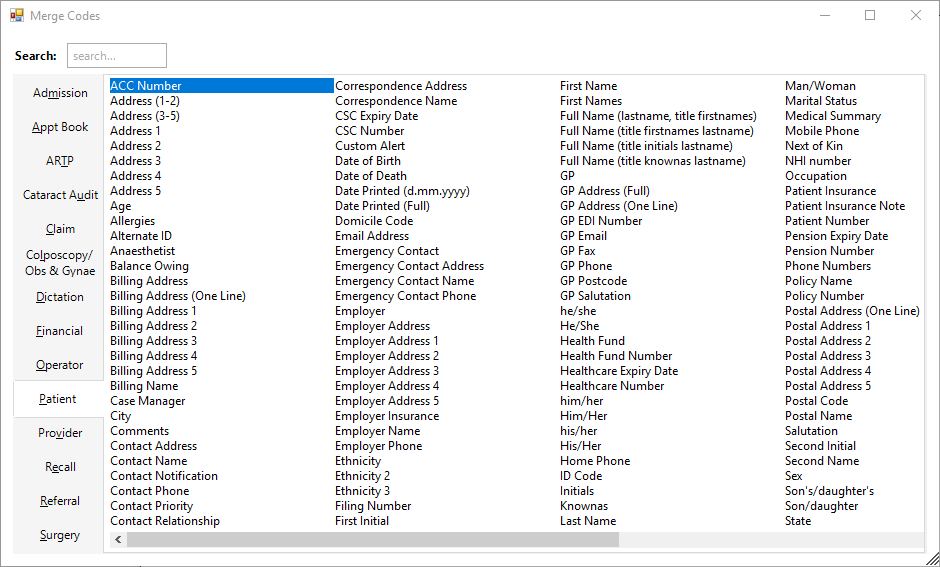
Note that this is divided into tabs for ease of locating the correct code.
Locate the code you require.
Typing a single letter will move you to the first entry on the current tab.
Alternatively select 'Search' and type text in the field. This will search across all tabs, and display the relevant descriptions.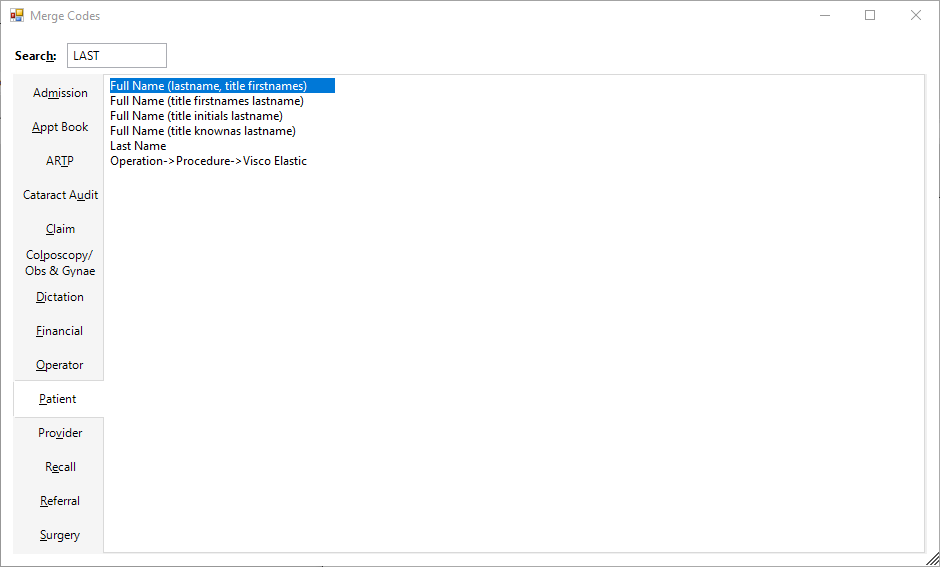
- Press Enter or select 'OK'.
- The merge code for the highlighted entry will appear on screen.
It will look something like this, depending on the code selected:
<AccDescription>
A Merge Code will always start with a less than symbol (<) and finish with a (>), i.e. it is contained within <>.
Do not remove any part of the merge code, including the less than and greater than symbols.
List of Merge Codes
- Admission Merge Codes
- APPOINTMENT RELATED MERGE CODES
- ARTP MERGE CODES
- CATARACT AUDIT CODES
- CLAIM
- COLPOSCOPY MERGE CODES
- FINANCIAL MERGE CODES
- OPERATOR 1
- OPHTHALMIC
- PATIENT REGISTRATION RELATED MERGE CODES
- PROVIDER MERGE CODES
- RECALLMERGECODES
- REFERRAL RELATED MERGE CODES
- SURGERY MERGE CODES
- SPECIAL MERGE CODES
- SYSTEM CODES