It is possible to select the 'New Patient' button immediately upon entering the Select Patient screen but we strongly advise you to search for the patient first.
This has the advantage that the information typed in the Search For field will be passed across to the Patient Registration screen when 'New Patient' is selected.
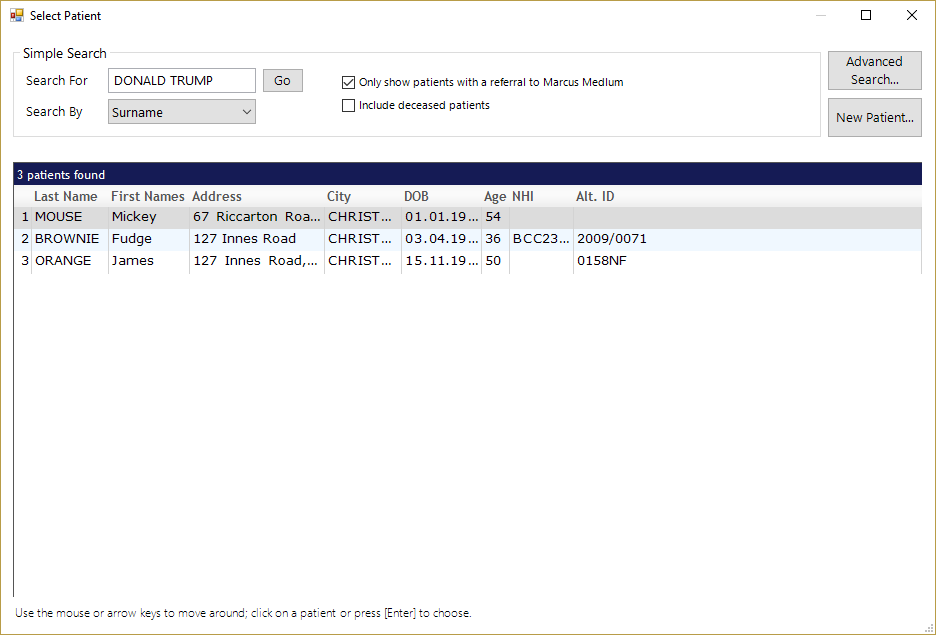
To add a new patient
- Search to see if the patient is already in the database.
- If not found, select 'New Patient' from the 'Patient Selection' screen.
Complete the Registration screen as applicable.
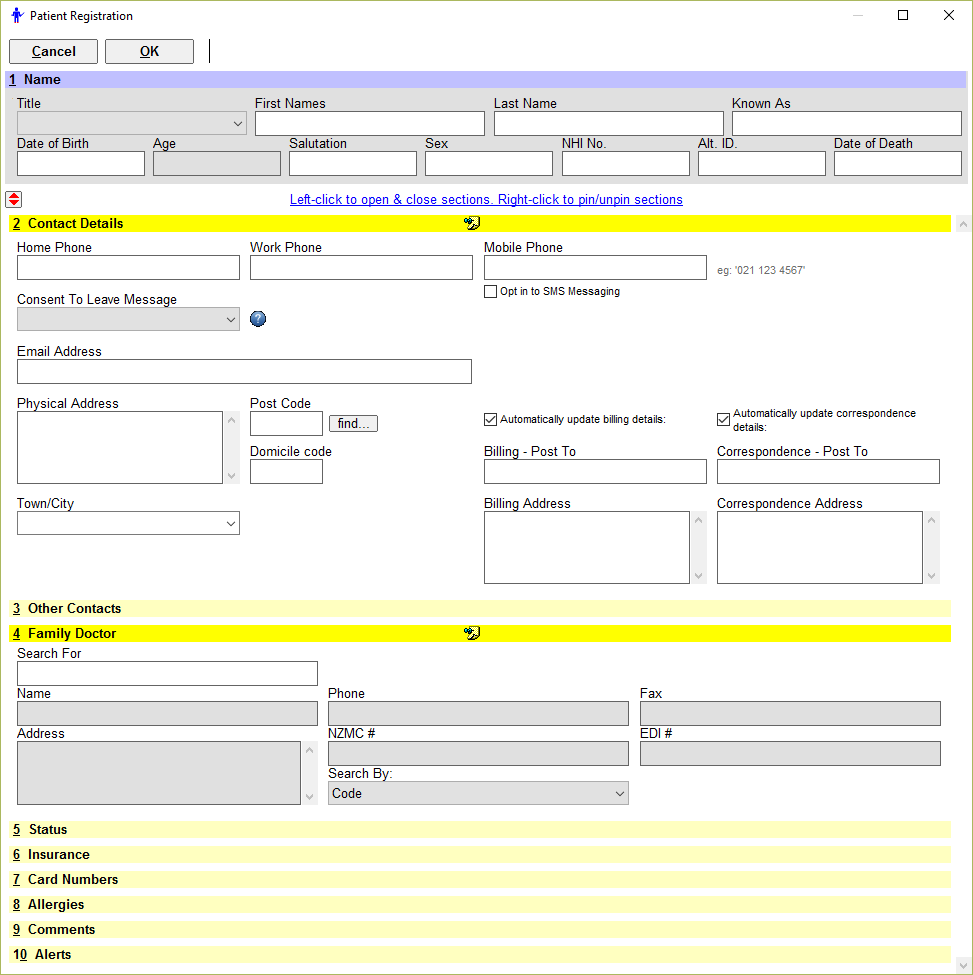
- Select 'OK' to save the new patient.
Warning Messages (Patient Registration)
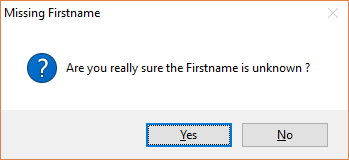
Missing Firstname
Last Name
If you try to leave the Last Name field blank, the following message will display.
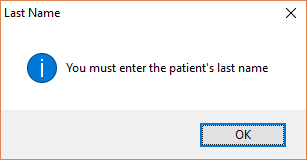
You will be unable to save the registration without a last name entered in the appropriate field.
Missing Date of Birth
If you fail to enter a date of birth in the correct field, the following message will display.
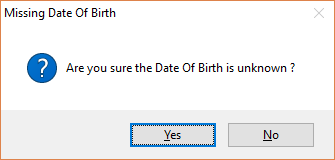
While it is possible to enter a patient without a date of birth, we strongly recommend that you obtain this when entering the patient as this is used to find possible duplicate patients.
If you do not have the date of birth, but want to continue to enter the patient, select 'Yes'.
Possible Duplicate Patients Found
After entering the name and date of birth in the Patient Registration screen, the program does a search of the database for possible duplicate patients. If any are found, a list of these will display on the screen:
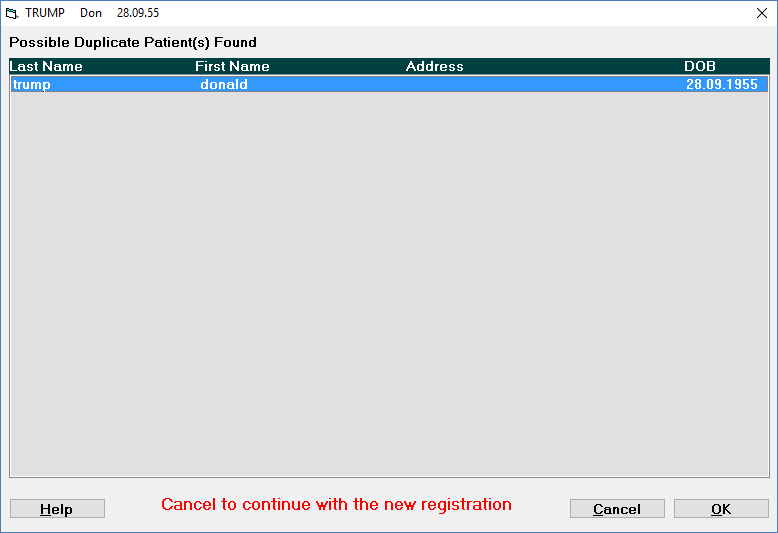
If the patient you are adding is not one of the patients listed, select 'Cancel' to to continue with the new registration.
If the patient you are adding is one of the patients listed, highlight the correct patient and select 'OK'. The new registration will be abandoned and the selected Patient will be loaded.
Invalid NHI Number
While the Incisive application does not have an NHI lookup, there is a check sum routine to validate the entry of data in the NHI number field. If the data entered, fails the check sum routine, then the following message will be displayed.
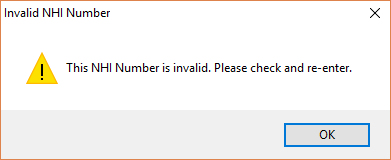
Select 'OK' and check your data input and correct, or delete the data entered to continue if you have been provided with an incorrect NHI number.
Duplicate NHI Number
If you try and enter a NHI number that is already registered to another 'patient' in the database, then the following message will display.
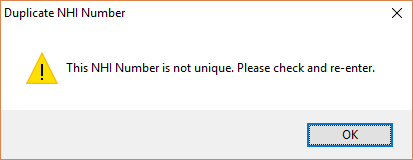
It is possible that the patient you are adding is already registered.
Select 'OK' and either:
- abandon the registration and search by NHI number for the patient; or
- continue to register the current patient, but remove the NHI number (not recommended).
Invalid Medicare Number
If an invalid Medicare number is entered, the following message will display.
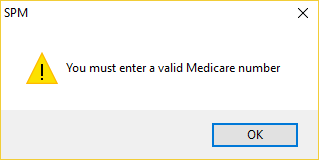
Select 'OK' and correct the number entered.
Blank Medicare Number
If the Medicare Number has been left blank, the following message will display.
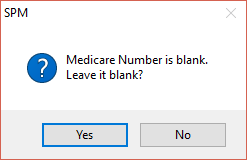
If you have a Medicare Number but have forgotten to enter it, select 'No' and enter the number.
If you do not have a Medicare Number, select 'Yes' to leave
Alternate ID Required
If an Alternate ID is a required field requiring manual entry (ALTERNATE PATIENT ID) and the field is left blank, then the following message will display.
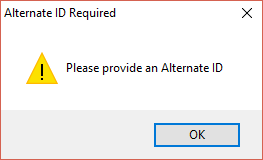
Select 'OK' and enter an Alternate ID.