Alert icons appear in the Patient Header to alert the operator to either a condition or conditions about the patient.
The Alerts are also displayed when making an appointment.
To add an Alert to a patient
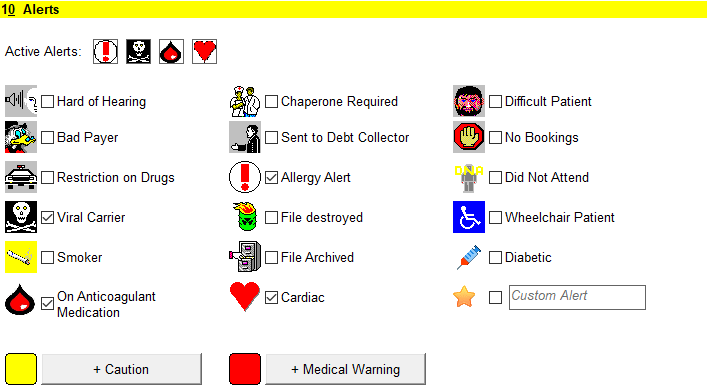
- In the Alerts section of the Patient Registration screen, select the Alerts that are applicable to the patient.
- Select 'OK' to save the changes to the registration.
- The selected alerts will display in the Patient Header.
To delete an Alert from the patient
- In the Alerts section of the Patient Registration screen, remove the tick from the relevant Alert(s).
- Select 'OK' to save the changes to the registration.
- The selected alerts, if any, will display in the Patient Header.
Currently there are alert icons for the following:
| Hard of Hearing |
| Bad Payer |
| Restriction on Drugs |
| Viral Carrier |
| Smoker |
| On Anticoagulant Medication |
| Chaperone Required |
| Sent to Debt Collector |
| Allergy Alert |
| File destroyed |
| File Archived |
| Cardiac |
| Difficult Patient |
| No Bookings |
| Did Not Attend |
| Wheelchair Patient |
| Diabetic |
| Custom Alert |
| Patient Caution |
| Patient Medical Warning |




You may select one or more alert icons for any given patient.
The selected alerts appear in the Patient Header.

If you are unsure of what an alert icon is for, hovering the mouse over the icon will display what that icon is for,
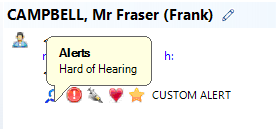
The Alerts selected for the patient are across all
Custom Alert
Selecting the Custom Alert icon allows you to type your own custom text.

- Select Custom Alert.
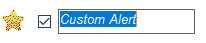
- Type in the text applicable to the alert for the patient.
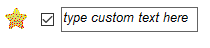
- Select 'OK' to save the changes to the Registration.
- The custom alert text displays in the Patient Header.
