Financial Transactions can be entered via the list of Appointments in the Appointment Book. However, it is still the recommendation of Incisive Software that these be entered from the Patient Module where previous financial transactions can be viewed.
Appointment - Appointments - New - Financial
New Financial Transaction
- Highlight the patient to charge.
- Select 'New' + 'Financial'.
- Further options will be listed.
- Select the applicable option.
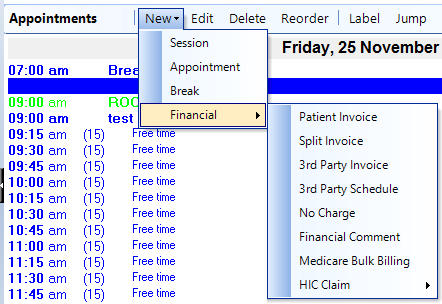
See FINANCIAL for further information on the various options.
On This Page:
- New Financial Transaction
- Appointment Confirmation
- Cancel a Clinic
- Change an Appointment
- Create or Roster a Session
- Delete Appointment
- Deleting multiple sessions
- Find 1st Free Appointment
- Link Session to a Facility
- Make a further appointment
- Make an Appointment
- Notify
- Print a Session
- Print Labels for a Session
- Referral Entry
- Reorder Appointments
- Resources - Configuration
- Resources - Stop double-booking of treatment room
- Search
- Sending an Appointment List
- Setup New Session Type
- Share an Op list with Anaesthetist - using inTOUCH app
- Transfer Appointment to/from Wait-list
- Transfer Session
- Waiting Lists
Training: