The Edit function allows you to change existing entries, whether this is a Session, an Appointment or a Break.
- Highlight the item.
- Select 'Edit'.
- Amend the details as required.
- Select 'OK' to save the changes.
Edit a Session
To cancel a Session
- Select the session to cancel.
- Select 'Edit'.
- Set the Cancelled field to 'Yes'.
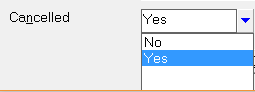
- Select 'OK' to save the changes to the session.
The Session will show as Cancelled and no further appointments will be able to be booked into the Cancelled Session.

Appointments can be transferred, either individually, or the entire session to another date / time.
SMS Messages for booked appointments in a cancelled session will not be sent out.
Edit a Break
To extend or shorten the time of a break (rather than delete it), edit the break and adjust the start and / or finishing times respectively.
Alternatively change the Description for the break.
Edit an Appointment
Editing an appointment will take you straight to the screen with the time of the appointment and the Appointment Type. It will allow you to alter the time of the appointment but not the date.
Additional information regarding the appointment can be added into the Details field.
- Select the Appointment to Edit.
- Amend the details as required.
- Continue as if making a new appointment moving forward through the various screens as required.
Select 'OK' to save the changes to the appointment.
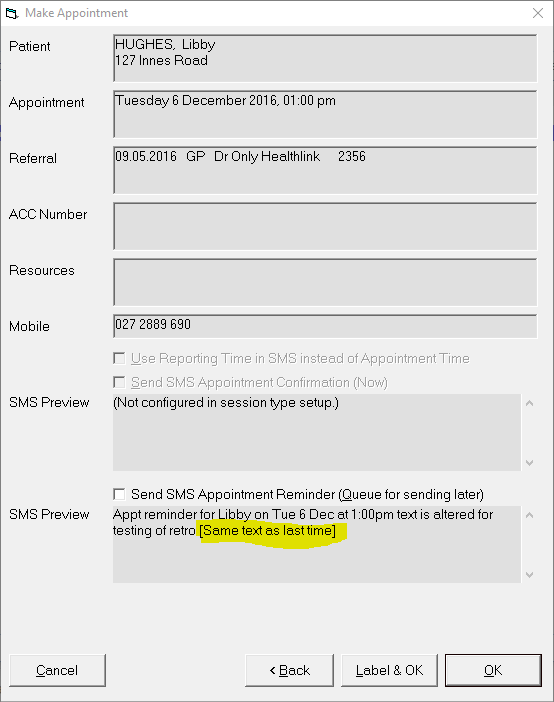
On the final 'Make Appointment' screen, if an SMS Message has already been queued as a Reminder, and if the text of the message is the same as the existing queued message, then there is no tick in the check box to send an SMS Reminder Message. This box would only be checked on if either the time of the appointment had been changed and / or the underlying message for the session had been altered after the original message was queued.
On this page: