Deleting an existing Financial Transaction.
When the Delete option is used, the transaction is 'hidden' and is never completely erased. Options are available to view and sometimes reverse deleted transactions.
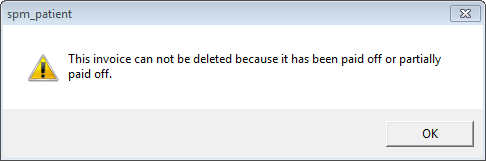
Patient Invoice | An invoice can only be deleted if there are no other transactions linked to it such as a receipt, prepayment applied / taken or a credit entry etc. If there are other transactions linked to the invoice, when you attempt to delete the invoice, the following message will display:
Working backwards, delete the necessary transactions. I.e. the last entered transactions should be the first that are deleted. Consider whether deleting the other transactions is desirable. In the case of a receipt, we recommend using the UNALLOCATE RECEIPT option if a banking has been closed off. You should always consider the effect deleting transactions will have on your banking. |
HIC Invoice | Out of hospital Patient Claims can only be deleted if they are deleted on the same day as transmitted (Same Day Delete). Pended claims (P) cannot be deleted. Claims Stored for later transmission (S), can be deleted. |
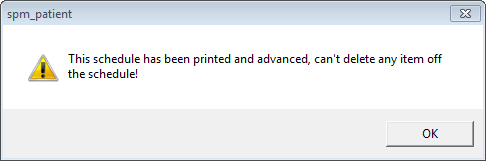
3rd Party Schedule | Providing a schedule has not been advanced you can delete the entry from the Transactions screen for the patient. Alternatively, entries may be deleted via Office - Schedules and editing the schedule. The items can then be deleted using the 'Delete' option. Once a schedule has been advanced, it you try and delete an entry via Patient - Transactions, the following message will display.
Once a schedule has been advanced, you can no longer delete entries from the schedule, you can however credit entries off the schedule via Office Schedules. |
Split Invoice | Deleting a split invoice will delete both the patient and third party portions of the invoice. If any part of the invoice is either paid or partially paid off, written off or has a credit or credit note entry, the invoice is then not able to be deleted. |
3rd Party Invoice | As with a patient invoice, |
ACC Schedule | Refer to 3rd Party Schedule entry above. |
Inventory Invoice | Deleting an Inventory Invoice will reinstate the stock used. An invoice can only be deleted if there are no other transactions linked to it such as a receipt, prepayment applied / taken or a credit entry etc. If there are other transactions linked to the invoice, when you attempt to delete the invoice, the following message will display:
Working backwards, delete the necessary transactions. I.e. the last entered transactions should be the first that are deleted. Consider whether deleting the other transactions is desirable. In the case of a receipt, we recommend using the UNALLOCATE RECEIPT option if a banking has been closed off. You should always consider the effect deleting transactions will have on your banking. |
Credit | |
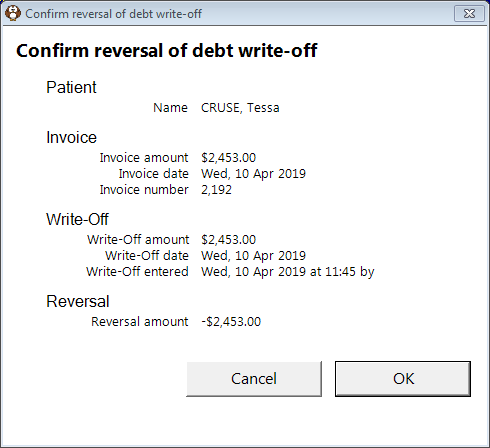
Debt Write-off | A debt written off can be deleted. The deletion will be dated with the current date.
The deletion of the Debt Write-off is recorded on the Transactions screen as 'Reversal of Debt Written Off'. Reversing or deleting a Debt Write-off may impact on your Aged Debtors Listing depending on the date the original debt was written off and the date the write-off was reversed. |
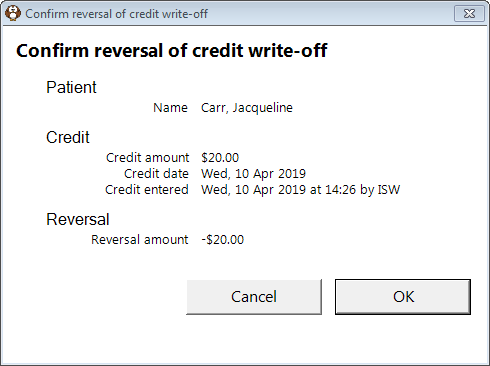
Credit Write-off | If a Credit Write-off has been entered inadvertently then it can be deleted. The Credit Write Off Reversal entry will be dated with the current date.
|
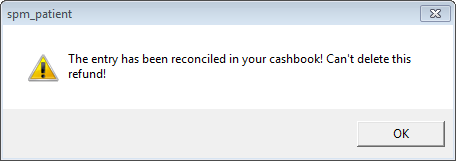
Refund | A refund can only be deleted if it has not been reconciled in the (Incisive) cashbook. If the refund has been reconciled, and you try and delete it, the following message will display. You will be unable to delete the transaction.
|
Dishonoured Cheque | A dishonoured cheque entry cannot be deleted. |
Dishonoured Direct Credit | A dishonoured direct credit entry cannot be deleted. |
Prepayment Received | A prepayment can be deleted. This will impact on your banking if the banking has been advanced, so consideration should be given as to whether deleting the prepayment (received) is the correct option to take. If a prepayment has been applied to an invoice, you will not be able to delete the prepayment itself. You would first need to delete the Pre Taken record (normally below the invoice). |
Credit Note | A Credit Note can be deleted. |
Fee(s) on Hold | A Fee on hold can be deleted. Please note that once deleted, you cannot access this data again. Fees on hold can be edited and turned in to an invoice. Consider this option if applicable rather than deleting the fee on hold and re-entering the data. |
Related:
- CREDIT NOTE
- CREDIT REVERSAL
- DEBT WRITE-OFF REVERSAL
Training:
- ACC invoicing
- Add a New Transaction Au
- Add a New Transaction NZ
- Quick Invoicing
- Invoicing the Patient
- Invoice to 3rd Party
- Invoice a Solicitor
- Change Referral for an Invoice
- Make invoice codes from Medicare
- Adding Assistants or Alternate Providers
- Print Balance for Invoice
- Billing Types
- Advanced Invoicing Options
- Hospital Invoicing Au
- Hospital Invoicing NZ
- Tutorial - Invoicing
- GST Rounding adjustment
- Multiple Patients - Group Receipts
- Dishonoured payments
- ACC Payment Advice import
- ACC Payment reversals
- Receipting Payments from Debt Collectors