Special alerts, known as Cautions or Medical Warnings, can be entered against the patient record. Unlike the Alerts, the text is free handed.
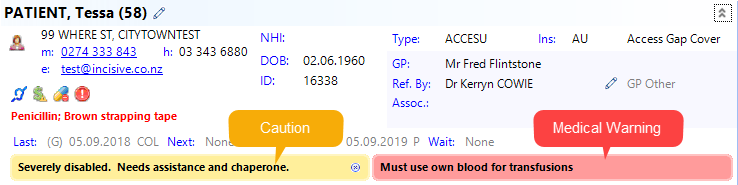
A Caution will be displayed in a banner or pop-up window each time the patient's record is accessed in either the Patient, Appointment, Dictation modules or Message Centre.
Caution is Yellow 
The Caution banner can be minimised by clicking on it but the Medical Warning banner will always be displayed. The minimised banner can be expanded again by clicking on it.

A Medical Warning will also be be displayed in a banner or pop-up window each time the patient's record is accessed in either the Patient, Appointment or Dictation modules and the Message Centre. When it is displayed in a pop-up window it requires the Operator to enter in their Login ID and Password before they can go to any other option in the application. The login and password is recorded along with the date and time that the Medical Warning was displayed.
Medical Warning is Red
Create a Caution or Medical Warning
The same process is followed for the Medical Warning.
The Operator will only be able to create, edit or delete cautions if the appropriate permissions are enabled for them in the Medical Alerts section in Setup > Personnel > Operator
- From Notes select 'New'.
- Select Caution or Medical Warning
- Select 'OK'
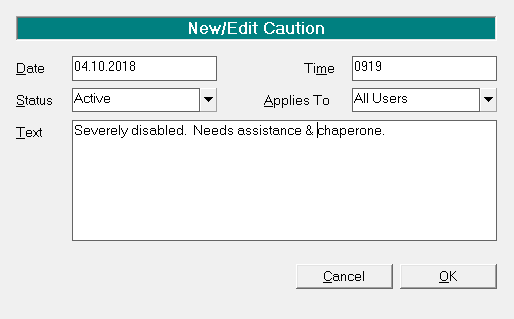
- Type in the Text of the Alert and optionally change the other settings if required.
- Choose if it is to be visible to:
- All Providers
- Providers who are members of the same 'Group' as the treating Provider.
- A selected Provider - Select 'OK' to save and display the Caution/Medical Warning.
Date | The current date will display, change only if needed. The log file will still show the date and time actually entered. | ||||||
Time | The current time will display, change only if needed. The log file will still show the date and time actually entered. | ||||||
Status | By default, the Status is 'Active' | ||||||
Applies To | Select from:
| ||||||
Text | The text as entered will appear in the caution. |
Edit a Caution or Medical Warning
When the Caution or Medical Warning is displayed in either the banner or pop-up window, right-mouse-click and choose the Edit option.
The Edit option will only be active if the Operator has 'Create' permission enabled in the Medical Alerts section of Setup > Personnel > Operator.
Remove a Caution
When the Caution or Medical Warning is displayed in either the banner or pop-up window, right-mouse-click and choose the Inactive option.
The 'Inactive' option will only be enabled if the Operator has 'Delete' permission in the Medical Alerts section of Setup > Personnel > Operator.
** ISW OLNLY
Cautions and Medical Warnings are written to the Warning table in the database. The WarningLog table logs the date and time entered, and the ctrLogin of who entered the entry.
ISW ONLY **