New Session
Before any appointments can be booked, there must be a session to book the appointments into. If there are no sessions on the selected date, a message will display.

- Select 'New' Session (or if there are no existing sessions, you can press Enter to create a session.
- Select to either roster many sessions (Yes) or a single session (No).
- Complete the details for
One-off
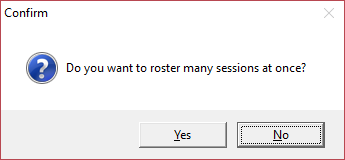
- To create a single session, select 'No' when prompted 'Do you want to roster many sessions at once?'
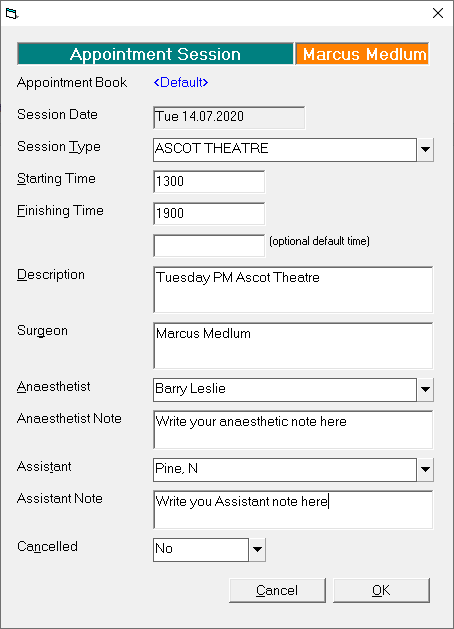
Complete the information required in the Appointment Session screen referencing the table below to assist.
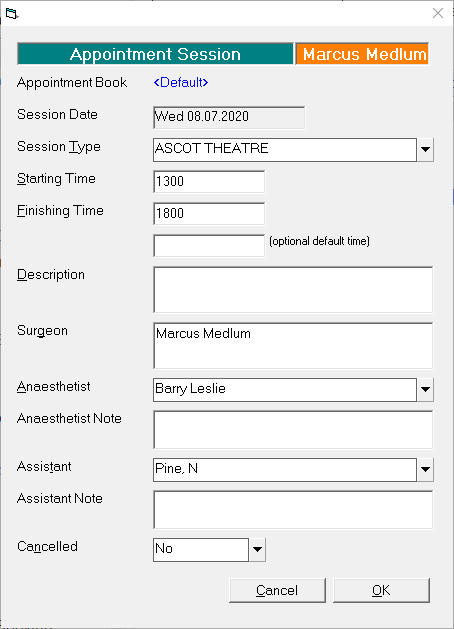
- Select 'OK' to save the session.
- A single session will be created on the selected date.
Roster
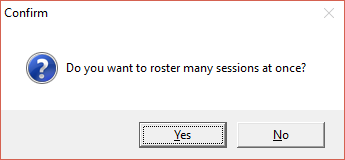
- To roster multiple sessions (for the same day of the week, type of session and start and finish times) select 'Yes'.
Complete the information required in the Roster Sessions screen referencing the table below to assist.
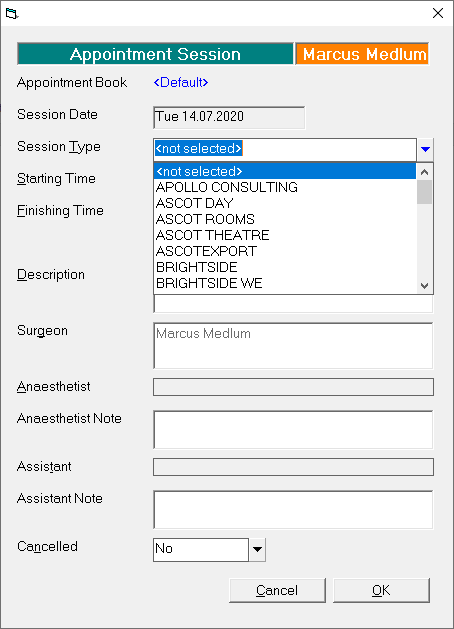
- Select 'OK' to save.
The session(s) will be created.
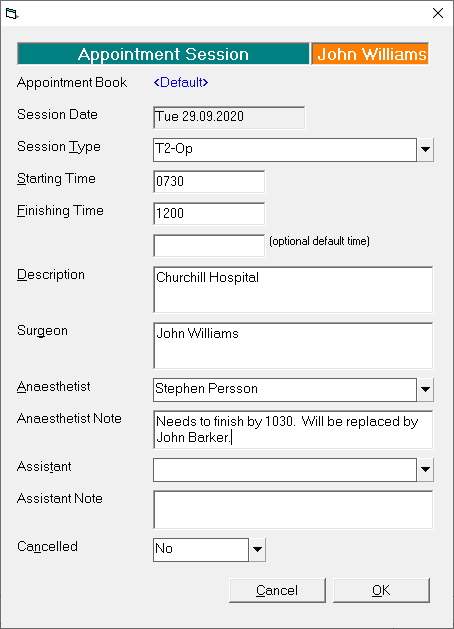
Session Data | |
Session Type | Select the session type from the drop down list. |
Starting Time | Enter the starting time (12 or 24hr format) |
Finishing Time | Enter the finishing time (12 or 24hr format) This is not the time the last patient is to be booked, but the time the session is scheduled to finish. |
Reporting Time | If the Session is an operating session and you want to enter a default reporting time (which will apply to all appointments booked into the session), enter it here. |
Repeat every | If you have selected to roster multiple sessions, then enter the number of weeks to repeat this particular session type (day, time, type of session). |
Until | By default, sessions are created until the end of the year (based on the date started). Sessions should only be repeated beyond this date if you are confident that the roster is not likely to change much. |
Description | Enter a description for the Session, i.e. Monday AM Rooms, or Thursday AM Norwest Operating |
Surgeon | If the session is an operating session, enter the name of the surgeon. By default, this is the Providers name. |
Anaesthetist | If the session is an operating session, and there is a usual anaesthetist for this session, enter the name here, otherwise leave it blank. The selected anaesthetists name is also entered into the Anaesthetist field of the Operation Information form in Patient > Stock Used. |
Anaesthetist Note | This field gives you the ability to write a note pertaining to the Anaesthetist. You do not have to have added the name of the Anaesthetist to be able to do this. You can free-hand the anaesthetist's name instead of selecting them from the list - it will appear in the same location on the screen and in printouts. |
Assistant | If the session is an operating session, and there is a usual assistant for this session, enter the name here, or type the Assistant's name into the Assistant Note field. The selected assistant's name is also entered into the '2nd Surgeon' field of the Operation Information form in Patient > Stock Used. |
Assistant Note | This field gives you the ability to write a note pertaining to the Assistant. You do not have to have added the name of the Assistant to be able to do this. |
Cancelled | Yes/No selection. The selection is reported in cancellation reports. |
Warning Messages
If when entering a session, there is a clash with existing sessions, the following message will display.
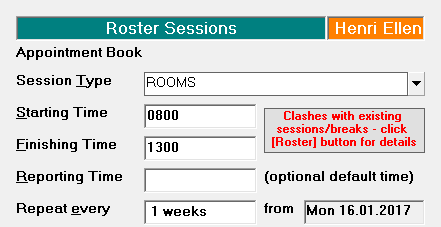
This may be rectified by changing the 'Repeat every' from 1 week, to 2 or 4.
The clashes may be viewed by selecting the 'Roster' icon.
Roster
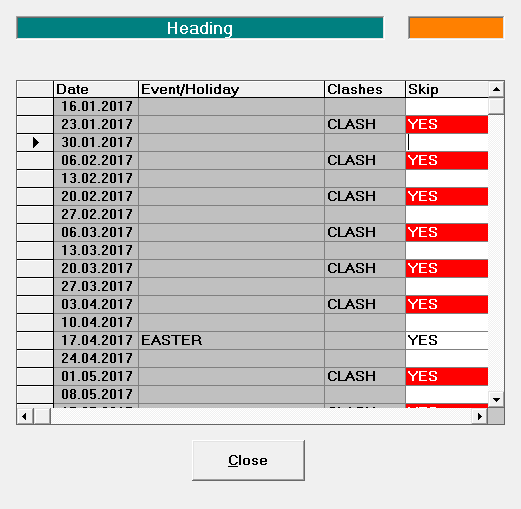
The Roster icon allows you to view the clashes with the session that you are trying to roster.
In the example below, there is another session every second week, therefore the program will not be able to create the session every other week (the Repeat should have been set to 2 weeks and not 1).
On This Page:
- New Session
- One-off
- Roster
- Session Data
- Session Type
- Starting Time
- Finishing Time
- Reporting Time
- Repeat every
- Until
- Description
- Surgeon
- Anaesthetist
- Assistant
- Warning Messages
- Roster
- Appointment Confirmation
- Cancel a Clinic
- Change an Appointment
- Create or Roster a Session
- Delete Appointment
- Deleting multiple sessions
- Find 1st Free Appointment
- Link Session to a Facility
- Make a further appointment
- Make an Appointment
- Notify
- Print a Session
- Print Labels for a Session
- Referral Entry
- Reorder Appointments
- Resources - Configuration
- Resources - Stop double-booking of treatment room
- Search
- Sending an Appointment List
- Setup New Session Type
- Share an Op list with Anaesthetist - using inTOUCH app
- Transfer Appointment to/from Wait-list
- Transfer Session
- Waiting Lists
Training: