There are a number of methods, and locations, from which you can create a new message.
- Keyboard - F10 function key
- Menu > Messaging > Send Message
- Function Key Panel > Send Message
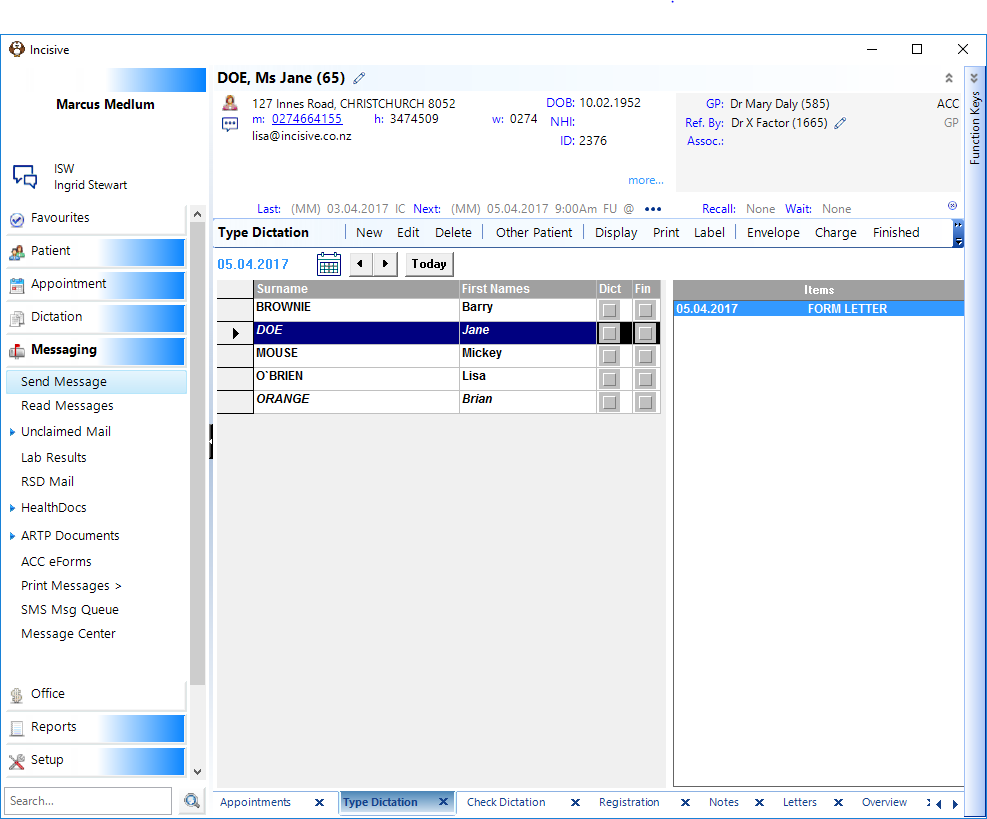
- Application > Patient > Notes > New > Message To Do
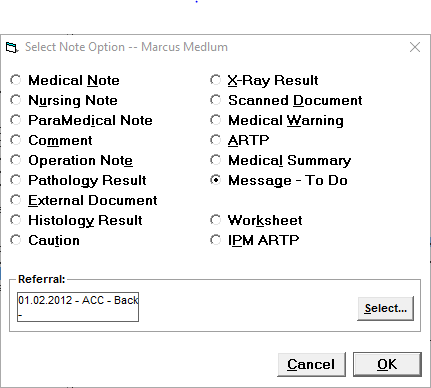
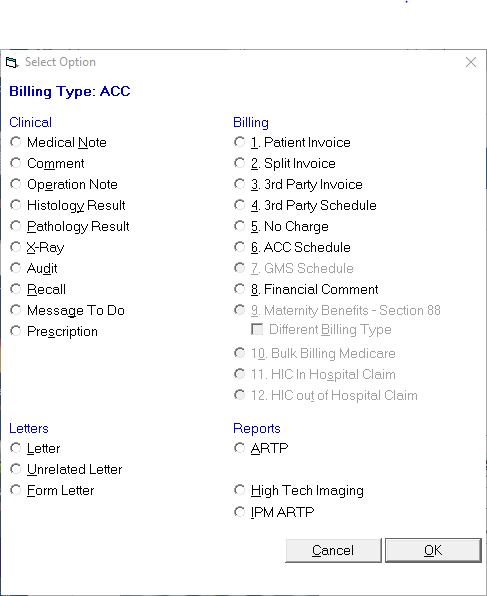
- Application > Dictation > Type > New > Message To Do
Message not relating to a patient
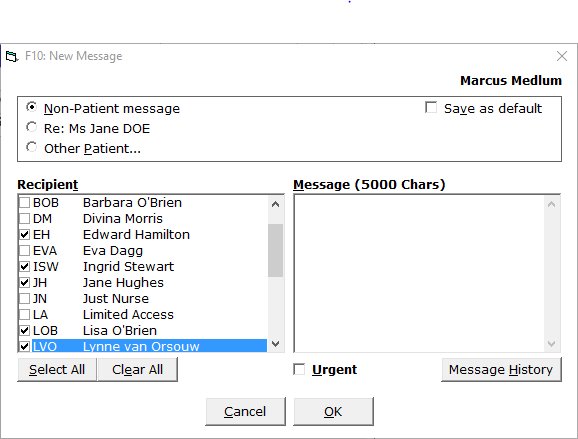
From anywhere in the Incisive application you can press the F10 function key, or select 'Send Message' F10 from the Function Key Panel, to create a message to another Operator(s). The 'Non-Patient Message' will be selected by default. You can over-ride this by choosing the 'Other Patient' option and selecting the patient that the message relates to.
Message relating to a patient
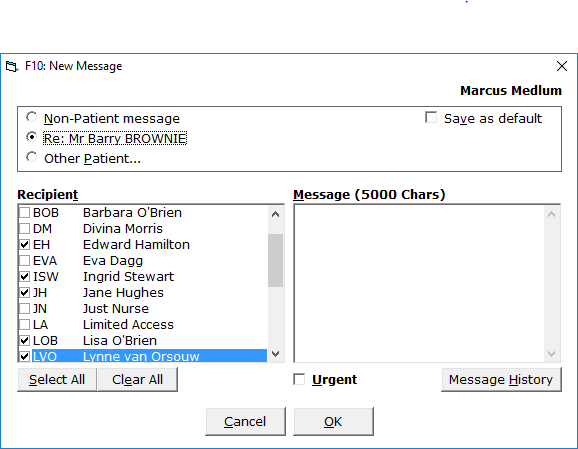
If a patient is selected, either in Patient, Dictation or Appointment mode, if you use the 'Send Message' (F10) function, the message will be linked to the patient's record and will display in their Notes.
Alternatively, you can choose to link the message to a different patient by choosing the 'Other Patient' option and selecting another patient.
On this page:
Training:
- Assign UNCLAIMED Mail
- Accept LAB Results
- View RSD Documents
- Save EMAIL and Attachments
- Save a Fax to the Patient