Assigning Roles
Once the permissions have been established in Setup -> Personnel -> Permissions to allow access to specific menu or button functions for the various roles, you then need to determine which Operators belong to, or are members of, the specified roles.
If an Operator is a member of two Roles, one of which does have permission to access a function and the other Role which does not have access permission to the same function, the right to have access overrides the restriction i.e. access to the function is allowed.
Selecting Setup -> Personnel -> Roles will provide you with a list of all the Operators (staff) who have logins created for either SPM or PHM. 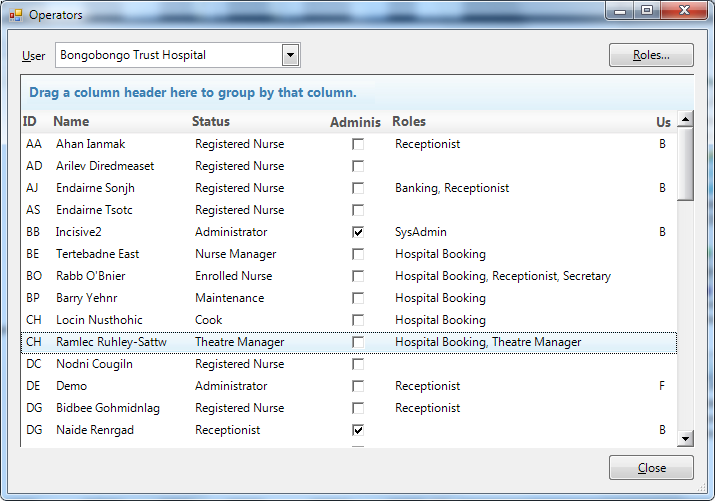
Allocate an Operator to a Role
- Highlight the Operator and click on the Roles button
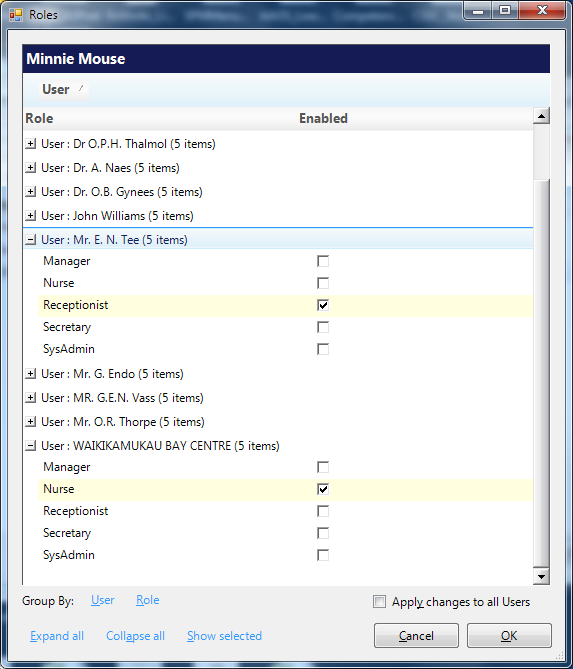
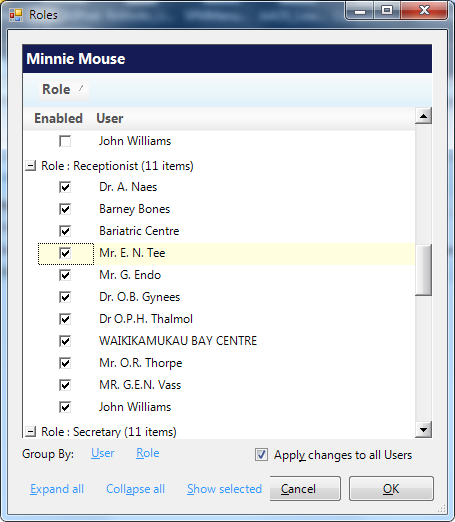
The Roles are in the left column and the Providers (the Hospital and any specialists in attached consulting suites) are shown in the right column.
- For each User, choose the Roles that the Operator will belong to.An Operator can belong to many Roles.
In this example, Minnie Mouse, who is a registered Nurse, is made a member of the Nurse Role for both the Bariatric Centre and Waikikamukau Bay Centre, and is a Receptionist for Mr E.N. Tee. - To make select easier you can sort the list to display the roles by User (or all Users)
- Click OK to save
Filtering and sorting the selection options.
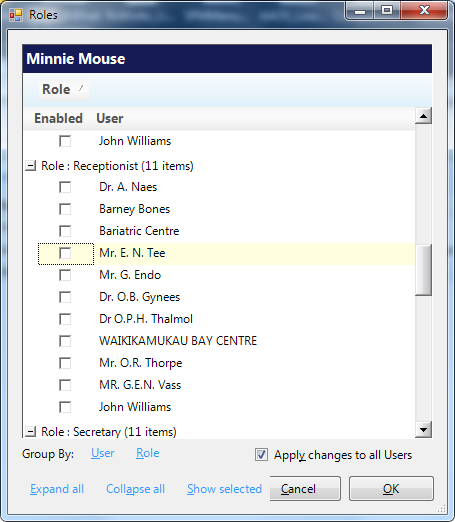
Group By:
User Role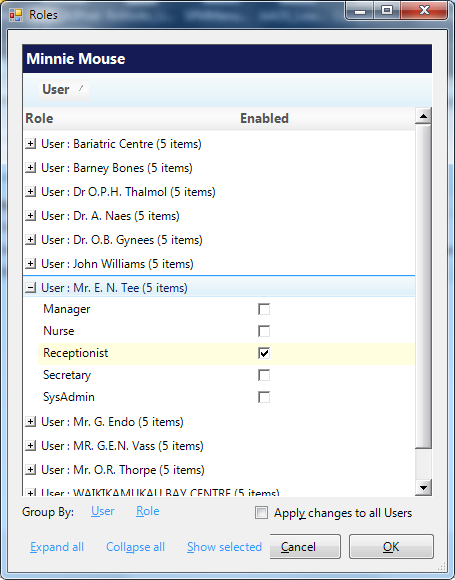
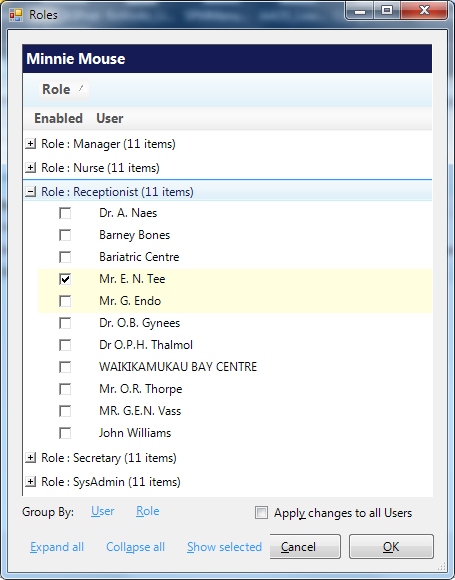
Expand All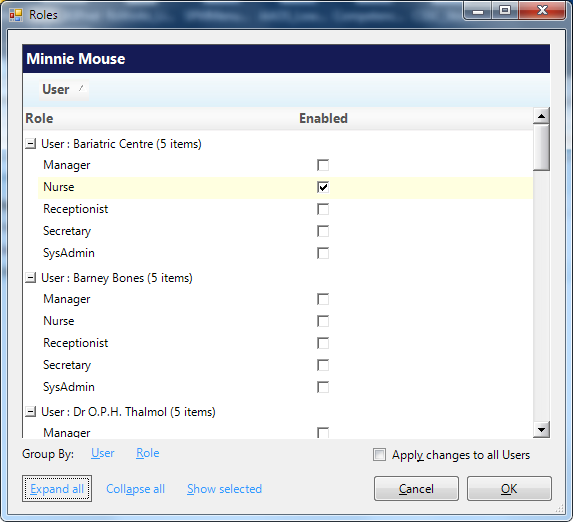
Collapse All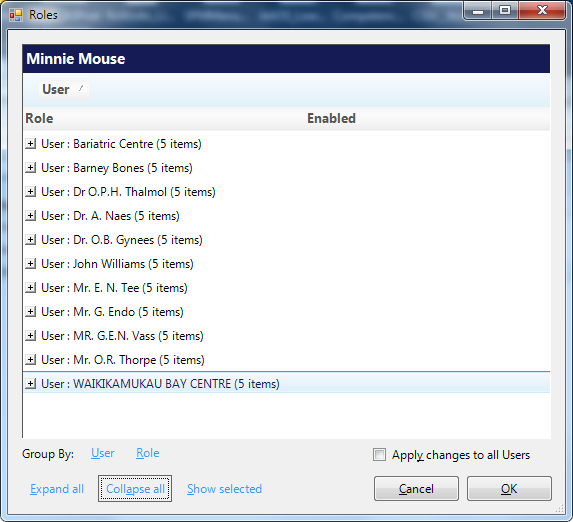
Show Selected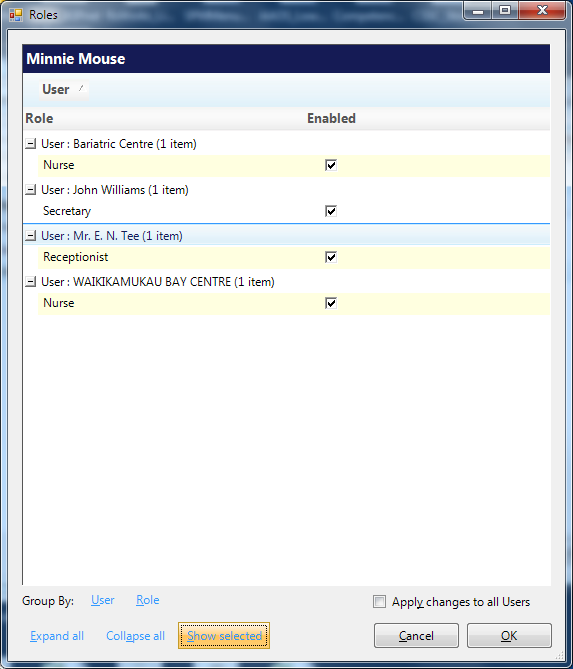
Apply changes to all Users
This is a dangerous option – use with extreme caution.
On this page: