The reorder function is intended for changing the order of an operating list, although you can reorder any type of session, whether this is a 'Book' or the main Appointment list.
Appointment - Appointments - Reorder
Reorder a single session
- Select the session to reorder.
- Select 'Reorder'.
- A screen will display with all the sessions for the day (including 'Books') for the Provider.
The session to be reordered is selected.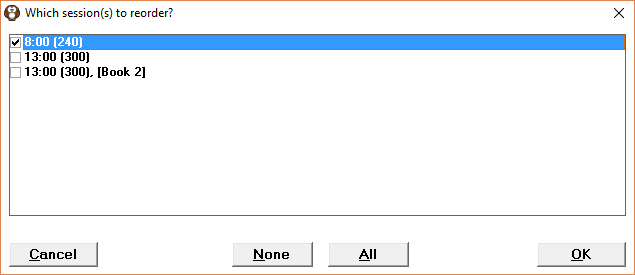
- Select 'OK'.
A list of patients will display.
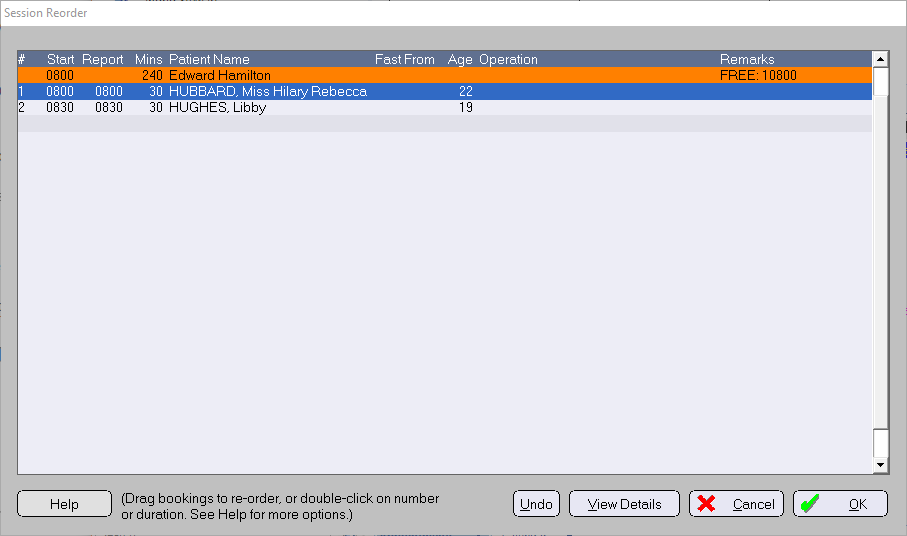
- Drag and drop the patients up (or down) the list until they are in the desired order.
- To save the changes to the reordered list, select 'OK'.
Changing the order of bookings:
- Left-click on a booking and, while holding down the left mouse button, drag the booking to a new location. For instance, click on the 4th booking and move to the 2nd booking. The old 4th booking becomes the 2nd and the others move down. If you drag a booking onto a session header (orange line), the booking will be moved to the end of that session.
- Double-Click in the number ('#') column. An input box comes up. Change the number (e.g. from '4' to '2') and the booking will move to that location. Other bookings will move down or up as required.
- Right-Click on a booking. This will bring up a menu with options to move that booking to the start of the session, up one, down one, or to the bottom of the session.
- Press Shift-Up to exchange the highlighted booking with the one above (move up one).
- Press Shift-Down to exchange the highlighted booking with the one below (move down one).
When any booking is moved (except the shift-up (4) and shift-down (5) above), the start times for all bookings are recomputed. The first booking will be placed at the start of the session and each subsequent booking (including any breaks) will start immediately after the previous booking. If two bookings had been deliberately double-booked or an empty gap left, this will be replaced by a 'tidy' sequential list.
You can move bookings between sessions by any of the above methods. The right hand end of the session header (orange line) will show either the free time remaining in the session or 'OVERBOOKED' and how many minutes are overlapped. You can not save your changes while one or more sessions is overbooked.
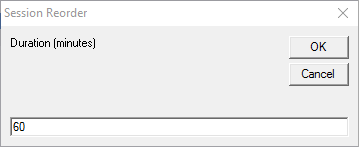
Changing the duration (number of minutes) of a booking by:
Double-Click in the duration ('Mins') column. Changing the duration of a booking will recompute the start times of all subsequent bookings.
- You can't set the duration to < 1 minute.
- You can't increase the duration past the point where the last booking would finish after the end of the session.
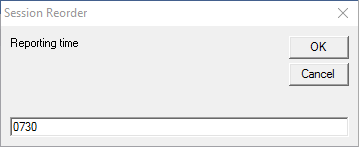
Changing the reporting time of a booking:
Double-Click in the reporting time ('Report') column. Changing the start or duration of a booking does not automatically change the reporting time.
Changing the fasting instructions:
Double-Click in the fasting ('Fast From') column. This is a free text field – you can type any text up to 10 characters.
Changing the start time, finish time, and anaesthetist for a session by:
Double-Click anywhere on the session header (orange) line. This will bring up a separate screen for you to edit these details. The program will not allow you to change a session in such a way that it overlaps with another session in the same theatre.
Viewing more details about the patient and/or the operation:
- Double-Click in the 'Patient Name' column. This will show more details about the patient.
- Right-Click on a booking. From the popup menu, select 'view details'. This will show more details about the patient and the booking.
- Click the [View Details] button. This will show more details about the patient and the booking.
- (13) Press the Space bar. This will show more details about the patient and the booking.
When you have finished:
If you make a mistake with positioning a booking or changing its duration, you can undo this by pressing ctrl-Z or clicking the [Undo] button.
If you decide not to go ahead with re-ordering the session, press [Cancel]. No changes will be made.
Pressing [OK] will confirm the changes. HOWEVER, the program will first check that no changes to the bookings have been made by anyone else while you were working on them. If changes were made by someone else, the program will reload the (changed) bookings for you reorder.
On this page:
- Reorder a single session
- Changing the order of bookings:
- Changing the duration (number of minutes) of a booking by:
- Changing the reporting time of a booking:
- Changing the fasting instructions:
- Changing the start time, finish time, and anaesthetist for a session by:
- Viewing more details about the patient and/or the operation:
- When you have finished: