If a schedule has been fully paid with one payment, it is not necessary to reconcile the payment to entries on the schedule they will be reconciled automatically. If however the schedule has not been paid in full (or paid in full with more than one payment) it is necessary to mark the patients on the schedule who you have been paid for. The schedule item on the patient's financial records will show as owing until the schedule has been reconciled.
- Highlight the schedule to reconcile.
- Select 'Reconcile'.
The schedule entries display on screen.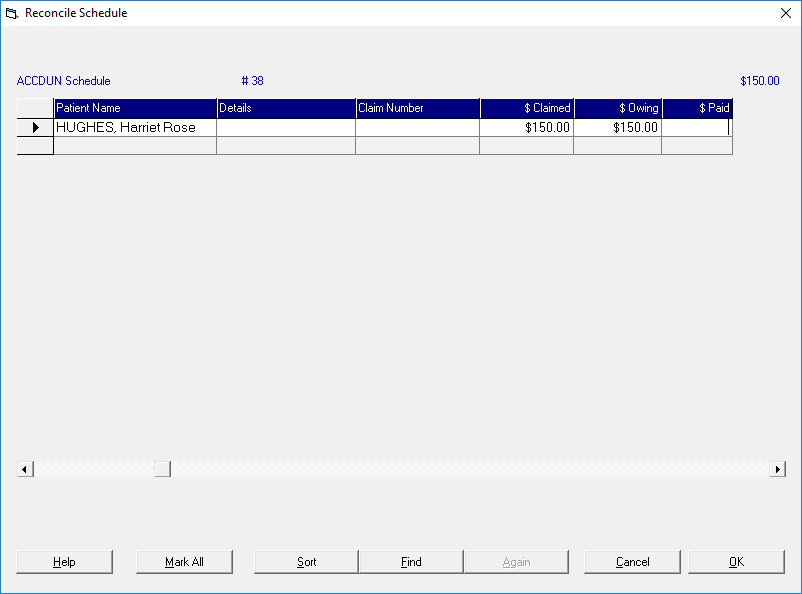
$ Paid
Enter the amount paid for each patient as applicable. To Enter an amount either press 'Enter' for the full amount or type the amount paid if it differs from the amount owing.
$ Credit
If payment has been declined or a lesser amount paid, enter the amount to credit for each patient as applicable.
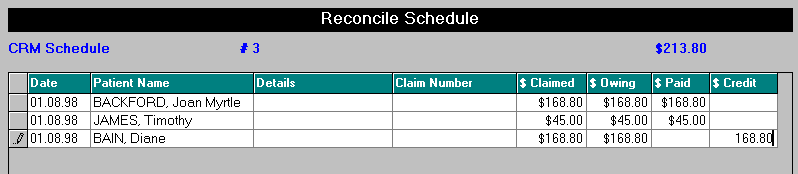
- When the amount receipted against the schedule (top right) and the total of the $ Paid column match, Select 'OK'.
Mark All
If nearly all entries have been paid, press Mark All and then delete the amounts that have not been paid. These can either be left as unpaid items on the schedule to be reconciled at a later date or a credit amount can be entered. You can choose whether to bill the patient for this amount or simply enter a credit to the patient's account causing a $0.00 amount left owing.
Sort
For ease of reconciliation you may sort the entries on your screen using the Sort button, this allows the entries to be displayed in date order, reverse date order, last name or reverse last name. You may also search for a particular entry using the Find button.
- Select 'Sort'.
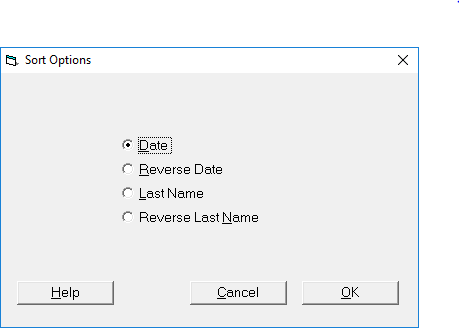
- Select one of the Sort Options.
The entries display on screen sorted by the chosen method.
Find
If only some of the entries have been paid, use the Find button to find particular patients who have not been paid or only partially paid.
- Select 'Find'.
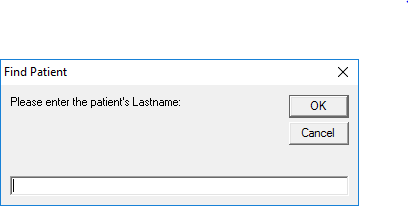
- Type the patient's last name (or part thereof) and press 'Enter'.
The cursor goes to the $ Paid column in the same row as the first occurrence of the last name as typed. - If this is the correct entry then enter the amount paid or the amount to credit as appropriate; or
- Select 'Again' to find the next occurrence.
Again
The Again button is dimmed until you have used Find. This takes you to the next occurrence of the last name.
Credit
If you type an amount in the Credit column, then the following message will appear:

- Select the appropriate option.
- Select 'OK'.
The Credit option credits the amount off the schedule and the patient's financial record, while the Bill to Patient option credits the amount off the schedule and automatically invoices the amount to the patient.