When receipting any schedules, or invoices, you must ensure that entries are dated correctly (date banked), and that the amounts receipted equate to what was actually banked.
With the changes to Section 88, prices are now stated exclusive of GST. Unfortunately HealthPac now quote all services paid on their reconciliation exclusive of GST as well.
The notes below do not allow for any adjustments made by HealthPac for amounts previously overpaid, now being adjusted for. If adjustments are being made by HealthPac, these should be handled as 'Other Receipts'. Please contact Incisive Software regarding this.
Before commencing to enter the receipt, add up the amounts HealthPac have paid against each schedule (Your Claim Reference on their Tax Invoice, and add GST to the totals). To add GST, multiply the amount by 1.125.
Receipting
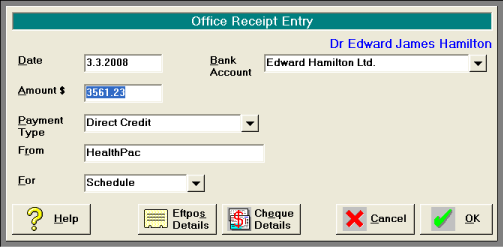
Identify the date the funds were paid into the bank account (Payment Date). This is the date to be entered for the receipt.
- Receipt the total amount banked (which includes the GST component).
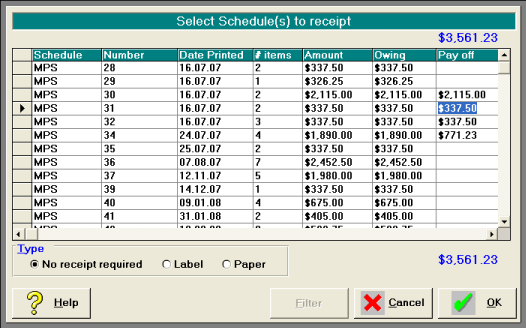
- On the next screen, identify the schedules that are being paid, and allocate the correct amounts that are being paid off. If a schedule has been paid in full, you can press Enter in the Payoff column for the amount to appear, rather than typing in the amount.
- After typing or entering the last amount, ensure that you press 'Enter'. The amount at the top, should equal the amount at the bottom of the screen. You will not be able to proceed if these amounts do not tally.
- Select 'Label', and then 'OK'.

- Stick the label on the Tax Invoice as proof of receipt.
- On the schedules tab, the receipted schedules will display with ** to indicate that they need to be reconciled.

Reconciling Schedules
Once a schedule, or schedules have been receipted, they need to be reconciled. This process allocates the money paid off against a schedule to items on it. Before reconciling, you should ensure that the schedule has been correctly receipted, as once reconciled, no reversals are possible.
- Highlight the schedule to reconcile.
- Select 'Reconcile'.
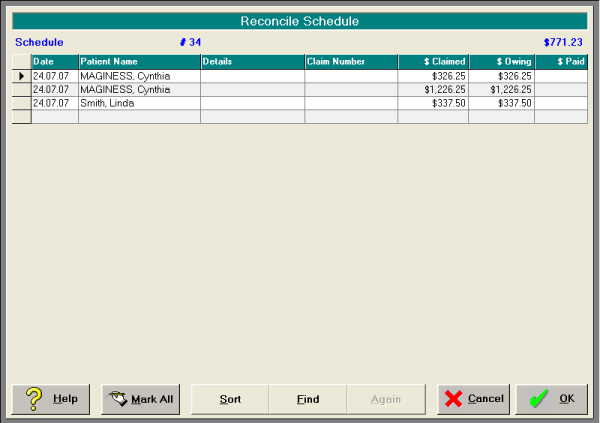
The amount to reconcile for the schedule displays in the top right hand corner of the screen. - If all items claimed have been paid, you can select 'Mark All'. This will put values in the $ Paid column (based on the $ Owing column).

Alternatively, type the value paid in the $ Paid column and press 'Enter'.
Pressing 'enter' in the $ Paid column will put in the value from the $ Owing column, provided the amount left to allocate is more than or equal to the $ Owing. - Select 'OK'.

Only select 'Yes' to proceed if you are confident the schedule has been reconciled correctly.
Credit
The Credit option is used to adjust items on schedules, i.e. where the wrong service has been claimed, or the item claimed has been declined. Normally the correct service is then reclaimed on a new schedule. Historically, once HealthPac had declined a service on a schedule, they would never payout on that schedule for that item, so it was therefore safe to credit an item off a schedule.
Once the items have been credited off a schedule, you will no longer be able to receipt money to that schedule and correctly reconcile the payment for the correct services.
Our advice is to delay entering any credit entries until the current problems have been resolved.
On this page: