A prepayment is the partial or full payment of the surgeon's fee prior to the surgery being performed.
At the time of the prepayment being received there is no invoice to receipt against as the service has not yet been supplied therefore the invoice is not generated. The prepayment is being held as a credit balance on the patient's account and will be used to pay the invoice when it is created.
A receipt needs to be issued to the payor as proof that the payment has been received.
Creating a Prepayment
- Go to Patient module and select the patient
- Go to the Financials section and select New from the Toolbar.
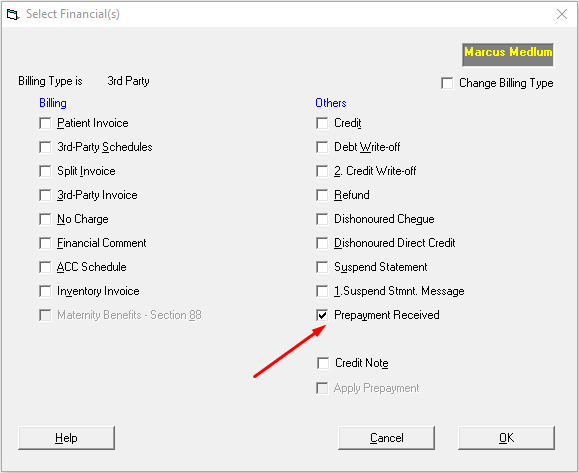
- Select the 'Prepayment Received' option.
- Select the party that is making the payment.
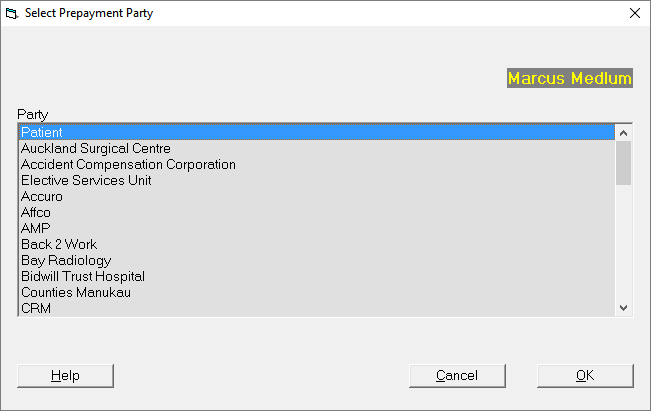
Patient is at the top of the list.
The other 3rdParties are entered and listed in Setup > Contacts > Invoicing/Reports. - Continue receipting as usual.
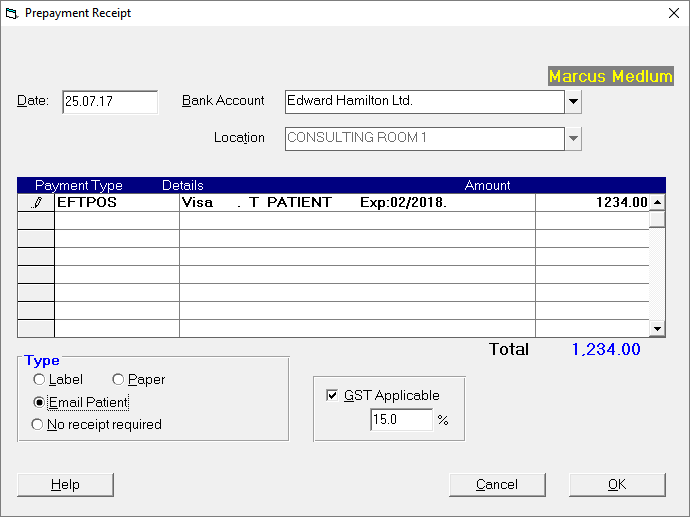
This creates a 'Prepayment' transaction in the patient's file.
If you highlight the transaction and press the Spacebar you will be able to see the transaction details.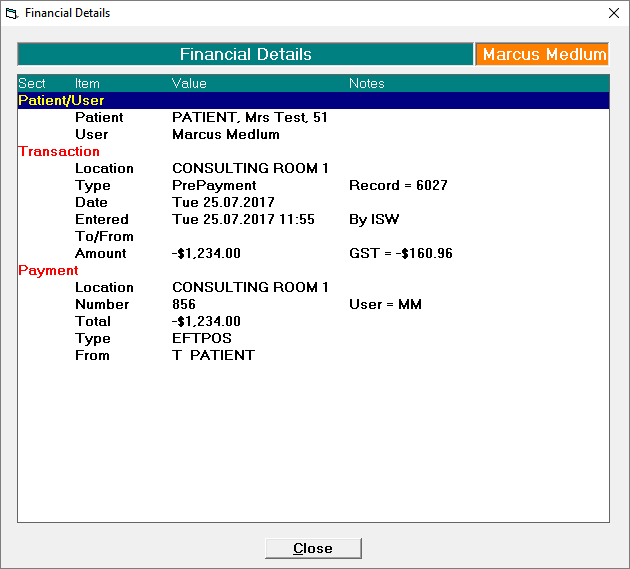
Applying the prepayment to an invoice
There are two methods to apply the prepayment to an invoice:
- At the time an invoice is generated, or
- After the invoice has been printed.
When the invoice is created
- Create the invoice
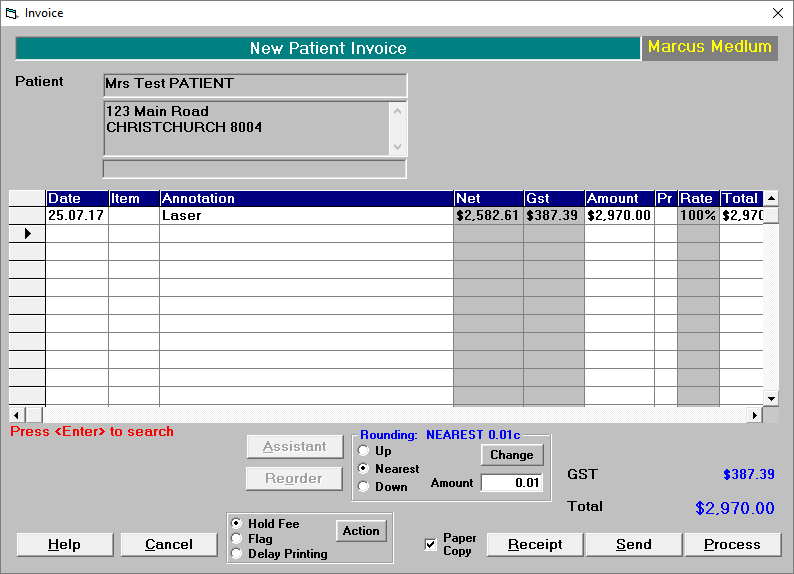
If the prepayment is either paying off the invoice in full, or is partially paying off the invoice and no further payment is being made at this point, select to either Send or Process the schedule.
Only select Receipt if you have a further payment to enter at this time. - You will be prompted as to whether you want to use the prepayment funds to apply to the invoice.
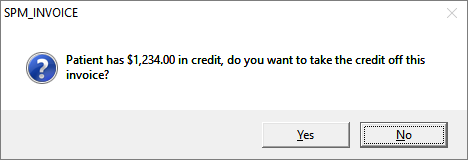
If you select 'No', the prepayment will remain as a credit balance for the patient. - If you select 'Yes' the prepayment will be applied to the invoice.
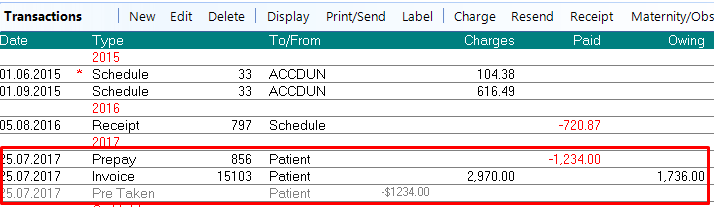
Two entries appear on the patient's financial record:- Pre Taken (prepayment taken)
- Invoice
After the invoice has been created
If has invoice has been issued and a prepayment not applied to it at the time of issue, you can utilise the prepayment credit at a later time.
This option can also be used when you only want to apply some of the credit balance to the invoice, and leave the rest of the prepayment as a credit.
- In the patient's Financial section, select New from the Toolbar then choose 'Apply Prepayment'
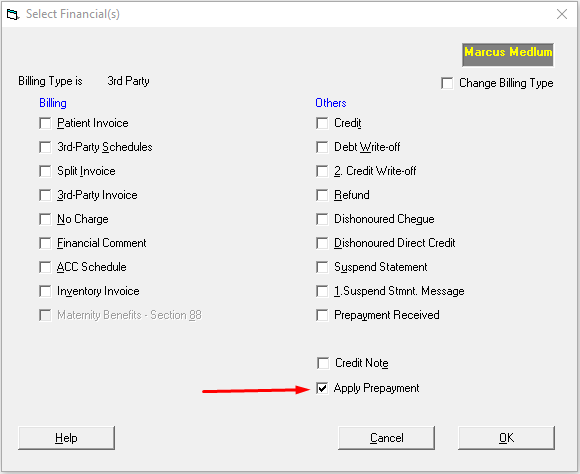
- Enter the amount of the prepayment.
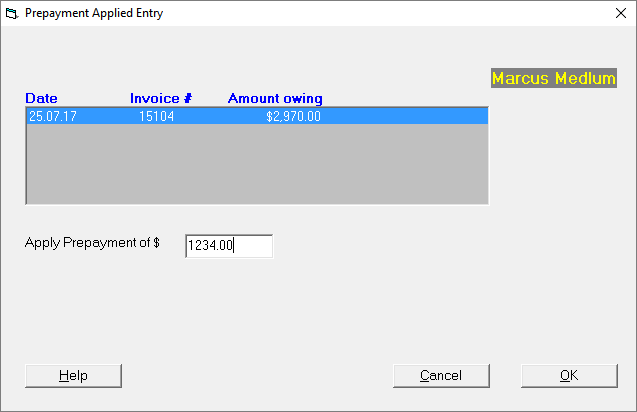
If the amount of prepayment credit that you are applying to an invoice is less than the total credit balance available, you will be prompted to confirm the action.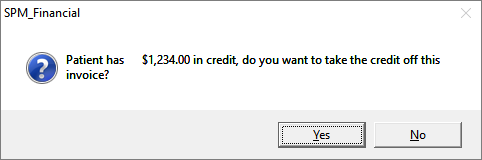
- Select the invoice(s) that you are applying the prepayment to.
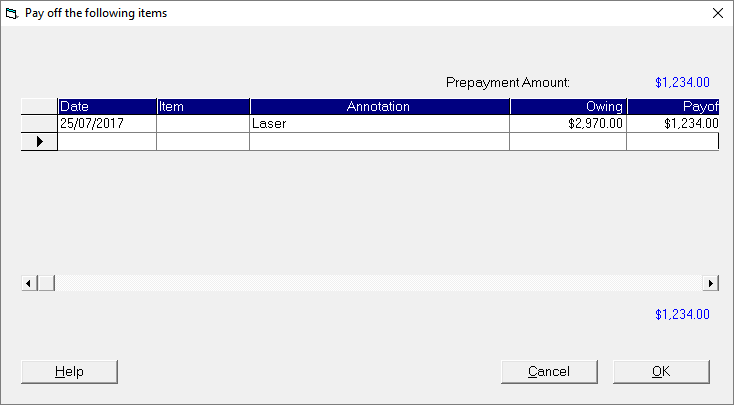
- The transactions will appear in the patient's file.
Not applying a prepayment to an invoice will result in a Statement being produced in the Accounts Run, even though the balance owing in total might be $0.00. This is because the invoice is still regarded as being outstanding. The patient will also be listed in the Aged Debtors Listing.
The situation can be remedied by applying the prepayment using the steps listed above.
On This Page:
Training:
- ACC invoicing
- Add a New Transaction Au
- Add a New Transaction NZ
- Quick Invoicing
- Invoicing the Patient
- Invoice to 3rd Party
- Invoice a Solicitor
- Change Referral for an Invoice
- Make invoice codes from Medicare
- Adding Assistants or Alternate Providers
- Print Balance for Invoice
- Billing Types
- Advanced Invoicing Options
- Hospital Invoicing Au
- Hospital Invoicing NZ
- Tutorial - Invoicing
- GST Rounding adjustment
- Multiple Patients - Group Receipts
- Dishonoured payments
- ACC Payment Advice import
- ACC Payment reversals
- Receipting Payments from Debt Collectors