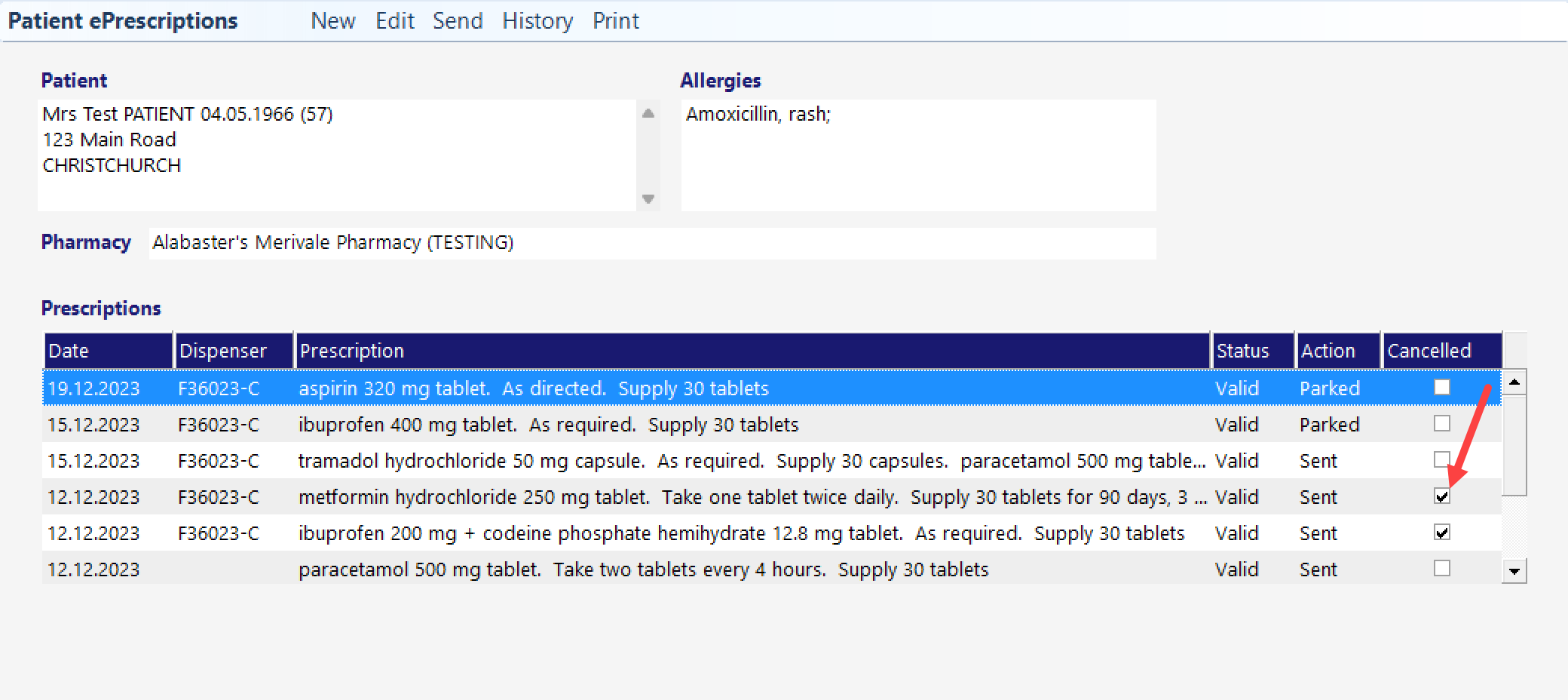
The medicine Search function will connect with the NZ Formulary portal which will provide you with the most up-to-date version they have medicine information. The medicines lookup is ‘live’ which means you do not need to repeatedly download the most recent NZF version.
NZ Formulary makes available the medicine products listed on the New Zealand Universal List of Medicines (NZULM) and Medsafe websites, then adds information relating to its prescribing. Monographs for both Children and Adults are available.
If a prescription is issued but cannot be delivered to the NZePS hub, because of connectivity issues, it will be marked as ‘Overdue’ and attempts to upload it will automatically recur every 30 minutes.
The ePrescription function within the Incisive application will not directly email a prescription to a pharmacy or patient. You can only print the prescription or use the secure delivery mechanism within the NZePS system. You can email the Summary or Token to the patient.
There are three routes for an ePrescription to be delivered to a pharmacy for dispensing:
electronically, directly to the pharmacy the patient has chosen
electronically, via a digital token sent to the patient’s email or txt, which they present at a pharmacy
physically, via a printed paper prescription given to the patient, which they take to any pharmacy
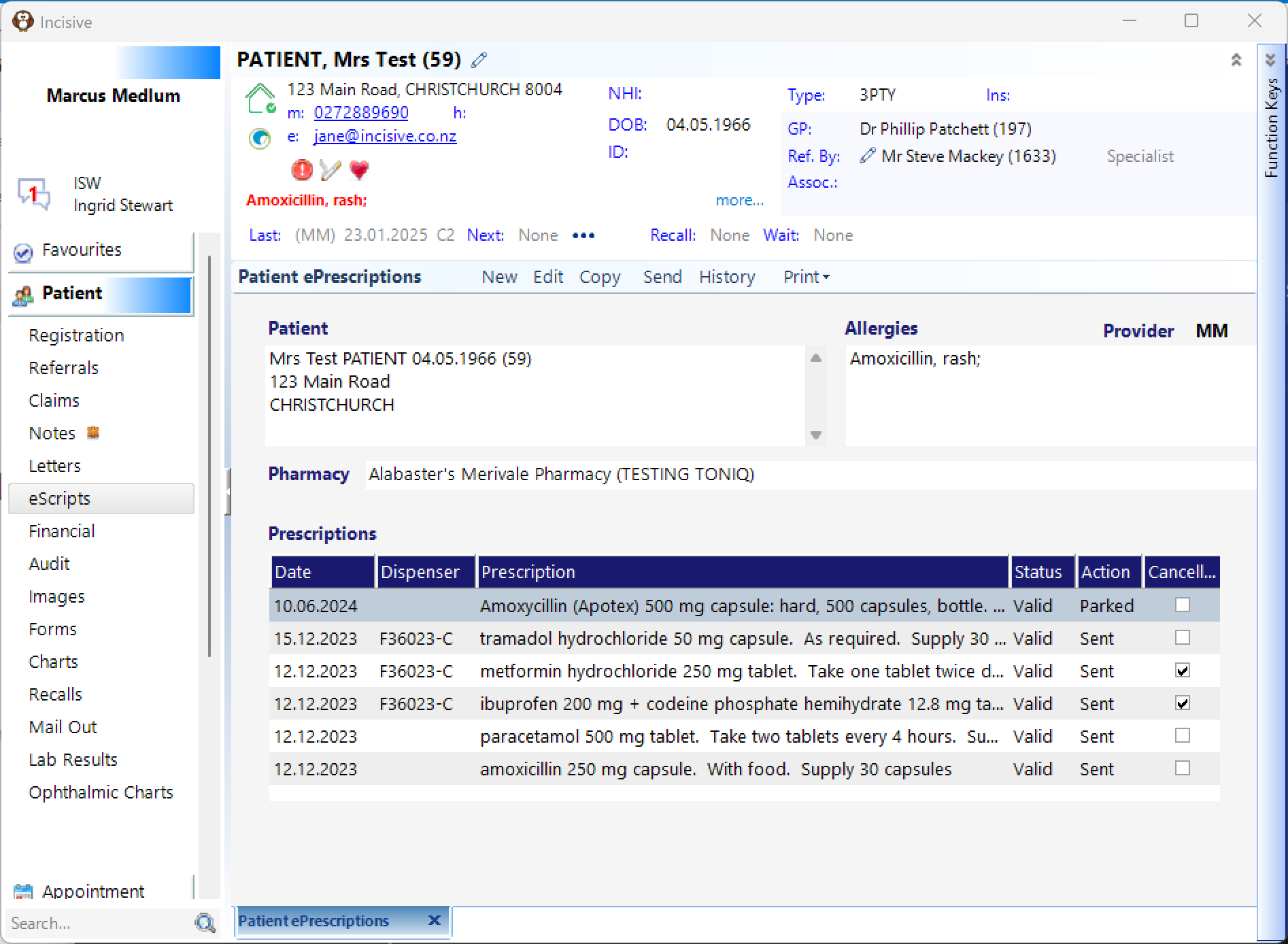
All prescriptions sent to the patient by email or SMS, will include the NZePS issued Prescription ID token, either as a number or a barcode
Buttons | |
|---|---|
New | Create a new prescription |
Edit | Update or Cancel a prescription that has not been dispensed. |
Copy | Copy the medicines & dosage of a previous prescription and re-issue as a new prescription |
Send | Upload a ‘Parked’ ePrescription to the Pharmacy & NZePS hub |
History | Show a history of the ePrescription medicines and status change |
Print or email a prescription, summary or token to the patient. Not for dispensing. |
Columns | |
|---|---|
Date | Date the prescription was sent |
Dispenser | HPI Facility ID of the dispenser (pharmacy) Placing the mouse cursor over the ID of the ‘Dispenser’ column, will display a tooltip with the name of the dispensing Pharmacy that the ePrescription was sent to. If there is no ID in the Dispenser column, then no pharmacy was selected for the patient. 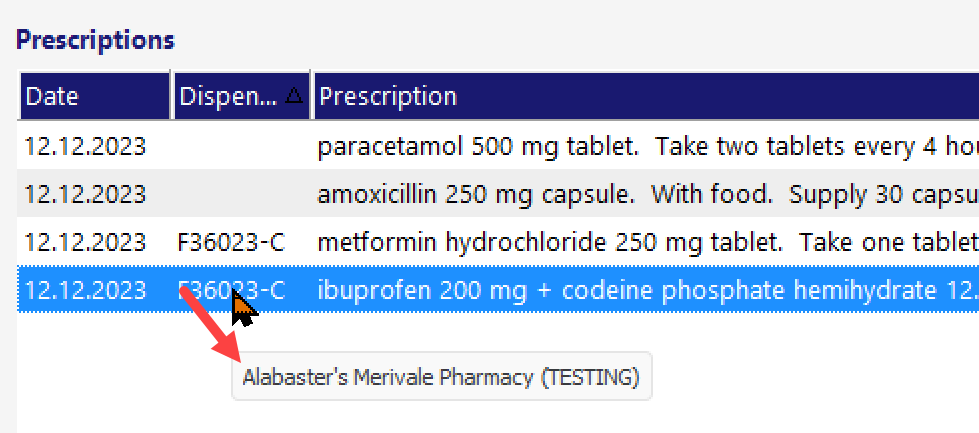 |
Prescription | List of the medicines and doses included in the prescription. Use the History button to display all medicines and then View button for details of the prescription item. |
Status | Valid, Phoned, Unsigned, Returned, Referred, Phoned, ToBeReconciled |
Action | Sent/Parked/Overdue The prescriber can highlight the ‘Parked’ prescription and use the ‘Send’ button to upload it to the NZePS hub and pharmacy. ‘Overdue’ prescriptions are created if the NZePS hub cannot receive the ePrescription. Repeat attempts will occur every 30 minutes. |
Cancelled | The prescription has been cancelled. |
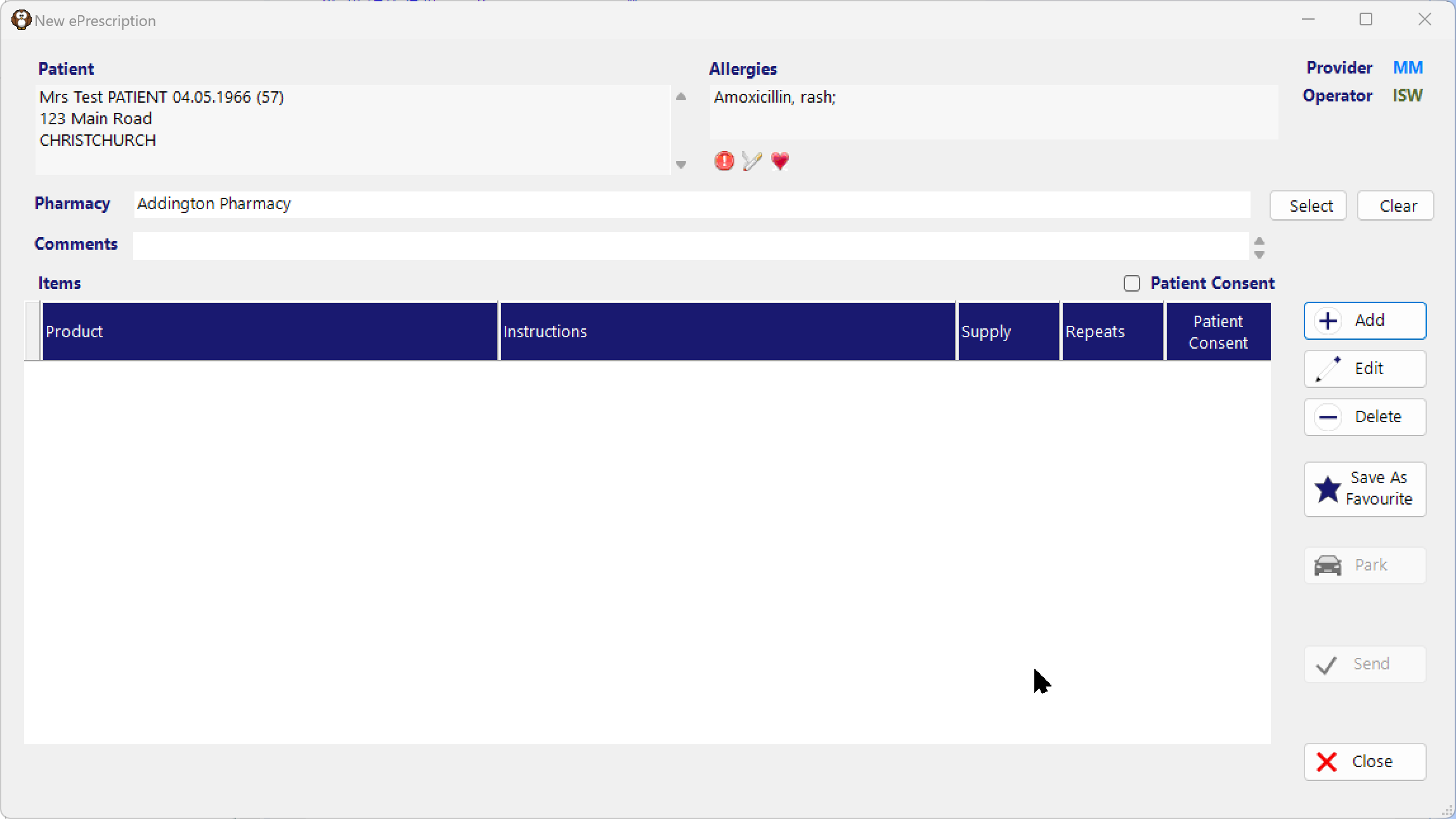
Pharmacy | If the patient’s preferred pharmacy is already chosen in the Registration screen, it will also appear in this field, otherwise use the ‘Select’ button to choose from your current list of pharmacies or add a new pharmacy from the online Healthpoint directory lookup. Choose 'Update patient’s preferred pharmacy' to update their records with the selected pharmacy. Choose ‘Lookup’ to search the Healthpoint online directory, for new pharmacies. 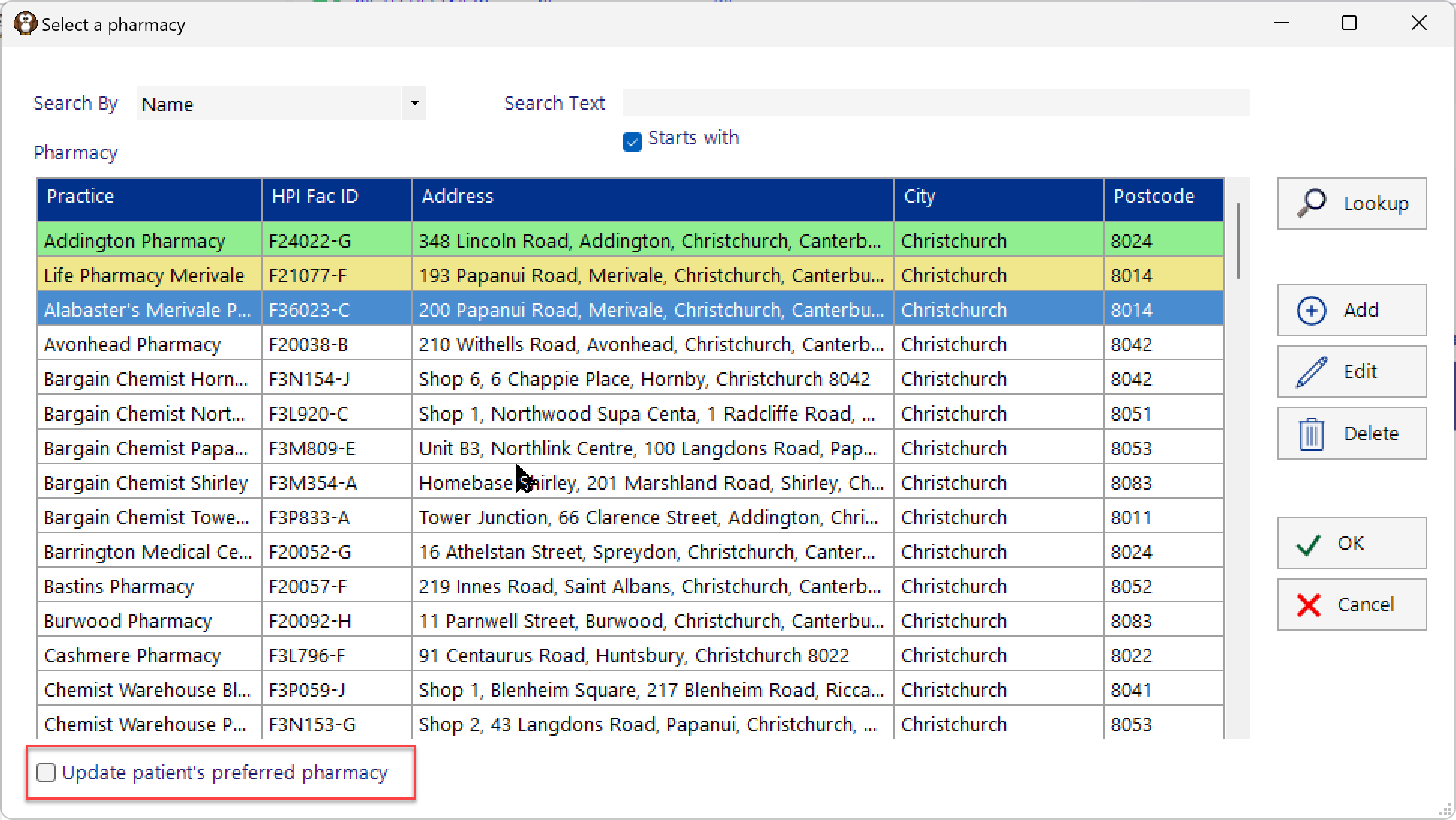 Use the ‘Clear’ button if the patient is not sure which pharmacy they are going to retrieve the medications from. The Ministry of Health remind you of the right of the patient to choose their pharmacy. |
Comments | The Prescriber is able to add Comments onto the prescription for the Pharmacist. |
Patient Consent | NZePS Reference 10.5 - The patient is not required to give consent for prescription transactions between Prescribers and Pharmacists. Consent is implied in the initiator’s consultation with the Patient in the same way it is currently done for printed prescriptions. If the Patient Consent option is unchecked at the medicine or prescription level, it will be flagged as Confidential. |
Add | Search the NZ Formulary for the medication you are looking to prescribe. The lookup is directly to the live NZF database. |
Edit | Change a medicine you have previously selected. |
Delete | Remove a medicine from the list |
Save As Favourite | Save the medication to your list of Favourites so you do not need to search the NZF database again and re-enter the various options. Selecting a saved Favourite will allow you to view the up-to-date monograph from the NZ Formulary. NZePS Favourites are not read from or saved to Setup > Prescriptions > Structured > Favourites. |
Park | Parking a list of medicines allows a nurse or other staff member to assemble the list, but who are not authorised to issue the prescription. The prescriber can then choose a ‘Parked’ medication list and issue it as a prescription, by clicking on the Send button in the top toolbar. |
Send | Only the prescriber is permitted to use the function to Send the prescription to the patient’s pharmacy and NZePS hub. A new Role should be created that activates only the Send button for the Prescriber role. |
Close | Close the form |
Searching for a medicine
The NZ Formulary is used for the online medicine search, for all types, except ‘Favourites’.
Favourites are saved searches and are stored locally in the database.
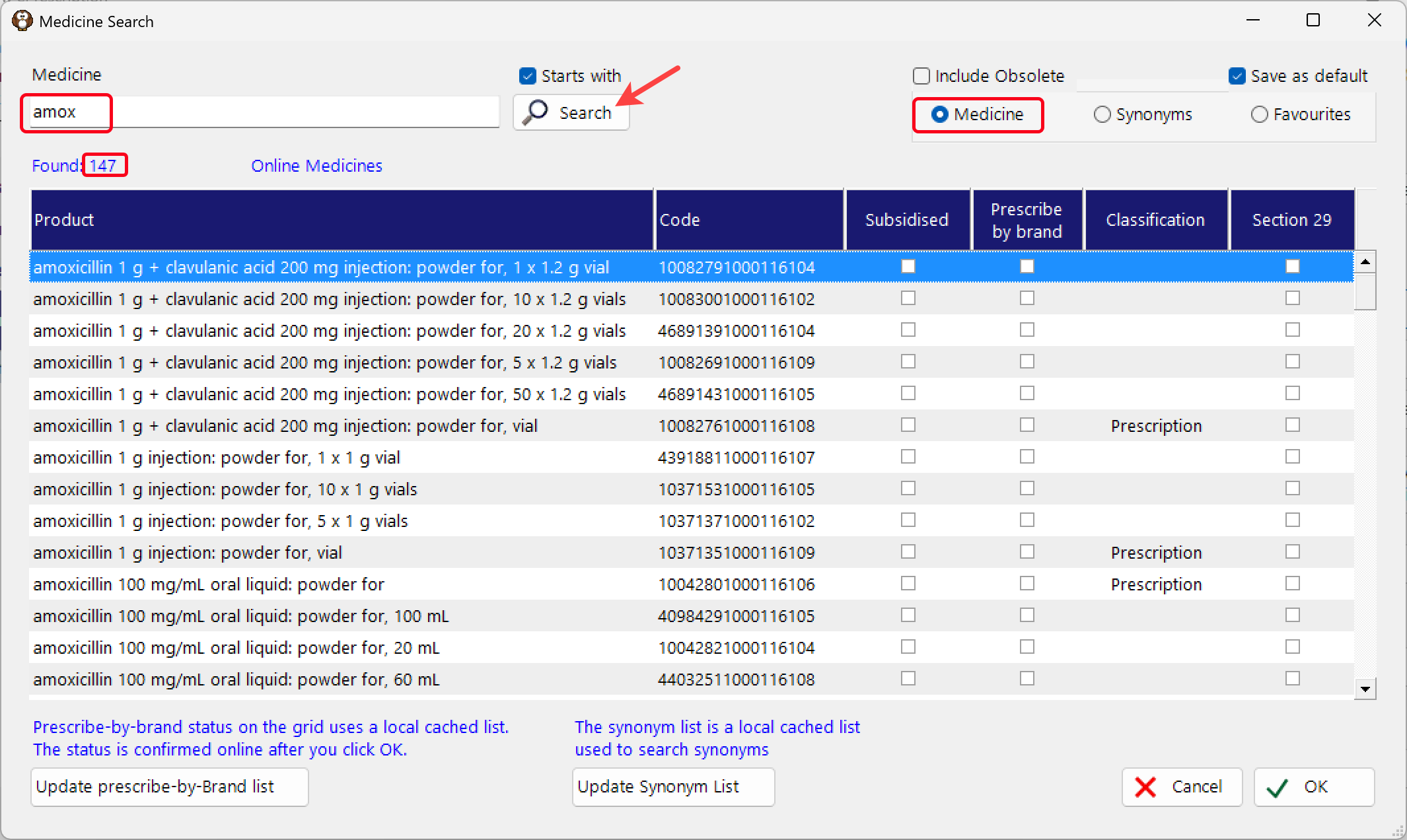
The search will default to use the ‘Starts with’ option enabled, which means it is searching for all medicines that start with the text that you have entered.
Medicine search
Choosing the ‘Medicine’ search will scan across both the Generic and Brand names. This example shows 147 results.
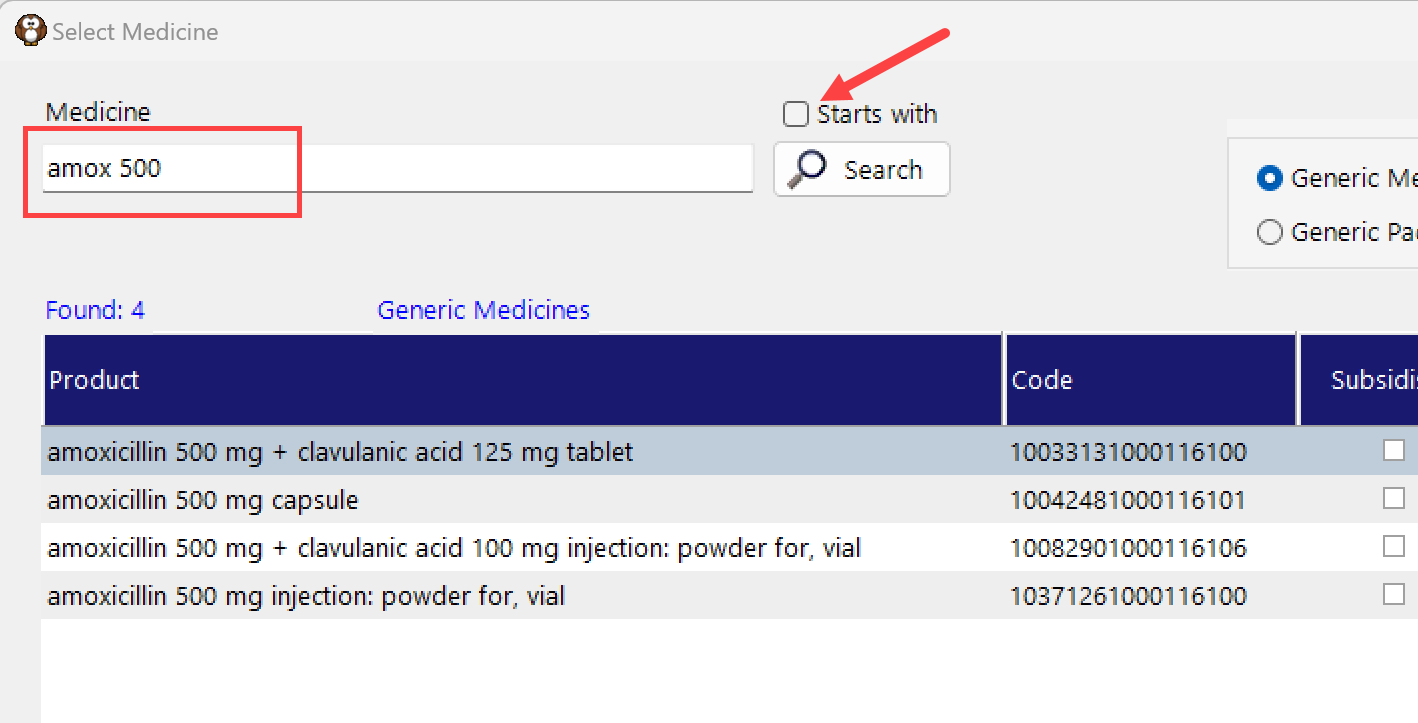
If you want to use the AND search operator to filter the search or search for any text, you can uncheck the ‘Starts with’ option. The search will be slower as it is filtering for multiple text strings.
Synonym search
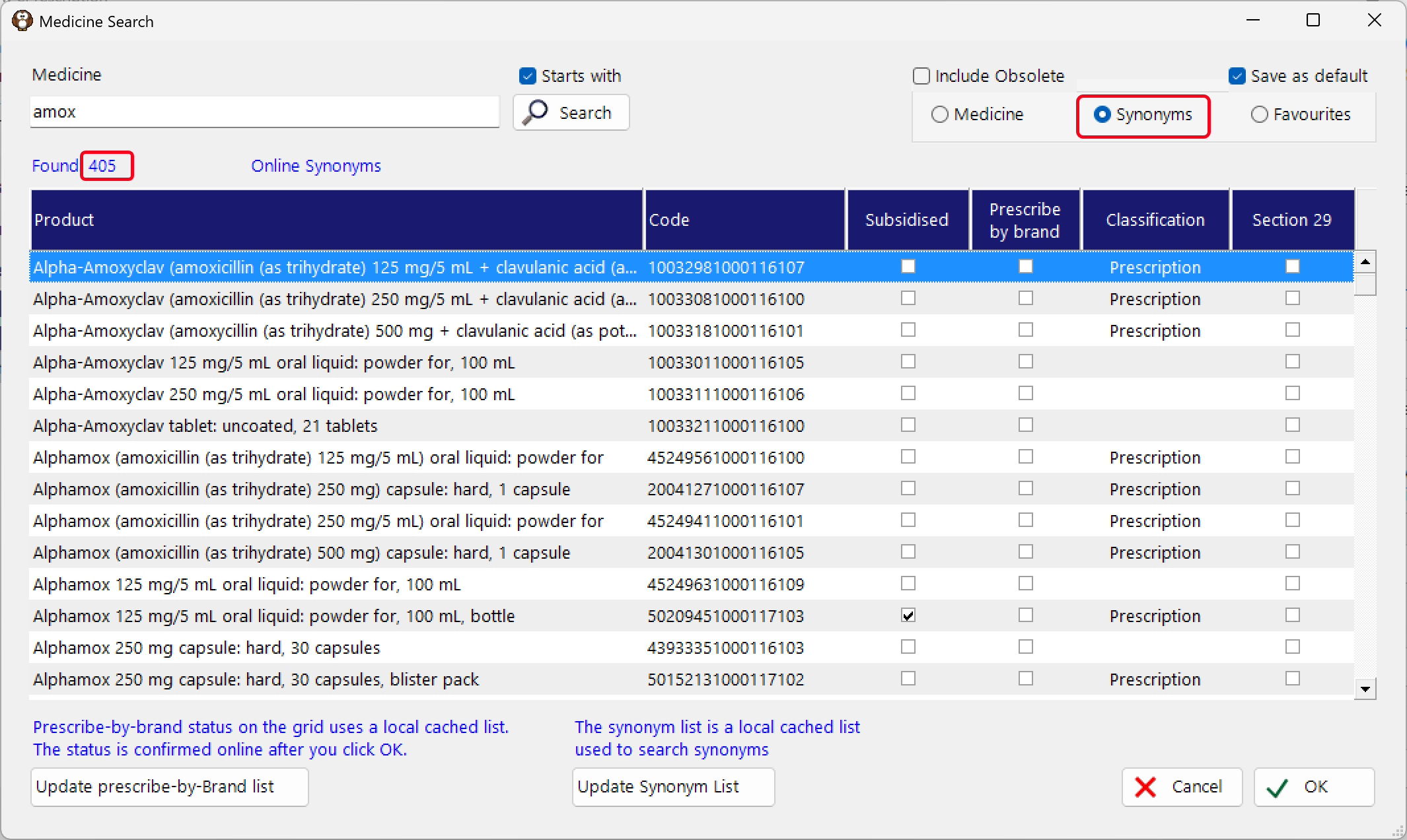
Choosing the ‘Synonym’ search will expand the search criteria to look for synonyms as well.
Some medications are difficult to find e.g. co-trimoxazole. Previously, this could only be found by the brand name (Trisul or Deprim) as the active ingredient is trimethoprim. This search for ‘amox’ has returned 400 results
Favourites search
To list all the medicines saved as Favourites, choose the Favourites radio button and then search with or without text entered in the Medicine field.
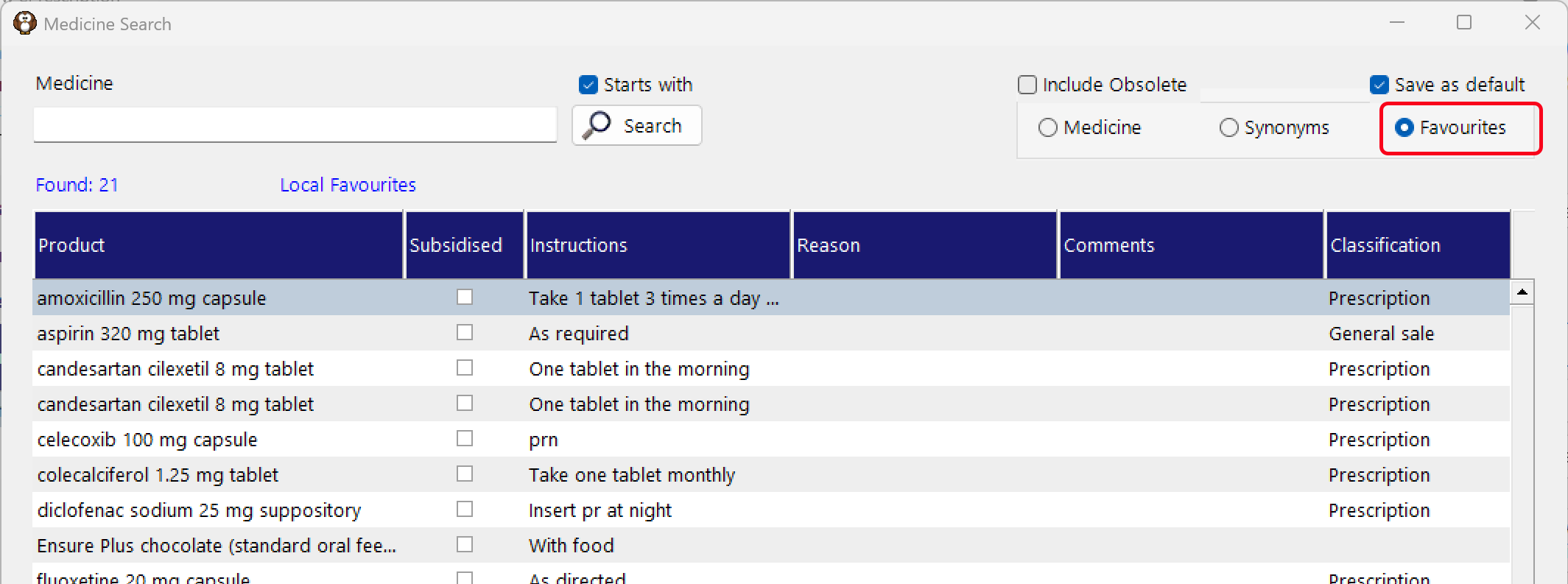
Save As Default
This will save your search selection so it is displayed when you next come to this Search form
Medication dose, formulation, regimen
The content of this screen is determined by the NZePS.
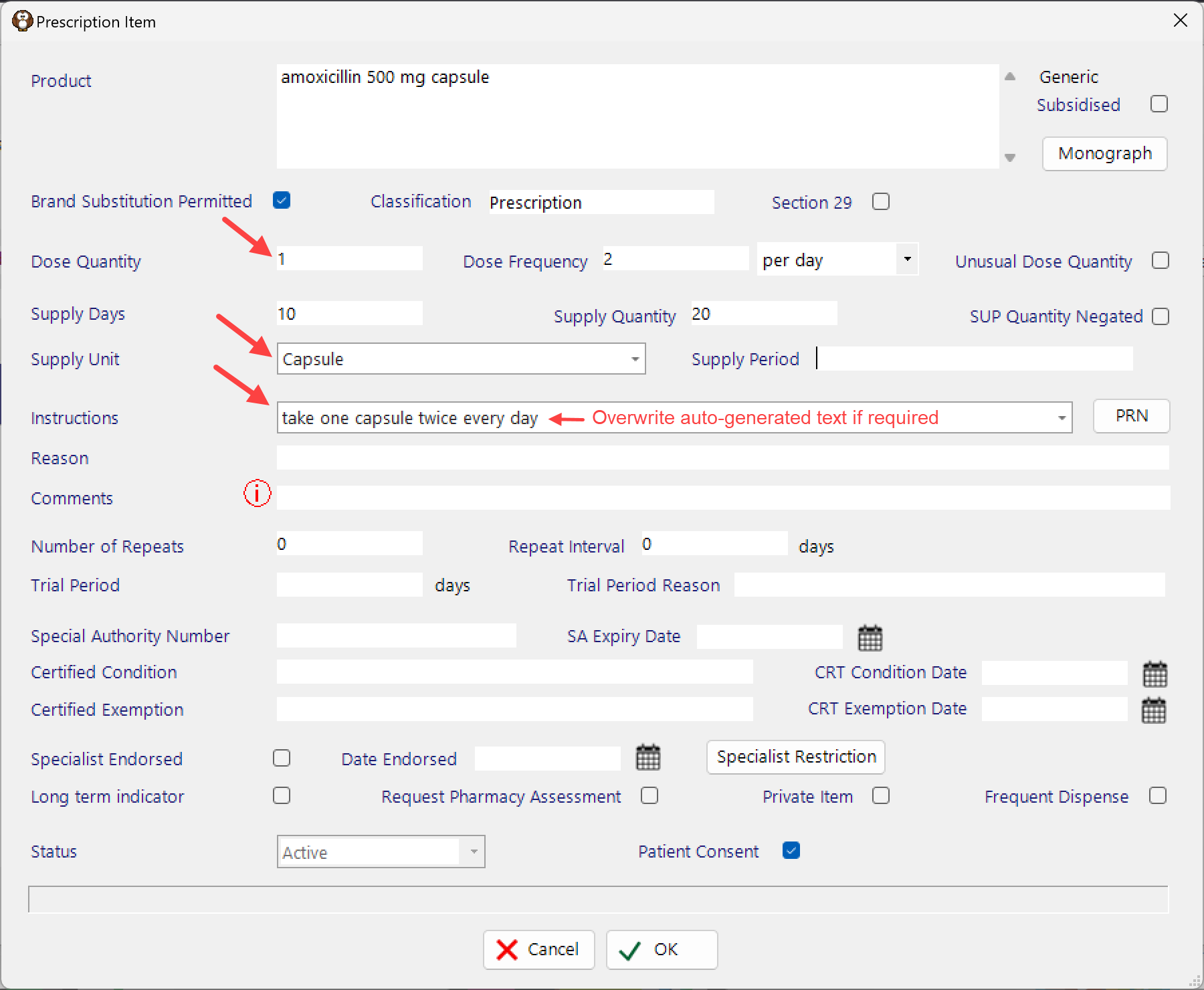
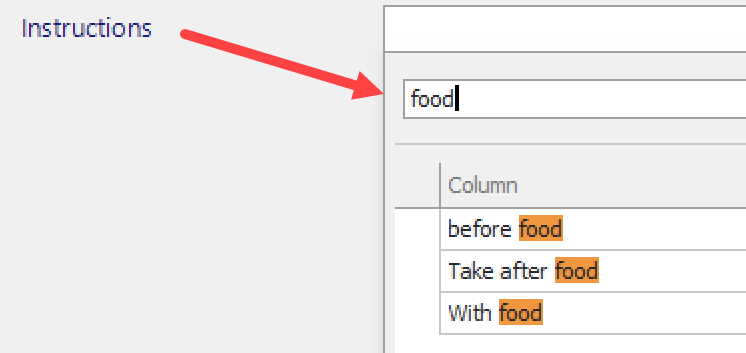
It is mandatory to enter the ‘Dose Quantity’ and ‘Instructions’ and ‘Supply Unit’. Additional instructions can be added to the list by using the ‘Add New’ button at the bottom of the selection list, or via Setup > Prescriptions > Structured > Instructions.
Search for an instruction by typing in some text:
Medicine monographs can be viewed by clicking on the Monograph button.
If the patient is 18 years old or younger, the Child appropriate monograph will be displayed.
Sending the Prescription
Only the Prescriber is permitted to Send (upload) a prescription to the NZePS hub and pharmacy. There must be a Role, only assigned to the Prescriber, that has a permission activated for the Patient > eScript > Send button. Roles for other staff must be excluded from using the Send button.
When an ePrescription is sent, it uploads the medicine and prescribing data to the NZePS hub and also to the dispensing pharmacy, if chosen. If the NZePS hub is not able to receive the prescription, further connections will be attempted every 30 minutes, after which it will become 'Overdue' and the prescription can be manually uploaded.
The ‘Send’ button is effectively the authorisation for the medicines on a prescription to be dispensed. The prescription image and granular data will always be uploaded to the NZePS hub and if a pharmacy is selected, they will also receive the same image and data.
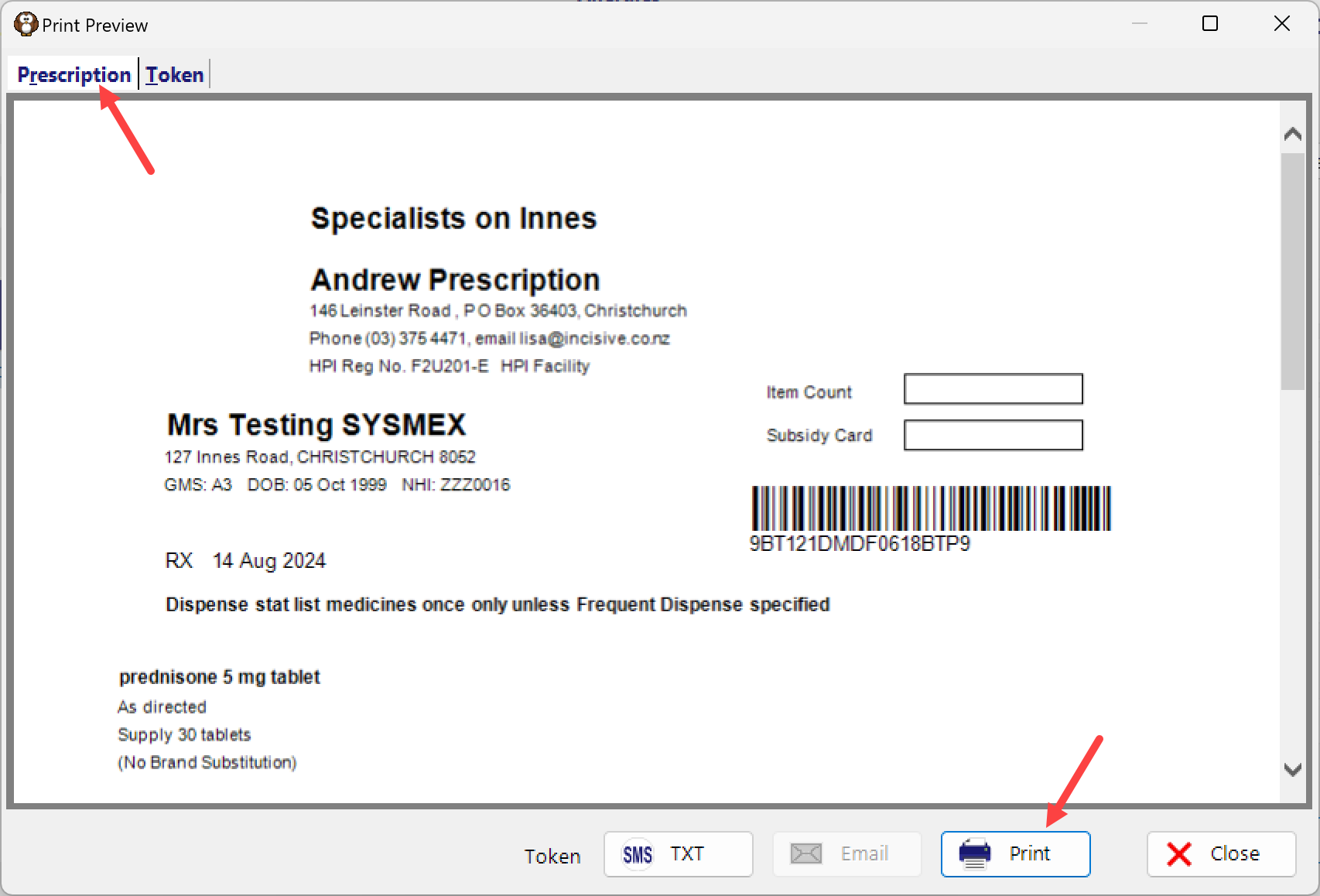
Pharmacists must have a printed prescription to allow them to legally dispense medicines. The printed prescription can be given to them by the patient or the digital prescription image can be retrieved from the NZePS hub or their dispensing Inbox, then printed.
Selecting a pharmacy means that the pharmacy will get the digital prescription delivered directly and immediately into their system. Not selecting a pharmacy means that the pharmacy is going to have to search the NZePS hub to retrieve the prescription, or get the patient to hand them a printed prescription.
If you want to give the patient a paper prescription you must:
NOT choose a pharmacy for the patient, AND;
check ON the option to print the prescription.
All prescriptions sent to the patient by email or SMS, will include the NZePS issued Prescription ID token, either as a number or a barcode
Pharmacy selected & prescription uploaded to pharmacy
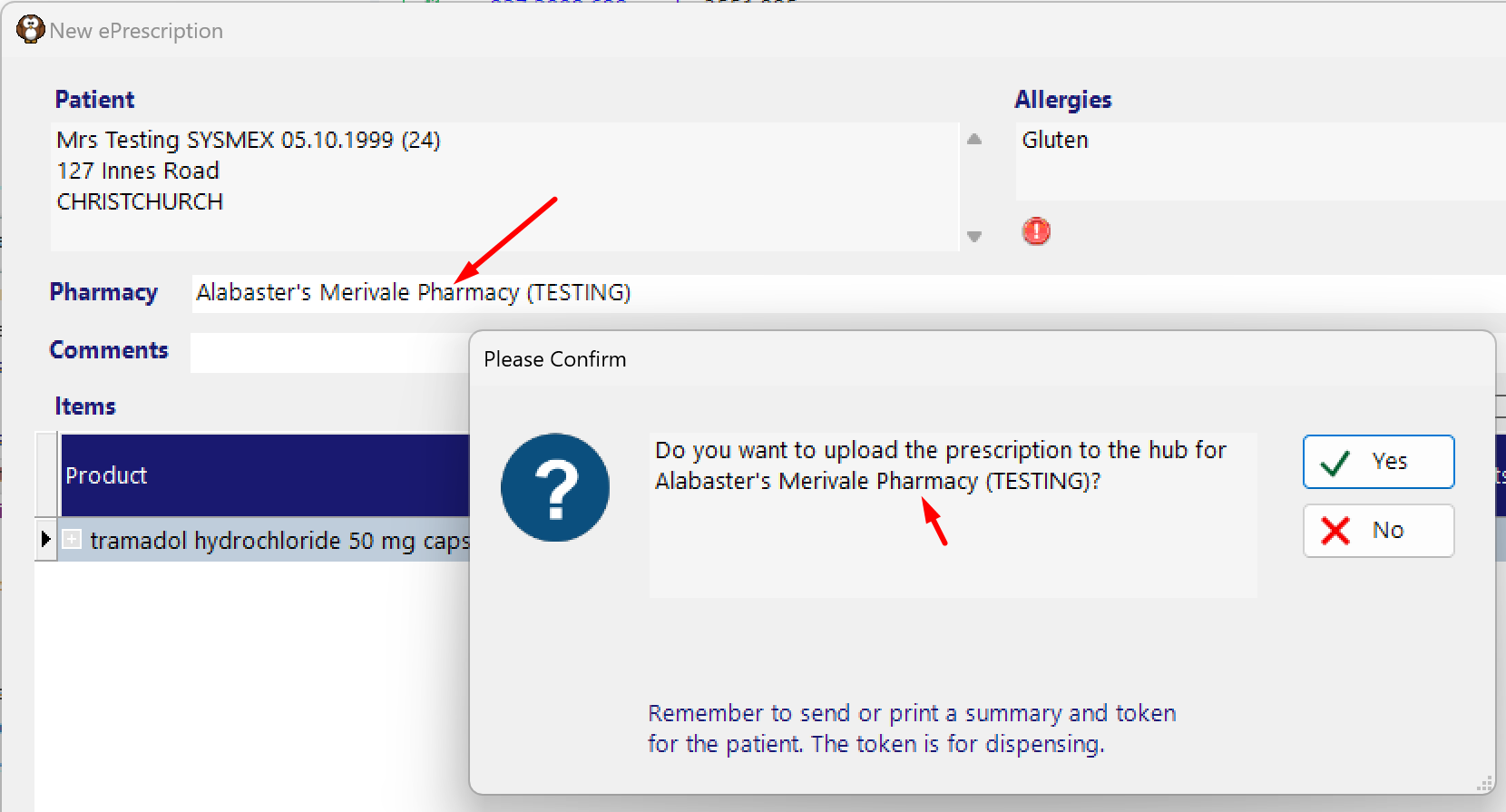
prescription data & pdf uploaded to NZePS; specified pharmacy receives prescription; patient can be provided with Summary & Token
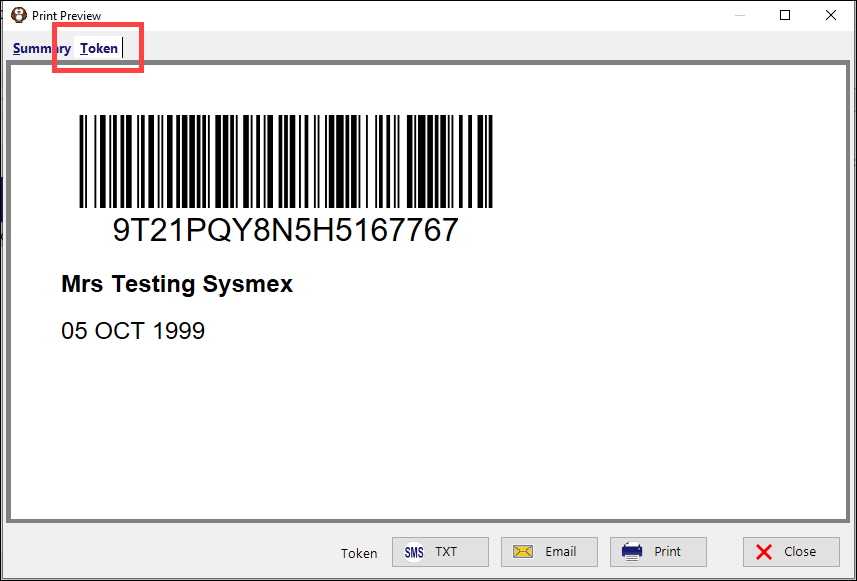
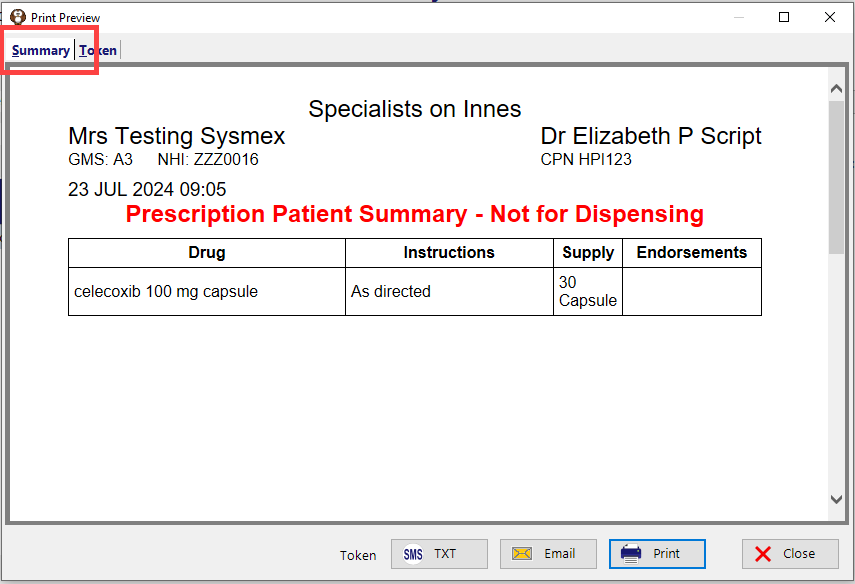
Pharmacy not selected & prescription uploaded to hub
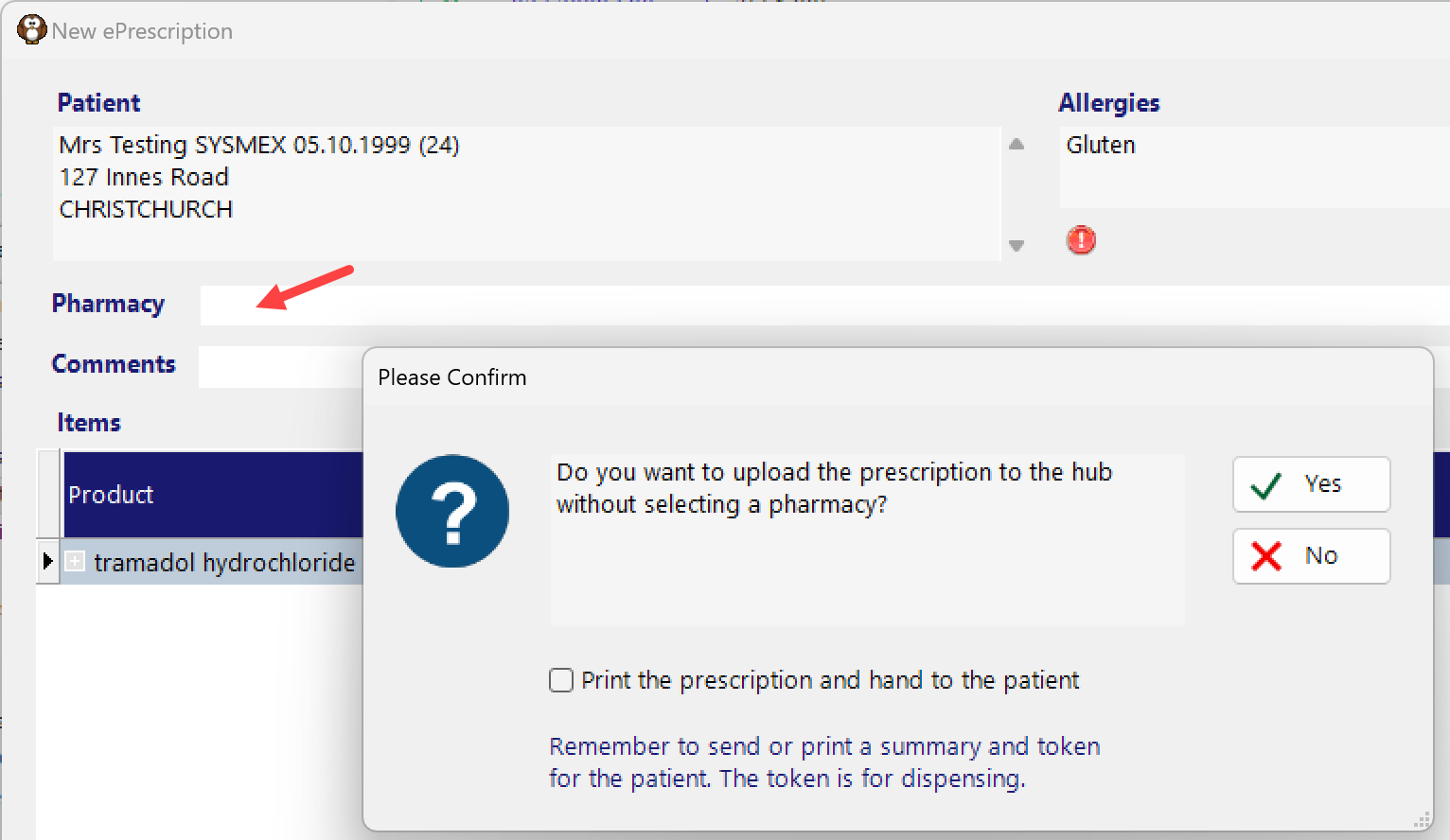
the prescription is only uploaded to NZePS hub; patient must be given a printed Token or have the Token emailed or txt’d to them
Pharmacy not selected & paper prescription printed
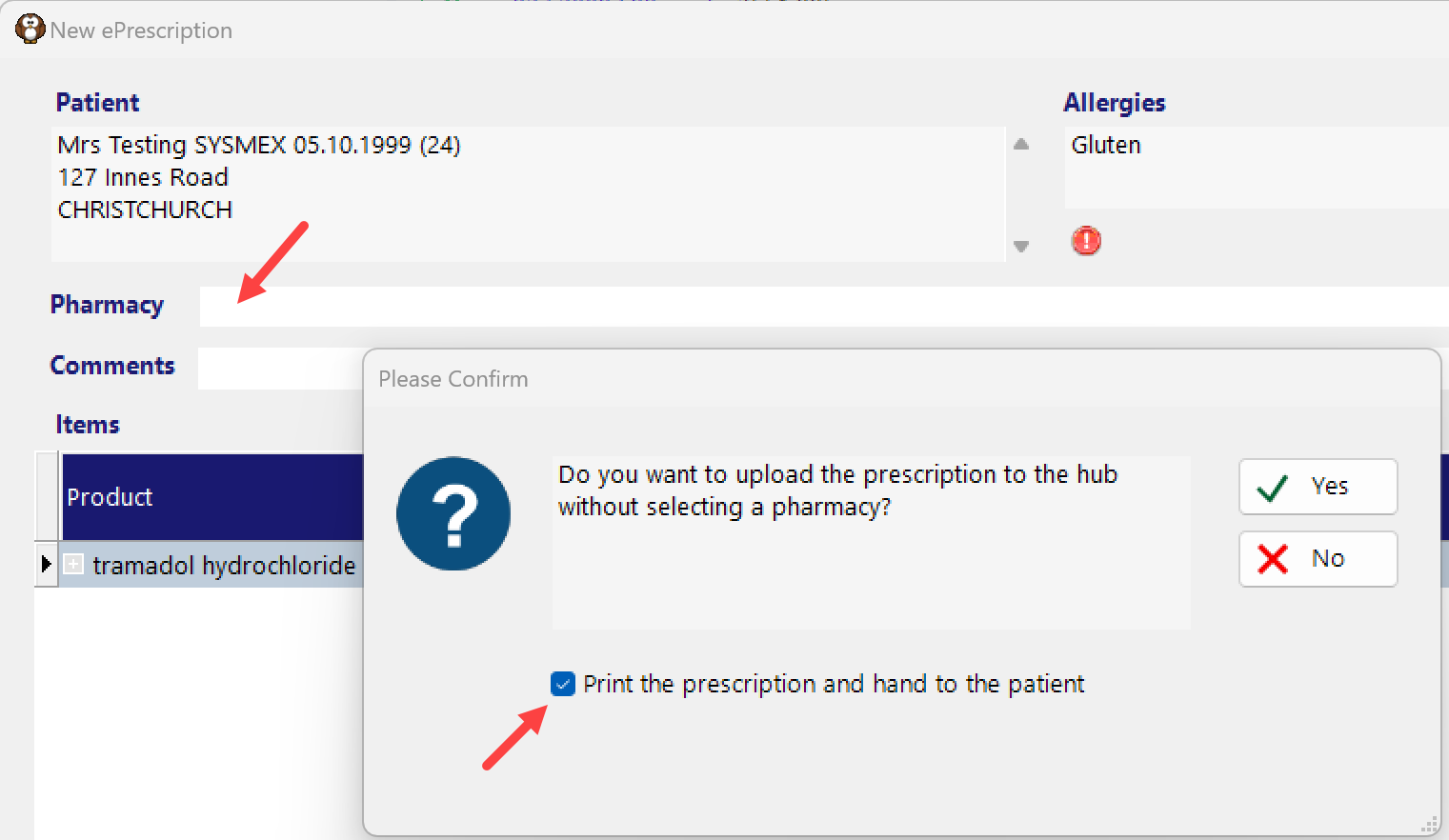
the prescription is only uploaded to the NZePS hub; patient must be given the printed prescription.
the prescription cannot be emailed directly from the Incisive application.
Parking a Prescription
Only an authorised Prescriber should send the prescription, however other staff can choose the medicines that are to be prescribed for a patient and then ‘Park’ it so that it is ready for the Prescriber to review and send the prescription. Staff who compile the medicines for the prescription as referred to as Authors.
When a prescription is 'Parked', it will display in Patient > eScripts and a notification will be sent to the specialist in the F10 messaging, informing them of the prescription status. An entry will also appear in the patient Notes informing that the prescription has been Parked and not Sent.
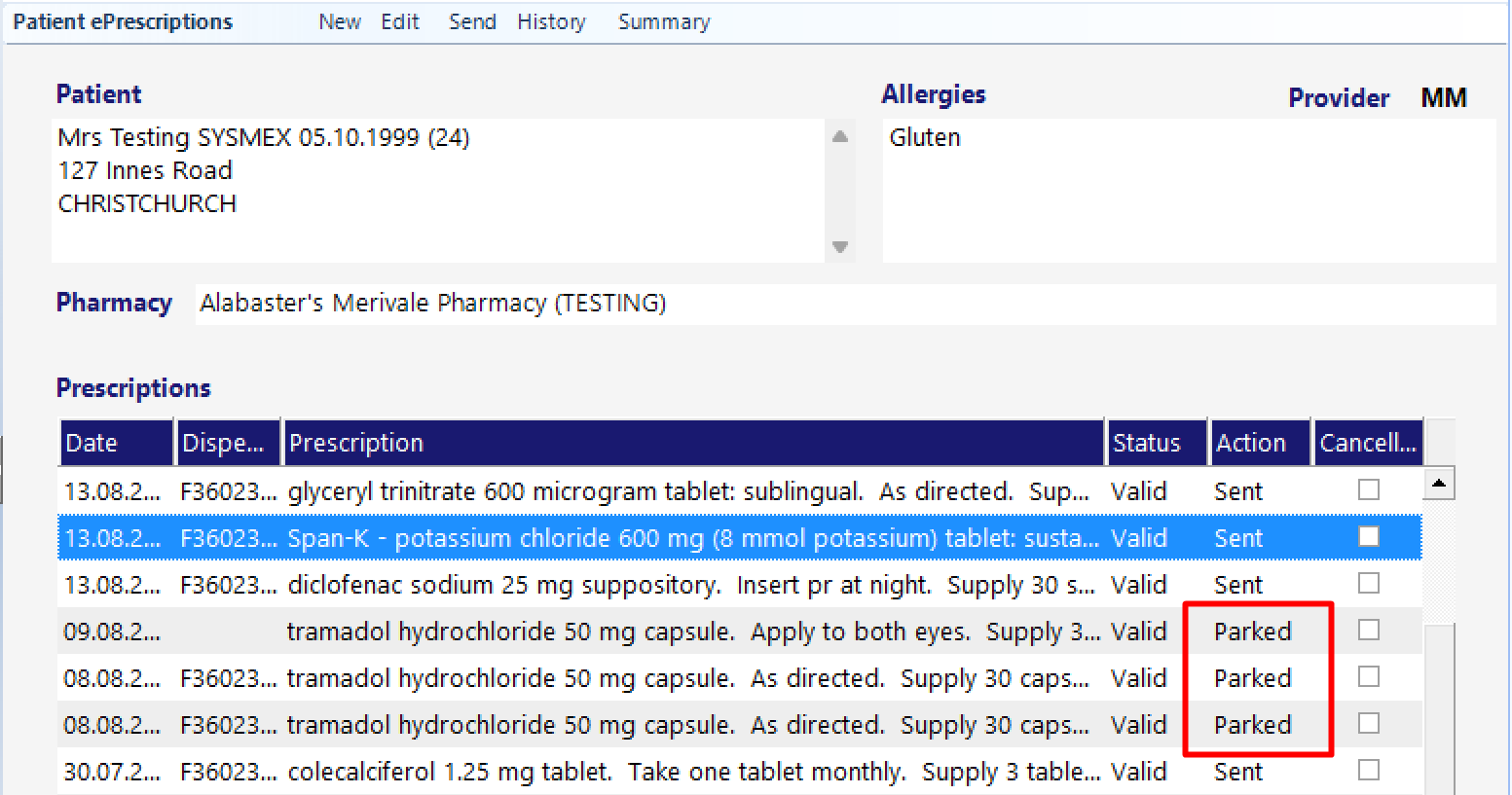
To Send a parked prescription, click on it to select it, then choose the ‘Send’ button in the menu toolbar.

Patient Records
When the ePrescription is ‘Sent’, an entry will appear in the patient’s Notes, as a Prescription. If the prescribed items are changed, via the NZePS hub, the Note entry will NOT be modified to match the change.
The ultimate reference of the dispensed medicines should be viewed in Notes > eScripts.
If the patient is sent a prescription Summary or Token, this is recorded and will appear in Patient > MailOut
Looking up patient Notes
While you are creating the prescription, you can lookup the patient’s Notes, using the F3 key, which displays in a separate window.
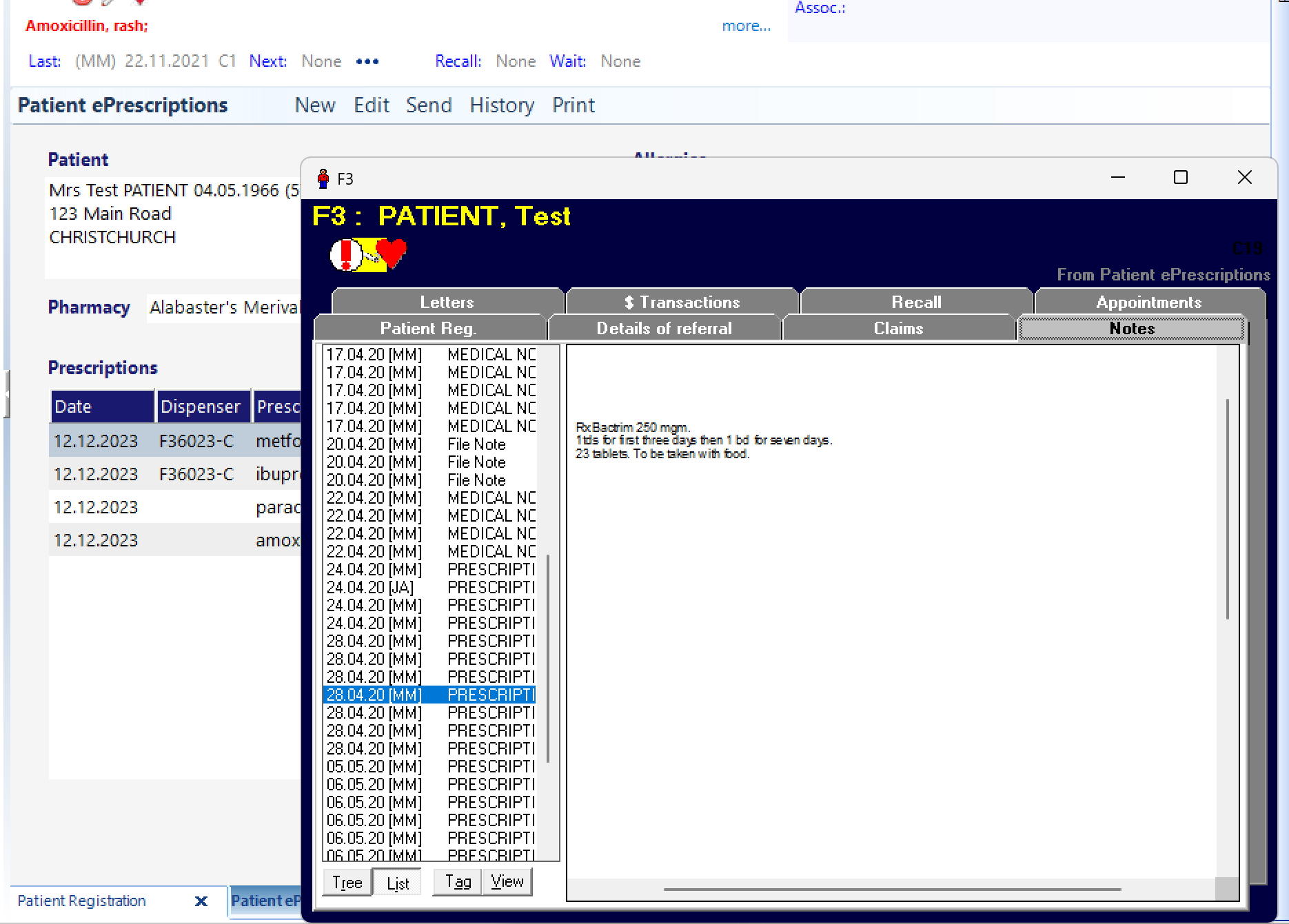
Cancelling a prescription
If a prescription has been Parked or Sent (uploaded), but not yet Dispensed, it can be cancelled, or medicines removed from the prescription,
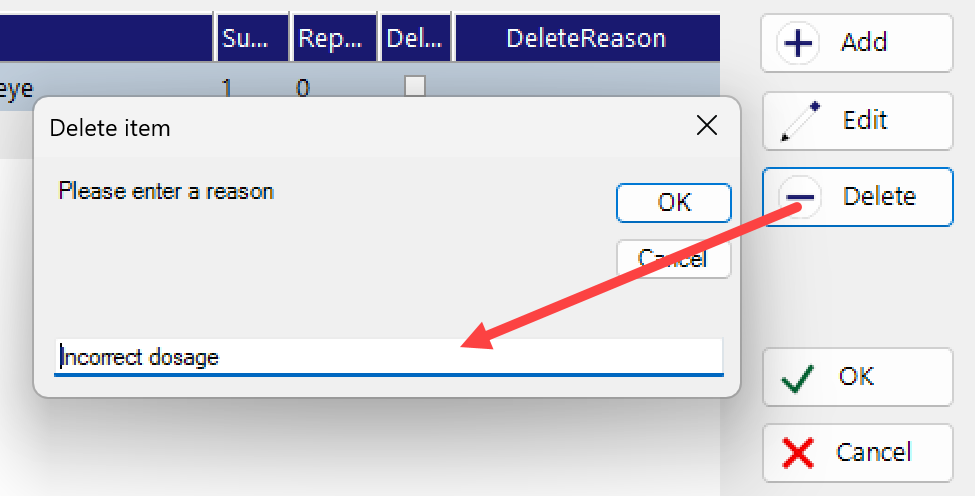
Edit the patient’s prescription and use the ‘Delete’ button to enter a reason for the cancellation. Then select the ‘OK’ button to save the change and upload the prescription status to the pharmacy and NZePS hub
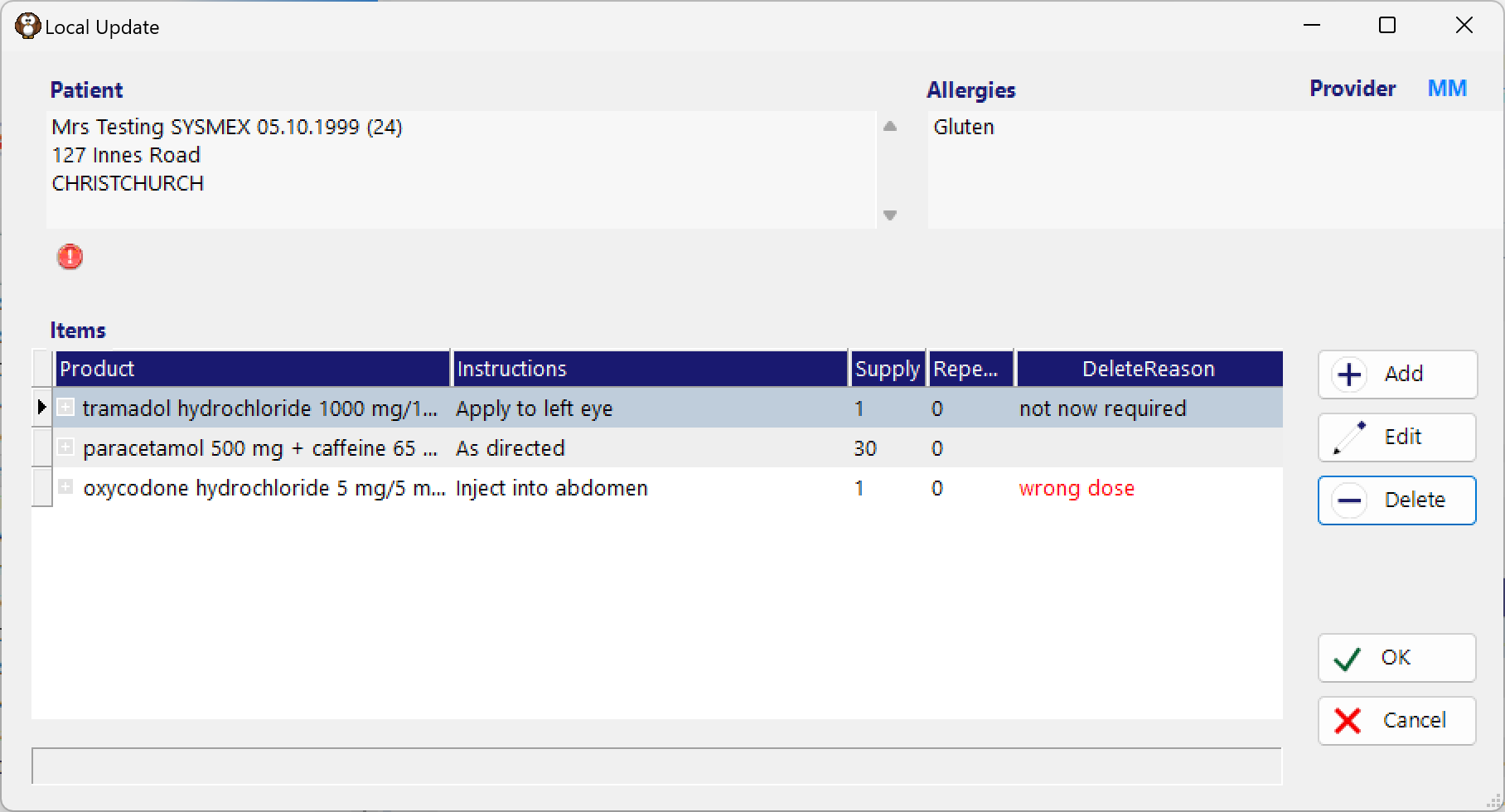
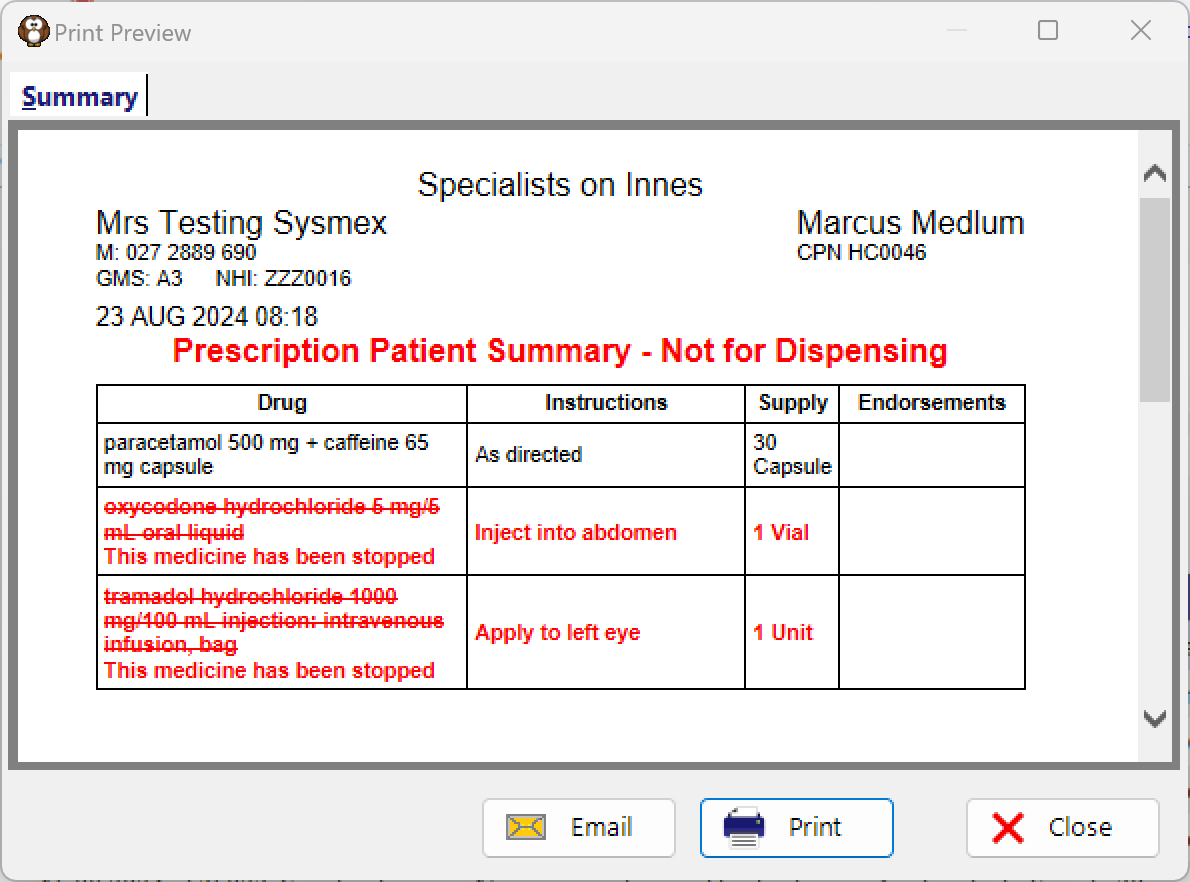
The Summary with the cancelled medicine can be provided to the patient.
The patient’s record will be updated.
The cancellation of a single medicine will trigger the checkmark in the ‘Cancelled’ column, but does not mean the whole prescription is cancelled.